 Plan Services, songs, and attendance, with the team scheduled.
 People Your directory, volunteers, and team chat in one place.
 Present Lyrics, scripture, slides, and stage display, free in any browser.
 Publish Stream Sunday, keep every sermon on your watch page, clip it.
 Patch Every device, cable, and signal path, mapped and printable.
 Pulse Know the moment the stream or a device drops.
 PTZ auto-tracking
NEW
No camera operator this Sunday? Let the camera follow the pastor.
Pick the person once and the camera keeps them in the shot as they move across the platform. If your PTZ camera has its own auto-tracking (PTZOptics Move and SimplTrack today), WorshipMetrics turns it on over the network. If it's an older camera without it, Tech Manager does the tracking on the booth computer.
Free in Tech Manager on every plan, with the PTZ cameras you already own. Nothing goes to the cloud.
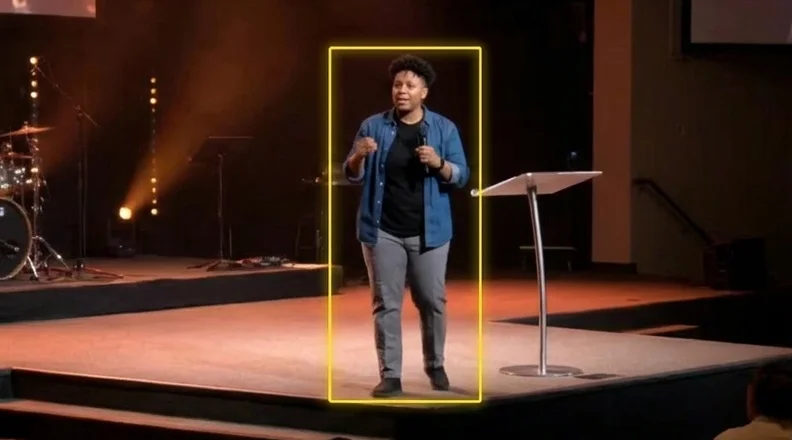
Click the person once. The box shows who the camera is following.
Why we built it
The camera volunteer can't be there every week.
Most churches run cameras on volunteers, and volunteers have jobs, kids, vacations and the flu. Some weeks the camera seat is empty, and the stream sits on one wide shot while the pastor walks out of it. WorshipMetrics gives you two ways to cover that week.
Someone can help, just not from the booth
Drive the cameras from anywhere
A volunteer at home, a student in the back row or a tech director at another campus opens Camera Control in a browser and gets the live picture, the presets and the aiming tools. Cloud camera control comes with Pro and Max, in beta.
See remote camera control →Nobody can
Let the camera follow the pastor
Set the shot, pick the person, and the camera keeps them centred as they walk the platform. The rest of this page is how that works, with new cameras and old ones.
How auto-tracking works ↓Two kinds of tracking, one tab
New cameras track themselves. Older ones get our help.
Both live in the Auto tracking tab under the camera's picture, and the tab lists the better option for that camera first.
Cameras with built-in tracking
Switch on the camera's own tracker
Some PTZ cameras ship with auto-tracking inside. On those, WorshipMetrics turns the camera's tracker on and off over the network with one click, from the booth or from a browser. The camera does the tracking itself and sees the full picture with no delay, so when a camera has it, use it.
Today: PTZOptics Move and SimplTrack cameras. Other brands' trackers are on our list.
Older cameras without it
Follow a person, with any PTZ camera
Most church PTZ cameras don't have a tracker, and you shouldn't have to replace them to get one. Tech Manager watches the camera's picture on the booth computer. You click the person to follow, and it pans the camera left and right to keep them in the middle of the shot.
Runs in Tech Manager on the booth computer. It pans; it doesn't tilt or zoom.
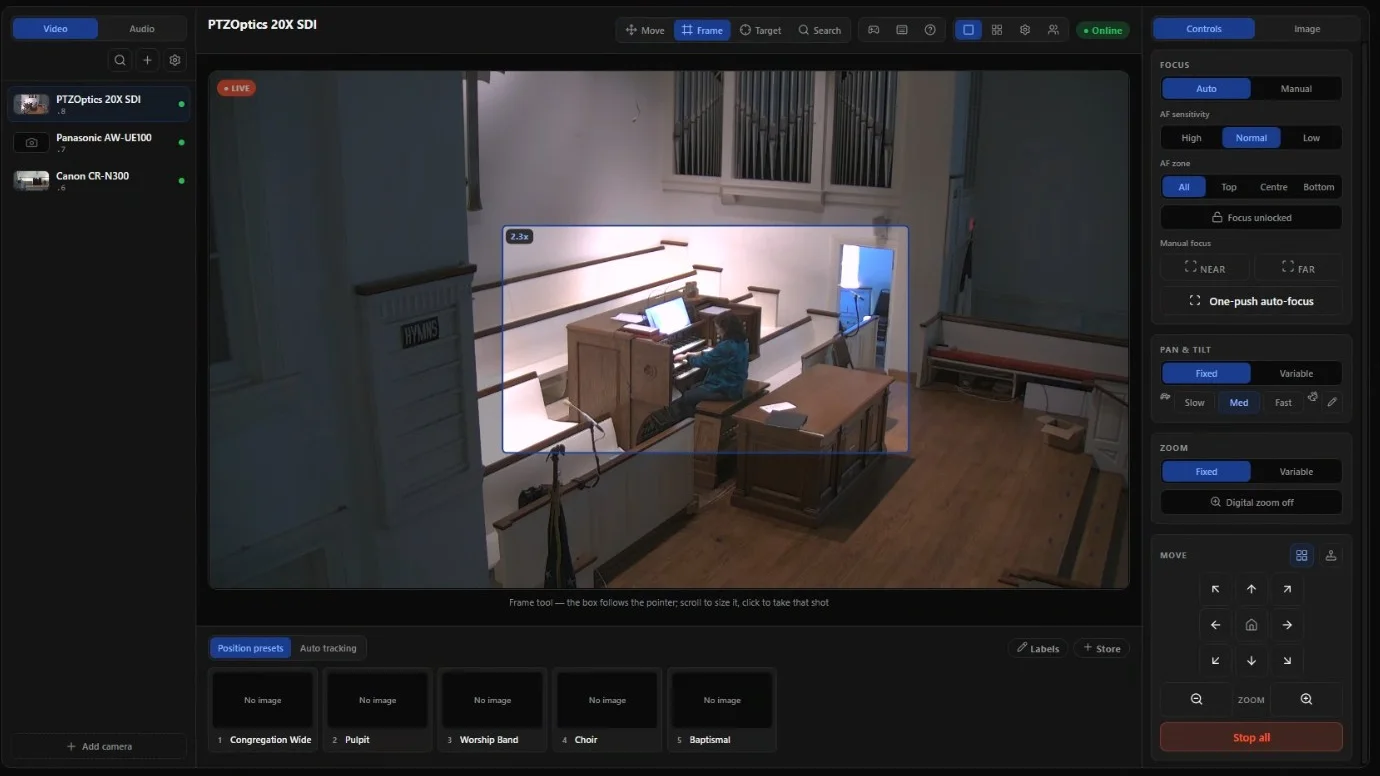
Camera Control in Tech Manager. The Auto tracking tab sits beside the presets, under the live picture.
Follow a person
Four steps before the service.
- 1
Frame the shot
Set the tilt and zoom for the platform, wide enough to show the person head to toe. Follow a person pans; you can still zoom in or out by hand while it follows.
- 2
Pick a person
In Tech Manager, open Produce > Camera Control, choose the camera and open the Auto tracking tab. Click Pick a person, then click them in the picture. A box shows who's being followed.
- 3
Choose a speed
Slow, Medium or Fast sets how quickly the picture may move, so it means the same on every camera and at every zoom. Medium suits most rooms.
- 4
Stop when you're done
Click Stop in the tab, or Stop all in the controls. To follow someone else, click Pick someone else.
Built for a church computer
Runs on the booth PC you already have, and knows when to back off.
Local, light and private.
-
Nothing goes to the cloud. Follow a person runs entirely on the booth computer. There are no cloud processing fees, and it keeps working if the internet drops in the middle of the service.
-
Light on purpose. It looks for the person about four times a second while they move (twice on a busy computer) and about once a second while they stand still, and follows them at up to 15 frames a second in between. The tab shows what it's costing.
-
Works out each camera by itself. It learns how fast each camera pans, whatever the brand, and adjusts within a second or two when you zoom.
-
Keeps going in the background. Choose another camera or minimize Tech Manager, and tracking carries on.
-
Two cameras at once. Up to two cameras can follow someone at the same time: the pastor on one, the worship leader on another.
-
No faces, nothing saved. It tells people apart by what they're wearing and where they are, not by their face, and it doesn't record anything.
It never fights your operator.
Tracking drives the camera through the same control as Camera Control's joystick. The moment a person takes over there, it steps aside, and if the tracker ever stops answering, Tech Manager stops the camera. The tab always says what it's doing:
- Tracking
Following the person you picked.
- Lost
They left the picture. The camera holds still, and picks them up again when the same person comes back.
- Paused
Someone moved the camera by hand: the joystick or pad, a preset, the Frame or Target tool, focus, or an operator on the web. Turning on the camera's own tracker pauses it too. Tracking stays off until you click Resume.
- Stopped
Tracking ended, and the tab says why, for example that nobody was where you clicked.
Get a good track
Help it pick the right person.
Follow a person is deliberately simple, so it can run on modest church computers. A few habits make it much steadier.
- Pick them when they're standing clear of other people.
- Keep the shot wide enough to show their whole body.
- It tells people apart by their clothes, so it does best when they're wearing something different from the people around them.
- If it keeps losing them, choose a slower speed.
What it needs
Probably nothing you don't have.
Tech Manager at the church
Running on a computer on the same network as the cameras, usually the booth PC. It's free on every plan.
A PTZ camera Tech Manager drives
Over VISCA or ONVIF, or Panasonic AW and Canon XC cameras over their own web control.
A picture it can read
An H.264 stream from the camera over RTSP. A camera set to send only H.265, MJPEG or NDI can't be followed yet.
See the PTZ cameras Tech Manager works with.
FAQ
Auto-tracking, answered.
Does auto-tracking cost extra?
No. Both kinds of tracking are part of Camera Control in Tech Manager, which is free on every plan. Switching a camera's own tracker on from a browser comes with cloud camera control on Pro and Max (beta).
Do we need new cameras?
No. That's what Follow a person is for: it works with the PTZ cameras you already own, including older ones with no tracker of their own.
Does our video go to the cloud?
No. Follow a person runs entirely on the booth computer. Nothing is sent to the cloud, and it works without internet.
Does it tilt and zoom too?
Follow a person pans left and right; it doesn't tilt or zoom by itself. Set the tilt and zoom for the platform first, wide enough to show the person head to toe, and it keeps them in the middle as they walk. You can zoom in or out by hand while it follows, and it adjusts its panning to the new zoom within a second or two.
What happens if a volunteer takes over in Camera Control mid-sermon?
Tracking pauses and leaves the camera to them, so it never fights an operator. It stays paused until someone clicks Resume, which follows the same person again.
What if the pastor walks out of the shot?
The camera holds still and keeps looking. When the same person comes back into the picture, it picks them up again.
Can we start it from a phone or from home?
A camera's own tracker, yes: the switch is in Camera Control in the browser too, on Pro and Max (beta). Follow a person runs in Tech Manager at the booth for now; starting it from the web is coming.
Does it need a powerful computer?
No. It was built for the computers churches actually have. It looks for the person about four times a second while they move, twice on a busy computer, and about once a second while they stand still. The Auto tracking tab shows what it's using.
Which cameras have a tracker WorshipMetrics can switch on?
Today, PTZOptics Move and SimplTrack cameras. We're working on other brands' built-in trackers. Until then, Follow a person works with those cameras too.
Cover the camera seat, even on the weeks nobody can.
Install Tech Manager on the booth computer, add your PTZ cameras, and let the camera follow the pastor this Sunday.
From the Knowledge Base