 Patch
Patch
Every cable, mapped. Every fix, faster.
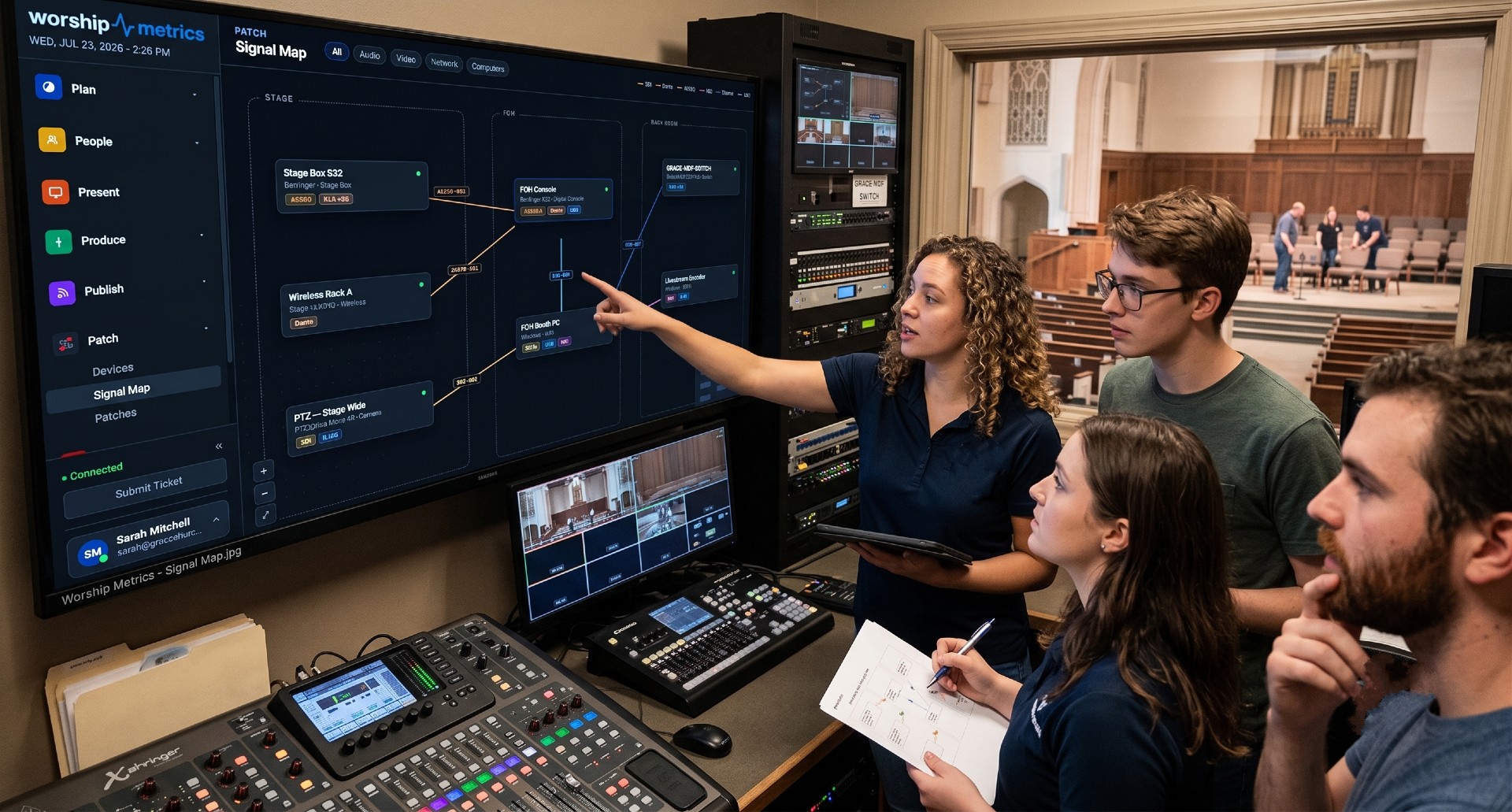
The Signal Map documents your whole system — devices, ports, and labeled cable runs. Knowledge stops living in one volunteer's head, new team members find their way around in minutes, and support can point to the exact cable.
System documentation is included in Tech Manager, free.
How it works
Build a professional AV system map in minutes, not days.
Most churches either have no documentation at all, or a dusty PDF that hasn't been updated since the last install. System Documentation gives you a living map of every device, every connection, and every signal path — kept current and shared with your team.
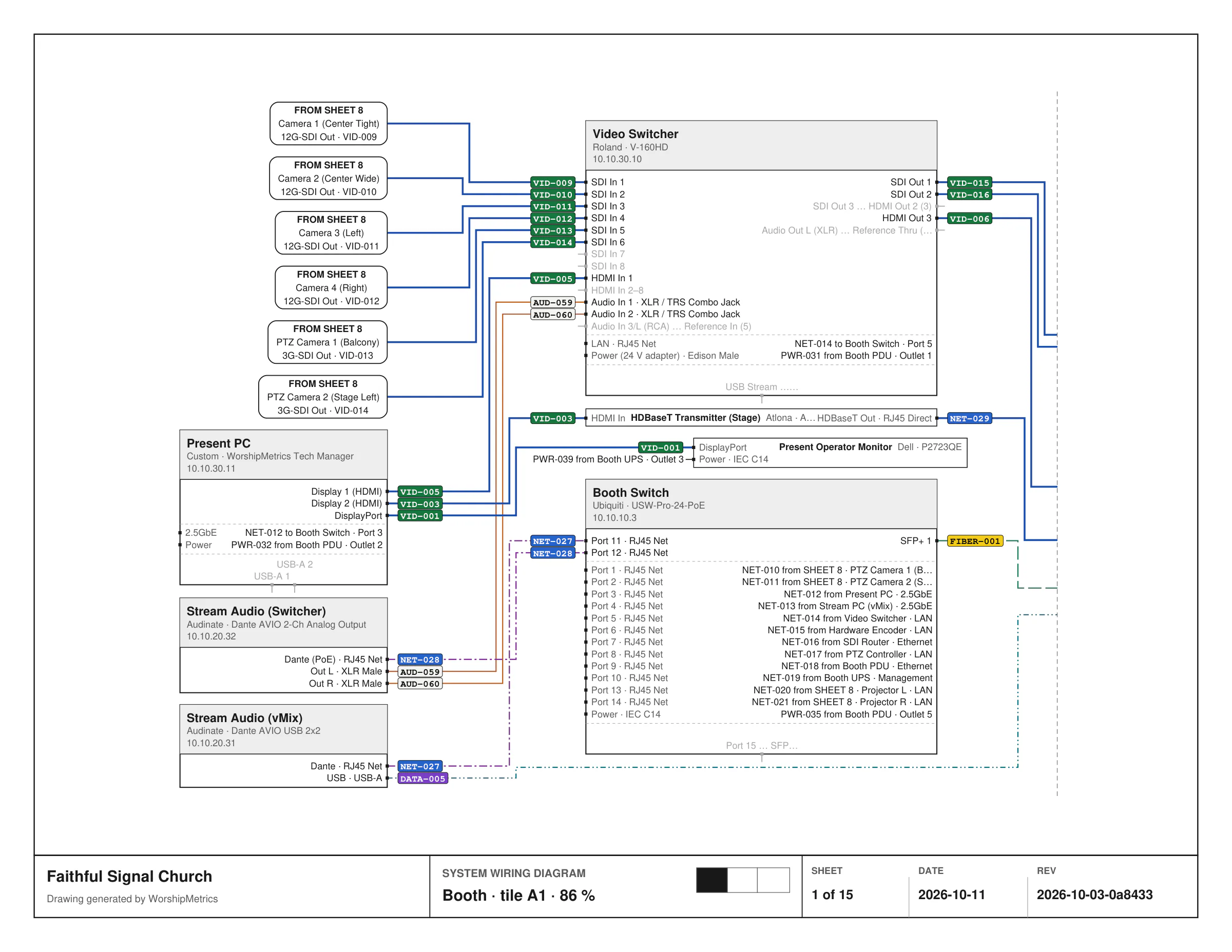
A map that draws like a CAD tool
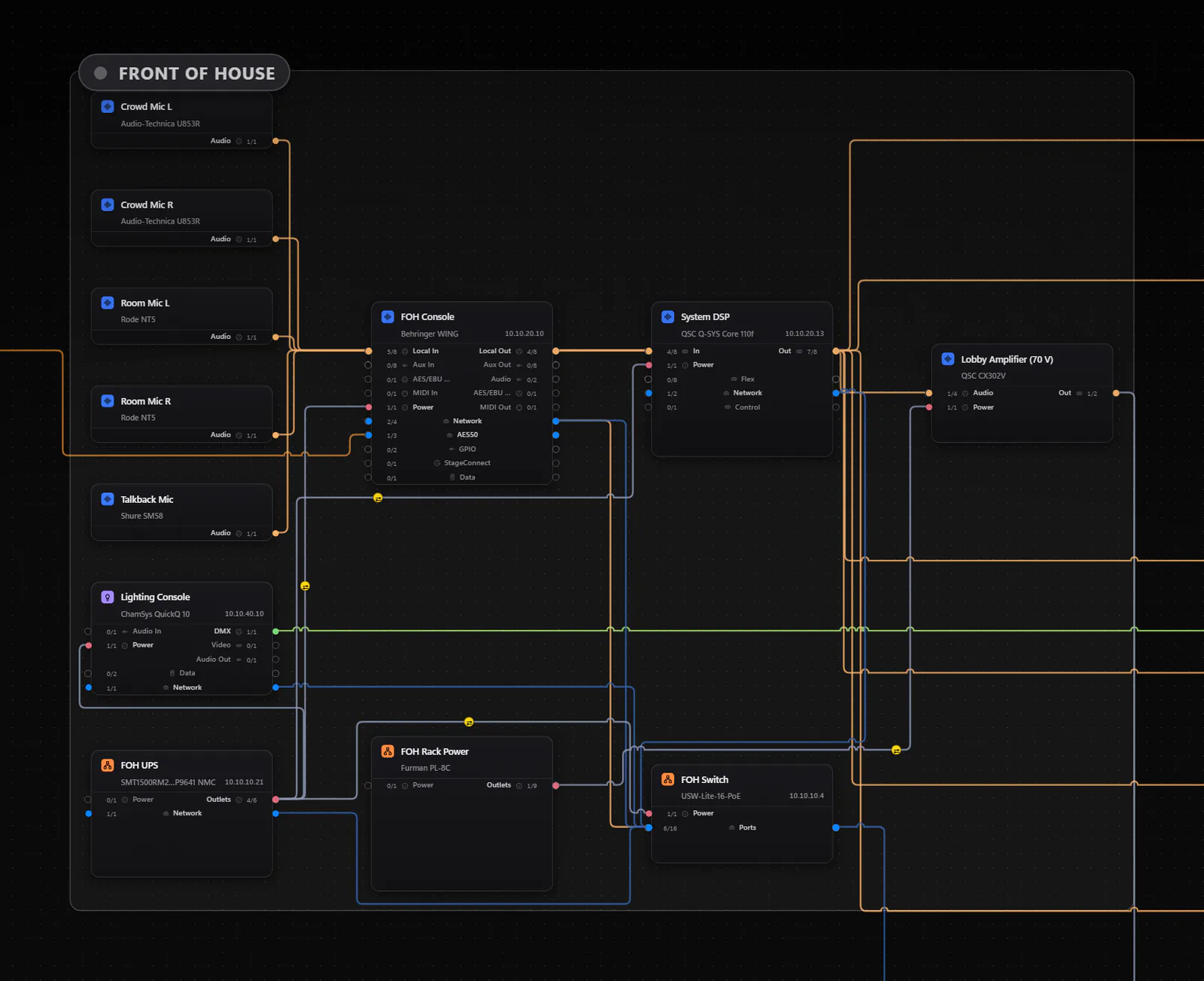
A snap-to-grid canvas with drag-from-port wiring and smart orthogonal cable routing — bundles fan symmetrically, lines jump at crossings, and the whole layout stays legible as the system grows.
Every cable gets a permanent ID
Draw a connection and it's labeled by cable type the moment it exists — VID-001, AUD-002, NET-014 — and never renumbered. Delete VID-001 and VID-002 keeps its name forever. Those IDs key the patch sheet, the printed diagram, and every support conversation.
Thousands of models with factory port maps
Add a Behringer WING or an ATEM and its real rear panel arrives already documented — factory port presets across thousands of models, down to PoE class and wattage budgets.
AI research for unknown gear
Gear the library doesn't know gets researched on demand: AI confirms the real port complement with live web search, flags its confidence, and is always visually distinct from human-verified entries.
Verified against the live network
Connect your UniFi controller and the map checks itself against reality: port-precise topology, live PoE draw per port, and negotiated versus maximum link speed — so a gigabit port stuck at 100 Mb is visible, not mysterious.
Seven automated wiring audits
Duplicate cables, self-loops, out-to-out direction conflicts, unmapped signals, connector mismatches, port-less endpoints, and duplicate device names — each finding jumps you straight to the offending cable.
It knows AES50 dies at a switch
The compatibility engine separates network signals that can ride a switch — Dante, AES67, NDI, Art-Net — from point-to-point links that can't, like AES50, Ultranet, and HDBaseT. The classic snake-into-the-switch disaster is prevented in the vocabulary itself.
Import the integrator's drawing
On Pro and Max, upload the installer's schematic or proposal as a PDF or photo, and AI vision extracts the devices and wiring into your map — nothing writes until a human reviews and approves it.
Patch sheets & vector PDF diagrams
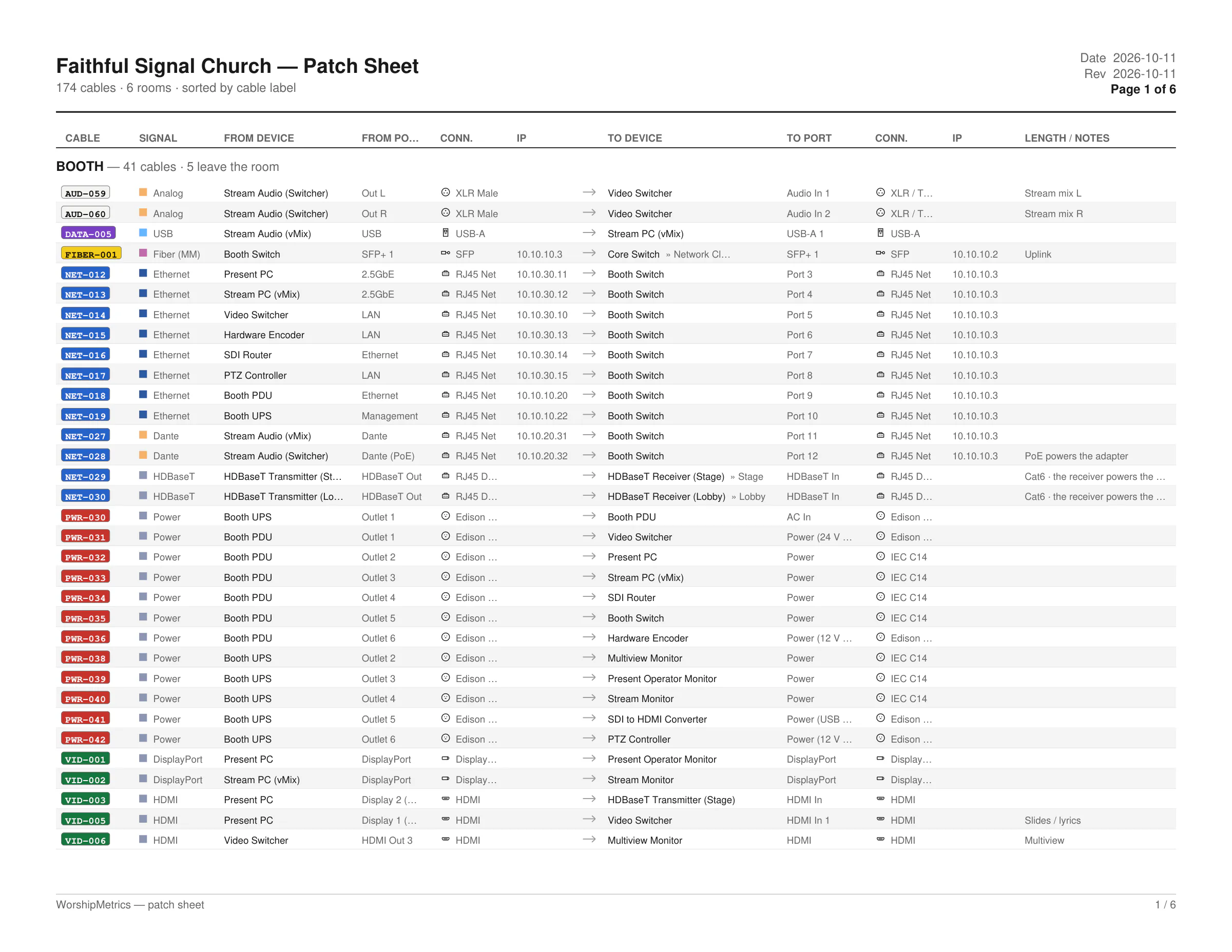
The patch sheet prints portrait or landscape, in color or mono-laser black-and-white, with your church logo and per-room sections. The wiring diagram exports as a true vector PDF in integrator-proposal style.
Documentation the AI actually reads
Every Luminos chat and 910-WORSHIP call loads your live inventory — and can pull the full signal map with cable and port labels on demand. Documenting your system is what makes support this specific.
Device library
Thousands of models pre-loaded. No guesswork.
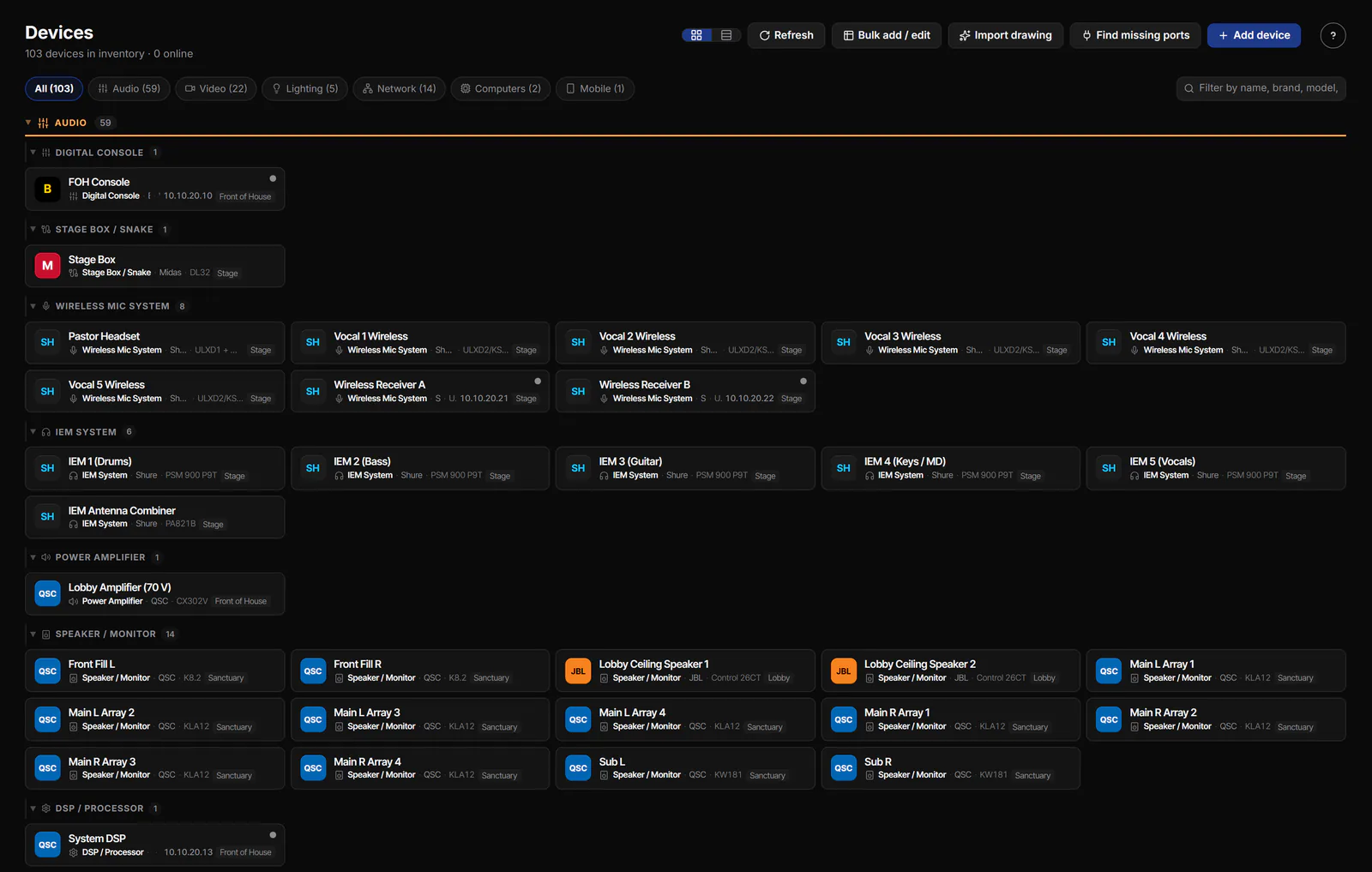
When you add a device to your system, we already know the specs. Select a Behringer Wing and the port count, protocols, and connection options populate automatically. The same goes for Blackmagic switchers, PTZ cameras, audio mixers, encoders, and hundreds more.
- A device library of thousands of models with pre-loaded specs, and counting
- Automatic port mapping — no more counting XLR jacks on a spec sheet
- Protocol detection so you know what talks to what
- Device library grows as manufacturers release new gear
Organize by type & room
See the system the way your team thinks about it.
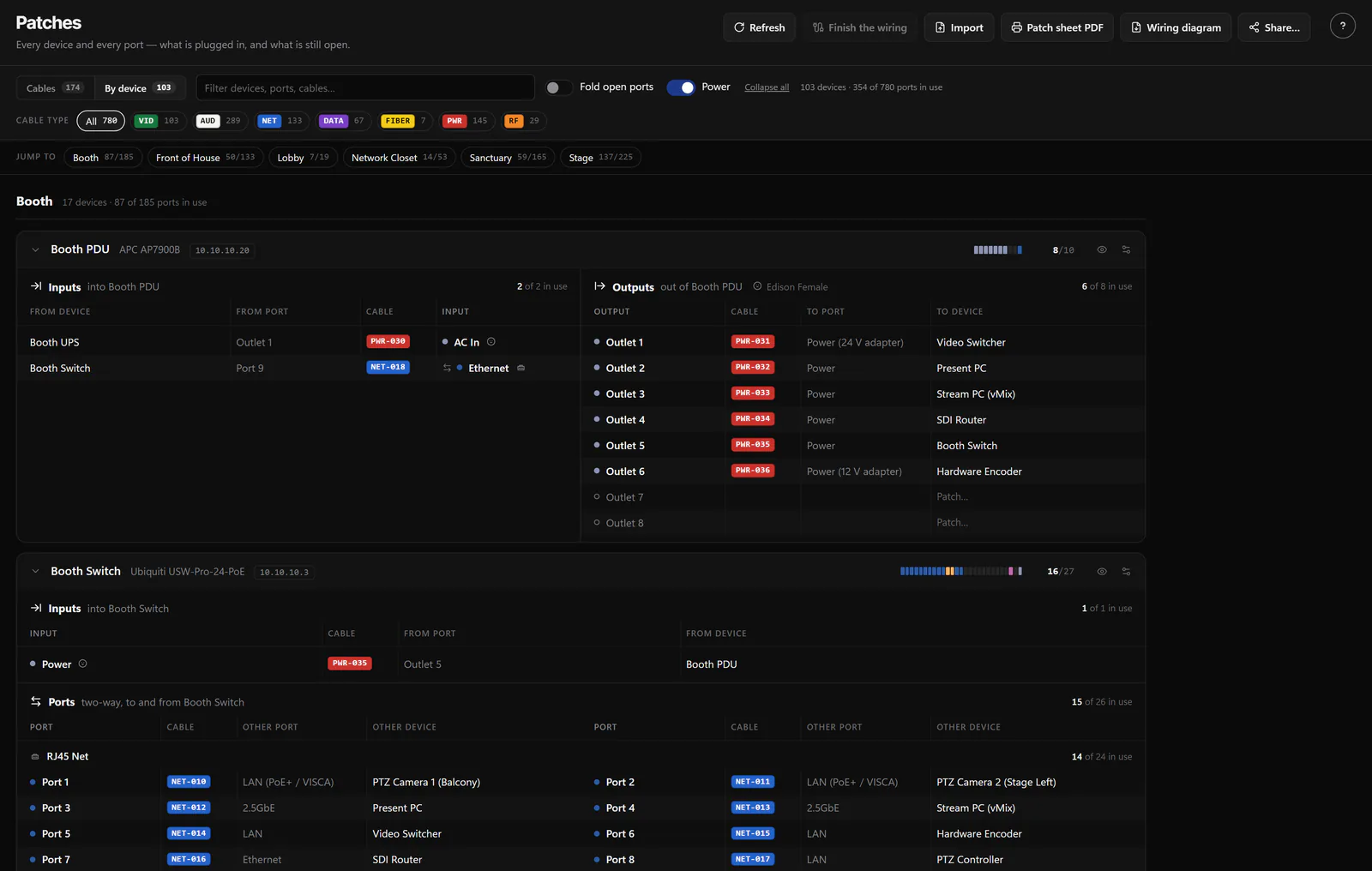
Your audio team doesn't need to see the lighting rig. Your lighting operator doesn't need to scroll past the cameras. System Documentation lets you organize devices by type or by room so every person sees exactly what they need.
Organize by device type
View just your audio system, just your cameras, or just your lighting rig. Filter by device type so you only see the gear relevant to the question you're answering.
Organize by room
Group devices into rooms — lobby, front stage, balcony booth, overflow room. Manage each space independently or see the full system map across your entire campus.
Syncs with Luminos AI
The better you document your system, the smarter Luminos becomes. When something breaks, the AI already knows your signal chain, your device models, and your room layout — so troubleshooting starts in seconds, not hours.
Why the labels matter
One cable ID, from the map to the phone call.
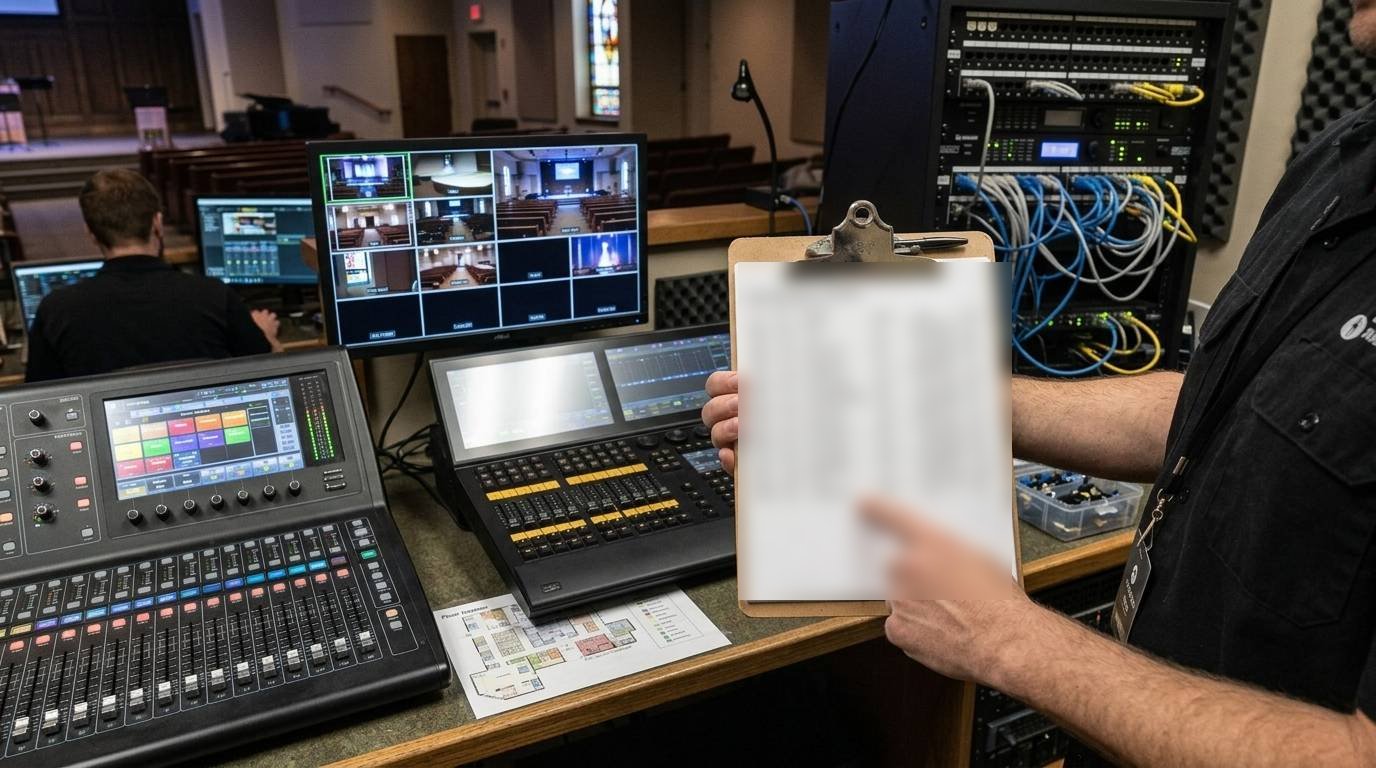
Every connection you draw gets a permanent ID. Put that same ID on the physical cable, and troubleshooting stops being a scavenger hunt — because support can name the exact cable instead of describing a category of cable.
Printable documentation
A source of truth you can hand to a volunteer.
The wiring diagrams inside WorshipMetrics do quiet, important work — they're what Luminos and our remote support read when they help you. But documentation only changes Sunday when it reaches the real world. So the same live map prints: a clean System Wiring Diagram and a cable-by-cable Patch Sheet, generated on demand and stamped with the moment they were made.
Print today's system, not the one from the install.
The binder the integrator left behind was accurate the day it was printed — and systems drift. A camera gets added, a switch gets swapped, and the paper quietly stops matching the rack. When the map lives in WorshipMetrics, the drawings stay current instead: change the system, print a fresh copy, and hand your team the truth.
- System Wiring Diagram as a single-page vector PDF, in integrator-proposal style
- Patch sheet in portrait or landscape, color or mono-laser black-and-white
- Your church logo and per-room sections on every sheet
- Cable IDs match the map, the physical labels, and every support call
Into the booth
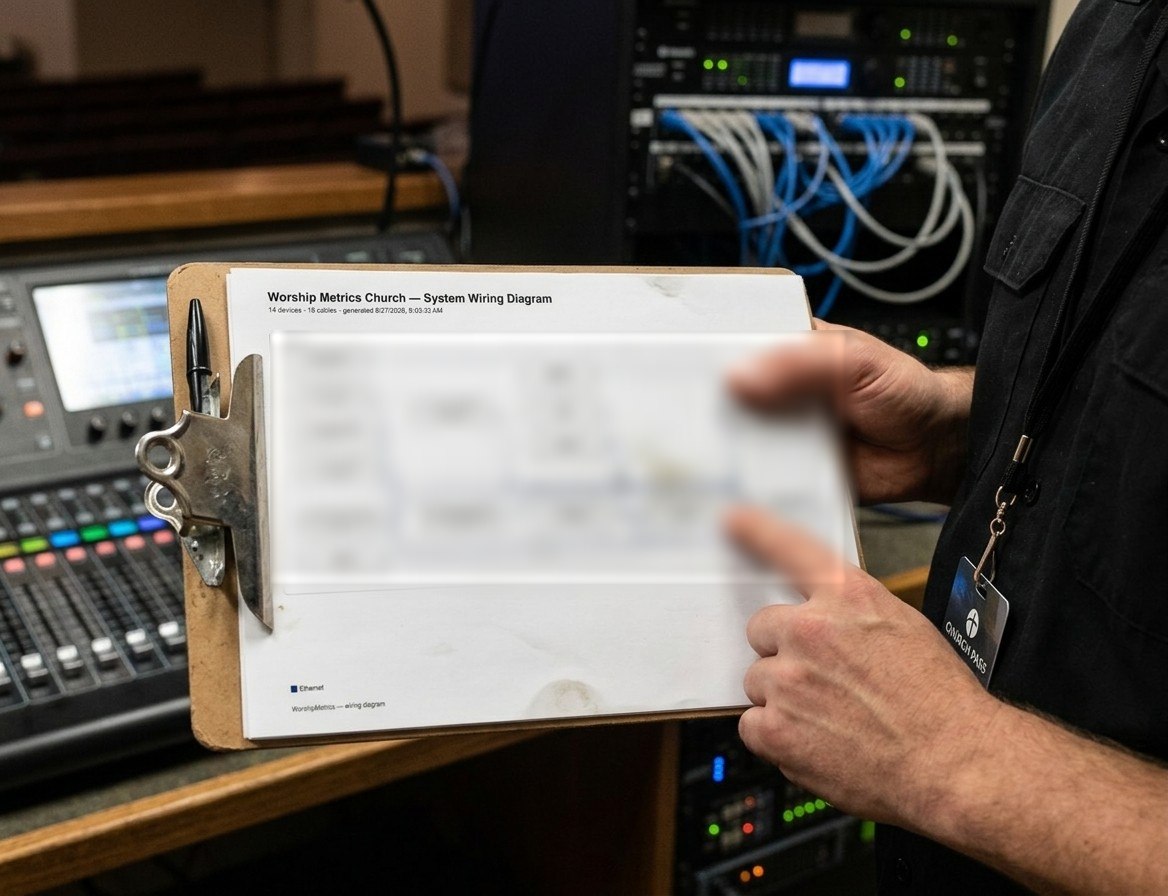
Paper your volunteers can trust.
New team members learn a booth fastest with the system in their hands. Flip through the wiring diagrams by room or by system, print the patch sheet on the way in, and everyone works from the same up-to-date picture — the sheet in the booth, the map in the app, and the copy support sees on a call, all agreeing with each other.
Luminos AI integration
The better you document, the smarter Luminos gets.
System Documentation isn't just a pretty diagram — it's the knowledge base that powers Luminos AI. When something breaks on Sunday, Luminos already knows your signal chain, your device models, your room layout, and your connection paths. Troubleshooting starts in seconds instead of hours, and every system upgrade recommendation is based on your actual gear, not a generic checklist.
Sort through the wiring diagrams by room or by system, ask Luminos the best way to set up whatever's next — and when you'd rather talk it through, 910-WORSHIP answers any time on Pro and Max with the same map in view.
Document your system once. Keep it current forever.
Stop relying on memory and sticky notes. Build a living map of your AV system that your entire team can reference, print, and trust — included free in Tech Manager.
Technical details
For the person who reads the spec sheet.
Documentation surfaces
Devices (inventory), Signal Map (canvas editor), and Patches (cable schedule) — identical on the cloud web app and the booth's desktop app
Device library
Thousands of models with factory port presets — updated live, with human-verified entries always distinguished from AI-researched ones
Connector taxonomy
76 physical connector types in 8 groups; SDI generations HD through 12G; link speeds 10 Mb to 100 Gb; MADI and Optocore fiber transports
Signal model
Switchable network signals (Dante, AES67, NDI, Art-Net, sACN) modeled separately from point-to-point links (AES50, Ultranet, dSNAKE, HDBaseT) — the map won't let a snake pretend to be Ethernet
Cable identification
Per-cable-type IDs (VID-001, AUD-002, NET-014), zero-padded and permanently stable; wireless links tracked as associations and kept off the cable sheets
Port data model
Every port carries connector type, direction, signal format, VLAN and IP configuration, PoE class and wattage, and per-NIC MAC addresses
Network verification
UniFi controller sync (API key or local admin) with port-precise topology, live PoE draw per port, and negotiated-versus-maximum link speed
Wiring audits
Seven continuous checks — duplicate cable, self-loop, direction conflict, unmapped signal, connector mismatch, port-less endpoint, duplicate room name — each jump-focusing its finding
AI assistance
On-demand device research with live web search (confidence-flagged) and schematic import from integrator PDFs and photos (Pro and Max) — with mandatory human review before anything writes
Printable outputs
Patch sheet in portrait or landscape, color or mono-laser, with church logo and per-room sections; wiring diagram as a single-page vector PDF
AI grounding
Support loads your live inventory — up to 200 devices with make, model, room, and status — plus the signal map with cable and port labels, in every chat and phone conversation
From the Knowledge Base
Documentation questions churches actually ask.
Modernize your AV · Instant tech support
Download Tech Manager free — and put a tech support number in the booth.
Tech Manager connects your church's AV system to WorshipMetrics: documented, monitored around the clock while it runs (it starts with the computer), and backed by a number your team can call the moment anything acts up. Our AI support sees your actual system — so issues get solved before frustration starts.
New to us? Call and we'll put you in touch with the team. How phone support works →
Tech support, any time
910-WORSHIP(910) 967-7447
AI phone support any hour on Pro and Max · a person on the line with Care or Sunday Assurance.