 Produce · Camera Control
Nobody has to sit at the booth PC to run the cameras.
Open a browser tab and drive every PTZ camera in your building — live picture, presets, focus, framing. From the sound booth, the back row, the green room, or a laptop three states away.
Works with the PTZ cameras you already own — no new hardware. Free in the booth; cloud control from any browser with Pro or Max. Tech Manager runs on a booth computer and does the talking to them.
56
PTZ models in the built-in device catalog
3
control protocols, picked automatically per camera
9
presets per camera, each with a picture of the shot
The core promise
Run the cameras from wherever you're standing.
Camera Control lives in the browser, so the person running cameras doesn't have to be the person sitting in the booth. A volunteer can frame a shot from a phone in the back of the room. A campus tech can help a second location from home on a Saturday. The Tech Manager PC in the booth does the talking to the cameras — you just point and click.
The same controls are in the desktop Tech Manager, driving the same cameras through the same path. One operator on the booth PC and one on a laptop never fight over a head.
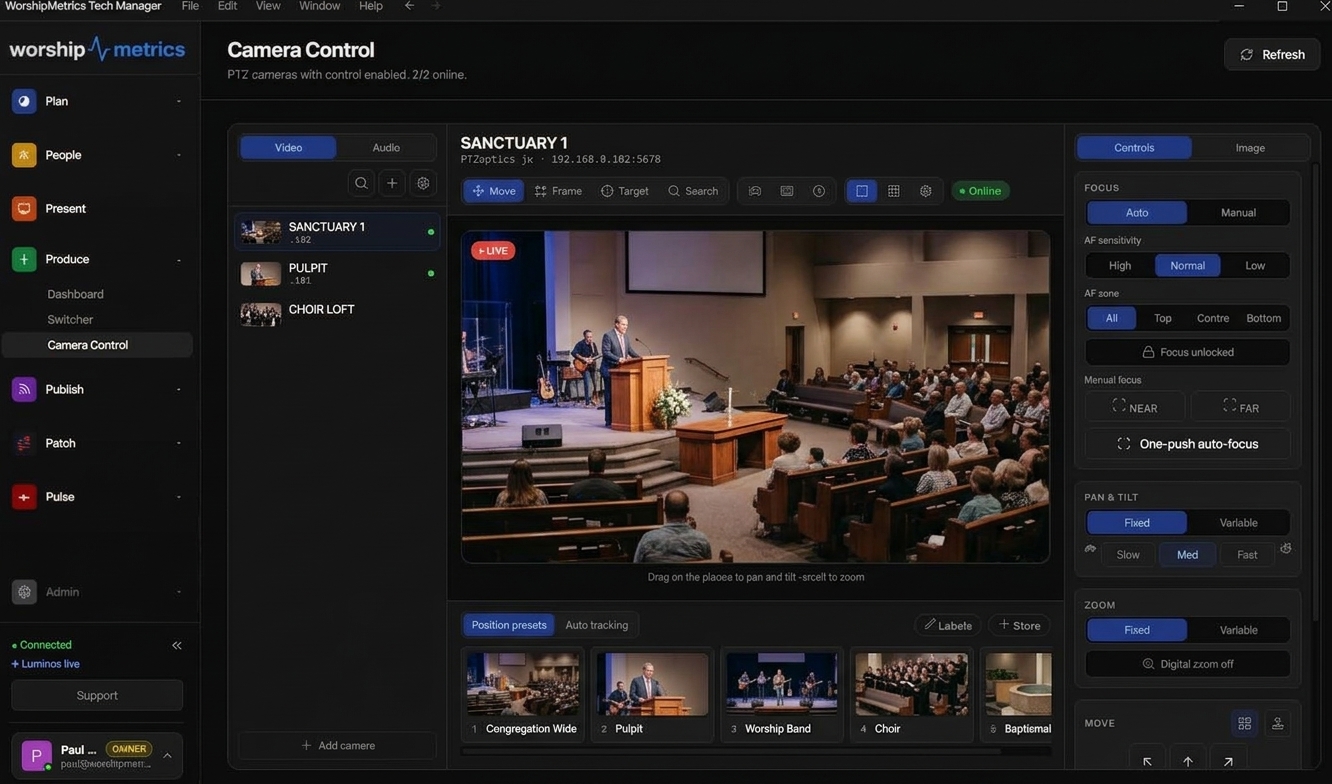
One camera, the live picture, the aiming tools, and the presets — the same panel in the browser and in the desktop Tech Manager.
In the cloud on Pro and Max
Every camera in the building, in any browser.
Cloud camera control comes with Pro and Max. Tech Manager, running on a computer at the church, makes your PTZ cameras available to any web browser over a low-latency WebRTC connection. Whoever you authorize gets the live picture, the presets and the controls, wherever they are.
- 1
Tech Manager on the church network
Tech Manager runs on a computer at the church, usually the booth PC, on the same network as your PTZ cameras. It's the only thing that talks to them, over VISCA or ONVIF.
- 2
A low-latency link through the cloud
Tech Manager relays commands and live video through the WorshipMetrics cloud over WebRTC, so the picture moves when the camera moves. Your cameras never face the open internet.
- 3
Any browser, anywhere
Volunteers, students and staff sign in to WorshipMetrics and open Produce > Camera Control on a laptop, tablet or phone. Nothing to install on their side.
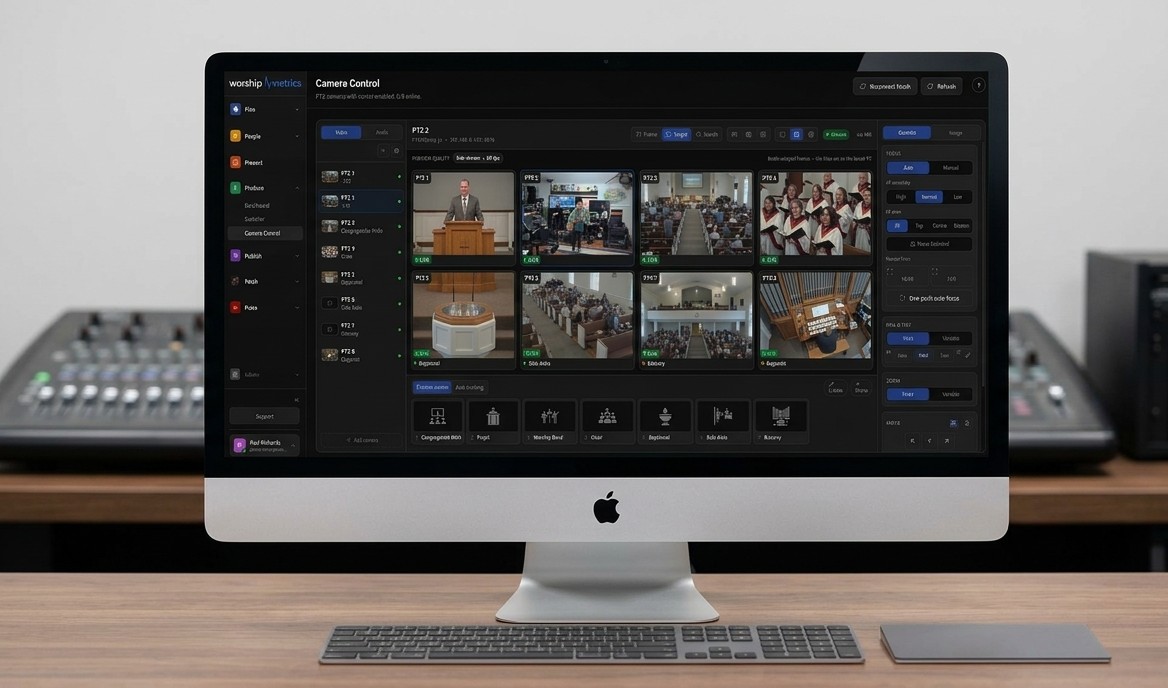
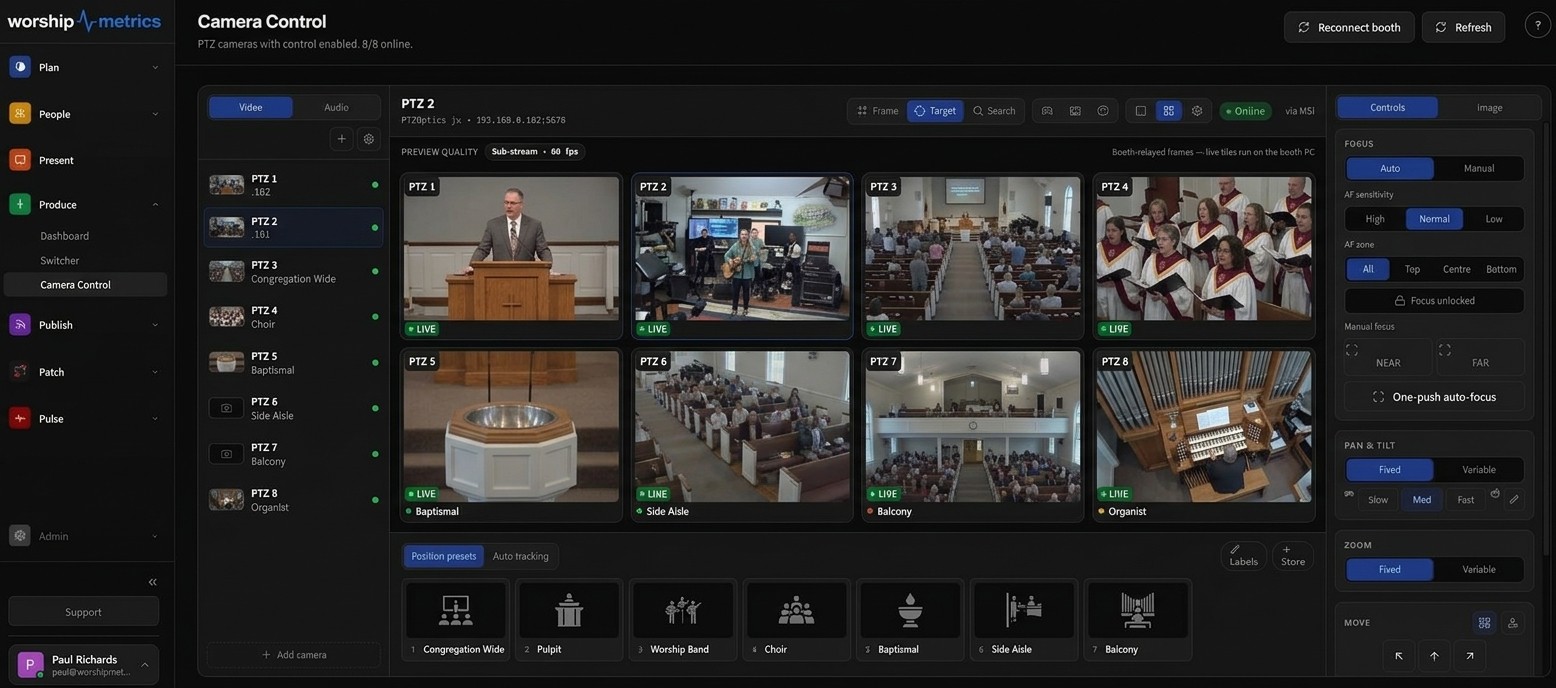
All eight cameras at once in a browser, relayed by the booth computer. Click one for its full live picture, recall a picture preset along the bottom, and set focus, pan, tilt and zoom on the right.
Who runs the cameras
One booth computer. A whole team of camera operators.
Once Tech Manager is running at the church, the cameras aren't tied to the booth. A volunteer on each camera, a class learning the craft, someone helping from home, and the operations manager checking the building all work from their own browser. Hover or tap a person to see what they run.
What makes remote control trustworthy
A live picture while you drive — and a camera that never runs away.
Real video, not a slideshow.
Framing a shot off a still that updates every second and a half is guesswork. Camera Control streams real video from the booth to your browser over WebRTC, so the picture moves when the camera moves.
The relay that makes that possible installs itself. The first time somebody opens Camera Control from a browser, the booth downloads and verifies it in the background and the preview upgrades on its own — nobody has to walk to the booth PC and press a button.
And the page always tells you which picture you're looking at. LIVE · WebRTC means full-rate video. Booth relay means the fallback stream. Snapshots means it fell back to stills, and the badge says exactly why.
LIVE · WebRTC · via BOOTH-PC · 180 ms
A camera that never runs away.
Every remote PTZ system has the same nightmare: someone holds down pan, their laptop drops the Wi-Fi, and the camera keeps sweeping across the platform in front of the whole church.
It can't happen here. Holding a direction opens a move session with a heartbeat. If that heartbeat stops — closed tab, dead browser, lost network, a laptop lid shut mid-move — the booth issues the stop itself, within a second.
- Dead-man stop at the booth if the browser goes quiet
- Stops on tab hide, tab close and page unload
- Direction changes replace each other instead of queueing — no rubber-banding after a fast drag
- Round-trip time shown per camera, named to the machine that ran the command
Built for a real team
Two people, one camera, no wrestling match.
Control leases, not collisions
When a volunteer in the booth and a director on a laptop both grab the same head, most systems interleave the commands and the camera judders between them. Camera Control gives each camera a control lease instead.
Open a camera someone else is driving and you see who has it. Take control and they're told you did — no silent stealing, no mystery. Preset recalls don't need the lease unless the head is actively being driven, so an operator can still hit “Pulpit” while someone else fine-tunes a different camera.
Commands go to the machine that can reach the camera
Churches rarely have exactly one computer signed in. There's the booth PC, the tech director's laptop, maybe a second campus. Every one of those Tech Managers reports which cameras it can actually see on its own network, and commands route to one that can — first time, not after a fifteen-second timeout on the wrong machine.
When no machine on that camera's network is online, the page says so in those words. It doesn't tell you the camera is offline when the real problem is that the booth PC is asleep.
However your hands work
Drive it with a stick, a keyboard, or your finger.
Some operators want a joystick. Some want to tap a picture on a tablet. A surprising number of volunteers are fastest on a game controller they already know. All of it works on the same screen, with no setup.
On the picture
Click where you want the camera to look, or drag a box around a subject and the head frames it.
Virtual joystick or button pad
Whichever you prefer, switchable per operator — the same panel works either way.
Keyboard
WASD to move, diagonals on Q/E/Z/C, 1–9 to recall a preset, Shift+1–9 to save one, space to stop.
Game controller
Right stick pans and tilts, left stick zooms, D-pad steps — with the layout shown on screen.
Touch
The whole surface works on a tablet in the back row, or a phone in the green room.
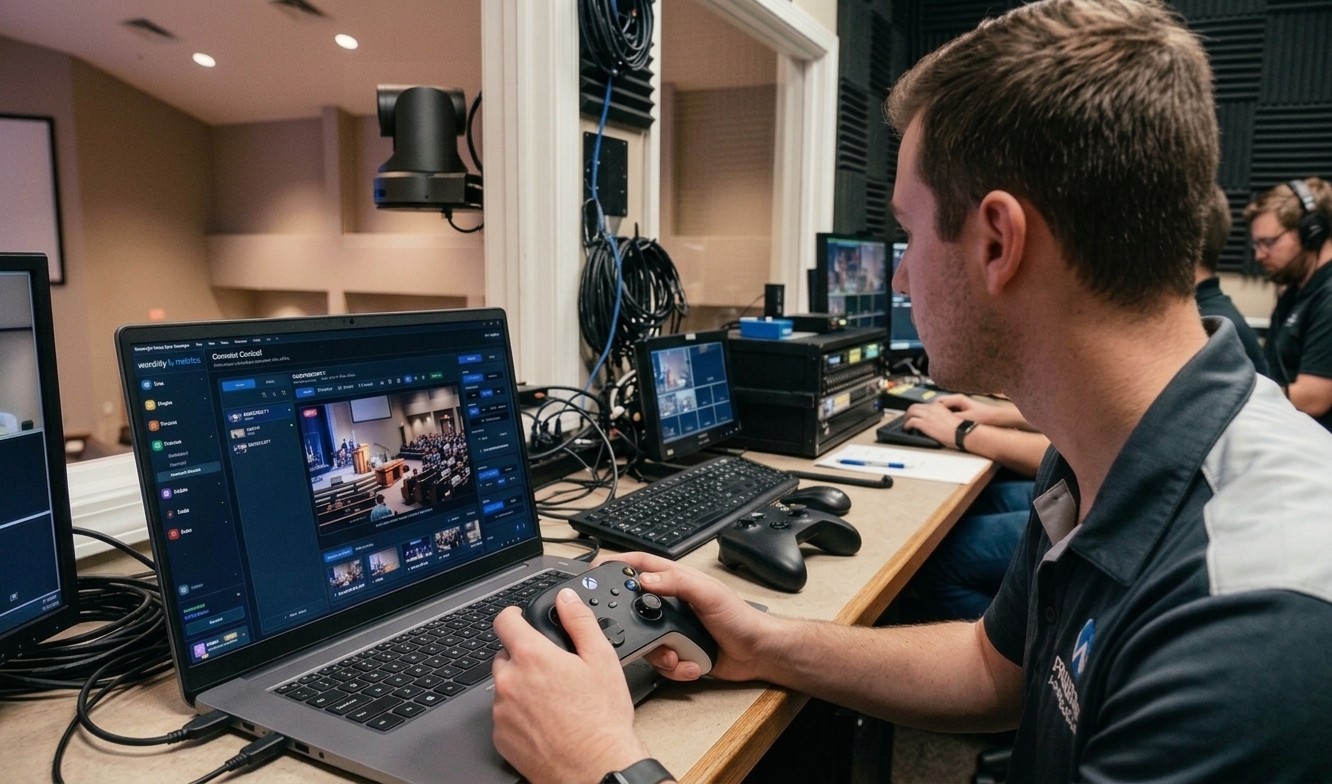
A controller a volunteer already knows beats a joystick they have to be taught — and both drive the same cameras through the same panel.
The aiming tools
Point at the shot instead of nudging toward it.
Bumping a camera into frame one arrow-press at a time is how shots get missed. Four pointer tools let you say where the shot should be and let the head work out the move.
Target
Click a spot in the picture and the camera centres on it.
Frame
Drag a box around a subject and the camera pans, tilts and zooms to fill it.
Search
Lost the pastor mid-move? Click the picture: the camera re-centres there and pulls wide for a moment so you can find them again.
Move
Classic drag-to-pan with scroll-to-zoom, on the booth machine.
The shot itself
Everything between “it's pointed the right way” and “it looks right.”
Presets that show you the shot, not the word “Preset 3”
Store up to nine positions per camera and name them the way your volunteers talk — Pulpit, Wide, Piano, Baptistry. When a preset is stored, the booth grabs a still of that exact shot and syncs it, so the tiles show the framing instead of a number. A volunteer who has never touched the system can look at four pictures and pick the right one.
Stop autofocus hunting in the middle of the sermon
Someone crosses in front of the camera, autofocus grabs them, and the shot goes soft on the person actually speaking. You get the whole focus system instead of the head's defaults: auto or manual, focus lock to freeze it, one-push autofocus, fixed or variable pan, tilt and zoom speeds, and digital zoom past the optical range when you need it.
Match the cameras without learning four menu systems
Most churches end up with mixed brands — a PTZOptics on the balcony, a Sony on the platform, whatever was on sale for the third angle. Image adjustment for every brand sits behind one identical set of controls, so matching your cameras is one screen instead of four browser tabs. Mirror and flip are there too, for the head that had to go up upside down.
Found, named and running in an afternoon
Scan the network and the cameras on it come back with make and model already identified. Add anything the scan missed by IP. Camera logins are stored encrypted, not in a spreadsheet taped inside the rack door. If a head stops responding, you can reboot it over the network without walking up a ladder.
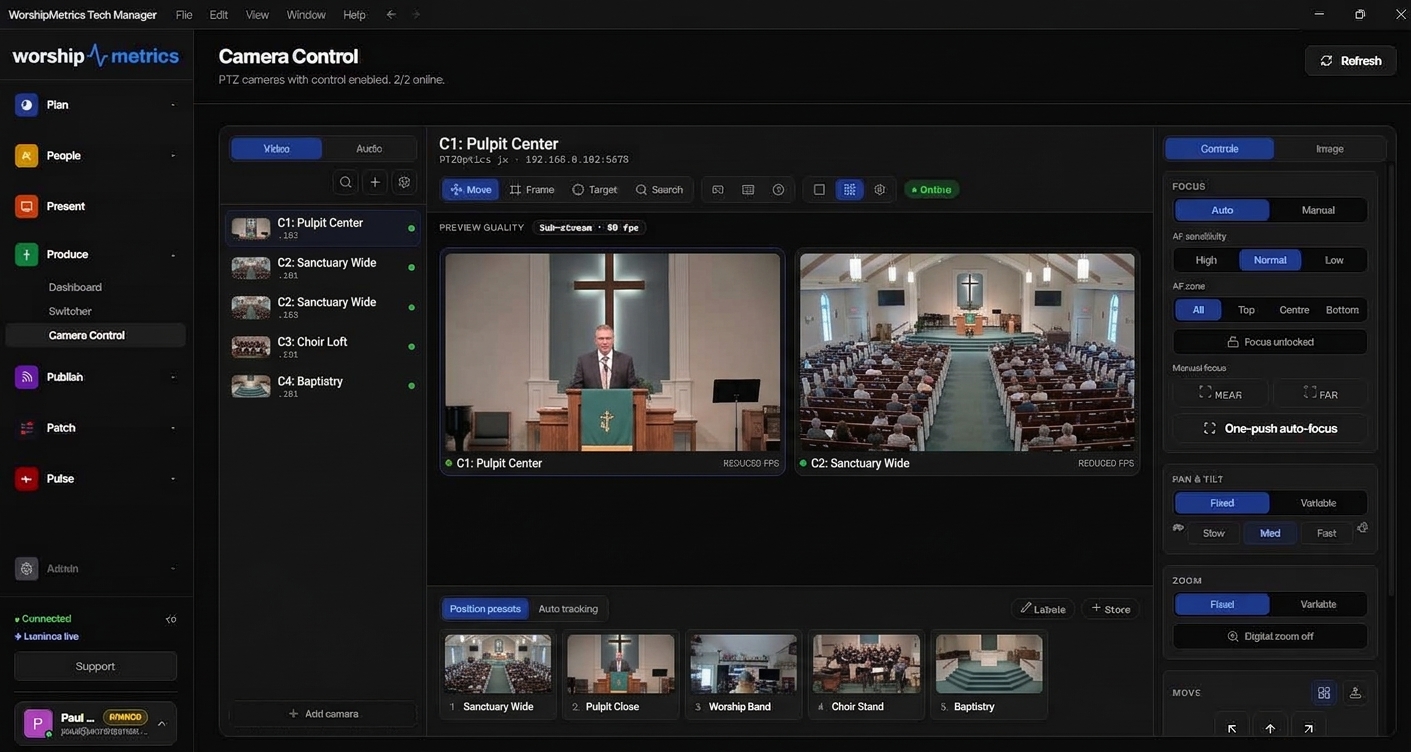
Watch them all at once: the grid view shows every camera live, adapting preview quality to what your connection can carry. On heads that ship with their own subject tracking, the toggle is in the same panel.
Compatibility
It speaks your cameras' language — all three of them.
PTZ cameras don't agree on how to be controlled. PTZOptics and its many clones take VISCA over a TCP socket. Sony, BirdDog, Canon, Lumens, Marshall and most NDI heads want VISCA over UDP with Sony's own framing. Panasonic, AVer, Axis, Hikvision and Dahua lines are driven over ONVIF.
VISCA over TCP
PTZOptics and compatible heads.
VISCA over IP
UDP 52381 with Sony framing — auto-detected and remembered per camera.
ONVIF
Pan, tilt, zoom, preset store and recall, home, and focus through the Imaging service.
No URL hunting
On ONVIF cameras it asks the camera for its own stream address, so there's no RTSP URL to dig out of a PDF.
In the built-in catalog
These models arrive pre-configured with the right control port and protocol. Cameras outside the list still work if they speak VISCA or ONVIF — which nearly all of them do.
| Brand | Catalogued models |
|---|---|
| PTZOptics | PT12X / PT20X / PT30X SDI, PT20X-4K, PT12X-4K, PT30X-4K, Link 4K, SE G3 series, Studio SE, Studio 4K, SimplTrack3 |
| Sony | SRG-300H, SRG-A40, BRC-H800, FR7 |
| Panasonic | AW-UE150, AW-UE100, AW-HE40 |
| BirdDog | P200, P100, Eyes, Studio |
| Marshall | CV612HT, CV630-BI, CV355 |
| Vaddio | RoboSHOT 12E, ConferenceSHOT AV |
| AVer | PTZ310, TR323 |
| OBSBOT | Tail Air, Tail 2 |
| Minrray | UV510A, UV5120A 4K |
| BZBGEAR | VPTZ-12, BG-4KPTZ-30X NDI |
| SMTAV | BC20N, BC30N NDI |
| Avkans | AV-E20, LV20N NDI |
| Hikvision · Dahua · Axis | DS-2DE4A425, SD49425XB-HNR, Q6135-LE |
| HuddleCamHD | 10X USB G3 |
| Amcrest · Reolink · Foscam | IP8M-2526EW, RLC-823A, SD2X |
| Zowietek · Wivien · and more | TS980S NDI, 20X PTZ, plus generic VISCA and ONVIF heads |
Everything in Camera Control
The whole surface, in one list.
Browser control
Drive every PTZ head from a tab. No booth seat required.
Live WebRTC preview
Real moving video while you frame, not a still that updates every second.
Self-installing relay
The booth sets up the video path the first time someone needs it.
Runaway protection
Lose your connection mid-move and the camera stops within a second.
Visible latency
Every camera shows its round-trip time and the machine that ran the command.
Control leases
See who's driving, take control, and everyone gets told.
Smart routing
Commands go to the computer that can actually reach that camera.
Three protocols
VISCA over TCP, VISCA over IP and ONVIF — detected per camera.
Picture presets
Nine per camera, each tile showing the shot it recalls.
Frame and target tools
Click a spot or drag a box; the camera works out the move.
Controller and keyboard
Game pad, keyboard shortcuts, joystick, touch — all on the same screen.
Focus lock
Hold focus on the speaker while people cross the frame.
FAQ
Camera control, answered.
Do I need new cameras?
No. Camera Control drives the PTZ cameras you already have, over the network they're already on. If your heads speak VISCA or ONVIF — and nearly all of them do — they'll work.
Does something have to be running at the church?
Yes. The WorshipMetrics Tech Manager runs on a computer at the church, on the same network as the cameras, and is what actually talks to them. Your browser talks to Tech Manager through the WorshipMetrics cloud. That's also what keeps your cameras off the open internet.
Can I control cameras from outside the church?
Yes, on Pro and Max. That's the point. As long as Tech Manager is running and signed in on the church computer, you can drive the cameras from anywhere you can open a browser, over a low-latency WebRTC connection.
Who can use it?
Anyone you add to your church's WorshipMetrics account: camera volunteers, a student class, a tech director at home, the operations manager. There's no cap on how many people use Camera Control at once, and control leases keep two people from driving the same camera at the same time.
Can we watch the cameras between services?
Yes. Whenever Tech Manager is running at the church, anyone you authorize can open the grid of every camera from a browser or a phone, for example an operations manager keeping an eye on the building during the week.
What if two people try to drive the same camera?
The first person holds a control lease and the second sees who has it. They can take control, and the first operator is told. The activity trail records both, so you can see afterwards that PTZ 2 went to Pulpit at 10:52 and who sent it there.
What happens if my connection drops mid-move?
The camera stops. The booth watches for a heartbeat from whoever is driving, and issues the stop itself if that heartbeat goes quiet — so a dropped Wi-Fi connection can't leave a camera panning during the service.
Does it work across more than one location?
Yes. Each location's Tech Manager reports which cameras it can reach, and every command is routed to a machine that can actually reach the camera you're driving.
Is camera control free?
Locally, yes — on every plan, including Free. Tech Manager drives your PTZ cameras from the booth at no cost, alongside OBS, vMix, and Blackmagic ATEM switchers. Cloud control from a browser — the same panel from anywhere, for everyone you authorize, with no session caps — comes with Pro ($49/mo) and Max ($99/mo).
Switchers live next door: OBS, vMix, and Blackmagic ATEM control are all built into Tech Manager.
WorshipMetrics Livestream Systems
Adding PTZ cameras?
PTZ cameras are a great add-on to any Livestream System. Tell us about your room and we'll suggest models, plus a PoE switch and a joystick, and quote them in your consultation. Already have cameras you love? Keep them: our systems work with any camera that has HDMI, SDI or NDI output.
Your best camera operator shouldn't have to be in the room.
Set up Camera Control with the cameras you already own and find out what your Sunday looks like when anyone on the team can frame a shot.
Works with 56 catalogued PTZ models and any VISCA or ONVIF camera.
From the Knowledge Base
PTZ camera questions churches actually ask.
Modernize your AV · Instant tech support
Download Tech Manager free — and put a tech support number in the booth.
Tech Manager connects your church's AV system to WorshipMetrics: documented, monitored 24/7, and backed by a number your team can call the moment anything acts up. Our AI support sees your actual system — so issues get solved before frustration starts.
Curious how good church tech support can be? Call right now and find out →
Tech support, any time
910-WORSHIP(910) 967-7447
Answered around the clock by AI that knows your system — with real production engineers when Sunday's on the line.