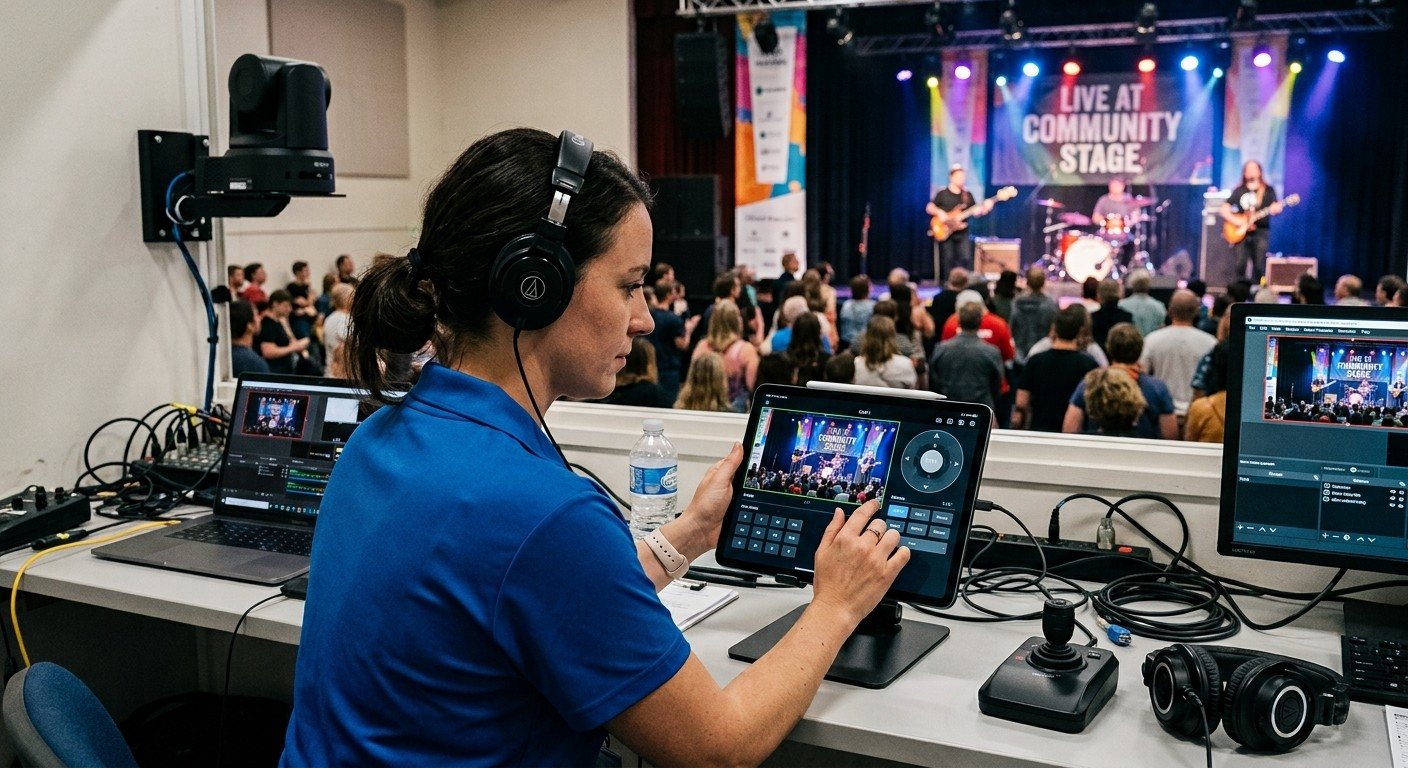
Two jobs, one person
PTZ cameras are wonderful for churches: one volunteer can run several angles. But in many booths, that volunteer is also the OBS operator. They reframe a camera while it’s live, the move shows up on the stream, and the next cut is late because they were busy steering.
The answer is to make the cameras their own seat: the third seat in the three-seat setup.
How it works with OBS
The camera operator never touches OBS. They work from their own station:
- The camera operator frames the next shot on a camera that isn’t live, using presets or gentle moves.
- The OBS operator cuts to that camera when it’s ready, then the camera operator sets up the next one.
That rhythm (“ready camera two… take two”) is how broadcast crews work, and it’s easy to learn. (See a shared shot vocabulary for church camera teams.)
Setting up the camera seat
- Put the cameras on the network. NDI PTZ cameras carry video, control, and power over one cable. (See why we recommend NDI PTZ cameras and PTZ camera setup.)
- Bring the cameras into OBS as NDI sources with DistroAV, or through a capture card for SDI and HDMI cameras.
- Give the camera operator a controller: a tablet, a laptop browser, or a joystick, at a seat with a view of the stage and a preview of each camera.
- Save presets for every regular shot, named the way your team talks: “Pulpit,” “Wide,” “Piano,” “Baptistry.”
- Agree on a few words for the hand-off, and practice them before Sunday.
Tips for a calm camera seat
- Never move a live camera unless it’s a slow, planned move.
- Use focus lock on the speaker so people crossing the frame don’t pull focus.
- Keep camera settings consistent, so cuts between cameras match.
- If a camera stops responding, don’t fight it on air. (See PTZ troubleshooting.)
Where WorshipMetrics helps
WorshipMetrics Camera Control is built for this seat:
- Nine presets per camera, each showing a picture of the shot, so volunteers tap “Pulpit” and see exactly what they’ll get.
- Touch, keyboard, game pad, or joystick, all from the same screen, on a tablet or a laptop.
- Focus lock and image adjustment across camera brands, behind one set of controls.
- VISCA and ONVIF, so it works with the PTZ cameras most churches already own.
- Free in the booth on every plan. On Pro and Max, the same panel works from any browser.
Next: the vMix version of this setup, or the three-person church livestream team.
Related questions
- Can someone control PTZ cameras separately from the OBS computer?
- Yes. PTZ cameras are controlled over the network, so a camera operator can drive them from a tablet, a browser, a joystick, or a keyboard at another station, while a different person switches in OBS. Neither has to touch the other's controls.
- What's the easiest way for a volunteer to control PTZ cameras?
- Presets with pictures. Save the shots you use every week (pulpit, wide, piano, worship leader) and label them in plain words, so a volunteer recalls a shot by tapping its picture instead of steering the camera live.
- Do we need a hardware PTZ joystick?
- No. A joystick is nice for smooth live moves, but a tablet or browser with good presets is enough for most church services. WorshipMetrics Camera Control supports touch, keyboard, game pad, and joystick from the same screen.
OBS + Bitfocus Companion Setup for Church: Volunteer Buttons for Scenes, Stream, and Recording
NextTwo-Computer OBS Setup for Church: Slides on One PC, Switching on the Other (with NDI)
Related Articles
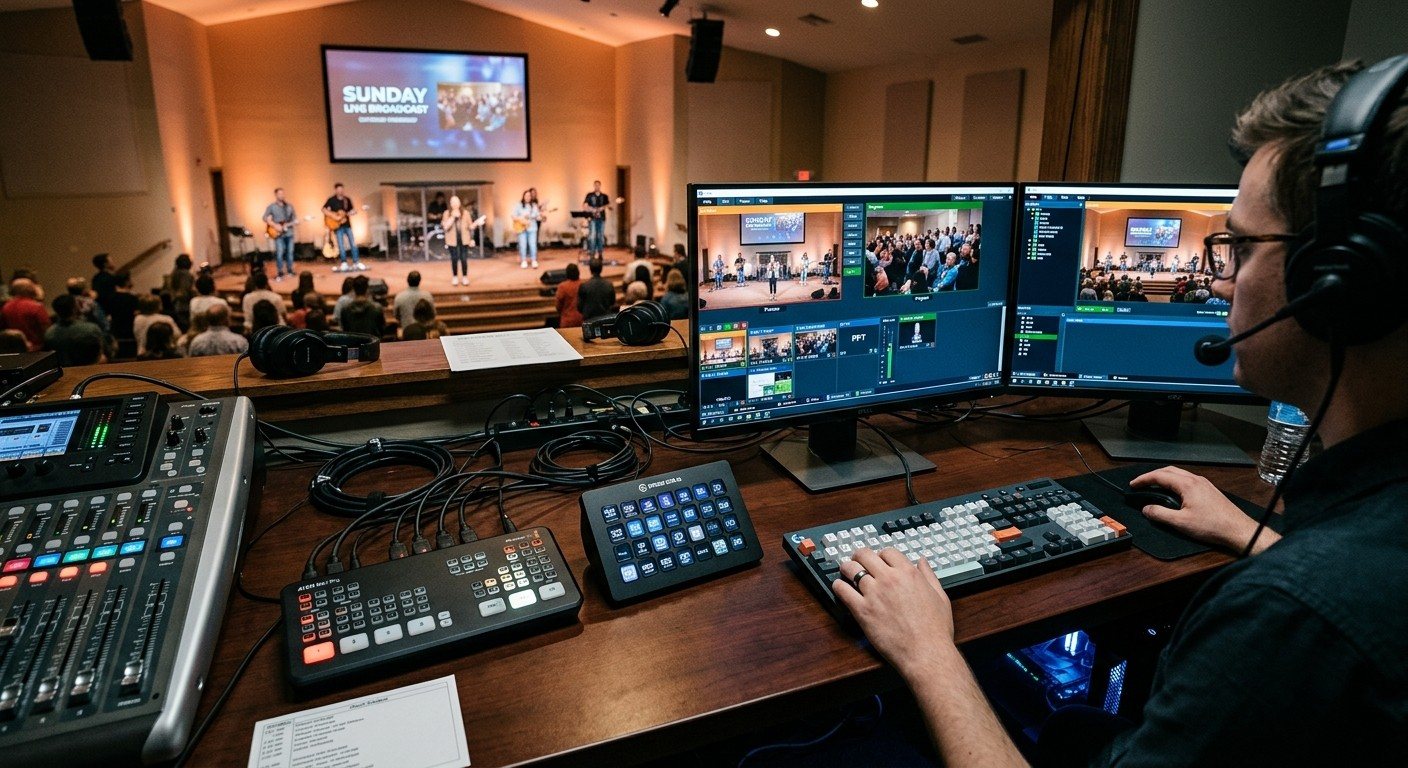
Bitfocus Companion + ATEM Mini: A Stream Deck Panel for Your Church Switcher
A Stream Deck running Bitfocus Companion turns a Blackmagic ATEM into plain-word buttons with colors that show what's live, and the same panel can run PTZ cameras, projectors, and more. Here's how to connect Companion to an ATEM and build a volunteer page.
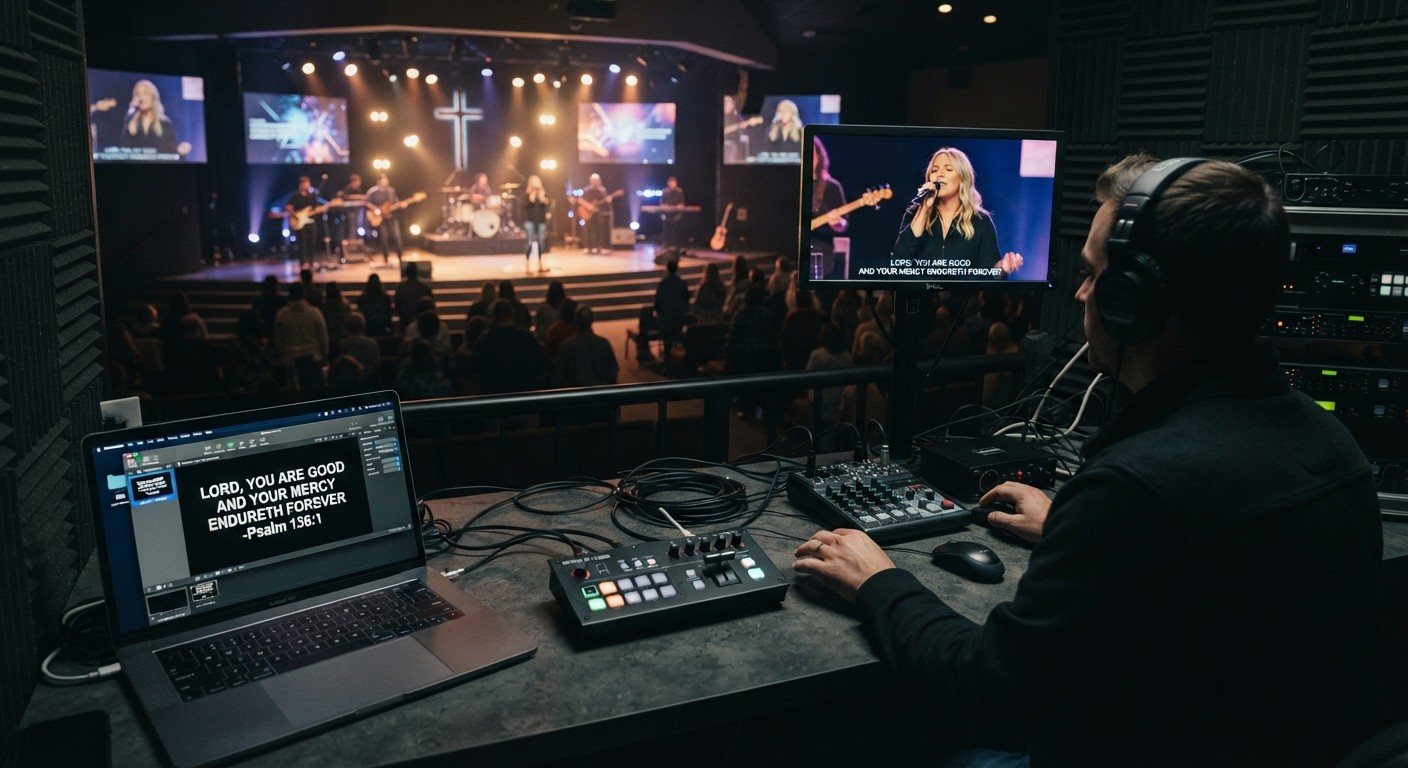
Lyrics Over the Camera on an ATEM Mini: Luma Keys, Chroma Keys, and the Slides Computer
To put song lyrics over the camera shot on a Blackmagic ATEM Mini, feed the slides computer into an ATEM input and key it over the camera. Here's how luma and chroma keys work for lyrics, how to design slides that key cleanly, and who should run it.
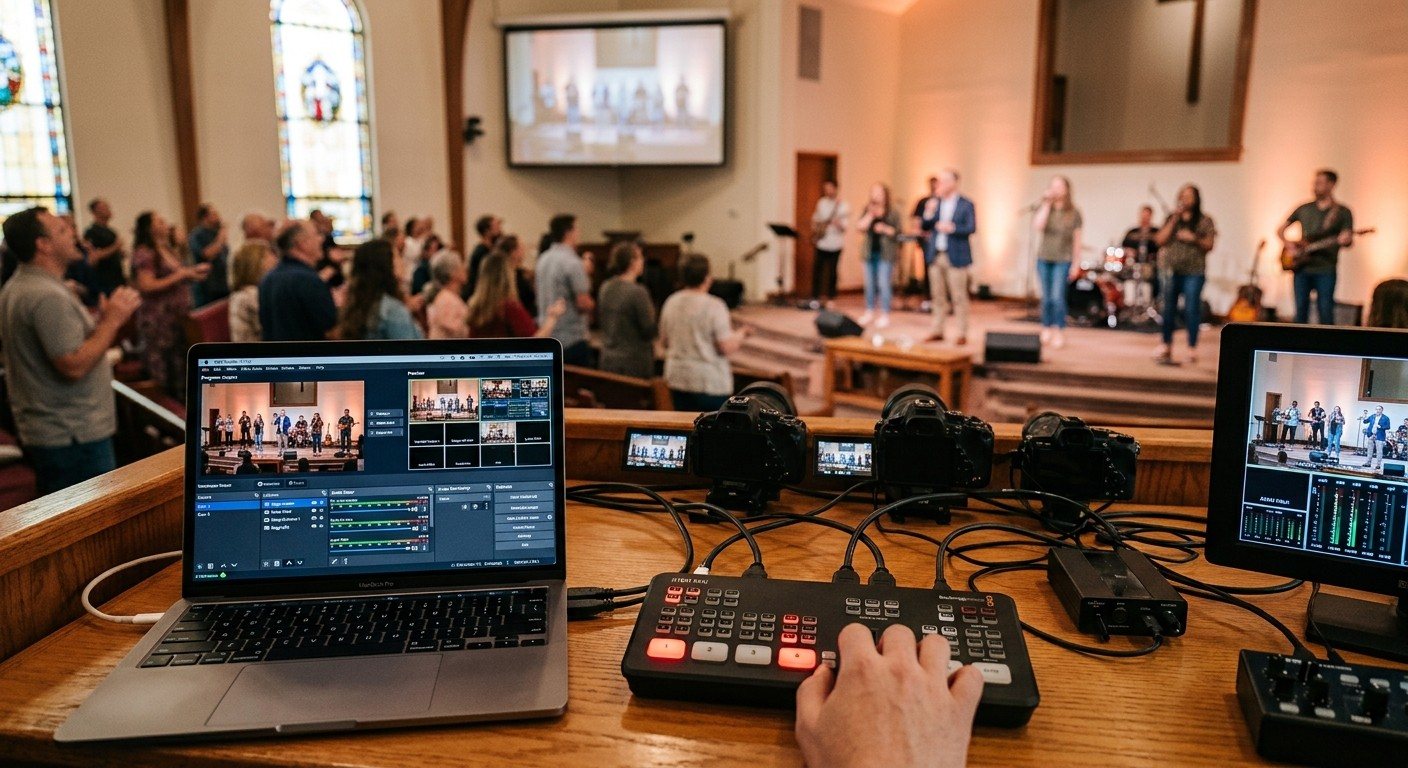
ATEM Mini + OBS for Church: Hardware Camera Switching with OBS for Graphics and Streaming
Many churches use an ATEM Mini as a camera switcher and send its output into OBS over USB as a webcam. The ATEM gives volunteers real buttons; OBS adds lyrics, graphics, recording, and streaming. Here's how to set it up, split the jobs, and avoid the common sync and quality problems.