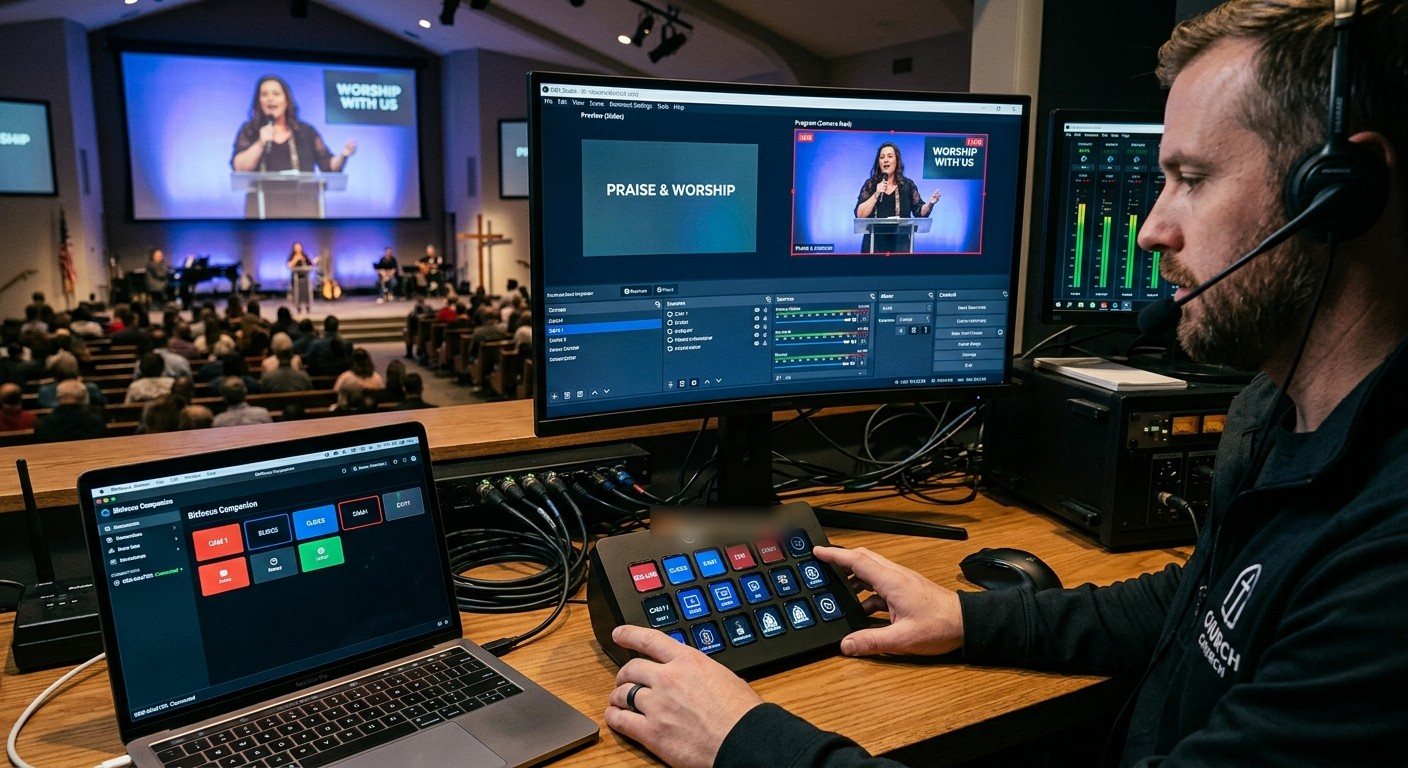
What you’ll build
By the end of this guide, a volunteer will have a page of buttons on a Stream Deck or a tablet:
| Row | Buttons |
|---|---|
| Scenes | Wide · Pastor · Worship · Slides · Lyrics over camera |
| Service | Start Service · Start Stream · Start Recording · End Service |
Each scene button lights up when that scene is live, and the stream and recording buttons turn red while they’re running.
(New to Companion? Start with Bitfocus Companion for churches.)
Before you start
- OBS Studio 28 or later on the streaming computer.
- Bitfocus Companion installed on the same computer or another computer on the same wired network.
- Scenes with plain names in OBS: “Wide,” “Pastor,” “Worship,” not “Scene 4.” (See the OBS complete church guide.)
Step 1: Turn on OBS’s WebSocket server
- In OBS, open Tools, then WebSocket Server Settings.
- Check Enable WebSocket server.
- Note the server port (4455 by default).
- Keep Enable Authentication on, and copy the password with Show Connect Info.
- Click OK.
Step 2: Add OBS in Companion
- Open Companion’s admin page (Companion’s launcher opens it, usually at
http://127.0.0.1:8000). - Go to Connections and add OBS Studio.
- Enter the OBS computer’s IP address (
127.0.0.1if Companion runs on the same computer), the port, and the password. - Save. The connection shows as connected when it’s working.
Step 3: Build the buttons
In Companion’s Buttons page, click an empty button and:
- Name it in plain words: “Pastor.”
- Add a press action: OBS’s “set program scene” (or “set preview scene” if you use Studio Mode), and pick the scene.
- Add a feedback so the button changes color when that scene is in program.
Repeat for each scene. For the service row, use OBS’s start/stop streaming and recording actions, with feedbacks that turn the buttons red while active.
Step 4: Make “Start Service” one button
A single button can run several actions at once, and you can add a short delay before any of them. A typical “Start Service”:
- Start recording
- Start streaming
- Switch to the “Welcome” scene
If you also control other gear in Companion, add it here: turn on the projector, recall a camera preset, unmute a mic. (See controlling projectors, PTZ cameras, and mixers.)
Step 5: Protect the buttons that end things
- Put End Service and Stop Stream in a corner, in a different color, or on a second page.
- Test every button during a run-through, not during worship.
More layout ideas: designing Companion pages for volunteers.
Where WorshipMetrics helps
- Present’s Companion tab shows these same buttons beside your slides. (See Companion buttons inside WorshipMetrics.)
- Tech Manager watches the OBS computer and alerts your team if the stream or recording stops, even if a button was pressed by mistake.
- Cloud OBS control lets a helper switch scenes and confirm the stream from any browser, when nobody’s at the booth.
Next: the vMix version of this guide, or a touch panel with an Android tablet.
Related questions
- How do I connect OBS to Bitfocus Companion?
- In OBS, open Tools, then WebSocket Server Settings, enable the server, and note the port (4455 by default) and password. In Companion, add an OBS Studio connection with the OBS computer's IP address, the port, and the password. The connection turns green when it's working.
- Does OBS need a plugin to work with Companion?
- Not on current versions. OBS Studio 28 and later include the WebSocket server that Companion uses. Older versions needed the obs-websocket plugin installed separately.
- Can Companion show whether OBS is live or recording?
- Yes. Companion's feedbacks can change a button's color when OBS is streaming or recording, or when a scene is in program, so volunteers can see the state at a glance.
Controlling Projectors, PTZ Cameras, and Sound Boards with Bitfocus Companion
NextAdding a Camera Operator to Your OBS Church Stream: PTZ Control as Its Own Seat
Related Articles
Bitfocus Companion + ATEM Mini: A Stream Deck Panel for Your Church Switcher
A Stream Deck running Bitfocus Companion turns a Blackmagic ATEM into plain-word buttons with colors that show what's live, and the same panel can run PTZ cameras, projectors, and more. Here's how to connect Companion to an ATEM and build a volunteer page.
Lyrics Over the Camera on an ATEM Mini: Luma Keys, Chroma Keys, and the Slides Computer
To put song lyrics over the camera shot on a Blackmagic ATEM Mini, feed the slides computer into an ATEM input and key it over the camera. Here's how luma and chroma keys work for lyrics, how to design slides that key cleanly, and who should run it.
ATEM Mini + OBS for Church: Hardware Camera Switching with OBS for Graphics and Streaming
Many churches use an ATEM Mini as a camera switcher and send its output into OBS over USB as a webcam. The ATEM gives volunteers real buttons; OBS adds lyrics, graphics, recording, and streaming. Here's how to set it up, split the jobs, and avoid the common sync and quality problems.