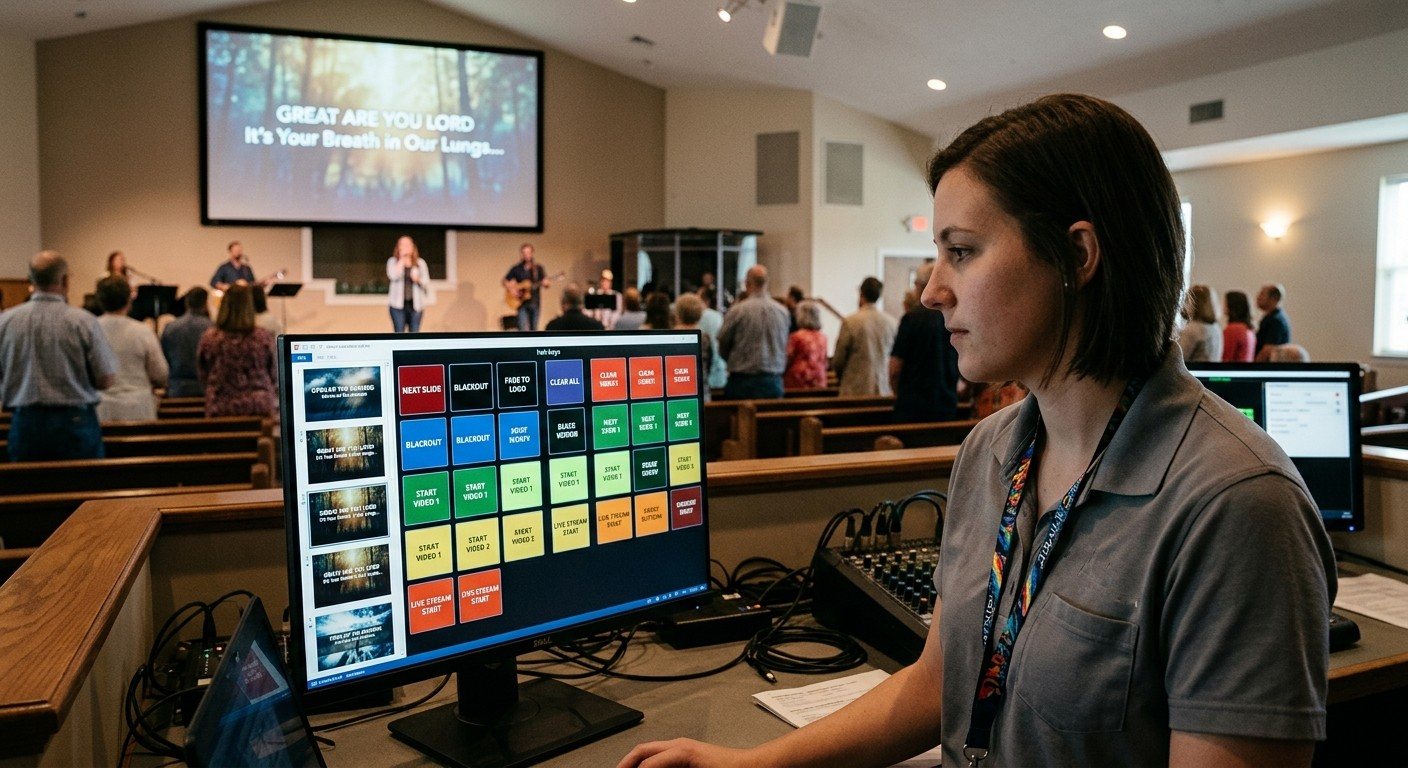
Three ways Present and Companion work together
Bitfocus Companion builds button panels for your gear. WorshipMetrics Present runs your slides, lyrics, and screens. Together they do three things:
| What it does | Example | |
|---|---|---|
| The Companion tab | Shows your Companion buttons inside Present | The slides volunteer presses “Lights: Worship” without leaving Present |
| Slides press buttons | A slide presses a Companion button when it goes live | The “Prayer” slide also cuts to the wide camera and dims the stage |
| Buttons drive Present | A Companion button sends a command to Present | A Stream Deck button advances the lyrics or starts the countdown |
1. The Companion tab
The Companion tab sits beside Audio, Overlays, Clocks, and Macros in Present. It shows Companion’s own buttons, so whatever you’ve built in Companion is right there, live, with its colors and feedback.
In Tech Manager on the booth computer:
- Open Present, then the Companion tab.
- If Companion is running on this computer, it’s found and connected automatically. Otherwise, Tech Manager checks the church network for it and lists what it finds.
- A green check means you’re connected.
In the web app:
- Chrome and Edge show the buttons inside Present once you allow “access devices on your local network.” Use Companion’s IP address, not a computer name.
- Safari and Firefox open Companion’s buttons in their own window.
- The web app reaches Companion over the church network, so it works for a laptop or tablet in the building.
Make the buttons bigger: the gear at the bottom right opens Buttons view, where you choose which pages, columns, and rows to show. Showing fewer columns makes each button larger.
2. Slides that press Companion buttons
- In Present, open Settings, then Connections.
- Under Send to other gear, click Add device and choose Bitfocus Companion. Enter Companion’s address; the usual port is filled in. Click Test.
- Right-click a slide, choose Add action…, pick your Companion device, and choose Press button with the page, row, and column.
- Click Test now, then Done.
The action reads as a sentence, such as “Press button 1 / 0 / 1,” and the booth sends it when the slide goes live. One Companion button can do many things at once, so one slide action can cut a camera, change lights, and switch a sound scene.
(More on slide actions: protocol triggers in Present.)
3. Companion buttons that drive Present
In Tech Manager on the booth computer:
- In Present, open Settings, then Connections.
- Under Receive commands, switch on HTTP (or OSC). Nothing listens until you do.
- Copy the address shown, and use it in a Companion button with Companion’s generic HTTP connection.
The Command list shows what’s available, including:
/wm/nextand/wm/previous/wm/cue/3(go to slide 3)/wm/blackoutand/wm/clear/wm/timer/start/followed by a timer’s name/wm/macro/followed by a macro’s name
The same address works as an OSC address and an HTTP path.
What to know about the network
- Companion runs at church, on the booth computer or another computer there. WorshipMetrics shows and presses its buttons; it doesn’t replace Companion.
- Keep Companion on the staff or AV network, not the guest Wi-Fi. Its buttons page doesn’t ask for a password by default.
- Give Companion’s computer a fixed IP address, and record it in the Signal Map.
Why it matters
Your volunteers already work in Present on Sunday. Putting the buttons for the rest of the system right beside the slides means one window, one place to look, and fewer things to learn. It’s the same idea as the three-seat setup: smaller, clearer jobs that more people can do.
Related questions
- How do I show Bitfocus Companion buttons in WorshipMetrics?
- Open the Companion tab in Present. In Tech Manager on the booth computer, it finds Companion on that computer or on the church network automatically. In the web app, type Companion's IP address and port; Chrome and Edge show the buttons inside Present once you allow local network access, and other browsers open Companion in its own window.
- Can a WorshipMetrics slide press a Companion button?
- Yes. Add Companion as a device in Present's Connections settings, then add a slide action: 'Press button' with the page, row, and column. When the slide goes live, the booth presses that Companion button.
- Can Companion or a Stream Deck control WorshipMetrics Present?
- Yes, through Tech Manager on the booth computer. Turn on Receive commands in Present's Connections settings, and a Companion button can send an HTTP or OSC command for next slide, previous slide, go to a slide, blackout, clear, start a timer, or run a macro.
Designing Bitfocus Companion Button Pages Your Church Volunteers Can Actually Use
NextControlling Projectors, PTZ Cameras, and Sound Boards with Bitfocus Companion
Related Articles
Bitfocus Companion + ATEM Mini: A Stream Deck Panel for Your Church Switcher
A Stream Deck running Bitfocus Companion turns a Blackmagic ATEM into plain-word buttons with colors that show what's live, and the same panel can run PTZ cameras, projectors, and more. Here's how to connect Companion to an ATEM and build a volunteer page.
Lyrics Over the Camera on an ATEM Mini: Luma Keys, Chroma Keys, and the Slides Computer
To put song lyrics over the camera shot on a Blackmagic ATEM Mini, feed the slides computer into an ATEM input and key it over the camera. Here's how luma and chroma keys work for lyrics, how to design slides that key cleanly, and who should run it.
ATEM Mini + OBS for Church: Hardware Camera Switching with OBS for Graphics and Streaming
Many churches use an ATEM Mini as a camera switcher and send its output into OBS over USB as a webcam. The ATEM gives volunteers real buttons; OBS adds lyrics, graphics, recording, and streaming. Here's how to set it up, split the jobs, and avoid the common sync and quality problems.