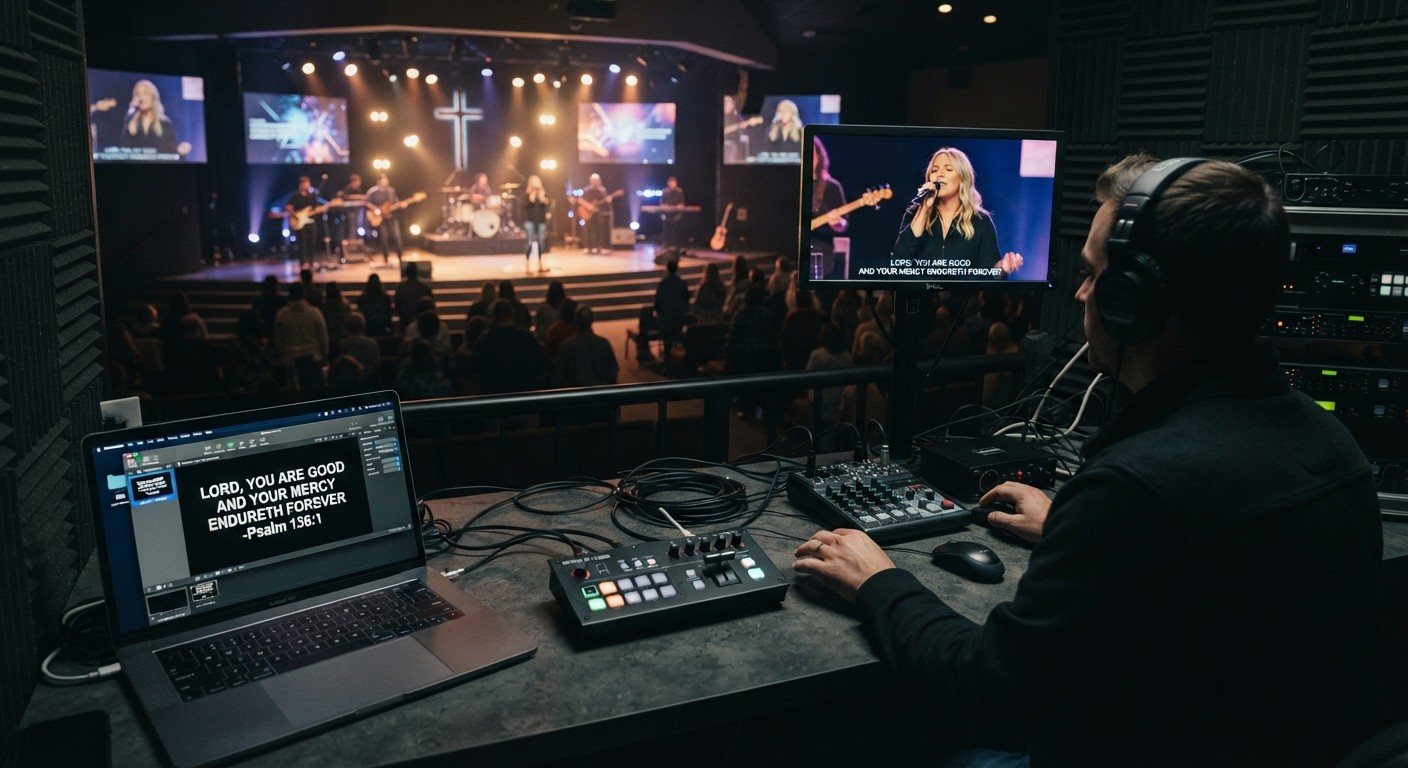
The basic idea
The ATEM doesn’t make lyrics itself. Your slides computer (ProPresenter, WorshipMetrics Present, or any slides app) sends its output into one of the ATEM’s HDMI inputs. A key then lays those lyrics over whichever camera is live, so people at home see the worship leader and the words.
(For how slides reach the stream in general, see lyrics and slides on your livestream.)
Luma key or chroma key?
| Luma key | Chroma key | |
|---|---|---|
| Slide background | Pure black | Solid green |
| Text | White or light colors | Any color except green |
| Setup | Simplest | A little more tuning |
| Best for | Lyrics and lower thirds | When you need dark text |
Most churches start with a luma key: white text on pure black.
Setting it up
- Connect the slides computer to a spare ATEM HDMI input. Set it to the same resolution and frame rate as the ATEM.
- Make a stream look in your slides software: white text, lower third position, pure black background, no motion backgrounds.
- In ATEM Software Control, set up a key with that input as the source, and choose luma (or chroma, for a green background).
- Adjust until the black disappears cleanly and the text edges look sharp.
- Test with every song before Sunday.
For a deeper look at keyers, including the ATEM Mini Extreme’s extra keyers: ATEM Mini Extreme upstream keyers.
Slides that key cleanly
- Two lines at a time, in the lower third.
- Bold, simple fonts with a little extra size for phones.
- No photos or motion on the stream look; save those for the room screens.
- A separate stream look from your projector look, if your slides software supports it.
Who runs it
Keying lyrics on and off is a job for the software seat or a Stream Deck, not the person cutting cameras. A single “Lyrics On/Off” button in Companion, or an ATEM macro, makes it hard to get wrong.
Where WorshipMetrics helps
Present builds lyrics from the service plan, so the slides are ready before Saturday night, with themes for the room and the stream. Present slides can also cut the ATEM when they go live, through Tech Manager in the booth.
Related questions
- How do I put lyrics over the camera on an ATEM Mini?
- Connect the slides computer's output to one of the ATEM's HDMI inputs, design lyric slides with a plain background (black for a luma key, or green for a chroma key), and set up a key in ATEM Software Control that uses that input. Turning the key on puts the lyrics over whichever camera is live.
- Luma key or chroma key for church lyrics?
- Luma key is usually the simplest: white text on a pure black background, and the ATEM removes the black. Chroma key uses a green background. Either way, use plain backgrounds; motion backgrounds and photos won't key cleanly.
- Who should turn the lyrics key on and off?
- Ideally the volunteer running ATEM Software Control or a Stream Deck, not the person cutting cameras. A single 'Lyrics On/Off' button makes it easy to get right.
Bitfocus Companion + ATEM Mini: A Stream Deck Panel for Your Church Switcher
NextATEM Mini + OBS for Church: Hardware Camera Switching with OBS for Graphics and Streaming
Related Articles
Bitfocus Companion + ATEM Mini: A Stream Deck Panel for Your Church Switcher
A Stream Deck running Bitfocus Companion turns a Blackmagic ATEM into plain-word buttons with colors that show what's live, and the same panel can run PTZ cameras, projectors, and more. Here's how to connect Companion to an ATEM and build a volunteer page.
ATEM Mini + OBS for Church: Hardware Camera Switching with OBS for Graphics and Streaming
Many churches use an ATEM Mini as a camera switcher and send its output into OBS over USB as a webcam. The ATEM gives volunteers real buttons; OBS adds lyrics, graphics, recording, and streaming. Here's how to set it up, split the jobs, and avoid the common sync and quality problems.
ATEM Software Control on a Second Computer: Give a Church Volunteer the Keys, Audio, and Stream
The ATEM Mini's buttons handle switching, but keys, audio, media, and streaming live in ATEM Software Control. Put it on a second computer over the church network and hand it to its own volunteer. Here's how to connect it, what that seat does, and how the two people work together.