Two tools, two jobs
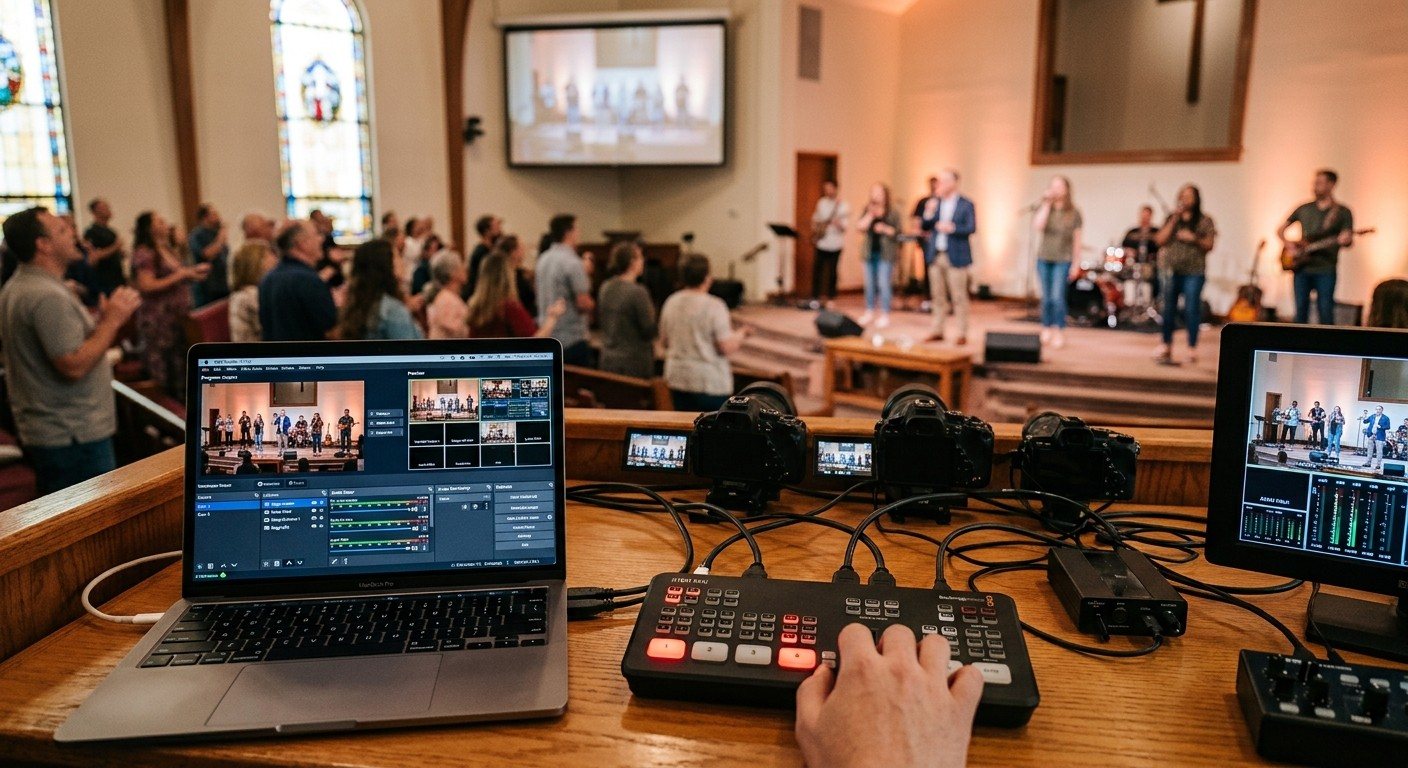
This is one of the most common small-church setups: cameras into an ATEM Mini, and the ATEM’s output into OBS on a laptop over USB. It works well because each tool does what it’s best at:
- The ATEM switches cameras with real buttons, and takes HDMI cameras without capture cards.
- OBS adds lyrics, lower thirds, scenes, recording, and streaming.
It also splits the job neatly between two volunteers. (See splitting ATEM jobs.)
Setting it up
- Connect cameras to the ATEM’s HDMI inputs.
- Connect the ATEM’s USB-C port to the OBS computer. The ATEM appears as a webcam.
- In OBS, add a Video Capture Device and choose the Blackmagic ATEM. Match the resolution and frame rate to the ATEM’s settings.
- Add audio: the ATEM’s audio input, or your sound board’s USB feed.
- Build OBS scenes around that source: the camera feed alone, the camera with lyrics, a full-screen slides scene.
Prefer NDI instead of USB? See ATEM Mini, NDI, and OBS.
Splitting the seats
| Seat | Controls | Job |
|---|---|---|
| Cameras | ATEM buttons | Cut between cameras |
| OBS | OBS on the laptop | Lyrics, lower thirds, scenes, stream and recording |
| Slides (optional) | A second computer over NDI | Lyrics into OBS (guide) |
Common problems
- Audio out of sync with video. Set an audio sync offset in OBS’s Advanced Audio Properties, and check it with a clap test. (See ATEM Mini audio delay.)
- Soft or blocky video. Make sure OBS’s canvas and the capture device match the ATEM’s output resolution and frame rate.
- The ATEM disappears in OBS. Use a good USB-C cable directly into the computer, not a hub.
- “Encoding overloaded.” Lower the stream settings, or move slides off the laptop. (See is it time to move OBS to two computers?.)
Where WorshipMetrics helps
Tech Manager watches the OBS computer and alerts your team if the stream or recording stops, and can control both OBS scenes and the ATEM’s cut, preview, and program from the booth. Cloud OBS control lets a helper switch OBS scenes and confirm the stream from any browser. For the OBS side, see OBS + Bitfocus Companion; for the ATEM side, Companion + ATEM.
Related questions
- How do I connect an ATEM Mini to OBS?
- Connect the ATEM Mini's USB-C port to the OBS computer. The ATEM appears as a webcam, so in OBS add a Video Capture Device and choose the Blackmagic ATEM. Add the ATEM as an audio source too, or bring audio from your sound board separately.
- Why use an ATEM Mini with OBS instead of just OBS?
- The ATEM handles camera switching in hardware with physical buttons, which volunteers find easy, and it takes HDMI cameras without capture cards. OBS adds what the ATEM doesn't do as well: flexible graphics and lyrics, scenes, recording, and streaming to multiple platforms.
- Can two volunteers run an ATEM Mini and OBS together?
- Yes, and it's a natural split: one volunteer switches cameras on the ATEM, and another runs OBS for lyrics, graphics, and the stream. Each has one job and one set of controls.
Lyrics Over the Camera on an ATEM Mini: Luma Keys, Chroma Keys, and the Slides Computer
NextATEM Software Control on a Second Computer: Give a Church Volunteer the Keys, Audio, and Stream
Related Articles
Bitfocus Companion + ATEM Mini: A Stream Deck Panel for Your Church Switcher
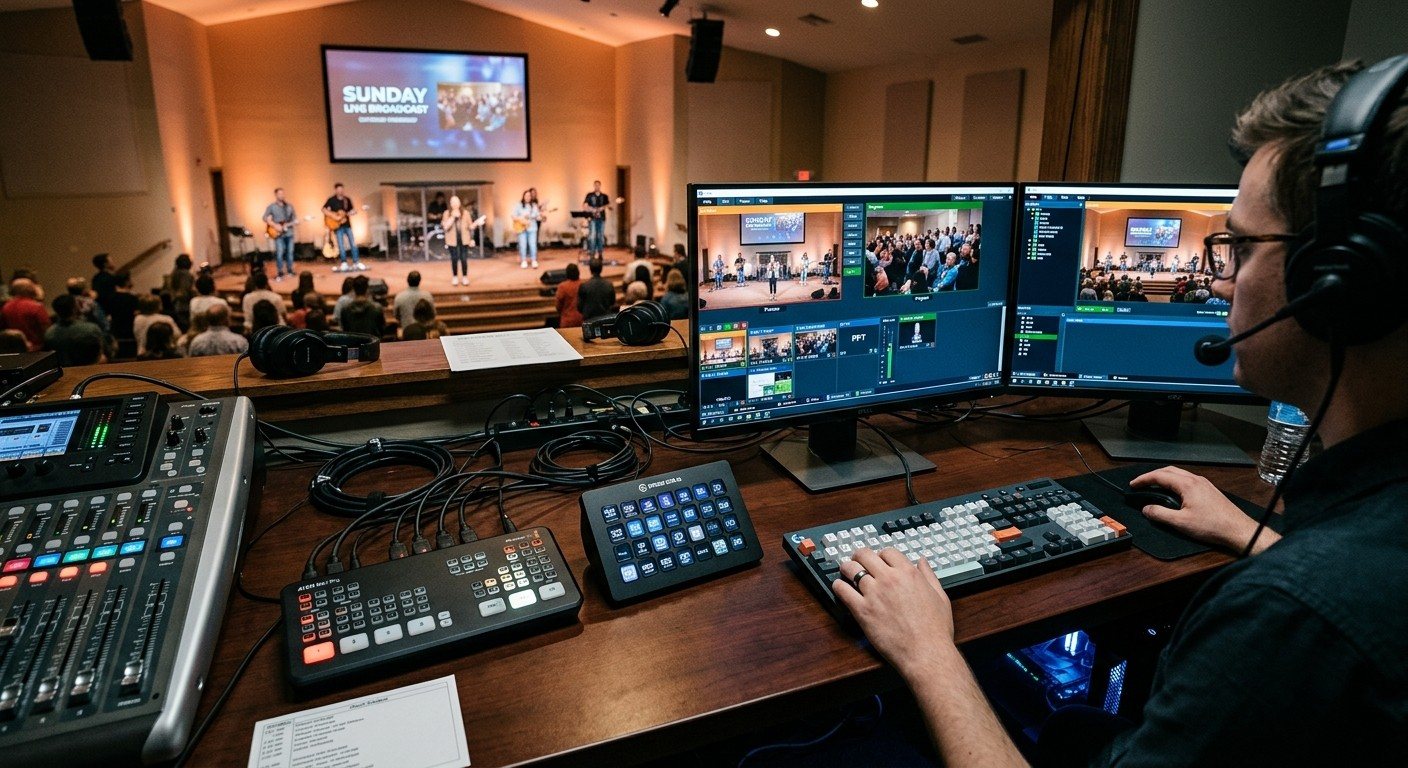
A Stream Deck running Bitfocus Companion turns a Blackmagic ATEM into plain-word buttons with colors that show what's live, and the same panel can run PTZ cameras, projectors, and more. Here's how to connect Companion to an ATEM and build a volunteer page.
Lyrics Over the Camera on an ATEM Mini: Luma Keys, Chroma Keys, and the Slides Computer
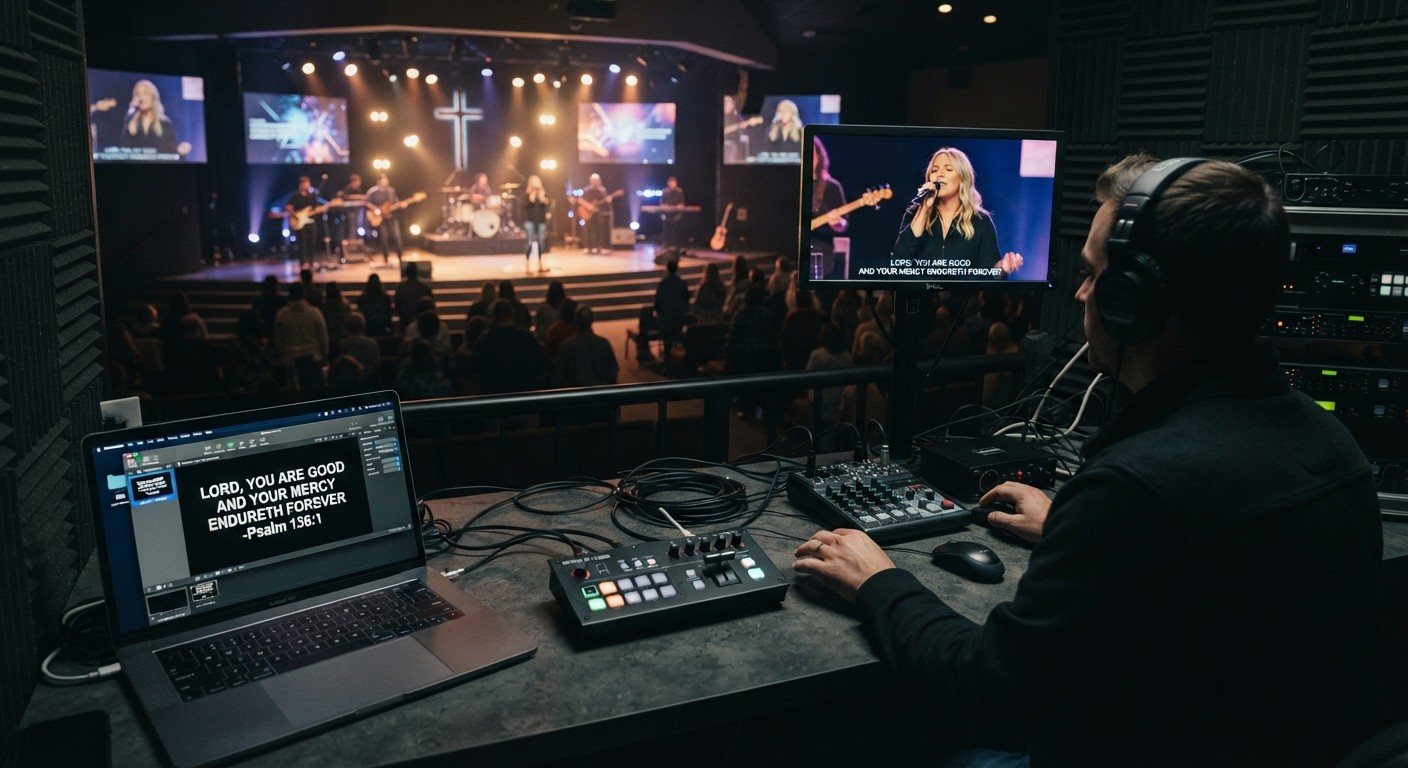
To put song lyrics over the camera shot on a Blackmagic ATEM Mini, feed the slides computer into an ATEM input and key it over the camera. Here's how luma and chroma keys work for lyrics, how to design slides that key cleanly, and who should run it.
ATEM Software Control on a Second Computer: Give a Church Volunteer the Keys, Audio, and Stream
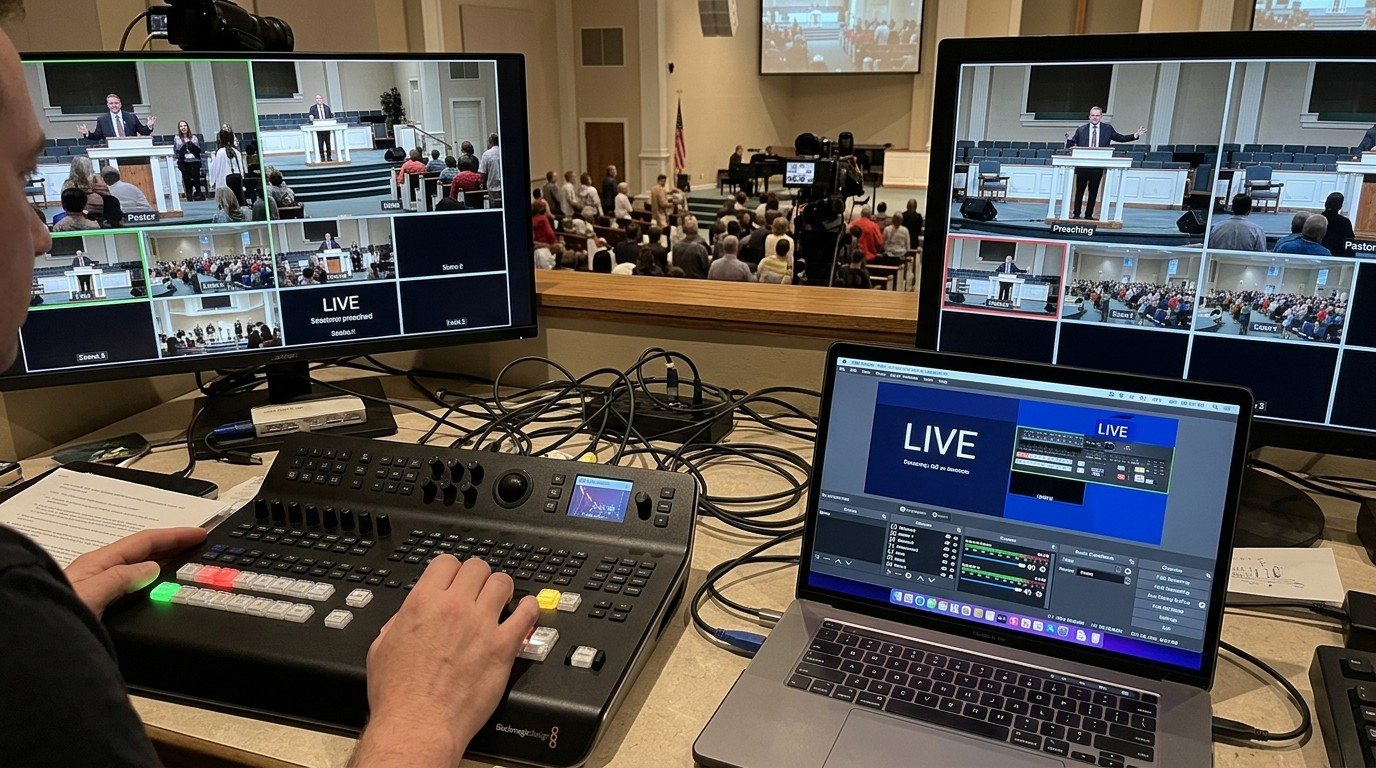
The ATEM Mini's buttons handle switching, but keys, audio, media, and streaming live in ATEM Software Control. Put it on a second computer over the church network and hand it to its own volunteer. Here's how to connect it, what that seat does, and how the two people work together.