When you watch your church’s livestream and notice that the pastor’s lips move before you hear the words—or worse, you hear the words before seeing the lips move—you’ve got an audio delay issue. This is one of the most noticeable problems in streaming and can make your broadcast feel unprofessional. The ATEM Mini Pro has settings to compensate for most audio delay scenarios, and this guide walks through diagnosing the problem and fixing it.
Understanding Where Audio Delay Happens
Audio delay between video and audio (what’s called “lip sync” in broadcast) can originate from several places in your signal chain. Your mixer might introduce latency. Your PC running ATEM Software Control or OBS might buffer audio differently than video. Your speakers—whether they’re physical speakers playing your stream back or Bluetooth speakers—might have inherent delay.
The key is identifying which component is introducing delay, because the fix is different depending on the source.
Testing for Audio Delay
The best way to test is simple: have someone speak into a microphone while you watch both the video and listen to the audio on your stream. If the video shows the person’s mouth moving, and the audio follows a moment later, you’ve got delay. If the audio comes first, you’ve got advance (audio ahead of video), which is less common but also fixable.
For a quantitative test, open your recorded stream in a video editor like DaVinci Resolve (free) or Adobe Premiere. Place the audio track and video track side by side, zoom in, and count how many frames or milliseconds separate the audio from the corresponding video. Anything more than about 100 milliseconds (about three to six frames at 30 fps) will be noticeable to viewers.
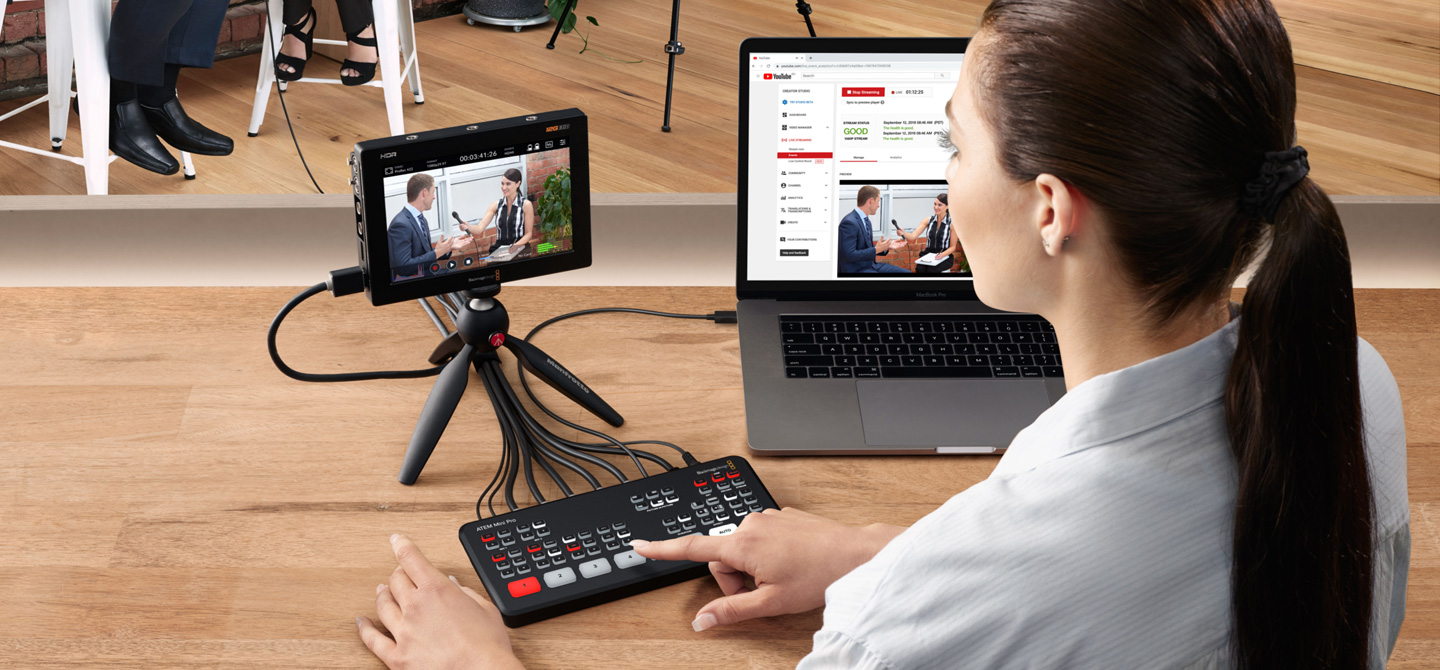
Another approach: stream to YouTube, then open that stream on a separate device while also monitoring your multiview display showing the program output from the ATEM Mini Pro. Have someone speak, and note whether you hear the words at the same time or delayed. This gives you a real-world test of what your viewers experience.
Audio Delay Compensation in ATEM Software Control
The ATEM Mini Pro has a built-in audio delay compensation setting designed exactly for this problem. Open ATEM Software Control and navigate to Audio settings. Look for an Audio Delay or Lip Sync option.
You’ll typically see a slider or input field for delay adjustment, measured in milliseconds. Start at zero (no compensation) and incrementally adjust. If your audio is delayed (coming after the video), increase the delay compensation value. The ATEM Mini Pro will intentionally delay the video slightly to match the audio, bringing them into sync.
The adjustment range is usually 0–1000 milliseconds (1 second), which is more than enough to fix most problems. Start with small adjustments—50 or 100 milliseconds—and retest. You’re aiming for a setting where audio and video line up perfectly.
Once you find the right setting, save it. In ATEM Software Control, look for options to save your configuration or settings file. This ensures that if you power cycle the ATEM Mini Pro or restart ATEM Software Control, your delay compensation setting persists.
Common Sources of Audio Delay
Your mixer is often the culprit. Some mixers, especially digital mixers with built-in USB audio outputs, introduce latency as they process the signal. The more processing you’ve applied—EQ, compression, reverb—the more delay might accumulate.
To test if your mixer is the source, check your mixer’s manual for any reported latency specifications. Better yet, bypass the mixer temporarily and run a microphone directly into the ATEM Mini Pro’s 3.5mm input. If the delay disappears, your mixer is the source. If the delay persists, look elsewhere.
Your streaming PC can also introduce delay, especially if it’s doing CPU-intensive encoding while also handling audio processing. OBS, for example, can introduce variable latency depending on your system load. This is why using a dedicated streaming device (like the ATEM Mini Pro’s direct streaming) is often cleaner—there’s no PC introducing variable latency.
Wireless microphones can introduce delay through their receivers, though this is usually small (under 50 milliseconds) and acceptable. Bluetooth speakers playing your stream back are notorious for delay—sometimes 100–200 milliseconds or more. This is a property of Bluetooth itself and is hard to fix at the source.
Fixing Audio Delay at Your Mixer
If you’ve identified your mixer as the source of delay, you have a few options. First, check whether your mixer has a latency compensation setting or a direct output (a way to send audio without processing). Some digital mixers let you send audio directly from the input stage, bypassing all processing, which eliminates delay.
Second, reduce processing on the output. If you have extensive EQ, compression, or effects on your main stereo output, try temporarily disabling them. If that reduces delay, you’ve found the culprit. Then either accept the small delay caused by processing, or use the ATEM Mini Pro’s audio delay compensation to counteract it.
Third, consider using a smaller, more direct signal path. Instead of routing all channels through a full mix bus, consider creating a dedicated stereo output that takes only essential channels (microphones, music playback) with minimal processing.
Bluetooth Speaker Delay
If you’re monitoring your stream on a Bluetooth speaker or Bluetooth headphones, the speaker itself introduces delay. This is the nature of Bluetooth—the audio is encoded, transmitted wirelessly, received, buffered, and decoded before playing, which takes time.
The fix is to monitor your stream on a wired speaker or with wired headphones instead. Bluetooth is fine for casual listening but not for professional production monitoring where you need accurate lip sync.
If you must use Bluetooth for some reason, account for the Bluetooth delay in your audio delay compensation setting. Add the Bluetooth delay (usually 100–200 milliseconds) to whatever compensation you’re already applying.
Video Encoder Delay from OBS
If you’re using the ATEM Mini with OBS (not direct streaming from the Mini Pro), OBS’s video encoder introduces latency. This is variable and depends on your encoder settings, CPU load, and codec. Hardware encoders (NVIDIA NVENC, AMD VCE) introduce less delay than software x264 encoding.
To reduce encoder latency, check OBS’s Output settings. Look for options like CBR (Constant Bitrate), which often has lower latency than VBR (Variable Bitrate). Use a hardware encoder if available. Reduce your keyframe interval from the default 2 seconds to 1 second, which slightly improves latency (though at a small cost to file size).
These adjustments are subtle but can accumulate to noticeable improvements.
Testing After Adjustment
Once you’ve adjusted audio delay compensation in ATEM Software Control, test again. Record a short test stream to YouTube (unlisted), and have someone speak while you monitor on a separate device. You should see improved sync.
If sync is perfect on your end but viewers report it’s still off, remember that internet latency affects what viewers see. Your stream might be perfectly synced at YouTube’s servers, but by the time it reaches a viewer’s phone, there might be buffering or additional delay. This is beyond your control, but it’s not your fault if viewers on slow connections experience delay.
Document your final delay compensation setting. Write it down, take a screenshot, or save it in a text file. If you ever rebuild your system or move the ATEM Mini Pro to a new location with different equipment, you’ll have a baseline to work from.
When to Accept Minor Delay
Not all delay is fixable. A few frames of delay (under 100 milliseconds) is generally acceptable in live broadcast, even on television. Focus on getting it as close as possible, but don’t obsess over perfect sync. Most of your congregation won’t notice minor delay, especially if they’re in the room watching the live service in person.
If your delay compensation is set and your sync is within a few frames, you’re in good shape. Call it done and move on to the next production challenge.
Your Systematic Approach
Test for delay, identify the source (mixer, PC, Bluetooth, encoder), adjust the ATEM Mini Pro’s audio delay compensation setting, test again, document the working setting, and monitor before future services. Most audio delay issues are resolved within a few minutes of systematic troubleshooting. The key is understanding the signal chain and knowing which knob to turn to fix each potential source.