The ATEM Mini Extreme is the most capable device in the Mini family. It adds two critical features over the ATEM Mini Pro: eight HDMI inputs instead of six, and SuperSource—a picture-in-picture (PIP) engine that lets you create split-screen layouts with multiple video sources visible simultaneously.
For churches that want to display worship graphics alongside a camera feed, show Scripture on screen next to a speaker, or create multi-camera split-screen effects, the ATEM Mini Extreme is a transformative upgrade.
Understanding Your Eight Inputs
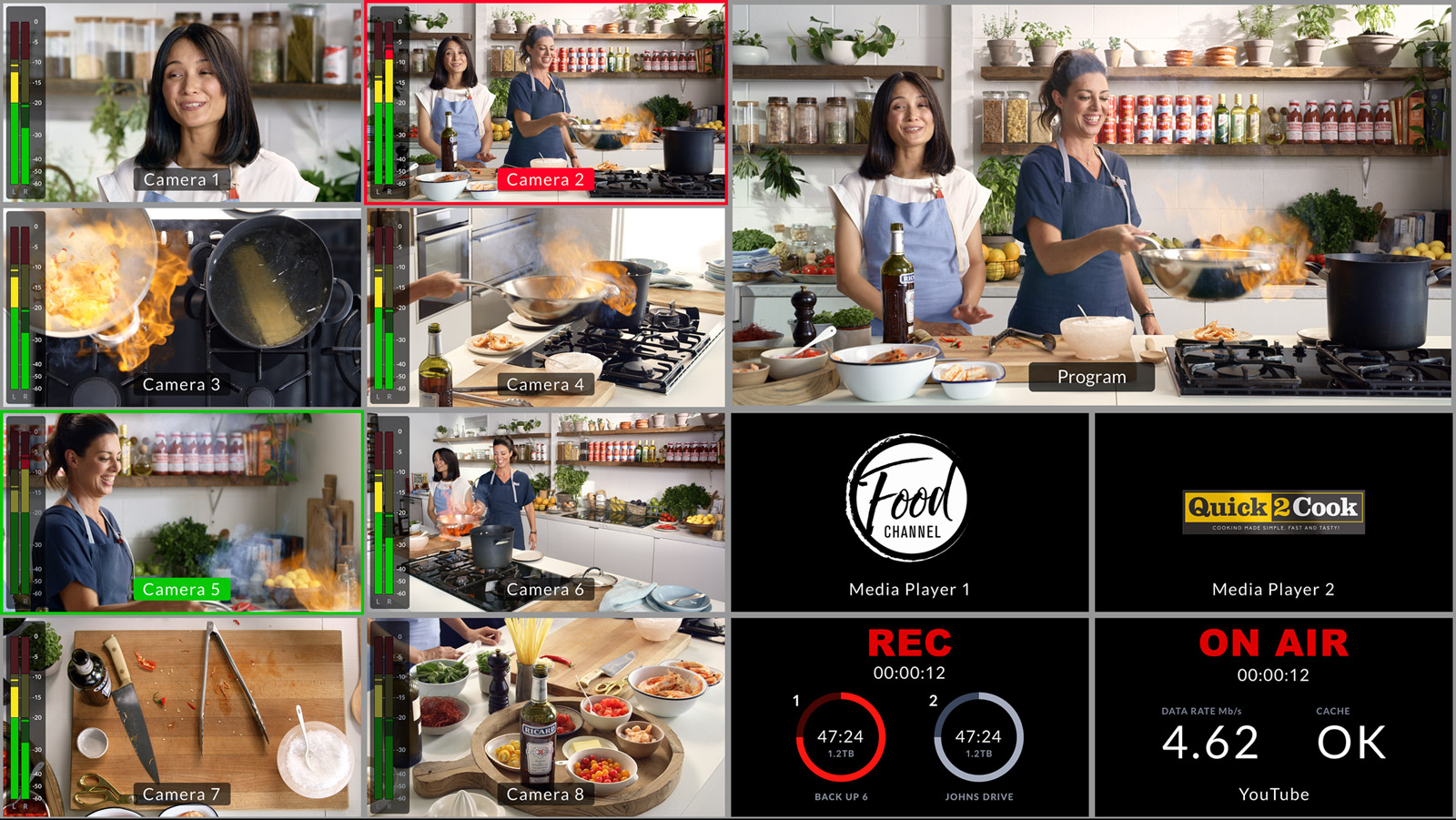
The ATEM Mini Extreme has eight HDMI inputs on the back panel. This gives you flexibility you don’t have with the Mini or Mini Pro. Most churches use them like this: Inputs 1–3 for three primary cameras (main stage, wide shot, close-up). Input 4 for graphics from ProPresenter. Input 5 for a backup camera or document camera. Inputs 6–8 for future expansion or secondary content sources.
With eight inputs available, you can accommodate most scenarios a church throws at it: multiple camera angles, graphics, and a spare input or two for experiments or special moments.
Physical Setup
The ATEM Mini Extreme is slightly larger than the ATEM Mini Pro and has more connectivity on the back. Set it up in your AV area with good airflow—don’t box it in. Connect your cameras and graphics sources to the HDMI inputs, power on the device, and connect Ethernet to your network.
The physical buttons and screen on the front work identically to other ATEM models. You can operate the device directly without a PC if needed, though most churches rely on ATEM Software Control running on a networked PC.
Ethernet and Network Configuration
Connect the ATEM Mini Extreme to your church’s network via Ethernet. The device will obtain an IP address automatically via DHCP. Open ATEM Software Control on a networked PC, and it will discover and connect to the device.
Once connected, you can configure streaming to YouTube or Facebook, just as with the ATEM Mini Pro. The streaming capability is identical—the additional inputs and SuperSource don’t affect streaming performance.
SuperSource Explained
SuperSource is a picture-in-picture engine. It lets you display multiple video sources on screen simultaneously in a flexible layout. For example, you could display a camera feed as the main background with ProPresenter graphics as an overlay, or show a split-screen with two cameras side by side.
SuperSource has four independent layers, which means you can have up to four video sources visible at once, each positioned and sized independently. It’s remarkably flexible and opens up creative possibilities that the standard ATEM Mini doesn’t have.
Configuring SuperSource
Open ATEM Software Control and navigate to the SuperSource section. You’ll see a canvas representing your program output. Each SuperSource box on this canvas can hold any ATEM input.
Click on a SuperSource box and select which input you want it to display. For example, you might assign Camera 1 to the main background, ProPresenter to the upper right, and a timer or logo to the lower right.
Use the position and scale controls to arrange each box on your screen. Many churches use a layout where the speaker occupies most of the screen with worship graphics in the lower third or upper right corner. SuperSource makes this layout trivial to create.
You can save different SuperSource layouts and switch between them during your service. Maybe your “Opening” layout shows a title slide full-screen. Your “Sermon” layout shows the pastor with scripture references overlaid. Your “Closing” layout shows your church name and contact info. All of these are SuperSource configurations you can recall with a macro.
Upstream Keyers and SuperSource Integration
The ATEM Mini Extreme has both upstream keyers (for traditional keying like chroma or luma key) and SuperSource. You can use both simultaneously—for example, key your ProPresenter graphics over a camera feed using the upstream keyer, or use SuperSource to create a split-screen effect.
For most churches, SuperSource is simpler and more intuitive than keying. You’re arranging boxes on a canvas rather than configuring keying parameters. This makes SuperSource the go-to approach for display layouts.
Using All Eight Inputs in Your Service
With eight inputs, you might have: Camera 1 (main stage), Camera 2 (wide shot), Camera 3 (close-up), ProPresenter (graphics), an external camera or document camera, and maybe a laptop for PowerPoint. That’s six inputs used, leaving two spares.
During a service, you can switch cameras while also displaying graphics in a SuperSource layout. Your switcher operator cuts between camera feeds, and graphics are constantly visible in a PIP window. This is a significant step up from basic switching—your broadcast is now truly multi-layered.
Switching and Transitions
Transitions between camera angles work identically to other ATEM devices. The T-bar controls the mix/cut/wipe transition. SuperSource layouts don’t transition themselves—they’re static until you change them. If you want to switch from one SuperSource layout to another, you typically cut (move the T-bar instantly) rather than using a transition effect, because transitioning between two complex layouts can be visually jarring.
Many churches record macros for their SuperSource layouts. A “Sermon” macro might engage a specific SuperSource configuration along with selecting the sermon camera. A “Song” macro might show a different layout. This lets your operator switch both cameras and SuperSource layout with a single macro button.
Audio and Direct Streaming
Audio configuration is identical to the ATEM Mini Pro. Connect your mixer to the RCA input. Configure audio levels in ATEM Software Control. Direct streaming to YouTube works the same way—you enter your stream key, start the stream, and you’re broadcasting.
The additional inputs and SuperSource capability don’t affect audio or streaming. They’re purely video features that enhance your visual presentation.
Managing Complexity
With eight inputs and SuperSource capability, your ATEM Mini Extreme is more powerful than you might need. Resist the temptation to use all eight inputs and create overly complex SuperSource layouts.
For 80% of your services, basic camera switching with a simple graphics overlay is sufficient. Save the complex multi-source layouts for moments that warrant them—maybe a special event or a sermon series opening where you want a unique look.
This restraint keeps your switching operation manageable and prevents the broadcast from looking chaotic or unprofessional.
Comparing to the ATEM Mini Pro
The ATEM Mini Pro gives you six inputs and direct streaming to YouTube. It’s a full-featured, complete device for most churches.
The ATEM Mini Extreme adds two more inputs and SuperSource, giving you more flexibility and enabling picture-in-picture layouts. Whether these additions justify the extra cost depends on your specific needs.
If you regularly display graphics alongside video (ProPresenter over a camera, for example), the ATEM Mini Extreme’s SuperSource makes this dramatically easier than trying to achieve it with traditional keying. If you’re happy with single-camera or simple switching, the ATEM Mini Pro is sufficient.
Your First Service with the ATEM Mini Extreme
Set up your eight inputs with your cameras and graphics sources. Create a basic SuperSource layout showing your speaker with graphics in a corner. Configure streaming to YouTube. Run your pre-service checks and start the stream.
During the service, switch between cameras as normal. Your SuperSource layout remains constant, showing graphics alongside your camera feed. Everything happens in real time without any lag or complexity.
For your second service, experiment with creating a second SuperSource layout and switching between them. Maybe your “Opening” layout is full-screen graphics, and your “Sermon” layout shows the pastor with graphics in the corner. Switching between these layouts is a single button press.
The ATEM Mini Extreme scales with your ambition. Start simple, then explore its capabilities as you grow more confident. You’ll find yourself discovering creative ways to use SuperSource and multi-input capability that improve your broadcast’s visual interest and professional appearance.
With eight inputs and SuperSource, you’re not just switching cameras—you’re compositing video like a professional broadcast control room. It’s a powerful tool in the right hands.
Running this with volunteers? Splitting ATEM Mini jobs for church volunteers.