SuperSource is the ATEM Mini Extreme’s most distinctive feature. It’s a picture-in-picture (PIP) engine that lets you create layouts where multiple video sources appear simultaneously on screen, each independently positioned and scaled. While upstream keying lets you overlay graphics, SuperSource gives you precise control over multiple simultaneous video windows and is much more intuitive for most church applications.
This guide walks through creating practical SuperSource layouts for worship services.
Understanding SuperSource Architecture
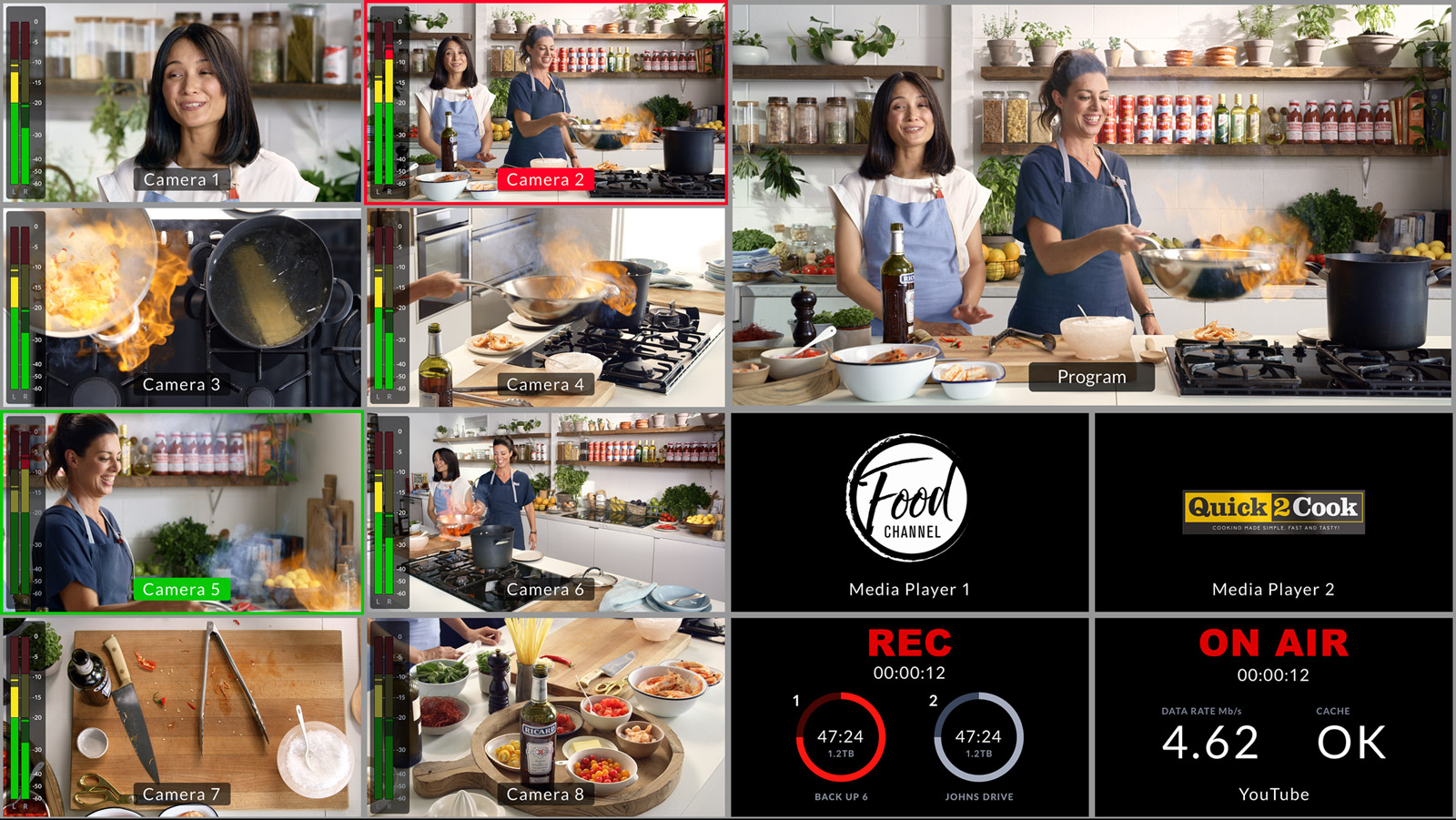
SuperSource works like a canvas. You have four independent “boxes” or “windows” that can each display any ATEM input. You position and size each box on your program output canvas. Your program bus shows the combined result.
For example, a typical worship layout might have: Main window (Camera 1, full screen or nearly full). Upper right window (ProPresenter graphics, sized to 30% of screen). Lower left window (Logo or timer, maybe 10% of screen). Fourth window (unused or reserved for flexibility).
Each window is independent. If you want to change what appears in the main window, you select that window and choose a different input. The other windows are unaffected.
Accessing SuperSource in ATEM Software Control
Open ATEM Software Control and click on the SuperSource tab. You’ll see a canvas representing your program output. Overlaid on this canvas are four boxes—these represent your four SuperSource windows.
Each box shows which input it’s currently displaying. Click on a box to select it (it will highlight), then use the controls to adjust its input, position, size, and border properties.
You’ll also see a list of all available inputs on the side: Camera 1, Camera 2, Camera 3, etc. This makes it easy to reassign inputs to windows.
Creating Your First Layout
Let’s build a practical “Sermon” layout. This layout shows the pastor as the main video source with Scripture references or notes visible in a corner.
Select the main (largest) SuperSource box. Click on its input dropdown and choose Camera 1 (your pulpit camera). This window now displays Camera 1. Position it to fill most of your screen—maybe leaving about 25% of space on the right side for graphics.
Select the upper right SuperSource box. Assign it to Input 4 (assuming ProPresenter is connected to input 4). Size and position it to fit in the upper right corner—maybe 25% of the screen width and 20% of the screen height. This shows worship notes or Scripture references alongside the pastor’s video.
Now your program output shows the pastor filling most of the screen with graphics in the corner. This is a professional, visually balanced layout.
Practical Layouts for Worship Services
Different moments in your service benefit from different layouts. Here are some examples you might create and save.
An “Opening” layout shows your worship graphics full-screen (input 4 at 100%, other boxes unused). This creates an opening slide show before anyone takes the stage.
A “Song” layout shows your worship leader (camera 1) with song lyrics (ProPresenter input 4) in the lower third. The music takes up the main visual space, and lyrics are available for anyone not familiar with the song.
A “Sermon” layout shows the pastor (camera 1) with Scripture references (input 4) in the upper right. Listeners can read along as the pastor speaks.
A “Prayer” layout might show a wide room shot (camera 2) with a prayer intention or church information (input 4) overlaid. This creates a contemplative visual while maintaining focus on the room.
An “Announcement” layout might show a camera 1 with a title graphic (input 4) so viewers know what they’re watching.
Saving and Recalling Layouts
ATEM Software Control lets you save SuperSource configurations. Once you’ve created and positioned your “Sermon” layout exactly how you want it, save it.
In SuperSource settings, look for a Save or Store option. Give it a descriptive name like “Sermon_Layout” and save. Now whenever you want to recall this exact layout, you can select it from a dropdown, and all four SuperSource windows will instantly move to their saved positions and display their saved inputs.
Most churches create five to eight layouts covering their regular service moments. Save all of them. Now during your service, instead of manually positioning windows (which is time-consuming and error-prone), you just click on the layout you want and it’s instantly applied.
Using SuperSource with Macros
Combine SuperSource layouts with macros for powerful automation. Create a “Sermon” macro that: selects the sermon camera, engages the SuperSource “Sermon” layout, and adjusts audio levels all in one button press.
When the pastor comes to the podium, your switcher operator clicks the “Sermon” macro. Instantly, the right camera appears, the SuperSource layout engages with Scripture references visible, and audio levels adjust—all coordinated.
This is how professional broadcast control rooms operate. Your ATEM Mini Extreme, combined with macros, gives you this capability.
Sizing and Positioning Precision
SuperSource positioning is pixel-precise. You can use the numeric controls to position a window at exact pixel coordinates and exact pixel dimensions. This level of precision isn’t usually necessary, but it’s available if you want pixel-perfect positioning.
More commonly, you drag-and-drop windows with your mouse on the canvas to position them roughly where you want, then fine-tune with small nudges.
Pay attention to aspect ratio. If your SuperSource windows are too tall and narrow, they’ll distort the video. If they’re too wide and short, they’ll compress it. Aim for aspect ratios that match your video source (usually 16:9 for HD video).
Border and Styling Options
SuperSource windows can have visible borders to separate them visually. You can choose border color, thickness, and style. Some churches use thin white borders to create a clean, modern look. Others use no borders and rely on the content itself to define the window boundaries.
Experiment with your church’s visual branding. If your church uses certain brand colors, you might apply those to SuperSource borders so the broadcast feels cohesive with your other visual media.
Aspect Ratio Considerations
Remember that viewers watch on different sized screens. A layout that looks perfect on your 16:9 editing monitor might look different on a phone screen (9:16) or a TV screen (4:3 in some older venues).
Test your SuperSource layouts on multiple devices. Have someone watch on a phone while you monitor the output on your main display. Make sure graphics and text are readable, and that the layout doesn’t accidentally crop important content on smaller screens.
Common Mistakes and How to Avoid Them
Overlapping windows: If two SuperSource windows overlap, the viewer will see the overlapping area filled with one color or another—often confusing. Leave clear spacing between windows.
Text too small: Graphics in a small SuperSource window can become unreadable on phones. If you’re displaying text in a PIP window, make sure it’s large and bold enough to be readable at 10% of screen size.
Too many windows at once: Four simultaneous windows sounds flexible, but displaying all four at once often looks cluttered. Most professional layouts use two to three windows. Leave one spare.
Switching windows during moments: Avoid changing what’s displayed in a SuperSource window during important moments (the pastor’s main point, a worship climax). Switching is visually jarring when viewers aren’t expecting it. Make changes during transitions or calm moments.
Advanced: Nested Keying with SuperSource
Advanced users can combine SuperSource with upstream keying. For example, you could create a SuperSource layout where one of the windows is the output of an upstream keyer—a keyed graphics layer. This creates even more complex visual possibilities, though it’s overkill for most churches.
Start with basic SuperSource layouts. Once you’re comfortable, explore combining it with keying if you want additional effects.
Troubleshooting SuperSource Issues
If your SuperSource layout suddenly looks wrong—windows are the wrong size or in the wrong position—first check that you haven’t accidentally modified the layout during service.
If a SuperSource window is showing a blank or black area, verify that the input assigned to that window actually has video signal. If camera 1 was unplugged during service, that window goes black.
If your layout doesn’t match your saved configuration, verify that you’re recalling the right saved layout. If you’ve edited a layout since saving it, your edits won’t be reflected in the saved version until you explicitly save again.
Your Visual Language
SuperSource is a tool for creating a visual language in your broadcast. Consistent layouts for consistent moments (same layout for every sermon, same layout for every song) help your congregation understand what they’re watching. They know when the layout changes that something different is happening in the service.
This visual consistency, achieved through SuperSource layouts and macros, is a subtle but powerful production tool. It makes your broadcast feel intentional and professional, even if your congregation doesn’t consciously notice it.
SuperSource transforms the ATEM Mini Extreme from a switcher into a compositing engine. You’re not just switching between cameras—you’re designing layouts where multiple information sources coexist on screen in a balanced, intentional way. That’s professional broadcast production.