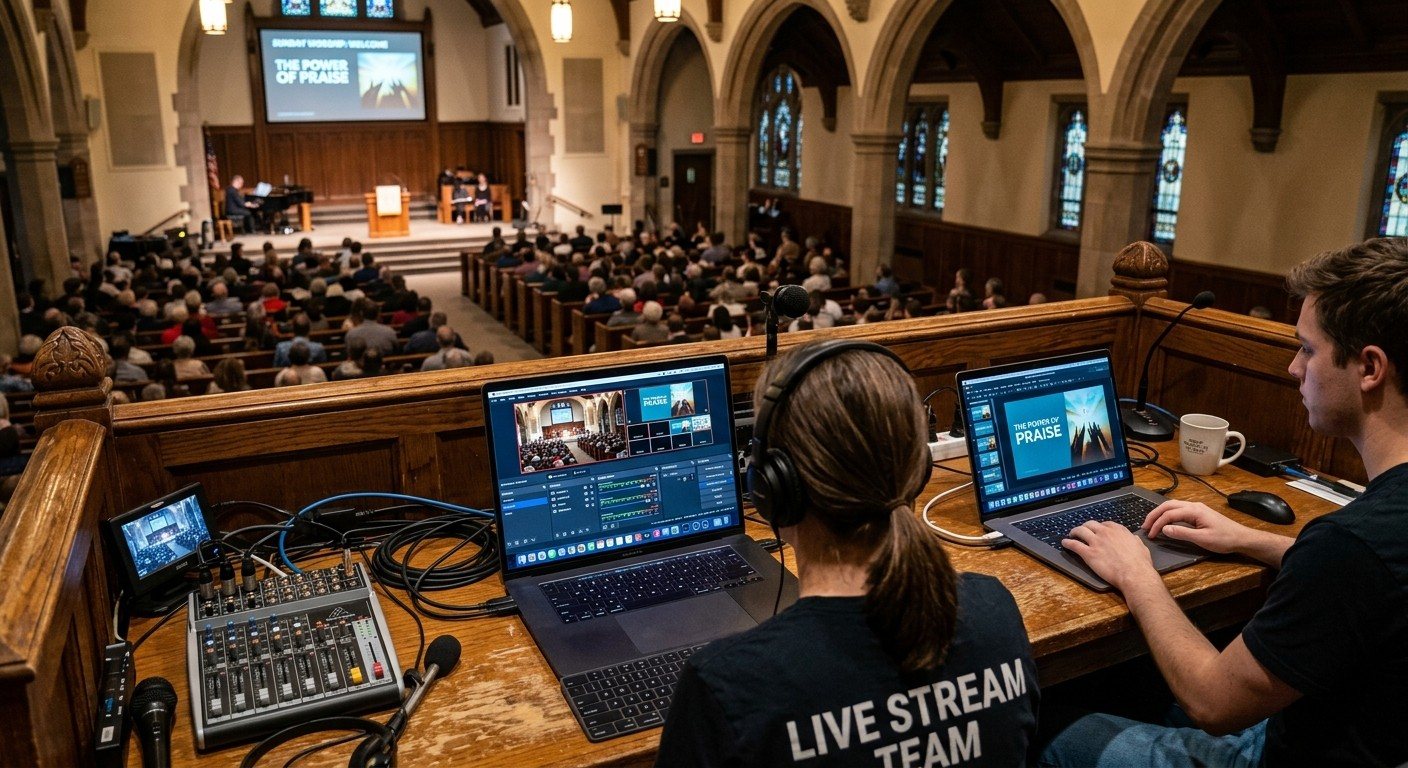
Why two computers
When OBS and the slides app share one computer, a few things tend to happen:
- The slides operator and the stream operator have to be the same person, or take turns at one keyboard.
- One click in the wrong window changes what’s live on the stream.
- The computer is doing slides, switching, and encoding at once, and Sunday is when it runs out of headroom. (See why OBS overloads during worship.)
Moving slides to their own computer fixes all three. It’s the second seat in the three-seat setup.
What you need
- A second computer for slides. A laptop is fine. It can even be a Mac. (See using a Mac for church livestreaming.)
- A wired network connecting both computers, ideally on the same gigabit switch. (See what network a church needs for NDI.)
- The free DistroAV plugin for OBS (formerly obs-ndi), plus the NDI Runtime it asks for.
- A way to send slides as NDI: ProPresenter’s NDI output, WorshipMetrics Present through Tech Manager, or the free NDI Screen Capture tool for any other slides app. (See getting the pastor’s slides in without a capture card.)
Setting it up
- Wire both computers to the same network switch. Avoid Wi-Fi for either one.
- On the slides computer, turn on NDI output. Give the source a plain name, like “Slides.”
- On the streaming computer, install DistroAV and restart OBS.
- Add an NDI Source in OBS and pick “Slides” from the list. If it doesn’t appear, check that both computers are on the same network and that a firewall isn’t blocking NDI.
- Build your scenes: a full-screen slides scene for scripture and announcements, and a camera scene with the slides source layered on top for lyrics.
- For lyrics over the camera, send a transparent background from the slides computer. (See NDI alpha-channel slides.)
- Test a whole service before Sunday: every song, the sermon slides, and the hand-offs between them.
What changes on Sunday
- The slides volunteer has one job: follow the worship leader and the pastor.
- The OBS operator has one job: pick the shot and watch the stream.
- If the slides app freezes, the stream keeps running. The director cuts to a camera while the slides computer restarts.
- Training gets easier. A new volunteer can learn the slides seat without touching OBS at all. (See how to train OBS volunteers.)
Tips that save a Sunday
- Name sources in plain words. “Slides,” not “DESKTOP-4F7Q (NDI 1).”
- Write each seat a one-page checklist, including what to do if the slides source disappears.
- Keep both computers off automatic updates during service hours. (See why Windows updates break livestreams.)
- Document what plugs into what. The Signal Map keeps the wiring and NDI sources written down for whoever comes next.
Where WorshipMetrics helps
Present builds lyrics and slides from the service plan, and Tech Manager publishes them as an NDI source with a true transparent background, ready for OBS. Tech Manager also watches the OBS computer’s stream health and alerts your team if the stream or recording stops. And with cloud OBS control, a second person can switch scenes and confirm the stream is live from any browser.
Next: add the third seat with a PTZ camera operator for OBS, or see the vMix version of this setup.
Using a Blackmagic ATEM? Splitting ATEM Mini jobs for church volunteers. See also ATEM Mini + OBS.
Related questions
- How do I get slides from another computer into OBS?
- Send the slides computer's output over the network as an NDI source, then add it in OBS with the free DistroAV plugin (formerly obs-ndi). Both computers need to be on the same wired network. ProPresenter and WorshipMetrics Present can send NDI directly, and the free NDI Screen Capture tool works for any slides app.
- Do I need a capture card for a second computer in OBS?
- Not with NDI. NDI carries the video over your existing network cable, so the slides computer doesn't need a capture card, an HDMI run, or an extender to reach the streaming computer.
- Can lyrics sit over the camera in OBS with NDI?
- Yes, if the slides computer sends a transparent background. OBS then layers the NDI slides source above the camera as a lower third, with no green-screen keying.
Adding a Camera Operator to Your OBS Church Stream: PTZ Control as Its Own Seat
NextIs It Time to Move Your OBS Church Stream to Two Computers?
Related Articles
Bitfocus Companion + ATEM Mini: A Stream Deck Panel for Your Church Switcher
A Stream Deck running Bitfocus Companion turns a Blackmagic ATEM into plain-word buttons with colors that show what's live, and the same panel can run PTZ cameras, projectors, and more. Here's how to connect Companion to an ATEM and build a volunteer page.
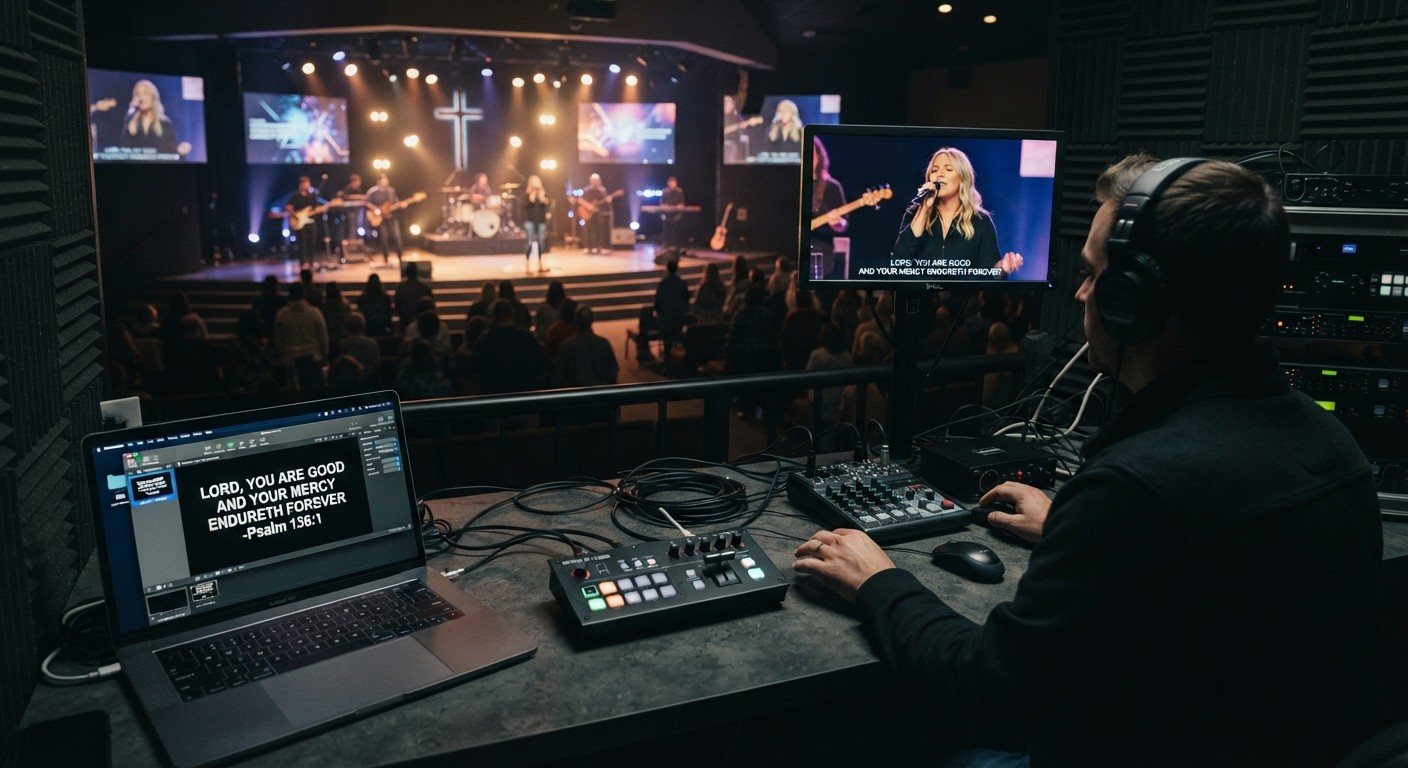
Lyrics Over the Camera on an ATEM Mini: Luma Keys, Chroma Keys, and the Slides Computer
To put song lyrics over the camera shot on a Blackmagic ATEM Mini, feed the slides computer into an ATEM input and key it over the camera. Here's how luma and chroma keys work for lyrics, how to design slides that key cleanly, and who should run it.
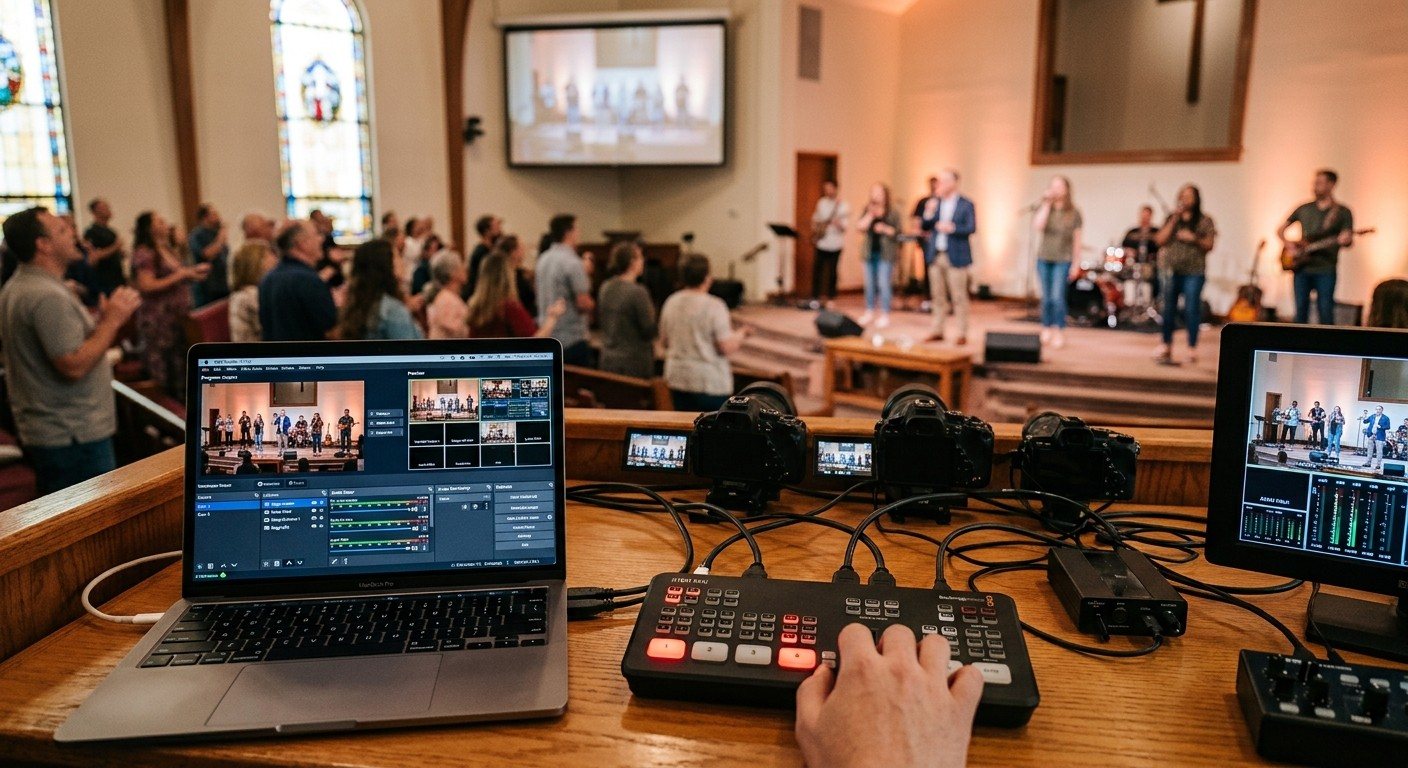
ATEM Mini + OBS for Church: Hardware Camera Switching with OBS for Graphics and Streaming
Many churches use an ATEM Mini as a camera switcher and send its output into OBS over USB as a webcam. The ATEM gives volunteers real buttons; OBS adds lyrics, graphics, recording, and streaming. Here's how to set it up, split the jobs, and avoid the common sync and quality problems.