The short answer: worship is your hardest content, and the encoder ran out of headroom
The maddening pattern every church OBS operator learns: the stream is flawless through the welcome and announcements, then the band kicks in, the lights move, and OBS flashes “Encoding overloaded! Consider turning down video settings or using a faster encoding preset.” It isn’t random, and it isn’t OBS misbehaving — it’s arithmetic.
Video encoding costs CPU in proportion to change between frames. A pastor at a podium barely changes; the encoder coasts. A full band with moving lights, haze in the air, and camera cuts changes nearly every pixel, thirty times a second — routinely several times the encoding work of a talking head. Your encoder was never sized for the announcements. It has to be sized for the bridge of the loudest song, because that’s the moment it will meet every week.
The fixes, in order of payoff
1. Move to a hardware encoder. If the booth PC has an NVIDIA GPU (NVENC), AMD GPU (AMF), or a recent Intel CPU (Quick Sync), switch the encoder in OBS’s output settings. Hardware encoding offloads the work from the CPU almost entirely, and modern hardware encoders are excellent at church-typical bitrates. This single change resolves most chronic overload. If the booth PC has no hardware encoder at all, that’s usually the sign it’s time for a new streaming computer; our Livestream Systems show what we’d build, each with an NVIDIA graphics card that does this encoding. (See what’s the best computer for church livestreaming?)
2. If you’re stuck on x264, take a faster preset. Stepping from medium to veryfast dramatically reduces load for a quality cost that’s rarely visible at streaming bitrates. Presets trade CPU for compression efficiency — and stability is worth more than efficiency on Sunday.
3. Downscale the output. Encoding 720p instead of 1080p buys enormous headroom, and at the sizes people actually watch — phones, tablets, a TV across the room — a stable 720p consistently beats a struggling 1080p. Set it in Settings → Video → Output (Scaled) Resolution, and right-size the bitrate with the bitrate calculator.
4. Simplify the scenes you actually use live. Every source renders even when invisible in the program. Retire the eight-source “special Christmas scene” from the everyday collection, and standardize your cameras to one frame rate so OBS isn’t converting constantly. The scene-building chapters of our complete OBS church guide cover this in depth.
5. Check what else is eating the machine. A browser someone left open, a sync client, a Windows update mid-service — the encoder shares its CPU with everything. Overload that appears late in a service is often creeping resource pressure, not scene cost.
The deeper problem: nobody sees overload coming
Here’s what makes this failure cruel in a church booth: the warning appears exactly when the operator is busiest — mid-worship, hands full — and by the time anyone reads it, viewers have already had a minute of stutter. Then the service ends, the machine sits idle, and whoever comes to diagnose finds a computer that looks perfectly innocent.
That’s the visibility gap the fix-of-the-week never closes, and it’s where telemetry changes the story. Tech Manager samples encoder load every five seconds all service long, so the health report shows exactly when load climbed and what it crossed — encoder overload carries its own penalty in the 0-100 score, with the timestamp attached. Watch three weeks of reports and you’ll know whether you have a Christmas-scene problem, a creeping-load problem, or a machine that’s simply too small — before buying anything. And Pulse trips a CPU alert at 90% precisely because that’s the last point where someone can intervene gracefully — close the browser, step the preset — instead of reading a warning mid-song.
The team is the fix that lasts
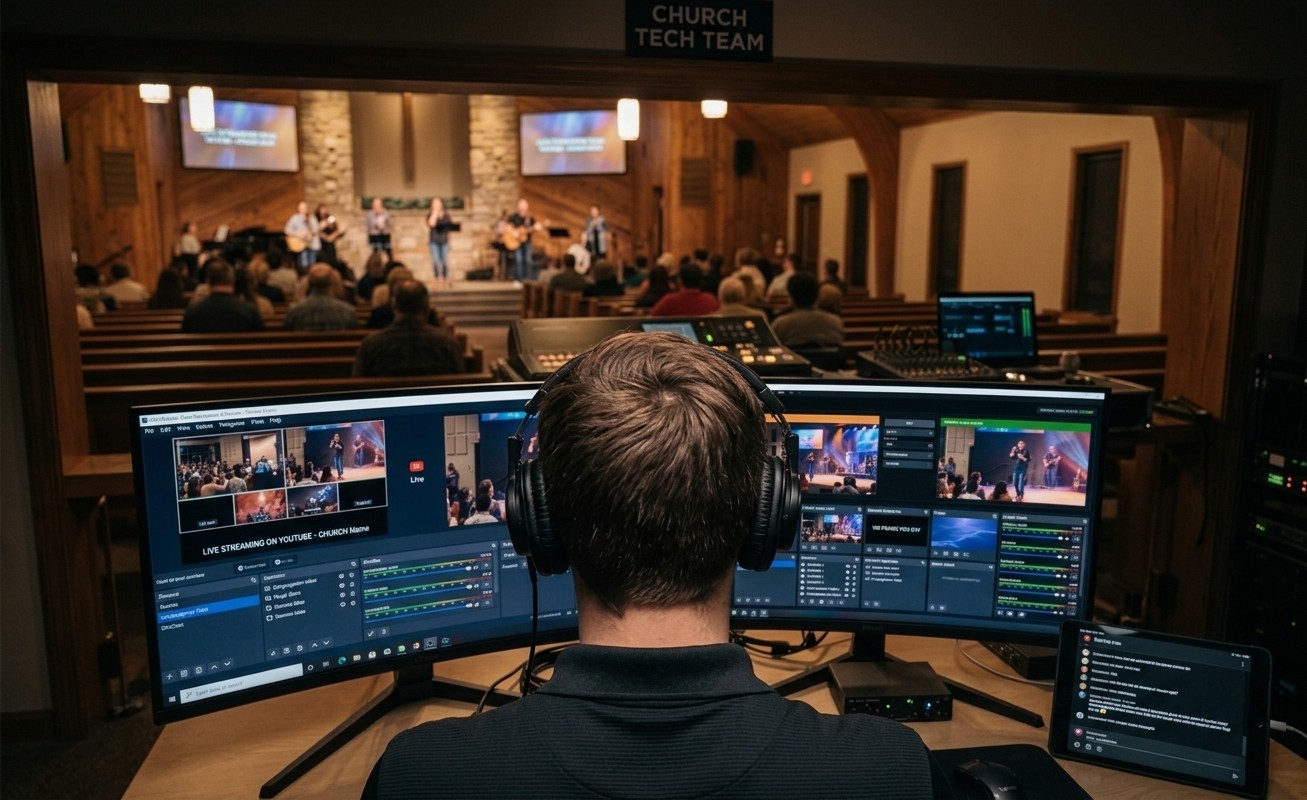
One more honest observation from watching hundreds of church booths: chronic encoding overload is usually a staffing symptom wearing a technical costume. A solo operator running lyrics, cameras, and the stream has no attention left to notice load climbing — so every warning is a surprise. A booth with a second seat — even a student on the monitoring screen — catches the climb at 85% on a Tuesday-trained glance, not at “overloaded” mid-bridge.
If your booth fights a different fire every week, the pattern itself is the diagnosis — that story, and the way out of it, is in a different OBS problem every Sunday. And on the Sundays when it breaks anyway, help that can see your system beats help that asks you to describe it.
Make the booth easier to run: How to make your church livestream easier for volunteers: the three-seat setup. See also is it time to move OBS to two computers? · two-computer OBS setup with slides over NDI.
Related questions
- What does OBS's 'encoding overloaded' warning actually mean?
- The encoder can't compress frames as fast as they're arriving, so OBS starts skipping frames to keep up — viewers see stutter. It's a horsepower problem: the machine is out of headroom for the content it's being asked to encode at the settings it's been given.
- Why does it happen during worship instead of the sermon?
- Because motion is what encoding costs. A talking head barely changes between frames; a full band, moving lights, haze, and camera cuts change nearly every pixel, thirty times a second. Worship is the most expensive content your booth produces — the encoder that cruises through announcements hits its ceiling in the second song.
- What's the fastest fix before next Sunday?
- In order of payoff: switch to a hardware encoder (NVENC, AMF, or Quick Sync) if the machine has one; if you must stay on x264, step the preset toward veryfast; and downscale the output to 720p — a stable 720p beats a struggling 1080p every time.
Why Does OBS Audio Drift Out of Sync by the End of the Sermon?
NextCan Someone Fix OBS From Home When It Breaks on Sunday?
Related Articles
Bitfocus Companion + ATEM Mini: A Stream Deck Panel for Your Church Switcher
A Stream Deck running Bitfocus Companion turns a Blackmagic ATEM into plain-word buttons with colors that show what's live, and the same panel can run PTZ cameras, projectors, and more. Here's how to connect Companion to an ATEM and build a volunteer page.
Lyrics Over the Camera on an ATEM Mini: Luma Keys, Chroma Keys, and the Slides Computer
To put song lyrics over the camera shot on a Blackmagic ATEM Mini, feed the slides computer into an ATEM input and key it over the camera. Here's how luma and chroma keys work for lyrics, how to design slides that key cleanly, and who should run it.
ATEM Mini + OBS for Church: Hardware Camera Switching with OBS for Graphics and Streaming
Many churches use an ATEM Mini as a camera switcher and send its output into OBS over USB as a webcam. The ATEM gives volunteers real buttons; OBS adds lyrics, graphics, recording, and streaming. Here's how to set it up, split the jobs, and avoid the common sync and quality problems.