Introduction
OBS Studio is one of the most common streaming tools used in church production for a reason: it is powerful, flexible, and cost-effective. It can serve a small congregation with one camera and one operator, and it can also support much more complex environments when the workflow is designed well.
That same flexibility is also what gets teams into trouble. OBS does not force a clean workflow on you. If scenes, sources, bitrate settings, audio paths, and startup behavior are sloppy, the software will still let you build the stream. It just will not be stable when Sunday pressure hits.
This guide focuses on a congregation-friendly setup: reliable enough for volunteers, clear enough to repeat weekly, and strong enough to scale.
Start with the Right Computer
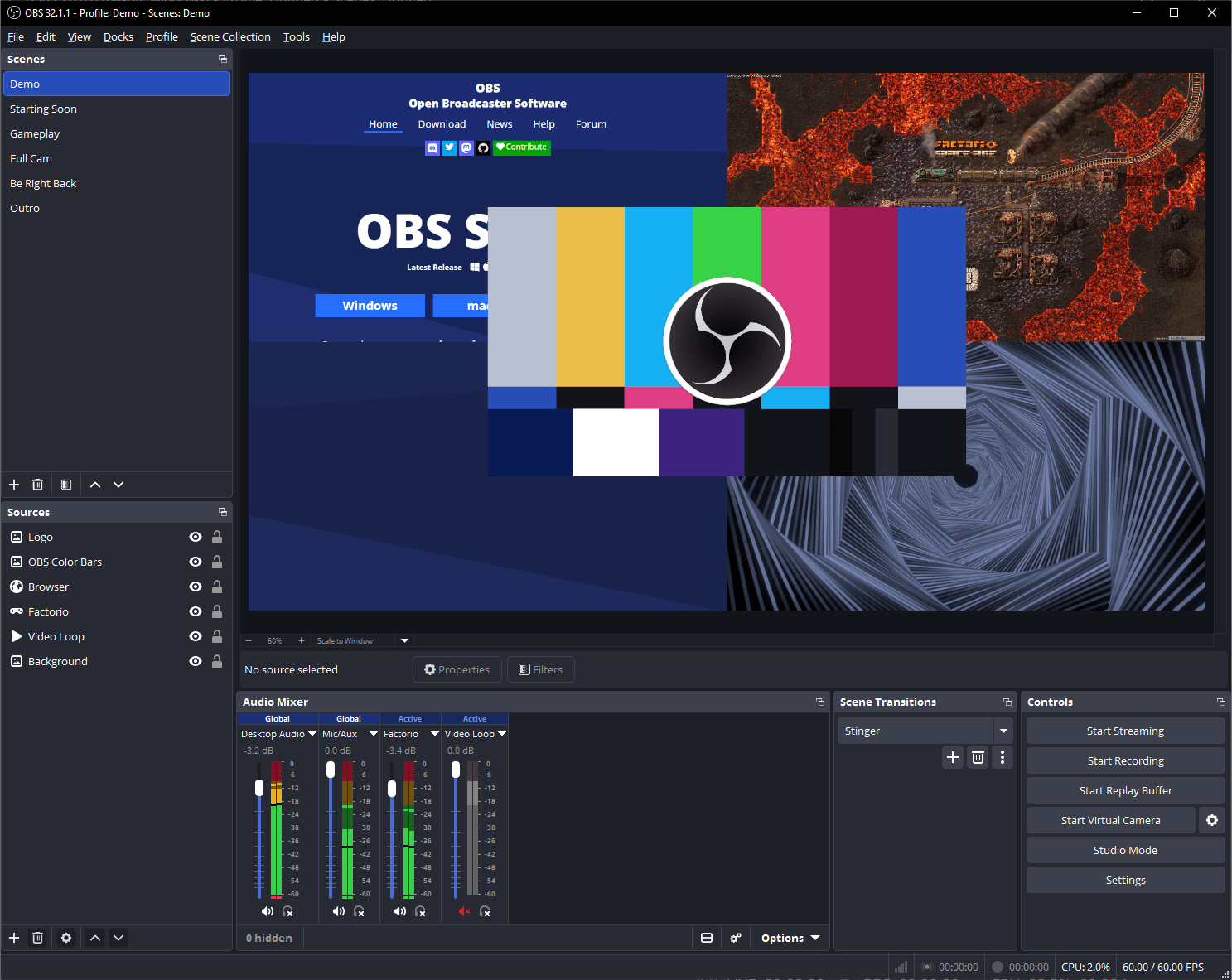
OBS can only be as stable as the machine running it. CPU headroom, GPU support, RAM, storage speed, and background tasks all affect whether your stream holds together under real Sunday load.
Before touching scenes or encoder settings, confirm the production computer is actually suitable for the job:
- dedicated to production whenever possible
- using wired internet, not WiFi
- set to a high-performance power profile
- free from background tasks that wake up during service
- storing recordings on healthy drives with enough free space
Many OBS problems are really operating-system or hardware-discipline problems. If updates, sync tools, browser tabs, and background apps are all competing with OBS, you will eventually feel it in the stream.
Need a dedicated machine? Our Livestream Systems come with OBS installed and tuned on a long-term-support edition of Windows that skips surprise feature updates. The Good tier runs OBS out of the box.
Build a Clean Scene Structure
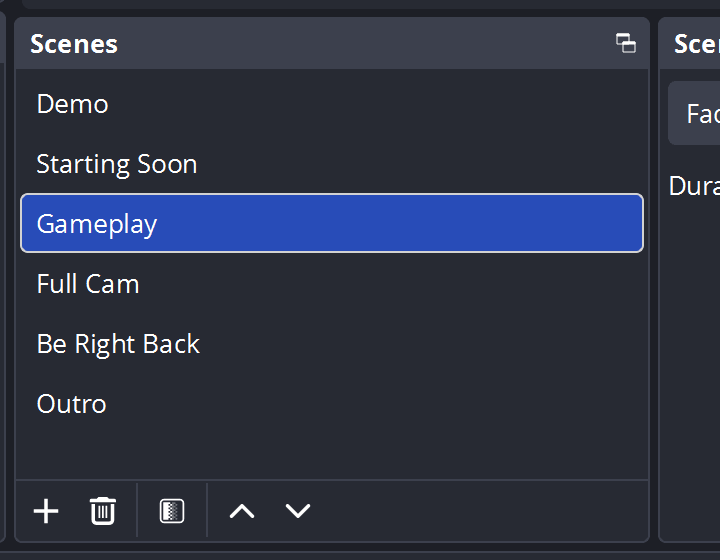
The goal is not to create the most scenes possible. The goal is to create a scene collection that matches the service order and keeps volunteers from hunting for the next shot under pressure.
A strong scene structure usually includes:
- pre-service holding scene
- sermon scene
- worship-wide scene
- speaker close-up scene
- announcement or lower-third scenes
- emergency fallback scene
The naming should be obvious to a volunteer at a glance. If the operator has to decode clever scene names during the service, the structure is already too complex.
Set Bitrate for Your Real Upload Speed
A lot of streams fail because bitrate settings were chosen in theory instead of against real upload capacity. A stable 720p or 1080p stream at the right bitrate is better than an ambitious stream that collapses mid-service.
The practical rule is simple: leave margin. If your measured upload speed is inconsistent, do not set your bitrate near the ceiling just because the platform technically allows it.
For many congregations, reliability matters more than maximum quality. A slightly more conservative stream that never drops is almost always the better ministry choice.
Route Audio Deliberately
OBS audio should not be left to chance. Know where your house mix is coming from, whether your stream mix differs from the room, and how monitoring is being handled before you go live.
Ask these questions early:
- Is the stream getting the same mix as the room?
- Is speech clarity optimized for online listeners?
- Are walk-in videos and playback routed intentionally?
- Is there a monitoring path for the stream feed, not just the room?
Clear audio routing solves more real viewer complaints than most camera upgrades ever will.
Test Before Service, Not During It
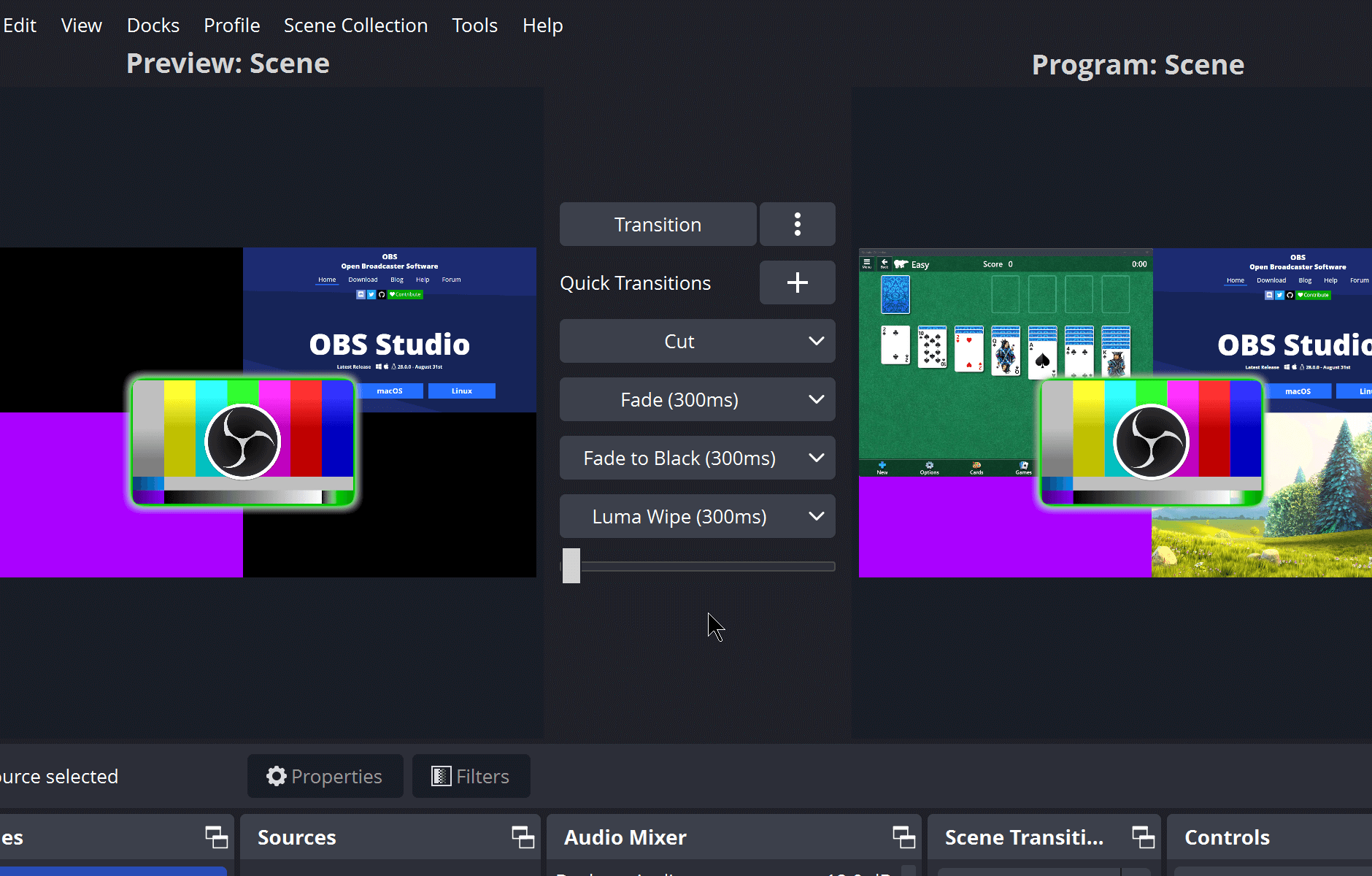
The best OBS workflow includes a repeatable pre-service test: stream key validation, encoder check, audio confirmation, and preview output verification. That routine catches issues before the congregation does.
A useful pre-service checklist might include:
- confirm internet is wired and stable
- verify the stream key and destination
- confirm scene collection loaded correctly
- verify all cameras are visible and named correctly
- test spoken-word audio and media playback
- confirm recording path and available storage
- run a short test stream or private health check
The goal is not perfection. It is reducing unknowns before the room fills up.
Reduce Volunteer Cognitive Load
OBS becomes much easier to run when the operator is not also expected to remember every edge case. Use labels, hotkeys, macros, stream decks, and documented procedures so the person serving can focus on timing instead of deciphering the interface.
This matters especially in congregations where volunteers rotate. A healthy OBS workflow should survive an absent team member without collapsing into improvisation.
Monitor OBS While It Runs
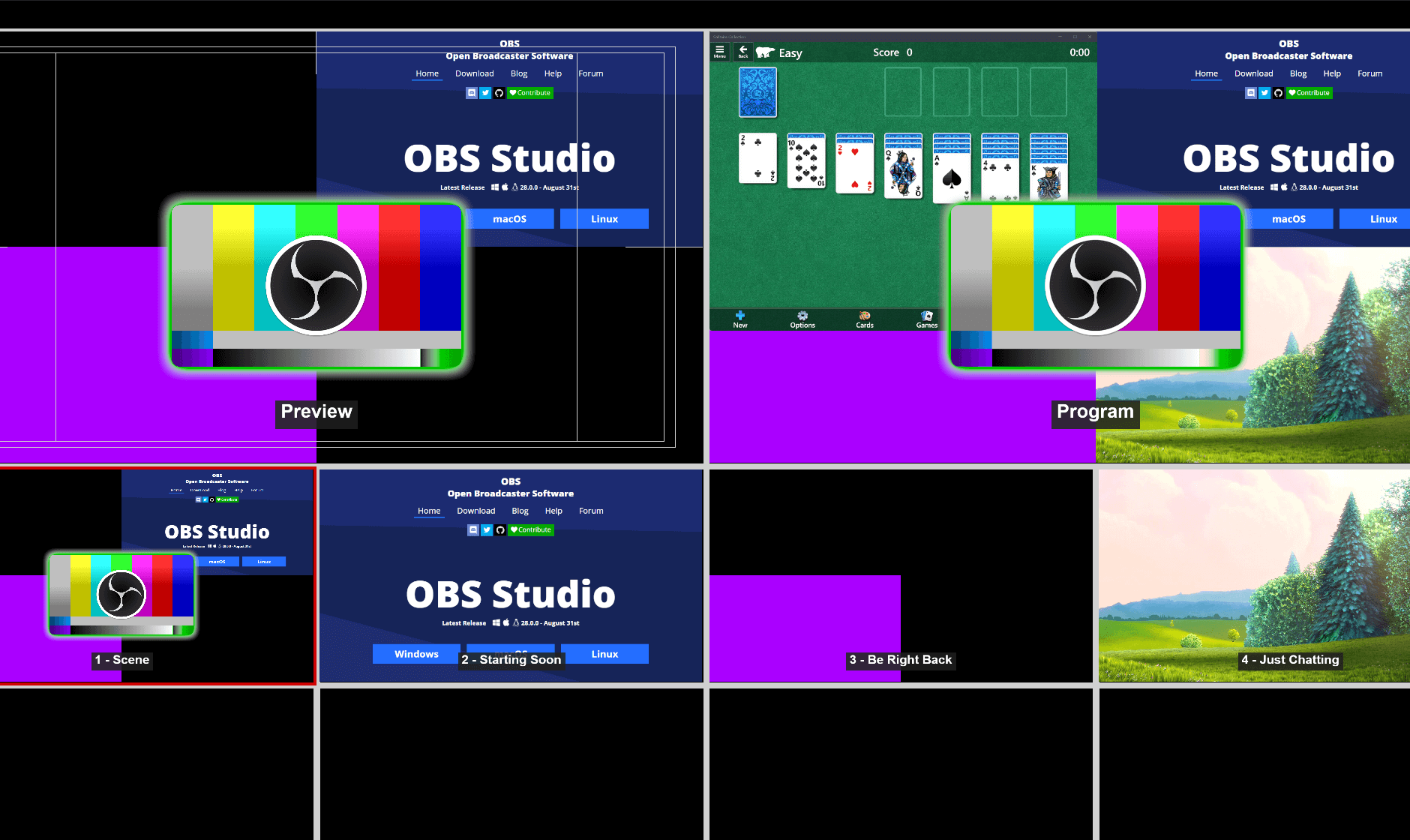
Once the service starts, the team still needs visibility into:
- dropped frames
- encoder load
- bitrate stability
- source failures
- recording health
If your team only discovers these issues after the stream is over, you do not really have a production workflow. You have a recording of what happened.
Conclusion
OBS Studio can power excellent congregation streams when the system around it is stable. Good scene design, sensible bitrate settings, clear audio routing, and proactive monitoring matter more than clever effects.
The strongest OBS setups are not the flashiest. They are the ones volunteers can repeat confidently every single week.
One button panel for the whole booth: Bitfocus Companion for churches: one button panel for your whole AV system. See also OBS + Companion setup · designing Companion pages for volunteers.
Managing AV Devices Across Multi-Site Church Campuses
NextClipping Sermons for Social Media: Reels, Shorts & TikTok Workflow
Related Articles
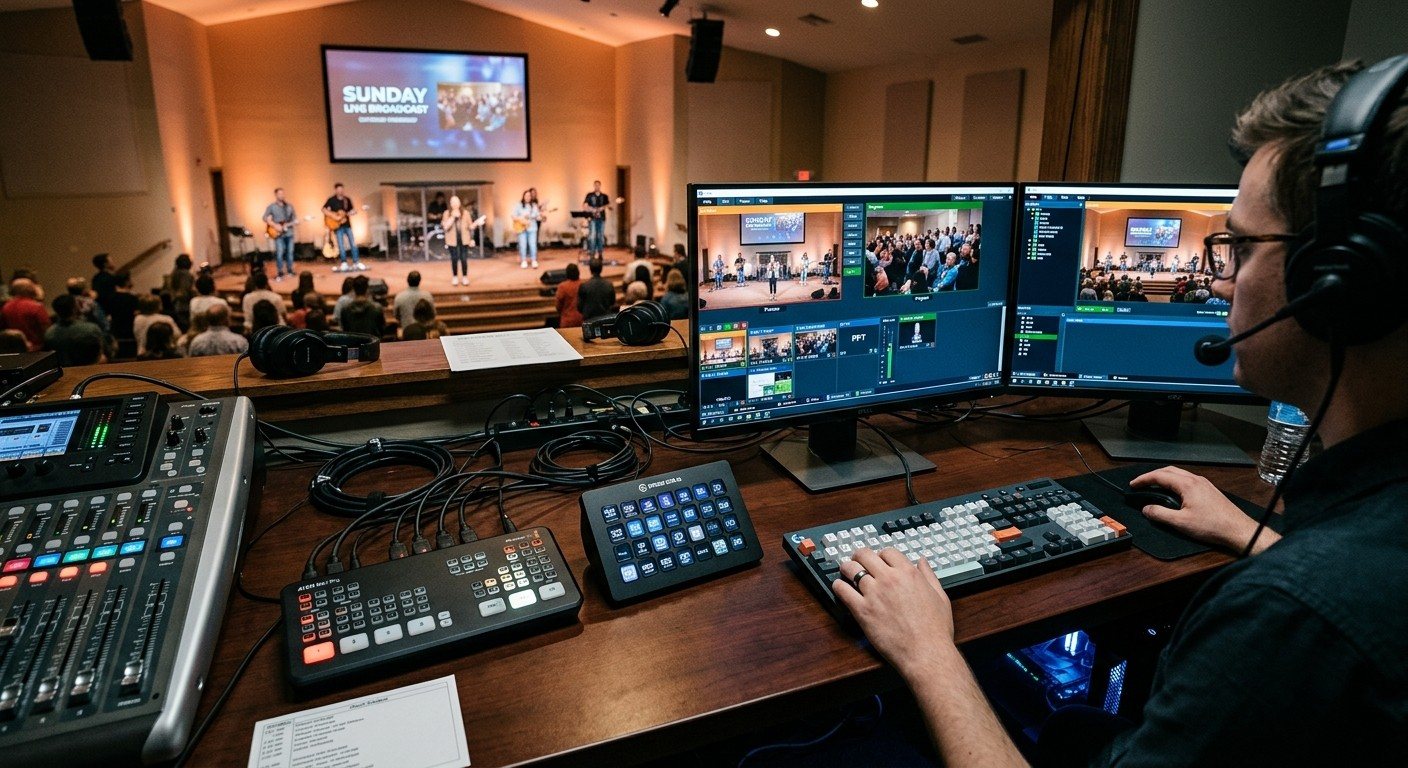
Bitfocus Companion + ATEM Mini: A Stream Deck Panel for Your Church Switcher
A Stream Deck running Bitfocus Companion turns a Blackmagic ATEM into plain-word buttons with colors that show what's live, and the same panel can run PTZ cameras, projectors, and more. Here's how to connect Companion to an ATEM and build a volunteer page.
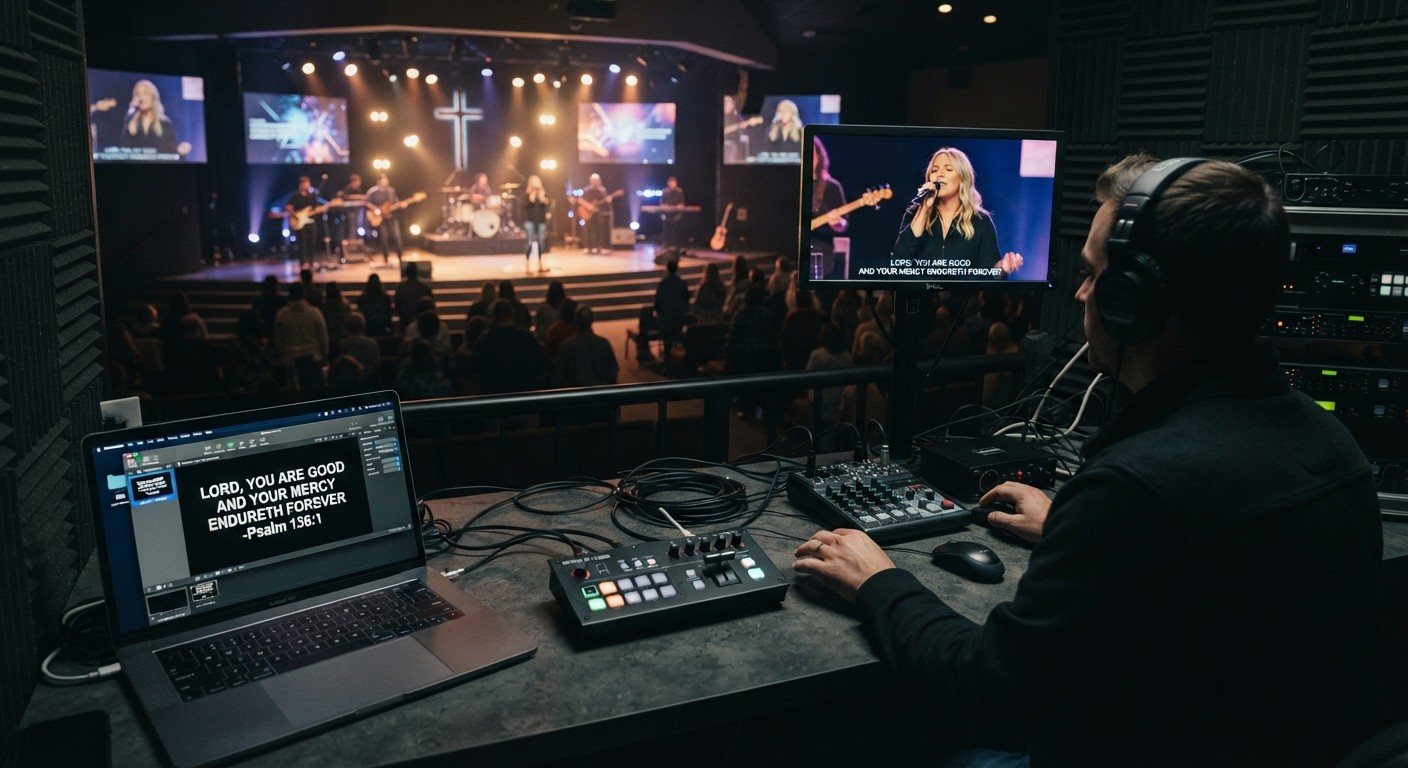
Lyrics Over the Camera on an ATEM Mini: Luma Keys, Chroma Keys, and the Slides Computer
To put song lyrics over the camera shot on a Blackmagic ATEM Mini, feed the slides computer into an ATEM input and key it over the camera. Here's how luma and chroma keys work for lyrics, how to design slides that key cleanly, and who should run it.
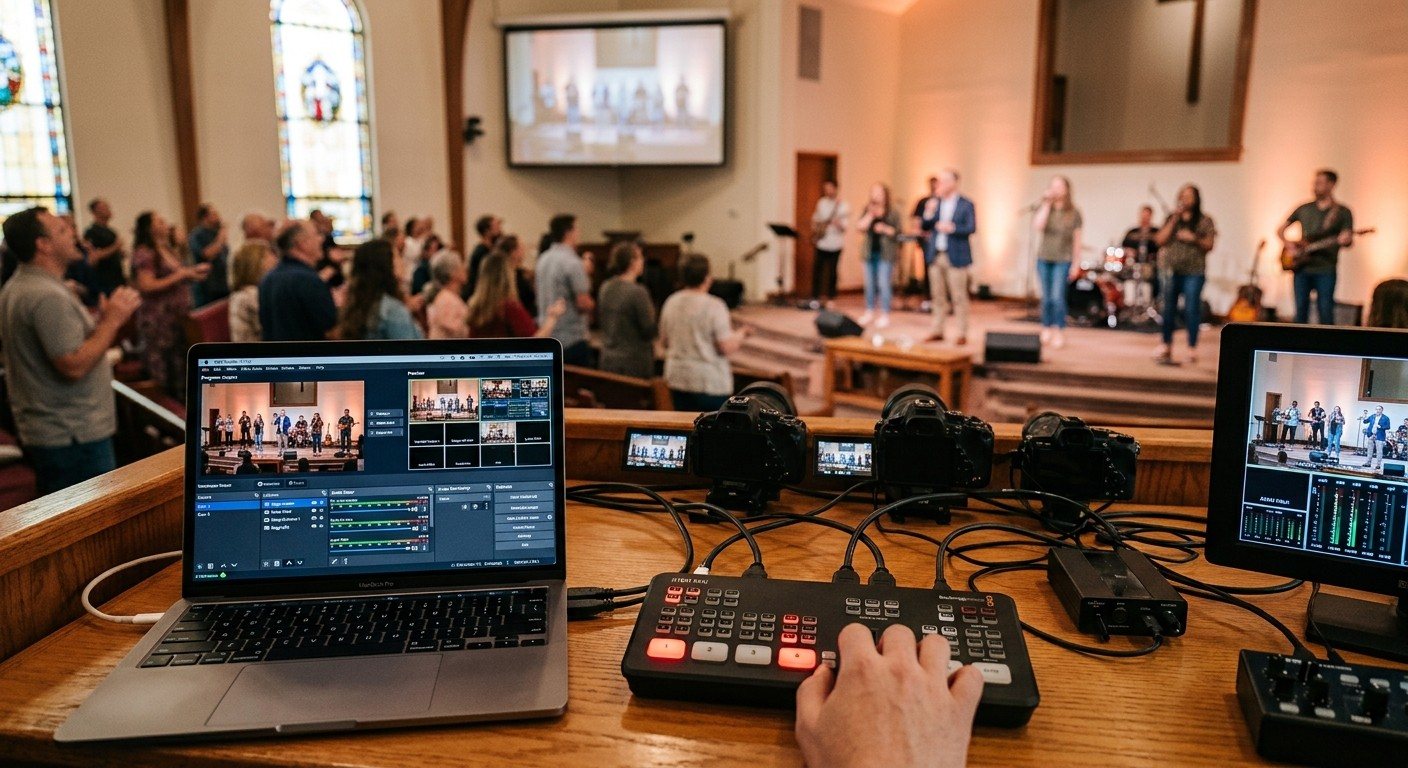
ATEM Mini + OBS for Church: Hardware Camera Switching with OBS for Graphics and Streaming
Many churches use an ATEM Mini as a camera switcher and send its output into OBS over USB as a webcam. The ATEM gives volunteers real buttons; OBS adds lyrics, graphics, recording, and streaming. Here's how to set it up, split the jobs, and avoid the common sync and quality problems.