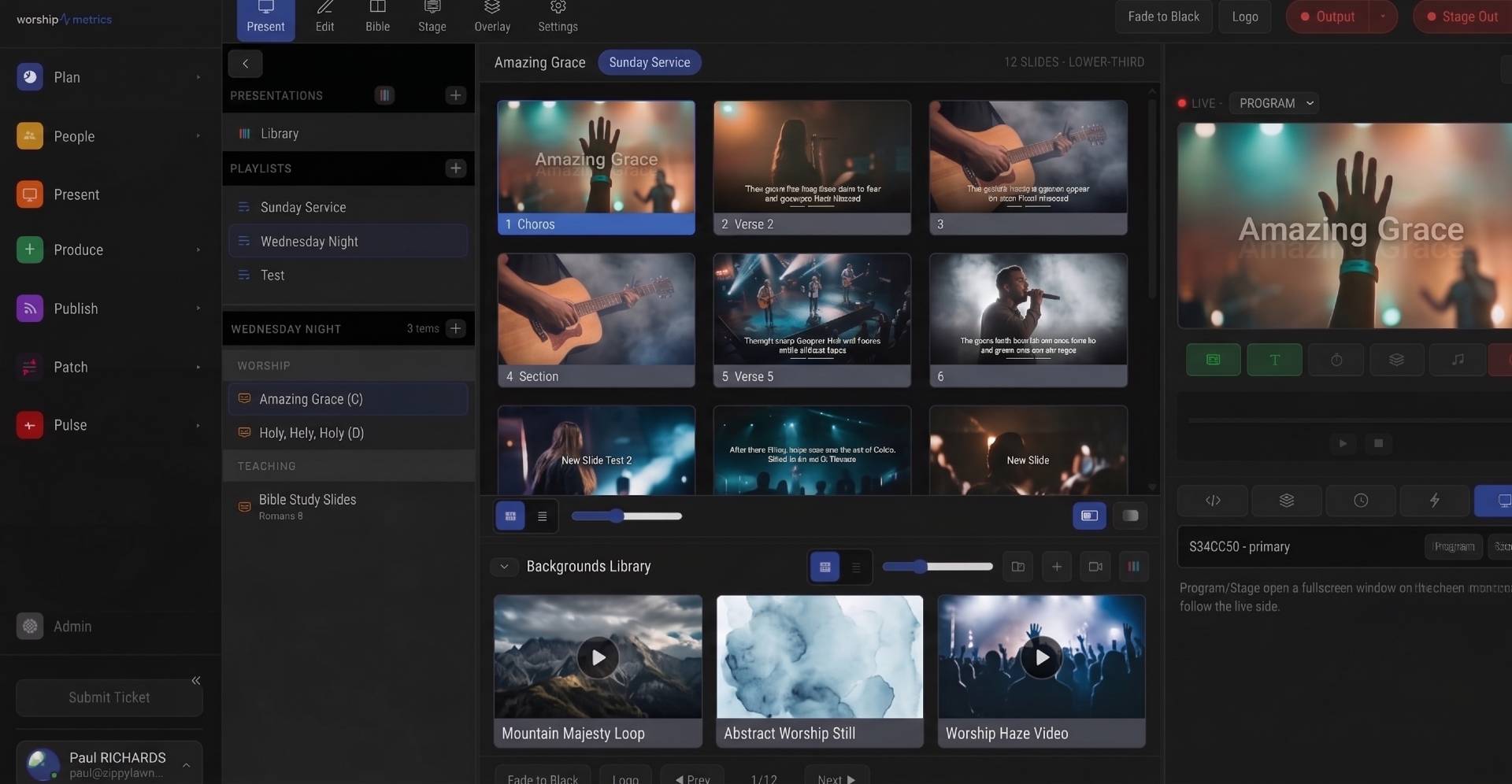
The Problem: Lyrics on Top of Live Video
Most churches that run IMAG (image magnification) eventually want the same thing: song lyrics or a sermon-notes lower third floating over the live camera shot, with clean edges, a soft drop shadow, and no visual garbage around the text.
The traditional ways to get there all involve compromise:
- Chroma key — render lyrics over a green or blue background, then key the color out in the switcher or software mixer.
- Luma key — render white text on black and key out everything below a brightness threshold.
- Separate fill and key — run two synchronized video outputs (one with the graphic, one with a matte) into a hardware keyer. Clean, but it costs two outputs, two cables, and a switcher that supports it.
An alpha-channel NDI source collapses all of that into one network stream that carries the transparency information itself. The receiving end does not have to guess which pixels are background — the source tells it, per pixel, exactly how transparent every point in the frame is.
If you are new to NDI in general — what it is, what your network needs, and where it fits in church production — start with our overview of NDI over IP for church production. This article assumes the basics and focuses on the alpha workflow specifically.
What an Alpha-Channel NDI Source Actually Is
A normal video frame stores three values per pixel: red, green, and blue (or a YUV equivalent). An alpha-channel frame stores four: red, green, blue, and alpha — a per-pixel opacity value from fully transparent to fully opaque.
NDI supports carrying that fourth channel natively. When a sender publishes frames in a format like BGRA (blue, green, red, alpha) or UYVA (4:2:2 video plus an alpha plane), every frame travels the network with its transparency intact. A receiver that understands alpha — vMix, OBS with an NDI plugin, most modern software mixers — can composite that source directly over any other layer without any keying step at all.
The practical consequences are significant:
- Antialiased edges survive. The semi-transparent pixels that smooth a font’s curves arrive as semi-transparent pixels, not as fringe the keyer has to fight.
- Shadows and glows work. A 40 percent-opacity drop shadow is simply 40 percent alpha. A chroma keyer would either clip it or leave a green haze.
- No forbidden colors. With a green-screen hack, any green in your text, borders, or motion backgrounds punches a hole in the graphic. With alpha, your designers can use the full palette.
- One stream, not two. Fill and key travel together, always in sync, over a single Ethernet connection.
In broadcast terms, an alpha NDI source is a self-keying fill-and-key pair in one cable — except the cable is your network.
Why This Beats the Green-Screen Slide Hack
Plenty of churches have made chroma keying work: set the presentation background to pure green, key it out in the mixer, and hope. It is worth being honest about why that approach fights you every week:
- Edge quality. A chroma keyer classifies each pixel as “graphic” or “background” based on color similarity. Antialiased text edges are a blend of both, so the keyer either eats into your letters (thin, crunchy text) or leaves a colored halo. Tightening the key fixes one and worsens the other.
- Spill and compression. If the slide feed passes through any compressed link before the keyer, chroma subsampling smears the green into the text edges before the key is even applied. You are keying a slightly blurred boundary, and it shows.
- Design restrictions. No greens, no soft shadows, no translucent panels behind the text, no gradual fades. The moment a designer adds a subtle glow, the key falls apart.
- Operator burden. Chroma keys need tuning — threshold, softness, spill suppression — and the “right” settings drift with content. That is a fragile thing to hand a volunteer at 8:55 on Sunday morning.
Luma keying is simpler but shares the core flaw: the receiver is inferring transparency that the source already knew. Alpha keying removes the inference. There is nothing to tune, because there is nothing to guess.
Publishing Present’s Output as an Alpha NDI Source
WorshipMetrics Present runs in the browser for editing and normal projection, but NDI output is a desktop capability: it is provided by Tech Manager, the companion app that runs on the production machine and carries the native NDI SDK. When Tech Manager publishes a Present output as NDI, it renders that output in a dedicated offscreen window and sends frames with true BGRA alpha — a genuinely transparent stream, not a colored background you key out later. Clean key, no chroma.
Two Present concepts make this workflow work well:
Looks control what an output paints. Every Present output has a Look that determines which layers it renders. Present’s canvas is layered — media, then slides, then props, then announcements — so you can define a key output whose Look paints the slide text layers but not the media background layer. Your motion background stays on the projector output where it belongs; the NDI key feed carries only the type and whatever props you want keyed, over transparency.
The lower-third template does the design work. Present ships six lyric templates, including a Lower-Third layout, and supports per-church theme groups with brand tokens (colors, font, logo). Build your broadcast look once — lower-third lyrics in your brand font with a soft shadow — and every song renders into it automatically. Overlays (lower thirds, messages, timers, logo bugs) live in the same layer system, so a sermon-notes strap or a countdown can ride the same alpha feed.
A sensible setup for a church doing IMAG plus streaming:
- Output 1 — Program (projector/LED): full Look — media backgrounds, slides, announcements. Full-screen lyrics for the room.
- Output 2 — NDI key (via Tech Manager): slide/overlay layers only, lower-third template, transparent everywhere else. This is the source your video mixer keys over cameras.
- Stage display as usual for the platform.
One note on paths: for lobby screens and overflow rooms you don’t need NDI at all. Put Present on any screen with a web browser: a web link shows the live slides on a signed-in laptop or lobby TV, and Signage plays your Present loops on any TV, no sign-in needed. Those are full-frame pictures with no alpha channel, so for keying, the Tech Manager NDI output is the right tool.
Receiving the Key in vMix
vMix treats alpha-carrying NDI sources exactly the way you would hope:
- Add Input → NDI, and select the Tech Manager source from the list. NDI discovery should find it automatically if both machines are on the same production network.
- Assign the input to an Overlay channel (Overlay 1–4). Because the stream carries alpha, vMix composites it over your program — camera cuts, PTZ moves, whatever is live — with the transparency already baked in. No chroma key filter, no color key settings.
- If text edges look slightly dark or ringed, check the input’s alpha interpretation: compositors distinguish premultiplied from straight alpha, and a mismatch shows up as dark or bright fringing on soft edges. Toggle the setting and use whichever renders the shadow cleanly.
Because the overlay is just another input, you can transition it in and out, dedicate a shortcut to it, or let the operator leave it up for entire songs. For the broader vMix picture — inputs, mix-minus, streaming, recording — see our complete vMix guide for churches.
Receiving the Key in OBS
OBS Studio does not speak NDI natively, but the free DistroAV plugin (the community NDI plugin, formerly known as obs-ndi) adds an NDI Source type:
- Install the plugin, restart OBS, and add an NDI Source to your scene. Pick the Tech Manager output from the source list.
- Place the NDI source above your camera source in the scene’s source stack. OBS composites top-down, and the alpha channel means the lyrics layer shows the camera through every transparent pixel.
- As with vMix, if edges look off, look for the source’s alpha/transparency handling option and switch between premultiplied and straight interpretation.
OBS scenes make it easy to build variants — “Camera + Lyrics,” “Camera clean,” “Slides full-screen” — and cut between them. If OBS is your main streaming engine, our OBS Studio church guide covers scene architecture and encoder settings in depth.
Network Considerations for an Alpha Feed
An alpha NDI stream is a normal NDI stream plus an extra channel, so everything in our NDI production guide applies, with a little extra headroom:
- Bandwidth. Budget roughly 100–150 Mbps for a full-bandwidth 1080p NDI feed, and expect the alpha plane to add to that. Gigabit switching handles it comfortably; a chain of unmanaged closet switches may not.
- Isolation. Keep production NDI on its own VLAN or physical network, away from guest WiFi and office traffic. Our church network design guide walks through the segmentation.
- Discovery. NDI source discovery uses mDNS by default, which does not cross subnets without help. Keep the Tech Manager machine and the mixer machine on the same subnet, or configure NDI Discovery Server.
- Latency. NDI adds a frame or two of latency. For a lyrics key that is invisible; just confirm your IMAG delay budget still works if the same feed also drives side screens.
A Quick Pre-Service Checklist
- Tech Manager running on the production machine, NDI output active for the key Look.
- Mixer sees the source and shows transparency (park a camera behind it and look at the text edges).
- Alpha interpretation verified — no dark halos on shadows.
- Overlay assigned to a one-button action for the operator.
- A full-screen fallback scene exists in case the network feed is ever unavailable mid-service.
How WorshipMetrics Handles This
The alpha workflow is built into how Present and Tech Manager divide the work. Present gives you the design side: a Lower-Third lyric template, per-church themes with your brand colors and fonts, overlays for messages and timers, and per-output Looks so the key feed carries only the layers you want keyed. Tech Manager provides the transport: a native NDI output rendered offscreen with true BGRA alpha, so vMix or OBS receives a broadcast-grade fill-and-key in one network stream — no green backgrounds, no keyer tuning, no color restrictions on your design. If your team is building toward lyrics over IMAG for the room and the live stream at the same time, this is the clean way to get there.
Not a technician? Start with how do I put lyrics and slides on our church livestream?
Make the booth easier to run: How to make your church livestream easier for volunteers: the three-seat setup. See also two-computer OBS setup with slides over NDI · two-computer vMix setup with slides over NDI.
How AI Finds Your Sermon Moments: Inside the Reels Pipeline
NextPoE Classes for Church AV: Powering Cameras, APs, and Panels Without Surprises
Related Articles
ProPresenter Troubleshooting for Church Teams: The 10 Problems Behind Almost Every Sunday Failure
A symptom-first field guide to the ProPresenter failures church booths actually hit — blank outputs, invisible NDI, mid-service lag, stage display showing the wrong thing — with the fast checks for each, and the upgrades that make next Sunday faster: a mapped system, AI that knows your wiring, and fewer moving parts.
Digital Signage Scheduling That Understands Church Calendars
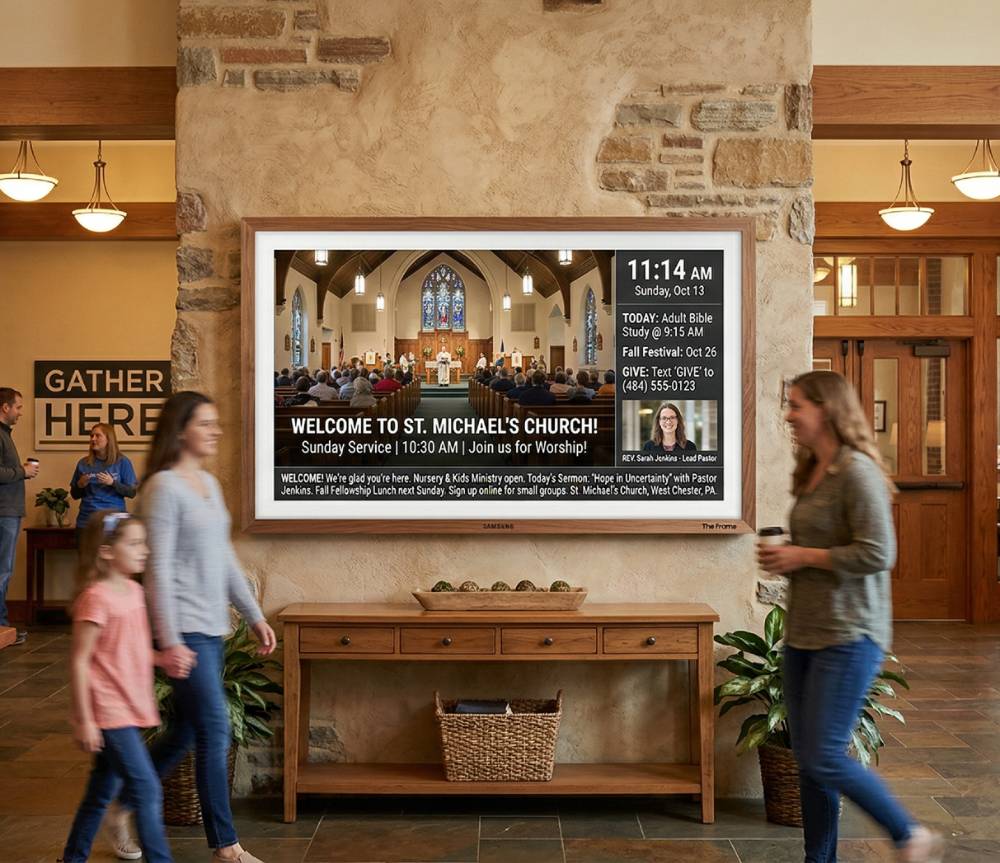
How day-of-week signage schedules and date-range calendar overrides work together, so a Christmas takeover can run for a season and hand the screens back automatically.
Projector, Stage Display, and Beyond: Multi-Screen Output from a Browser
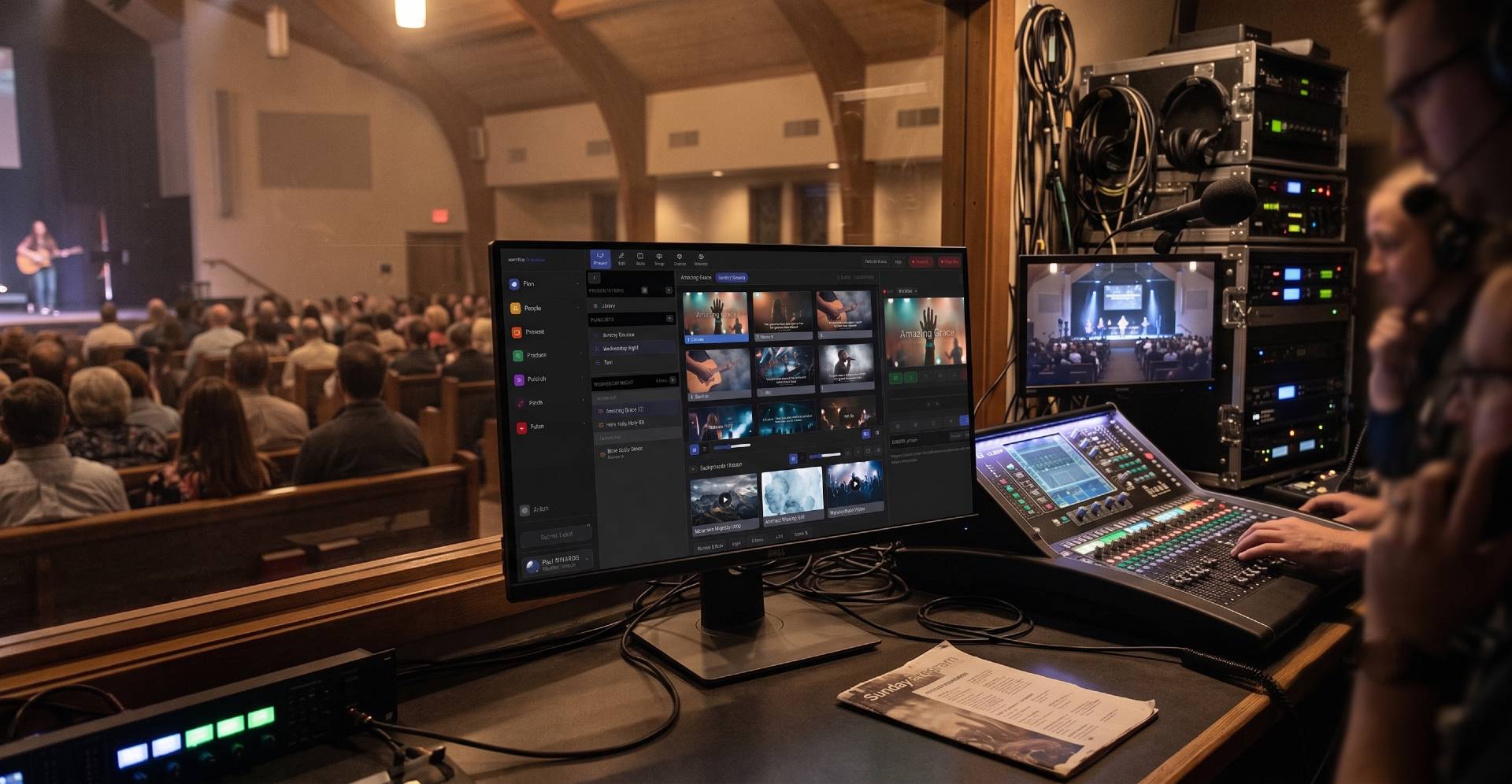
How WorshipMetrics Present drives projectors, confidence monitors, and stage displays from a browser tab, with per-output looks, resolutions, and audio routing.