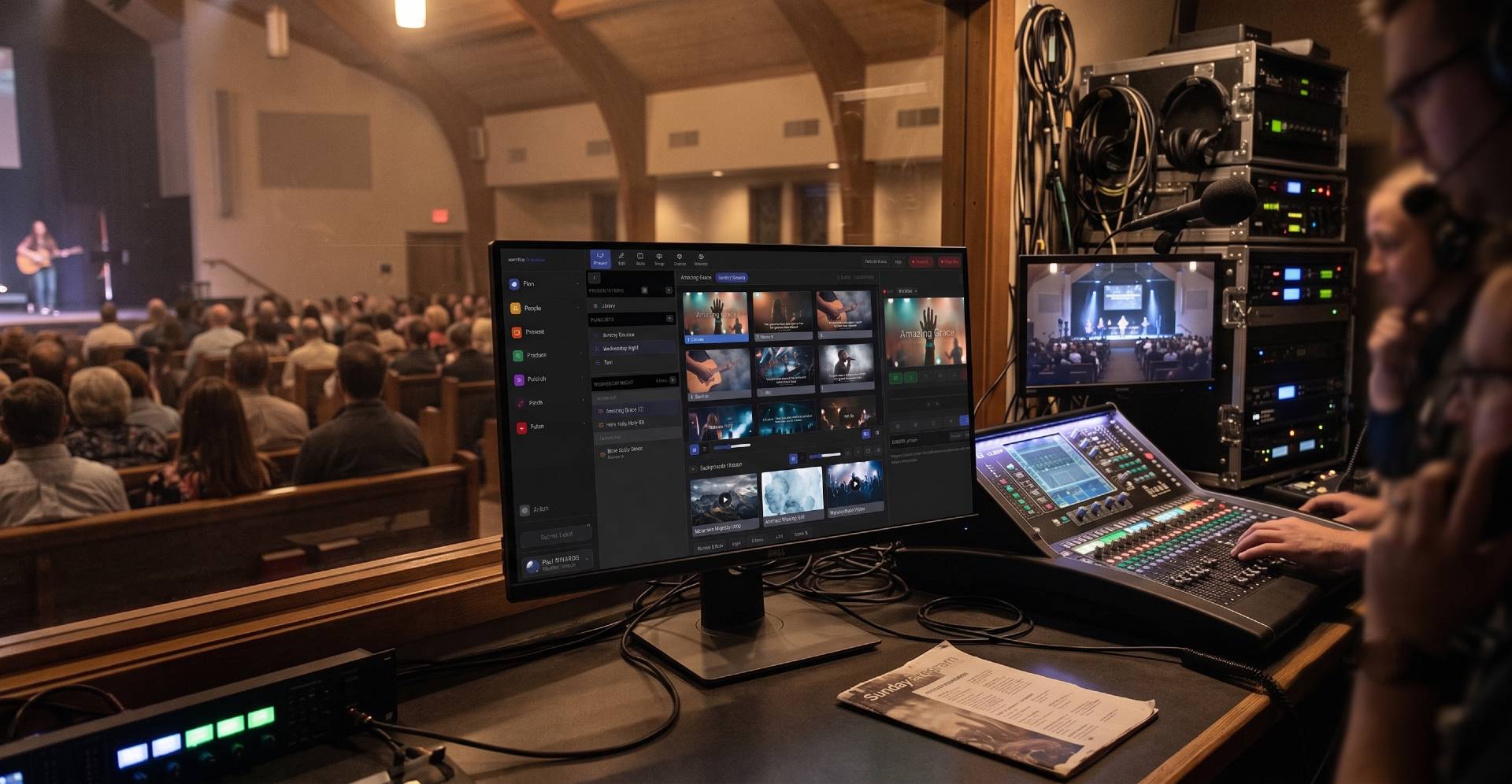
From installed software to a browser tab
For years, “real” multi-screen presentation meant installed desktop software: one machine, one license, one carefully guarded display configuration that nobody dared touch on a Sunday morning. Modern browsers changed that quietly. A Chromium browser can now enumerate every monitor connected to a computer, open a borderless fullscreen window on any of them, and keep those windows in perfect sync — which means a projector feed, a stage display, and a lobby screen can all come out of a single browser tab.
This article walks through how that works in WorshipMetrics Present: the browser technology underneath, how outputs are configured and saved, what resolutions are available, and how to build a stage display your musicians will actually thank you for.
How a browser drives more than one screen
The key piece of technology is the Window Management API, a capability built into Chromium-based browsers such as Google Chrome and Microsoft Edge. When Present asks for it (via a call the specification names getScreenDetails), the browser requests your permission, then reports every display attached to the machine — its position, size, and pixel density.
Once Present knows the monitor layout, it can open a window on any specific screen and take it borderless fullscreen. No title bar, no browser chrome, no taskbar — just pixels, edge to edge, exactly like a native presentation application. Your operator keeps the control interface on the main monitor while the projector and stage screens each get their own dedicated output window.
Behind the scenes, those windows stay in lockstep using a browser messaging channel (BroadcastChannel), so the moment the operator advances a slide, every output window repaints together. There is no polling, no per-screen lag, and nothing to install.
Two practical notes for a beginner setup:
- Use a Chromium browser. The Window Management API is a Chromium capability, so Chrome or Edge is required for multi-monitor output. This is worth writing into your booth documentation so a helpful volunteer doesn’t troubleshoot a “missing feature” in a different browser.
- Grant the permission once. The first time you place an output, the browser asks for window-management permission. Approve it on the booth machine and it persists, so Sunday mornings don’t start with a permission prompt.
If you are documenting your booth setup for volunteers anyway, our guide to training volunteer AV teams has a framework for turning details like this into a one-page checklist.
Outputs are saved, not improvised
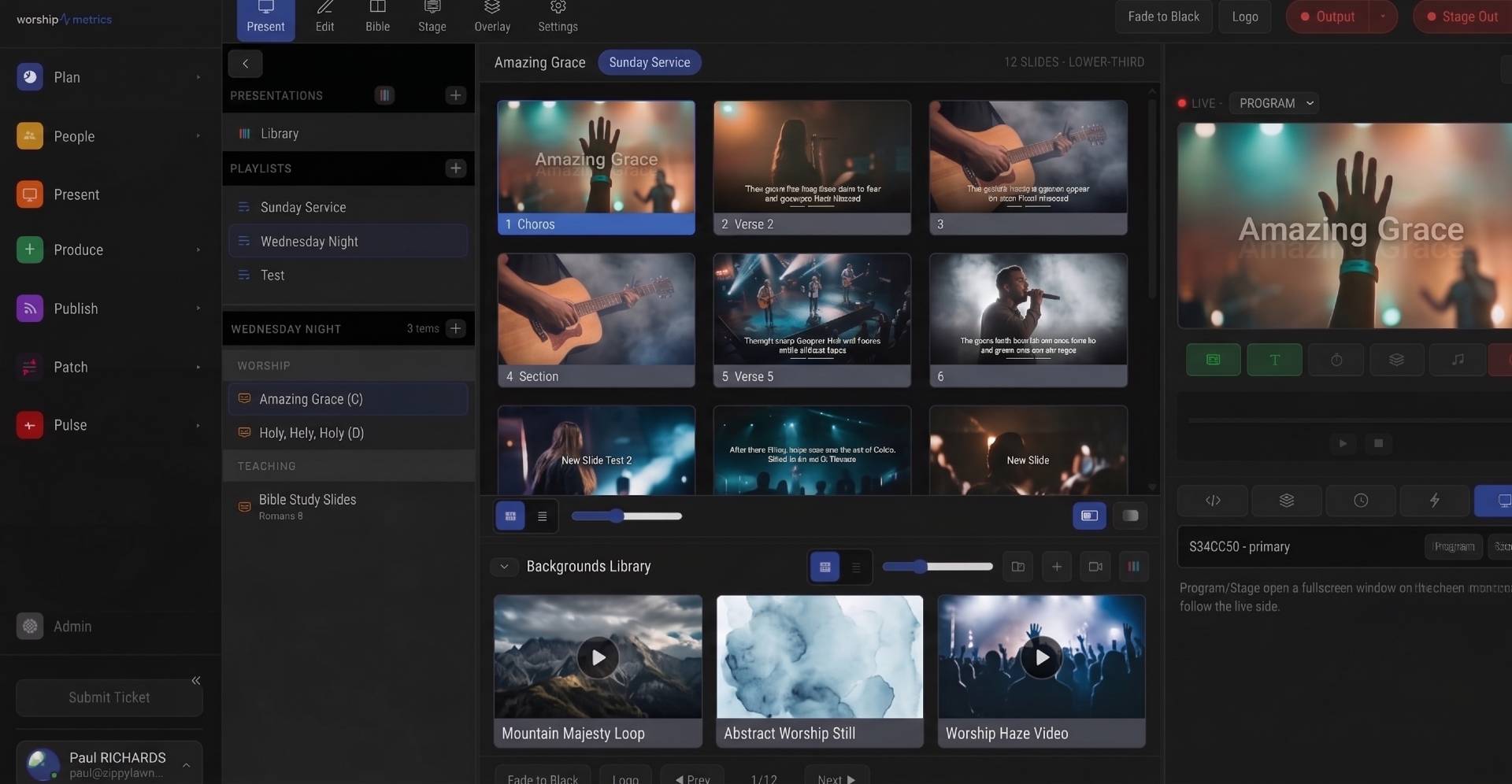
Present keeps a persisted list of outputs. That distinction matters more than it sounds: you configure each output once — which physical screen it lives on, what it shows, what resolution it renders at — and the configuration is stored. Next Sunday, the operator reopens the outputs and everything lands where it belongs.
Each output in the list carries a few settings:
- A role. Is this a program output (what the congregation sees) or a stage output (what the platform sees)? Present supports multiple program and multiple stage outputs at the same time, so a main projector, a side-wall confirmation screen, and two stage monitors can all run together, each with its own resolution.
- A Look. A Look controls which layers the output paints. Present composites every screen from a layer stack — media at the back, then slides, then props, then announcements. A program output typically paints all of them; another output might paint only the media layer for a clean motion-background wall, or skip announcements on a screen where they’d be a distraction.
- A format. The resolution and scaling behavior for that specific output (more on this below).
- An audio device. Each output can route its audio to a specific playback device. There’s an organization-wide default, and any individual output can override it — so a video’s audio can feed the console input in the booth while the lobby screen stays silent. Under the hood this uses the browser’s per-element audio routing (
setSinkId), which is why it works per output rather than per computer. - An optional stage layout. Stage outputs can each carry their own layout, so the drummer’s screen and the worship leader’s screen don’t have to look alike.
Resolutions from 720p to 4K — and sideways
Every output renders at a resolution you choose, independent of the other outputs. The built-in options cover the screens most churches actually own:
| Preset | Typical use |
|---|---|
| 1920×1080 (default) | Most projectors, TVs, and confidence monitors |
| 1280×720 | Older projectors and long, low-bandwidth cable runs |
| 3840×2160 (4K) | LED walls and newer large-format displays |
| 1920×1200 | 16:10 installed projectors |
| 1024×768 | Legacy 4:3 projectors still faithfully serving |
| 1080×1920 (portrait) | Vertical lobby signage and door displays |
If none of those fit — an unusual LED wall, a cropped video processor input — you can enter a custom resolution, and there is a “Match display” option that simply renders at whatever the connected screen reports.
Each output also has a screen-fit mode: fit (letterbox, nothing cropped), fill (cover the screen, edges cropped), or stretch (distort to fill exactly). For a projector that matches your render resolution these are indistinguishable; they earn their keep when a 16:9 render meets a 4:3 projector or an oddly shaped LED wall.
A beginner-friendly rule of thumb: render at the native resolution of the display whenever you know it, and use fit until you have a reason not to. Crisp text on a lyric slide is mostly a matter of matching resolutions.
The stage display: more than mirrored lyrics
A confidence monitor that just mirrors the projector is better than nothing, but it makes the band read what the congregation reads. Present treats the stage display as its own composition, built from bindable sources — live fields you place on a layout the same way you place text boxes on a slide. The same editor that builds your lyric slides builds your stage layouts, so there is no second tool to learn.
The sources you can bind include:
- Current slide text and next slide text — the classic confidence pair
- Current and next slide notes — operator or vocal cues that never touch the projector
- Section label and next section — “Chorus” now, “Bridge” coming
- Song title, song key, and slide count
- Stage message — a line the operator can push to the platform (“2 minutes,” “repeat chorus”)
- Chord chart, transposed — the full chord chart for the current song, rendered in the key you’re playing it in
- Clocks and timers — service countdowns, 12/24-hour clocks
- Program mirror — a live thumbnail of what the congregation is seeing
The transposed chord chart deserves a highlight. If your team imports ChordPro charts or brings arrangements in from your service plan, the stage display can show the guitarist the actual chart — already transposed to the song’s key — while the vocalists’ screen shows lyrics and next-section cues. That’s two different stage outputs, two different layouts, one operator.
Stage layouts also follow the operator across machines. Build the drum-riser layout at home on Thursday, sign in at the booth on Sunday, and it’s there — because Present is cloud-based, the configuration isn’t trapped on one computer.
If your team is coming from an installed presentation package, much of this will feel familiar; our ProPresenter 7 advanced setup guide covers the equivalent concepts there, and Present imports ProPresenter files directly if you’re running both.
Beyond the monitors on your desk
Physical monitor outputs cover the booth machine’s own displays, but two more paths extend Present across the building:
- NDI output turns a Present output into an NDI source on your network, available to vMix, OBS Studio, or any NDI-aware switcher. This path runs through the Tech Manager desktop companion (browsers can’t speak NDI natively) and includes a true alpha channel — so lyrics can key over cameras cleanly, with no chroma keying and no fringing. Our NDI church production guide covers where NDI fits in a church system.
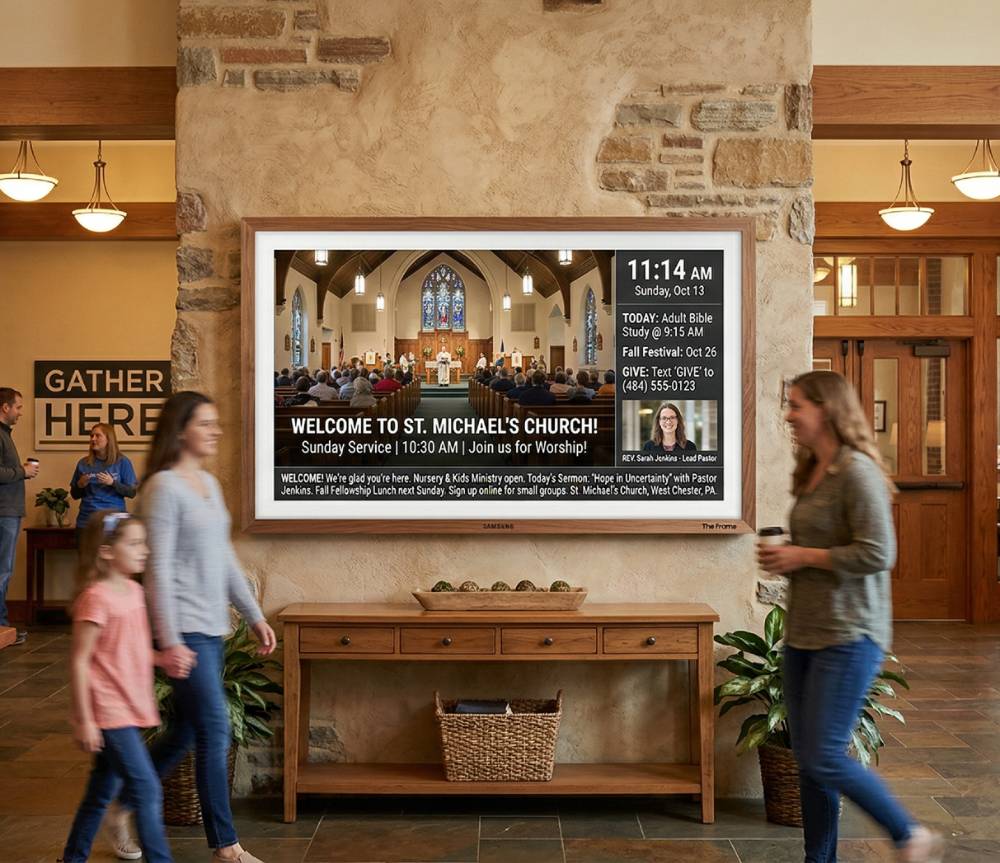
- Any screen with a web browser can show Present: a web link shows the live slides on a signed-in laptop or lobby TV, and Signage plays your Present loops on any TV, no sign-in needed — a tidy way to feed a cry-room TV or an overflow screen without running video cable. Like any networked video, it benefits from a healthy switch and sensible VLANs; see church networking for AV and streaming for the groundwork.
For a first Sunday, though, none of that is required: a booth computer, a Chromium browser, and however many monitors your graphics card will drive is a complete multi-screen system.
How WorshipMetrics handles this
Multi-screen output is a core capability of WorshipMetrics Present, the browser-based presentation tool in the WorshipMetrics platform. Because it runs in the cloud, your outputs, Looks, stage layouts, and song arrangements travel with your team instead of living on one machine — and because it renders program and stage from the same engine as the editor, what you build is exactly what every screen shows. When you’re ready to reach beyond the room, the Tech Manager companion adds NDI output with clean alpha for your video switcher, and the same platform carries your service into live streaming. Start with one projector; the rest of the screens are a settings panel away.
PoE Classes for Church AV: Powering Cameras, APs, and Panels Without Surprises
NextFiring Lights, Switchers, and Sound from Your Slides: Protocol Triggers in Present
Related Articles
ProPresenter Troubleshooting for Church Teams: The 10 Problems Behind Almost Every Sunday Failure
A symptom-first field guide to the ProPresenter failures church booths actually hit — blank outputs, invisible NDI, mid-service lag, stage display showing the wrong thing — with the fast checks for each, and the upgrades that make next Sunday faster: a mapped system, AI that knows your wiring, and fewer moving parts.
Digital Signage Scheduling That Understands Church Calendars
How day-of-week signage schedules and date-range calendar overrides work together, so a Christmas takeover can run for a season and hand the screens back automatically.
NDI Alpha-Channel Slides: A Clean Lyrics Key Without Chroma
How alpha-channel NDI lets you key lyrics and lower thirds over IMAG cleanly, and how to publish and receive a true-transparency slide feed in vMix or OBS.