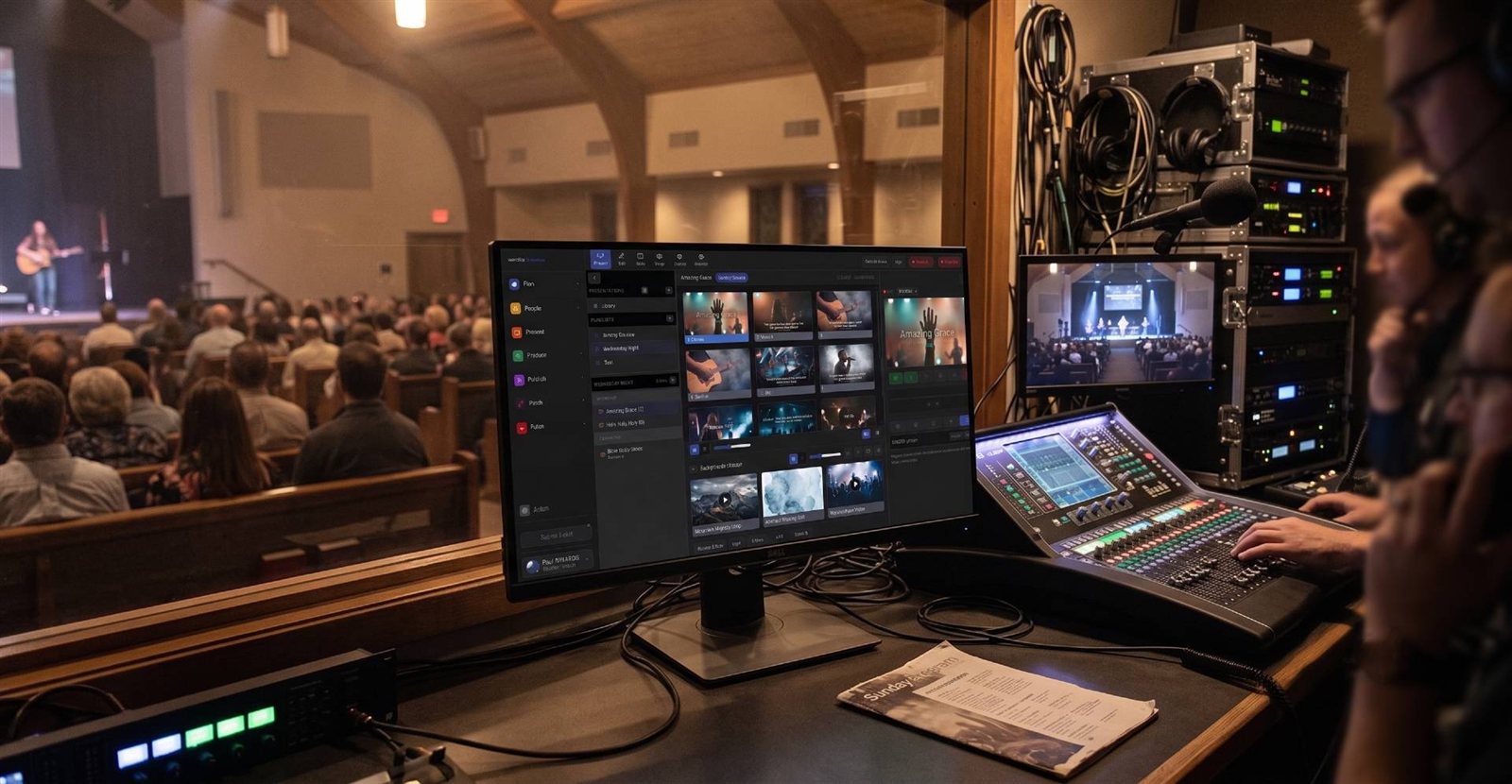
The pastor’s laptop problem
It’s one of the most common setups in churches: the pastor builds sermon slides in PowerPoint, Keynote or Google Slides on their own laptop and runs them from the pulpit or the front row.
Getting those slides into the livestream usually means:
- An HDMI cable from the laptop
- Long HDMI runs or a pair of HDMI-over-Cat5 extenders back to the booth
- A capture card input on the streaming computer
That’s hundreds of dollars of hardware, a cable run across the room, and one more thing that goes black on Sunday morning.
The NDI way: send the screen over the network
NDI screen capture software turns a computer’s screen into an NDI source. It’s part of the free NDI Tools:
- Windows: NDI Screen Capture
- Mac: NDI Scan Converter
Run it on the pastor’s laptop, and the laptop’s screen shows up on the network like a camera. The streaming computer picks it up in vMix, OBS, Wirecast or ProPresenter. No capture card, no HDMI extenders, no new cable to the booth.
It’s one of the simplest ways NDI saves churches money.
How to set it up
- Install the free NDI Tools on the laptop from ndi.video.
- Connect the laptop to the production network. Wired is best; a strong production Wi-Fi network usually works for slides. Not the guest Wi-Fi.
- Start Screen Capture (Windows) or Scan Converter (Mac). Pick the display that shows the slides.
- On the streaming computer, add the NDI source:
- vMix: Add Input, then NDI
- OBS: with the free DistroAV plugin, add an NDI Source
- Wirecast and ProPresenter: add it as an NDI source
- Run through the whole deck before the service, including any videos.
Tips that save a Sunday
- Capture the audience display, not presenter view. Make sure the NDI tool is capturing the screen the congregation sees, not the pastor’s notes.
- Turn off notifications on the laptop. Pop-ups will appear on the stream.
- Set the laptop to never sleep while plugged in.
- Use 1920x1080 on the slide display so it fills the stream cleanly.
- Route video audio through the sound board if the slides include video with sound.
- Name the source clearly (“Pastor Slides”) so the operator can find it.
Even better: one slide system for everyone
If the pastor is open to it, moving sermon slides into the church’s presentation software means one operator controls lyrics and sermon slides from the booth. Present and ProPresenter can both send slides over NDI, and Present can take NDI sources too. (See lyrics and slides on your livestream.)
But when the pastor’s laptop is how your church works, NDI screen capture is the cheapest, cleanest way to bring it in.
Works on a Mac, too
This is one of the places a Mac fits perfectly. A pastor’s MacBook with Scan Converter sends slides to a Windows streaming computer without any extra hardware. (See where Macs fit in the church booth.)
Related reading
- NDI encoders and decoders, for sources that can’t run software
- What network does a church need for NDI?
- More low-cost NDI ideas on our NDI for churches page
Make the booth easier to run: How to make your church livestream easier for volunteers: the three-seat setup. See also two-computer OBS setup with slides over NDI · two-computer vMix setup with slides over NDI.
Related questions
- How do we get slides from the pastor's laptop into the livestream?
- Install the free NDI Tools on the laptop and run NDI Screen Capture (Windows) or NDI Scan Converter (Mac). The laptop's screen appears on the network as an NDI source, and the streaming computer adds it in vMix, OBS, Wirecast or ProPresenter. No capture card or long HDMI cable needed.
- Does NDI screen capture work over Wi-Fi?
- Often, yes, because slides change slowly and don't need much bandwidth. A wired connection is still more reliable, especially if the slides include video.
- Is this better than an HDMI extender?
- For most churches, yes. Extenders need a dedicated cable run and a capture input on the streaming computer. NDI screen capture uses the network you already have, costs nothing for the software, and frees a capture input for a camera.
How NDI Saves Churches Money on Video Cabling, Routing and Mixing
NextSend Your Church Service into Zoom or Teams with NDI
Related Articles
Bitfocus Companion + ATEM Mini: A Stream Deck Panel for Your Church Switcher
A Stream Deck running Bitfocus Companion turns a Blackmagic ATEM into plain-word buttons with colors that show what's live, and the same panel can run PTZ cameras, projectors, and more. Here's how to connect Companion to an ATEM and build a volunteer page.
Lyrics Over the Camera on an ATEM Mini: Luma Keys, Chroma Keys, and the Slides Computer
To put song lyrics over the camera shot on a Blackmagic ATEM Mini, feed the slides computer into an ATEM input and key it over the camera. Here's how luma and chroma keys work for lyrics, how to design slides that key cleanly, and who should run it.
ATEM Mini + OBS for Church: Hardware Camera Switching with OBS for Graphics and Streaming
Many churches use an ATEM Mini as a camera switcher and send its output into OBS over USB as a webcam. The ATEM gives volunteers real buttons; OBS adds lyrics, graphics, recording, and streaming. Here's how to set it up, split the jobs, and avoid the common sync and quality problems.