When a livestream isn’t enough
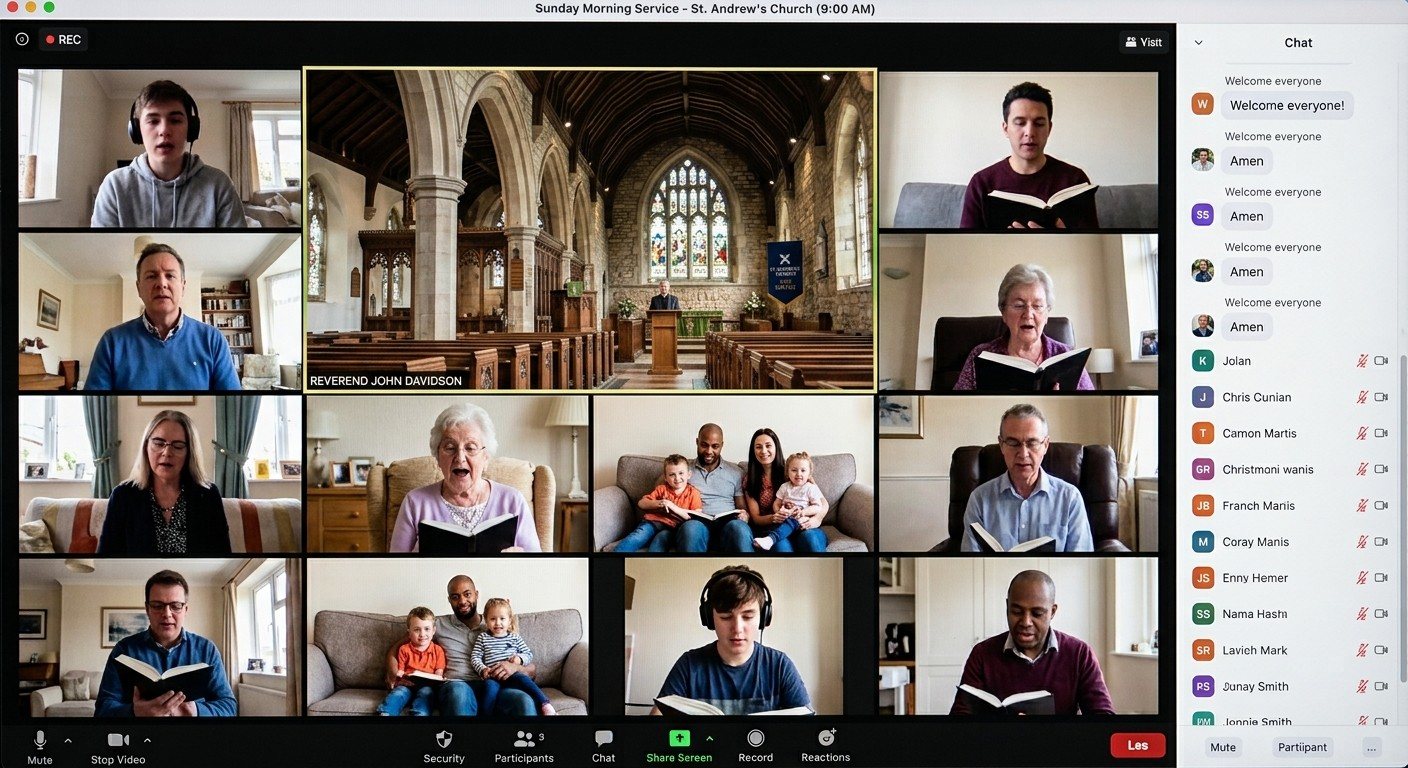
A livestream is one-way. Some ministry needs to be two-way:
- Homebound and hospitalized members who want to be greeted by name
- Hybrid small groups that watch the sermon, then discuss it together
- Prayer meetings with people joining from home
- Board, elder and business meetings with remote members
- Classes and trainings with remote participants
Those happen on Zoom or Microsoft Teams. The usual fix is a laptop with its webcam pointed at the stage. It looks and sounds poor.
The NDI way: your production becomes a webcam
The free NDI Tools include a virtual webcam:
- Windows: NDI Webcam Input
- Mac: NDI Virtual Input
It takes any NDI source, like your program feed from vMix or OBS, and presents it to the computer as a webcam. In Zoom or Teams, choose it as the camera. Now your remote members see the real camera shots and slides, and with audio set up, hear the real mix.
How to set it up
- Make sure your program feed is on the network as NDI. vMix and OBS (with the free DistroAV plugin) can both output NDI.
- On the Zoom computer, install the free NDI Tools.
- Open Webcam Input (Windows) or Virtual Input (Mac) and choose the program feed.
- In Zoom or Teams, pick the NDI virtual camera as the video source.
- Set up audio. Send the stream mix to the Zoom computer, either through the NDI audio or a USB feed from the sound board, and choose it as the microphone. Turn off Zoom’s noise suppression for music.
- Test with a friend at home before the first meeting.
Tips
- Use a second computer for Zoom. Keep the streaming computer focused on the stream.
- Wire it. Use a network cable for the Zoom computer, too.
- Assign a host. Someone in the room should watch the Zoom side, admit people and unmute questions.
- Bring them back the other way. To put a Zoom participant on the screens or the stream, see NDI over the internet for cleaner ways to bring remote people in.
Part of a bigger picture
NDI makes the church’s video available everywhere it’s needed: the stream, the overflow room, the lobby and now the Zoom call, all from one system. See more on our NDI for churches page.
Want this built into your setup? Map your current system, add a note about the meetings you run, and we’ll show you the simplest way to connect them.
Related questions
- How do we send our livestream into a Zoom meeting?
- Install the free NDI Tools on the computer running Zoom and use NDI Webcam Input (Windows) or NDI Virtual Input (Mac). Choose your program feed as the source, then select the NDI virtual camera as the camera in Zoom.
- Why use Zoom if we already livestream?
- Zoom and Teams are two-way. Homebound members can be seen and greeted, small groups can discuss after the sermon, and board or prayer meetings can include people who aren't in the room.
- Do we need a separate computer for Zoom?
- It's best. Run Zoom on a second computer on the production network so the streaming computer keeps one job. Any Windows PC or Mac that can run Zoom will do.
Get the Pastor's Slides into the Stream Without a Capture Card or HDMI Extenders
NextNDI vs. SDI vs. HDMI for Churches: Which Cable for Which Job?
Related Articles
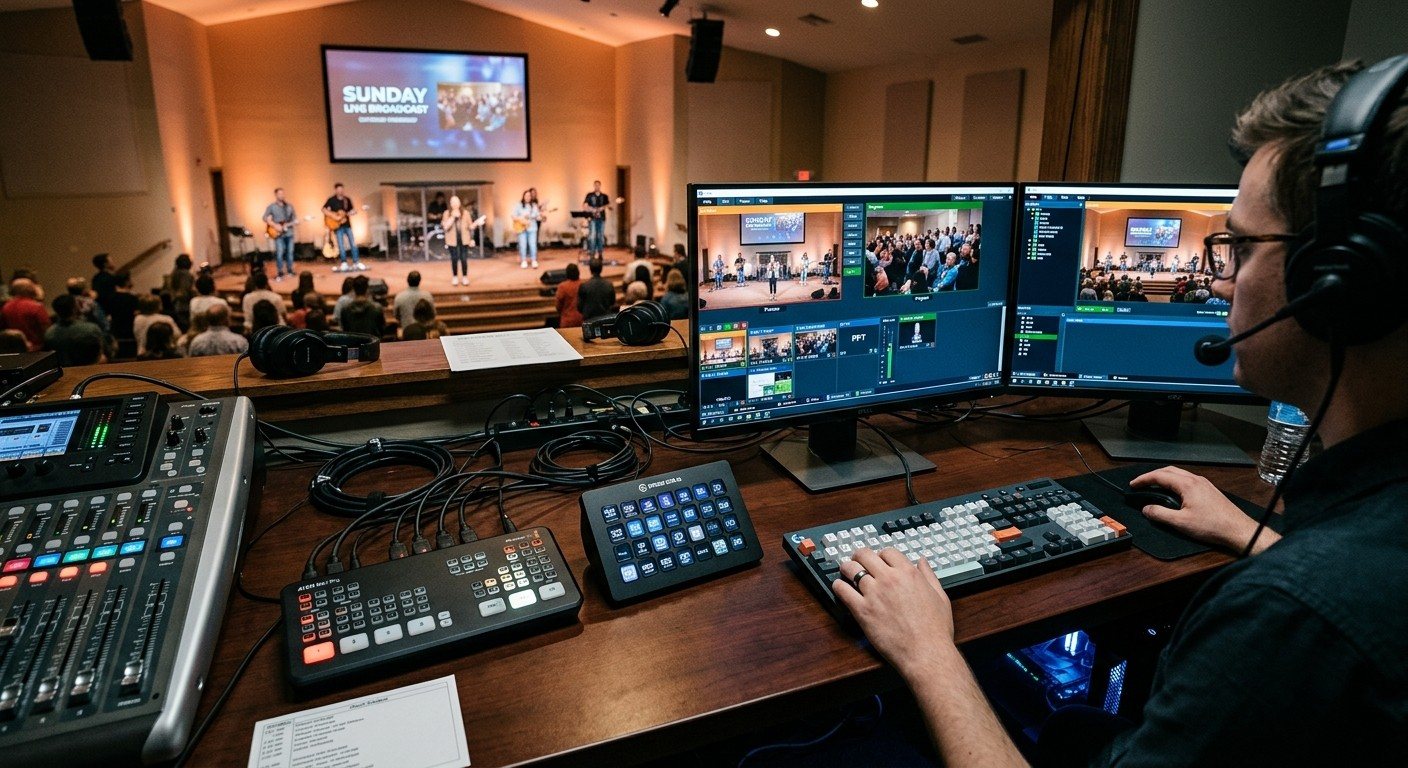
Bitfocus Companion + ATEM Mini: A Stream Deck Panel for Your Church Switcher
A Stream Deck running Bitfocus Companion turns a Blackmagic ATEM into plain-word buttons with colors that show what's live, and the same panel can run PTZ cameras, projectors, and more. Here's how to connect Companion to an ATEM and build a volunteer page.
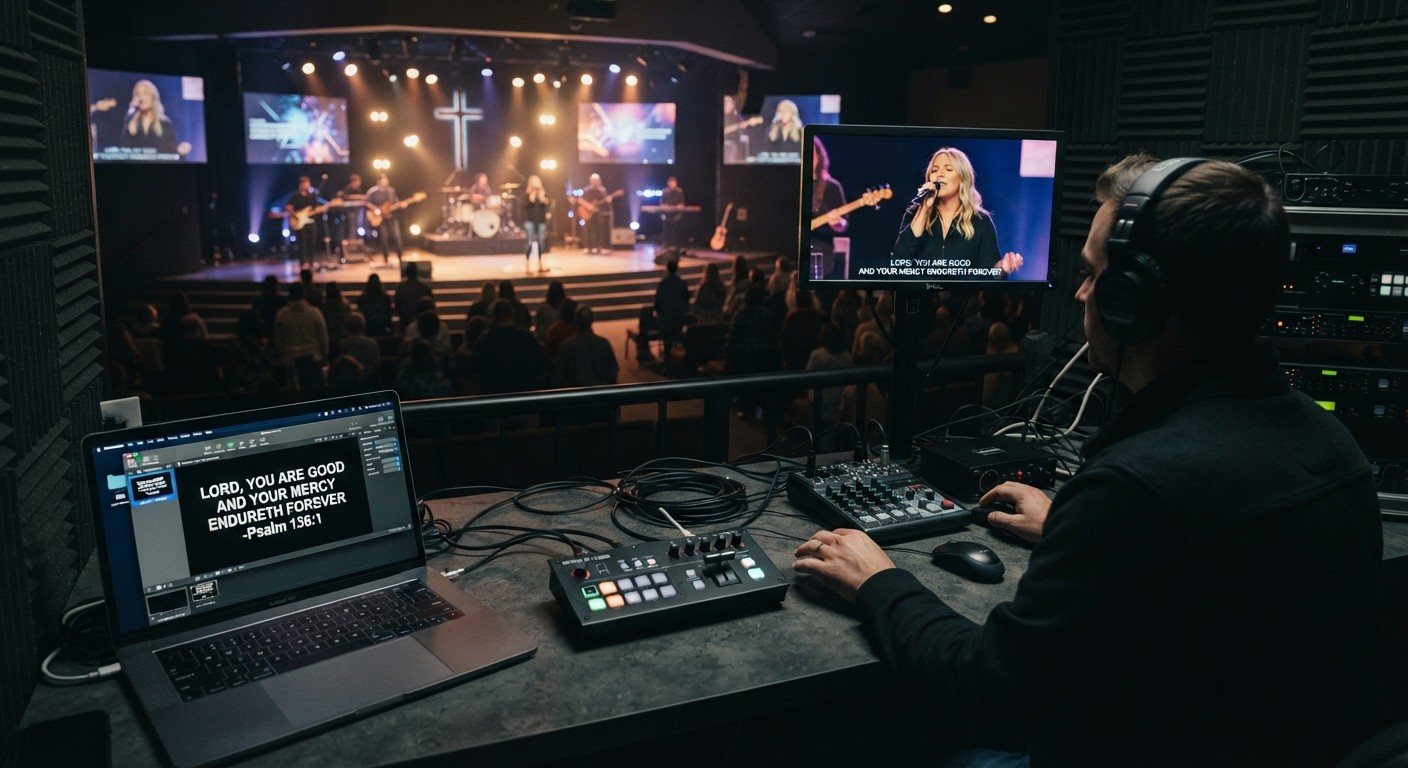
Lyrics Over the Camera on an ATEM Mini: Luma Keys, Chroma Keys, and the Slides Computer
To put song lyrics over the camera shot on a Blackmagic ATEM Mini, feed the slides computer into an ATEM input and key it over the camera. Here's how luma and chroma keys work for lyrics, how to design slides that key cleanly, and who should run it.
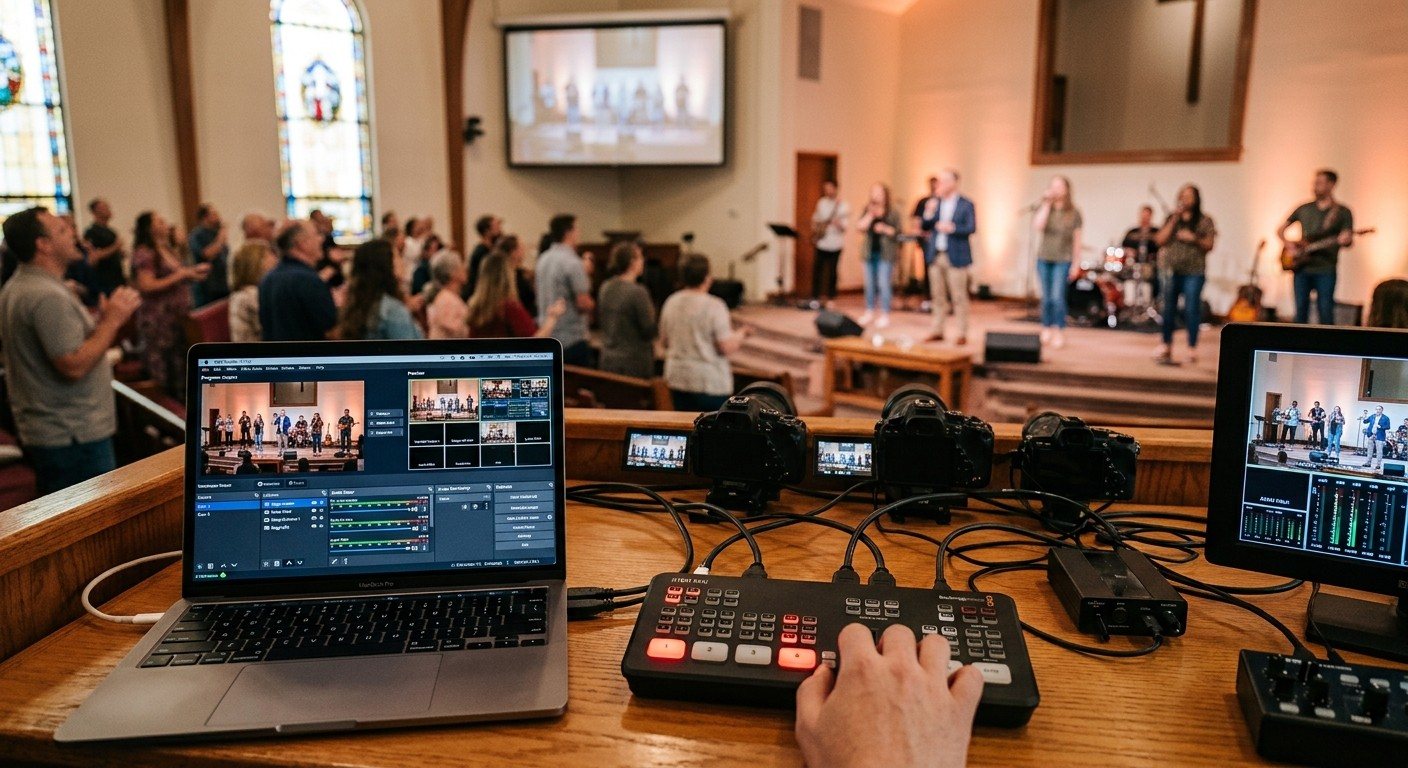
ATEM Mini + OBS for Church: Hardware Camera Switching with OBS for Graphics and Streaming
Many churches use an ATEM Mini as a camera switcher and send its output into OBS over USB as a webcam. The ATEM gives volunteers real buttons; OBS adds lyrics, graphics, recording, and streaming. Here's how to set it up, split the jobs, and avoid the common sync and quality problems.