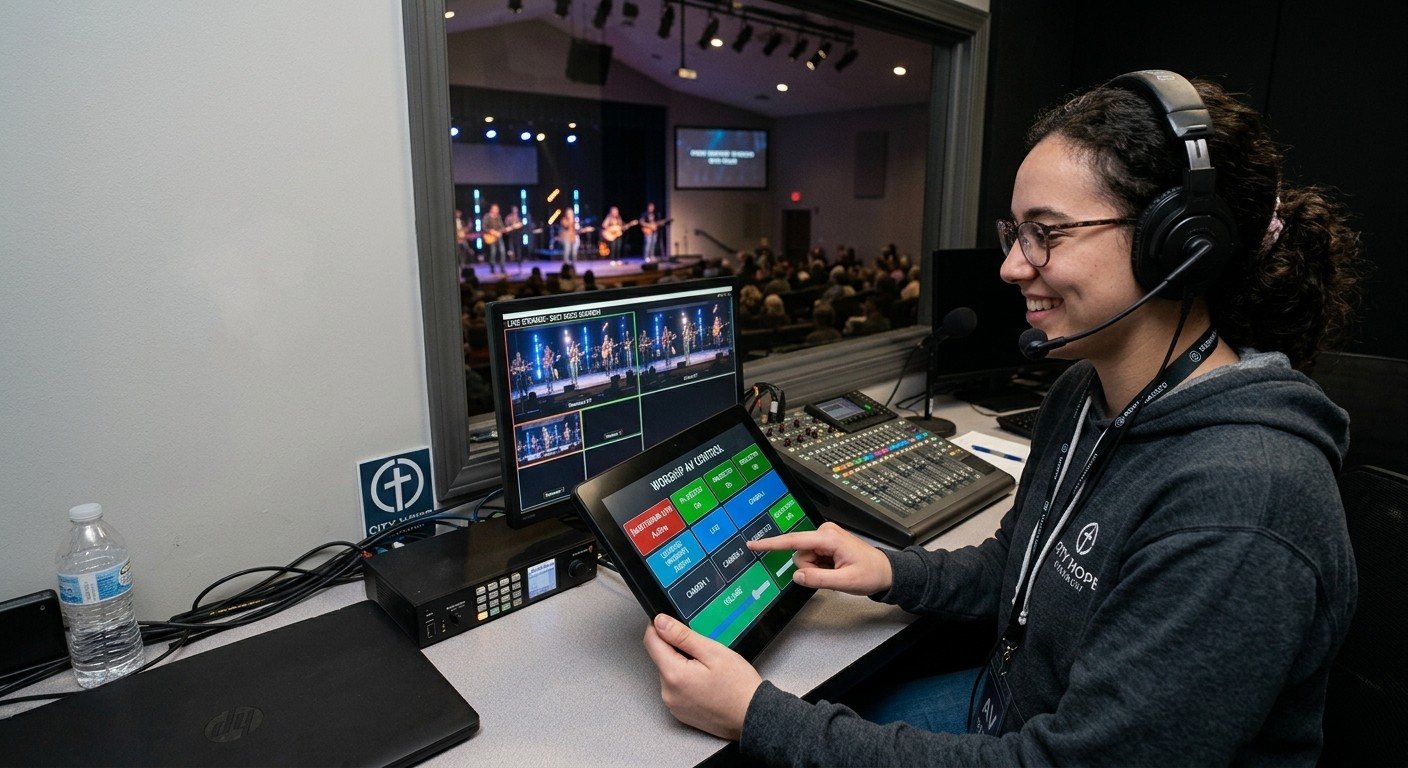
Touch panels, without the custom programming
In big venues, a wall-mounted touch panel that runs the room is usually part of a custom-programmed control system. That’s real engineering, and for a large building it’s worth it.
For most churches, though, the need is simpler: a screen with a few big buttons that a volunteer, a pastor, or the person who unlocks the building can use. With Bitfocus Companion, an ordinary Android tablet can do that.
What you can put on the tablet
- Booth panel: “Start Service,” “Pastor Wide,” “Lyrics On,” “End Service.”
- Camera panel for the camera seat: one button per preset, with the shot’s name.
- Room panel by the door: “Projectors On,” “Projectors Off,” “Lobby TVs On.”
- Stage panel for the worship leader: “Start Countdown,” “Next Song.”
Each panel is just a different page of buttons in Companion.
Setting it up
- Set up Companion on a computer at church and connect your gear. (See the OBS and vMix guides.)
- Connect the tablet to the same network as Companion: the staff or AV network, not the guest Wi-Fi.
- Open Companion’s web buttons page in the tablet’s browser. Companion shows the address in its launcher; it usually looks like
http://192.168.1.20:8000/tablet. - Choose which page to show, and fewer columns for bigger buttons.
- Add it to the home screen so it opens full screen like an app.
- Keep the screen on and the tablet charging. A wall mount with a charging cable, or a desk stand, works well.
Tips for a reliable panel
- Give Companion’s computer a fixed IP address, so the tablet’s bookmark never breaks.
- Make dangerous buttons hard to hit by accident. Put “End Stream” in a corner, a different color, or on a second page.
- Use button colors and feedback, so the panel shows what’s live, not just what you pressed.
- Label in plain words. (See designing Companion pages for volunteers.)
- Keep a printed fallback in the binder: what each button does, and how to do it by hand.
Where WorshipMetrics helps
The same Companion buttons can appear inside WorshipMetrics Present, in its Companion tab. Tech Manager finds Companion on the church network automatically, and in the web app it works in Chrome and Edge on the church network once you allow local network access. Slides can press Companion buttons on their own, too. (See Companion buttons inside WorshipMetrics.)
Record the tablet, Companion’s computer, and their addresses in the Signal Map, so the next volunteer knows where everything is.
Related questions
- Can an Android tablet control church AV equipment?
- Yes. Bitfocus Companion serves a web buttons page that works in any modern tablet browser. Once Companion is connected to your gear, an Android tablet on the same network shows those buttons, and tapping one controls OBS, vMix, cameras, projectors, or anything else Companion supports.
- Do we need a special app for a Companion tablet panel?
- No. The tablet only needs a web browser. Open Companion's web buttons page (the address Companion shows, usually ending in :8000/tablet), add it to the home screen, and it works like an app.
- Is a Companion tablet panel secure?
- Companion's web buttons page doesn't ask for a password by default, so anyone who can reach it on the network can press the buttons. Keep Companion on the church's staff or AV network, not the guest Wi-Fi, and use Companion's admin lock for its settings pages.
Making a Complicated Church AV System Easy to Run, Without Hiring an AV Company
NextPastor Too Quiet, Out of Sync, or Echoey: Fixing the Three Classic Church Livestream Audio Problems
Related Articles
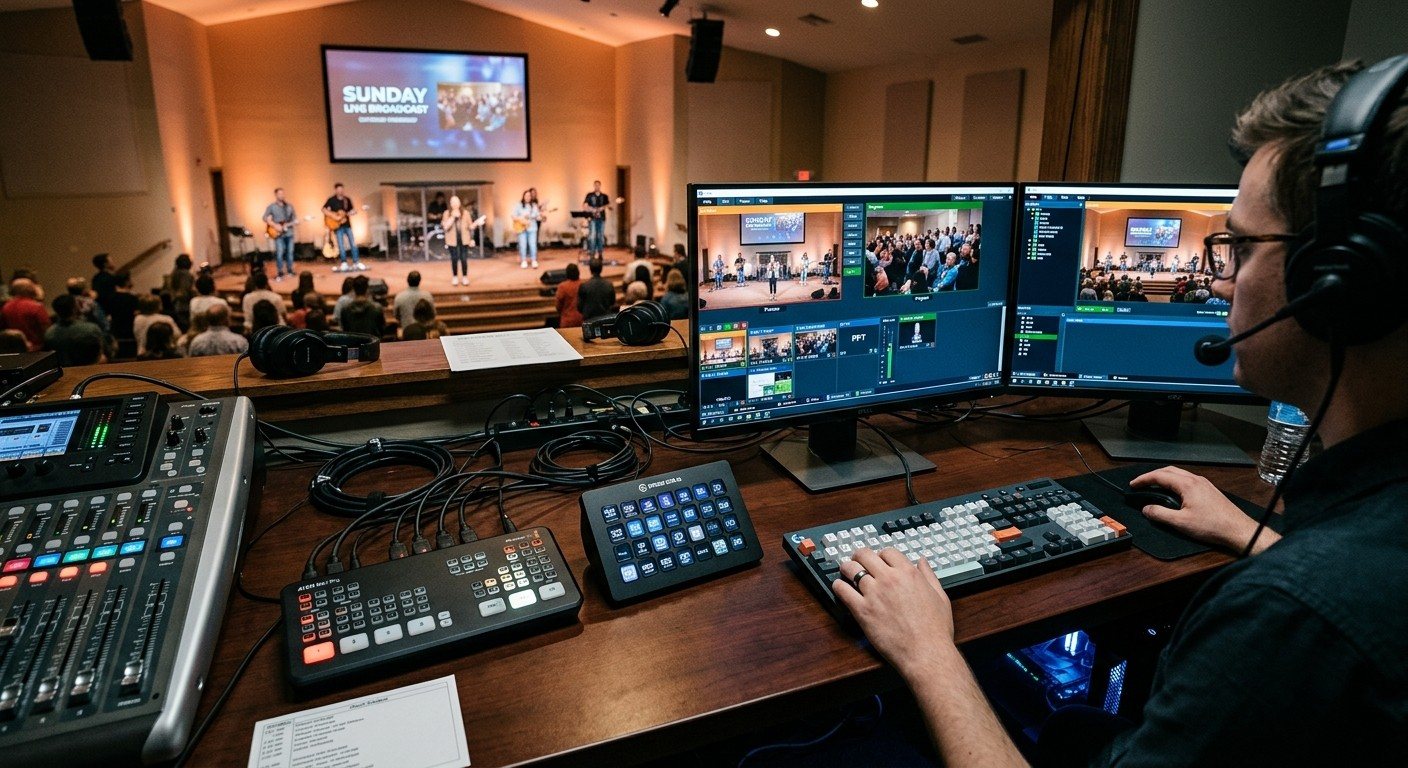
Bitfocus Companion + ATEM Mini: A Stream Deck Panel for Your Church Switcher
A Stream Deck running Bitfocus Companion turns a Blackmagic ATEM into plain-word buttons with colors that show what's live, and the same panel can run PTZ cameras, projectors, and more. Here's how to connect Companion to an ATEM and build a volunteer page.
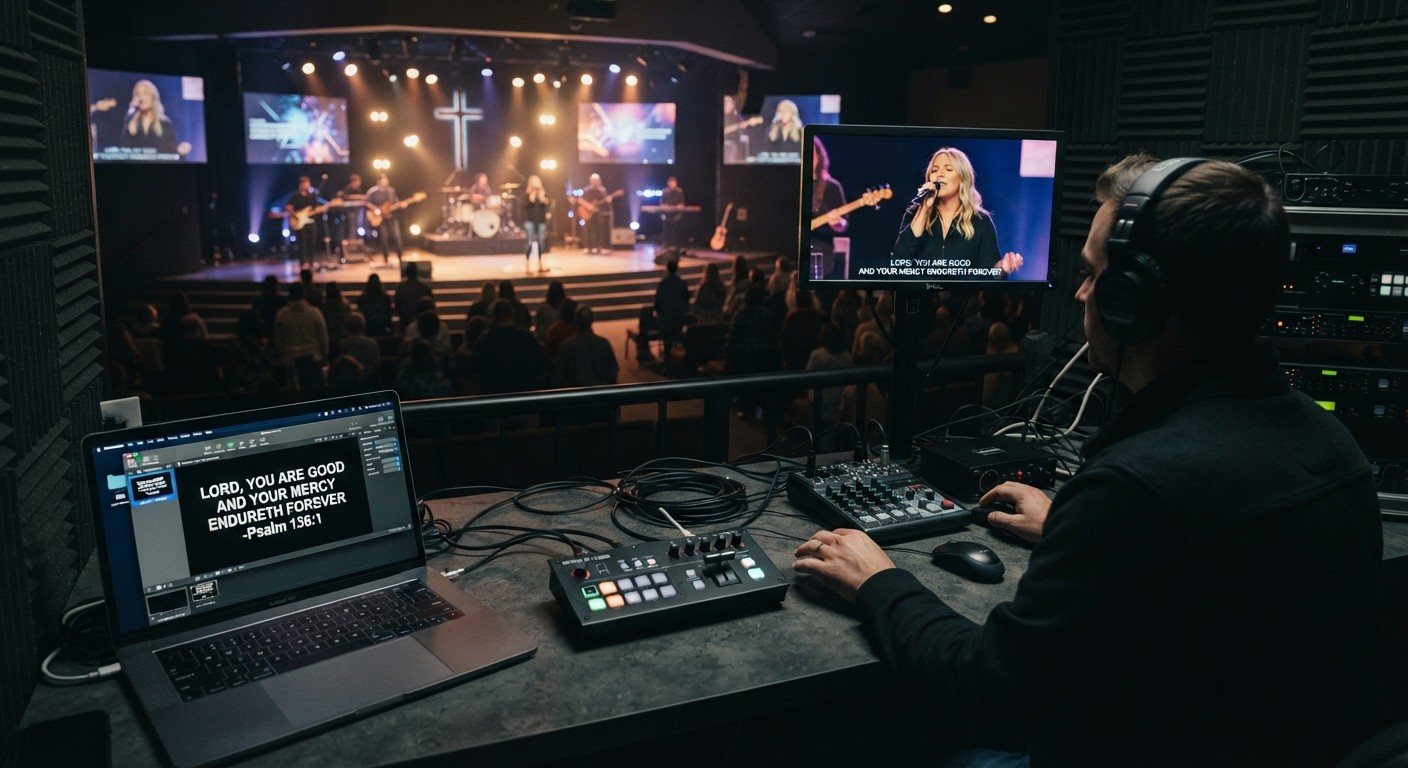
Lyrics Over the Camera on an ATEM Mini: Luma Keys, Chroma Keys, and the Slides Computer
To put song lyrics over the camera shot on a Blackmagic ATEM Mini, feed the slides computer into an ATEM input and key it over the camera. Here's how luma and chroma keys work for lyrics, how to design slides that key cleanly, and who should run it.
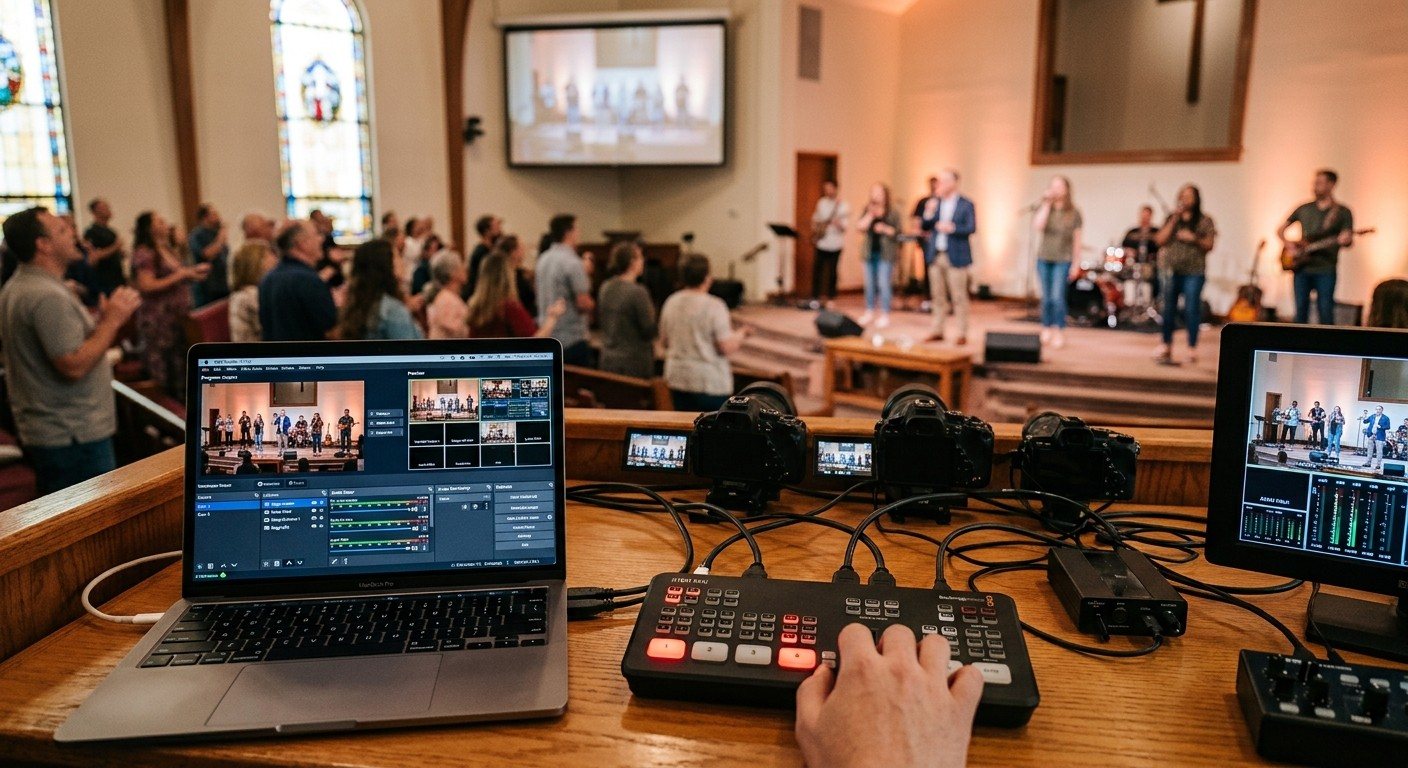
ATEM Mini + OBS for Church: Hardware Camera Switching with OBS for Graphics and Streaming
Many churches use an ATEM Mini as a camera switcher and send its output into OBS over USB as a webcam. The ATEM gives volunteers real buttons; OBS adds lyrics, graphics, recording, and streaming. Here's how to set it up, split the jobs, and avoid the common sync and quality problems.