Why your network should audit your documentation
Every church AV team eventually builds some kind of signal map — a whiteboard photo, a spreadsheet, a drawing of what plugs into what. And every one of those maps has the same weakness: it records what somebody believed was true on the day they drew it. Then a volunteer moves a camera to a different switch port during a Christmas rearrange, nobody updates the drawing, and six months later you are troubleshooting from a map that quietly lies to you.
Your network switches, on the other hand, cannot lie about the present. A managed switch knows exactly which port has a link, how fast that link negotiated, and how many watts of Power over Ethernet each port is delivering right now. If your church runs Ubiquiti UniFi gear — and a great many churches do, because it hits a sweet spot of capability and price — all of that truth is sitting in your UniFi controller waiting to be asked.
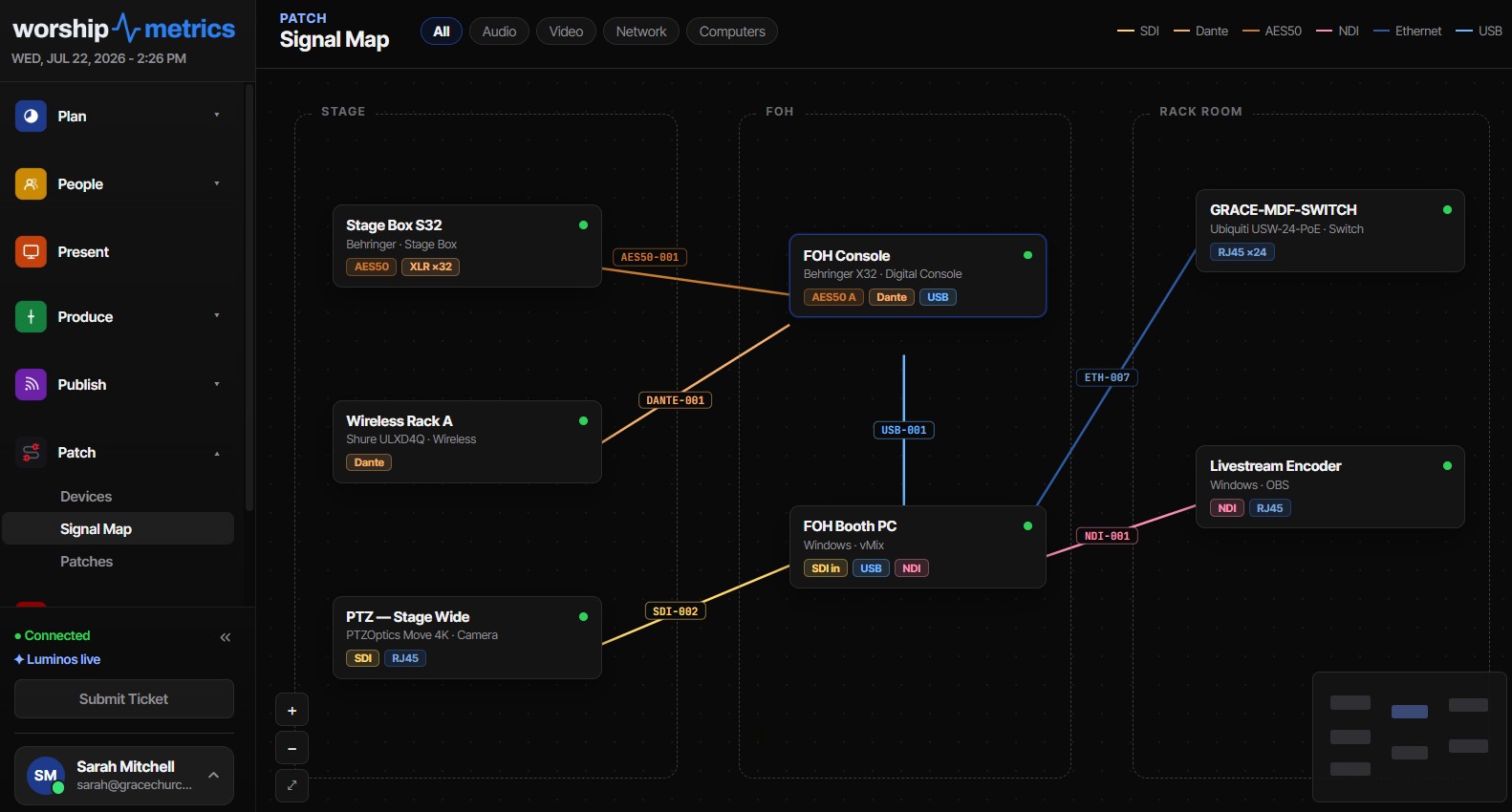
WorshipMetrics can ask. Connect your UniFi controller and the platform pulls live network telemetry into the same place where your devices, signal map, and cable schedule already live. This article walks through the two ways to authenticate, explains what the deeper “port-precise” mode unlocks, and shows how live network truth becomes a standing audit of your documented signal map.
Two ways in: API key or local admin
WorshipMetrics supports two authentication modes for a UniFi controller, and they trade convenience against depth.
API key: the official integration route
Ubiquiti publishes an official Network Integration API, authenticated with an API key sent in a request header. You generate the key in your UniFi console’s API/integrations settings, paste it into WorshipMetrics, and you are connected — no shared passwords, and the key can be revoked at any time without touching anyone’s login.
This is the gentlest way to start. It brings your UniFi network into WorshipMetrics through the front door Ubiquiti built for exactly this purpose, and it is the right choice if your network is managed by an outside IT provider who would rather hand you a scoped key than an account.
Local admin: the port-precise route
The second mode uses a local admin username and password on the controller itself, which lets WorshipMetrics speak to the controller’s fuller local interface. This is the mode that unlocks port-precise topology: wire-by-wire detail about which device hangs off which physical switch port, live PoE wattage per port, and per-port link negotiation results.
Two pieces of practical advice if you go this route:
- Create a dedicated local account for the integration rather than reusing a person’s login. UniFi lets you add local users with limited roles; a dedicated read-oriented account means the connection keeps working when a staff member changes their password or moves on, and your audit trail stays clean.
- Use a local account, not a Ubiquiti cloud (SSO) account. The integration talks to the controller directly on your LAN, so it needs credentials that live on the controller itself.
Which one should you use?
Start with whichever gets you connected today, but know what you are choosing. The API key mode is quick, revocable, and officially sanctioned. The local-admin mode is what turns your network from a device list into a wiring witness — everything in the next section depends on it. Many churches run the API key first, see the value, and then set up a dedicated local account once the network administrator is comfortable.
One architectural note: the UniFi collector runs from the WorshipMetrics desktop app — the one that lives on your booth computer — because that machine sits on the same LAN as your controller. The results sync to the cloud, so the web app shows the same topology your booth machine gathered.
What port-precise topology unlocks
Here is what shows up once WorshipMetrics can see your switches port by port.
Auto-inferred Ethernet wires
The sync reads the controller’s per-port client tables and writes actual Ethernet connections into your signal map — this camera into port 7 of the stage-left switch, that access point into port 16. Each inferred wire gets a network cable ID in the same NET-001-style numbering scheme the platform uses for every cable, so the wires the network discovered sit right alongside the SDI and Dante runs you drew by hand, on the same map and the same Patches cable schedule.
This matters because Ethernet runs are precisely the cables teams document worst. An SDI run gets drawn because someone consciously installed it; network patches accumulate in ones and twos over years, and nobody remembers which port the confidence monitor’s media player landed on. Auto-inference means the least-documented layer of your rig becomes the best-documented layer — witnessed by the switch itself.
Live PoE draw, port by port
If you have read our guide to PoE classes for church AV, you know the difference between what a device negotiates (its class allocation) and what it actually pulls (its live draw). Port-precise sync shows the live wattage on every PoE port, which turns two chronic mysteries into thirty-second checks:
- Is that camera actually being powered by this switch? A port showing 0.0 W with a link light tells you the device is running on a local power brick — useful truth when you are deciding whether a switch reboot will take the camera down.
- How close is this switch to its PoE budget? Summing live draws across ports tells you how much real headroom remains before you add the next access point — and whether a device is drawing suspiciously more than its documented class suggests, which is often the first sign of a heater kicking in or a failing device.
Because the WorshipMetrics device catalog records PoE class and wattage expectations for the gear it knows, you can read the documented expectation and the live measurement side by side. When they disagree, the network is telling you something.
Negotiated vs. maximum link speed
This is the sleeper feature, and in our experience the one that finds real problems fastest. The sync records a port’s negotiated speed separately from its maximum capability — so a gigabit port that silently fell back to 100 Mb/s is visible at a glance instead of hiding behind a green link light.
Why does gigabit fall back to 100M? Almost always the cable: a marginal termination, one damaged pair, a run that got pinched during a stage rebuild. Gigabit Ethernet needs all four pairs; 100 Mb/s needs only two, so a cable with one bad pair “works” — right up until you push an NDI feed or a Dante network through it and things get strange. If you run AV signals over your network switches, a port stuck at 100M is a Sunday incident waiting for its moment. Seeing negotiated-vs-maximum in your documentation means you find that cable on a Tuesday instead.
Letting network truth check your signal map
Put the pieces together and you get something genuinely rare in church AV: a documented signal map with a built-in fact-checker.
Your hand-drawn map records intent — what the system was designed to be. The UniFi sync records observation — what the copper is actually doing. When the auto-inferred wires land on the map next to your documented runs, disagreements surface naturally: a device that your drawing says feeds the booth switch but the controller says is hanging off the lobby switch; an Ethernet run you documented that no switch has ever seen; a device whose port went dark entirely.
The rest of the platform reinforces the habit. Device cards carry live health indicators on a 90-second offline threshold — three missed heartbeats and the dot changes — so the map you use for planning is also the map you glance at when something dies mid-service. And the signal map’s automated wiring audits (duplicate cables, direction conflicts, connector mismatches, and more) keep the human-drawn side of the documentation honest while the network sync keeps the Ethernet side honest.
If you are still building out the network side of your AV system, our guide to church networks for AV and streaming covers VLANs, switch selection, and the design decisions that make this kind of telemetry most useful.
Setup notes and good practices
A few field-tested recommendations for a smooth connection:
- Connect from the booth machine. The desktop app doing the collecting should be on the same LAN as the controller — ideally on your management VLAN or one that can reach it.
- Prefer a dedicated integration account (local-admin mode) or a dedicated API key (official mode) over anything shared with humans. Revocation should never require a staff conversation.
- Run a sync, then walk your racks once. The first port-precise sync is the perfect excuse for a physical audit: confirm the inferred wires match reality, fix the two or three surprises you will absolutely find, and label anything unlabeled while you are there.
- Check negotiated speeds after any physical rework. Stage rebuilds and cable re-pulls are when gigabit links quietly become 100M links. A thirty-second glance after the work is done catches it.
How WorshipMetrics handles this
The UniFi integration is part of the WorshipMetrics documentation pillar — Devices, Signal Map, and Patches — where your inventory, wiring, and cable schedule live as one organization-wide source of truth. Connect your controller once and your documentation stops being a snapshot and starts being a living record: auto-inferred Ethernet wires with stable cable IDs, live PoE draw beside documented power budgets, and link-speed truth on every port. Explore the full toolset at system documentation, and see how live device health feeds alerting at AV monitoring.
Digital Signage Scheduling That Understands Church Calendars
NextHow WorshipMetrics Knows You Run Dante
Related Articles
Controlling Projectors, PTZ Cameras, and Sound Boards with Bitfocus Companion
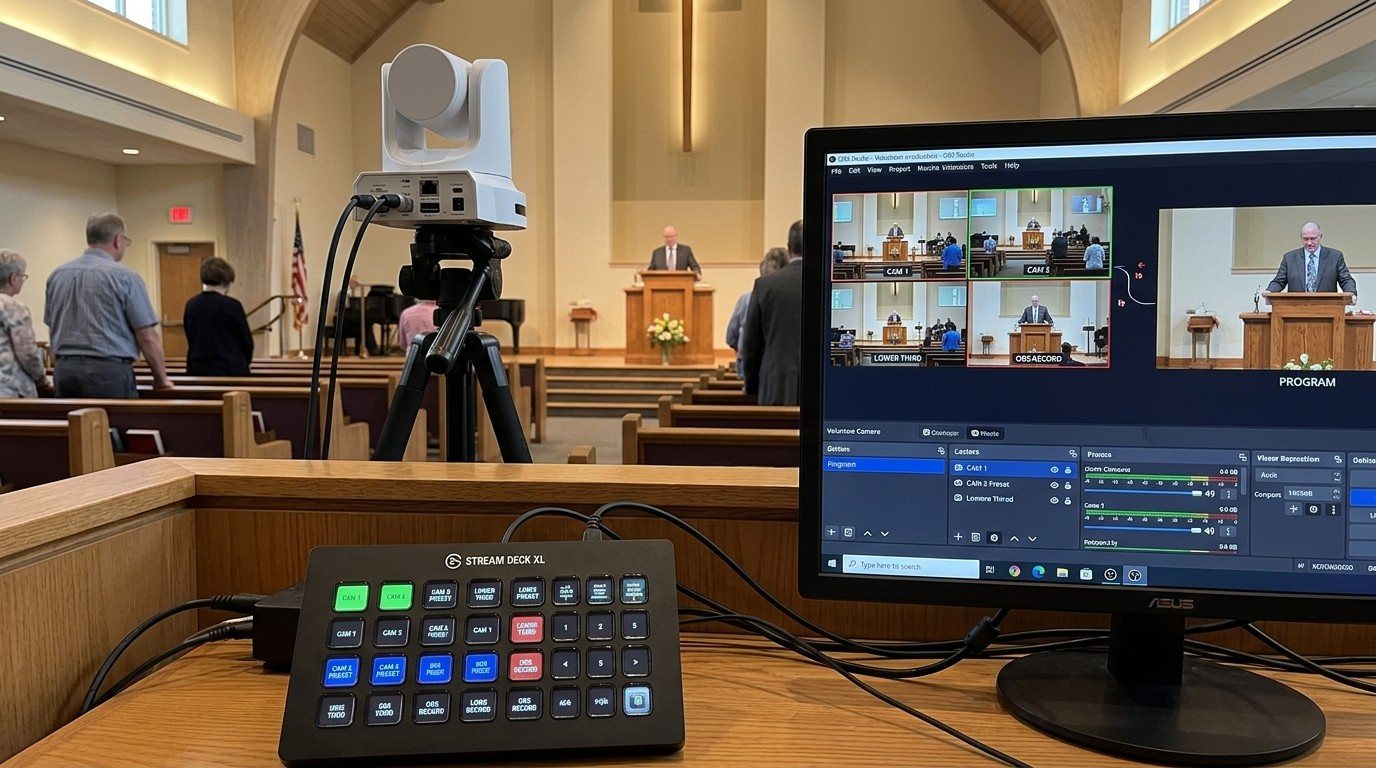
Bitfocus Companion can control far more than OBS and vMix. Projectors over PJLink, PTZ cameras over VISCA, digital sound boards over the network, and almost anything else with an IP address. Here's how churches connect the rest of the room, and how to plan a 'Start Service' button that does it all.
PTZ Camera Troubleshooting for Churches: The 10 Problems Behind Almost Every Sunday Failure
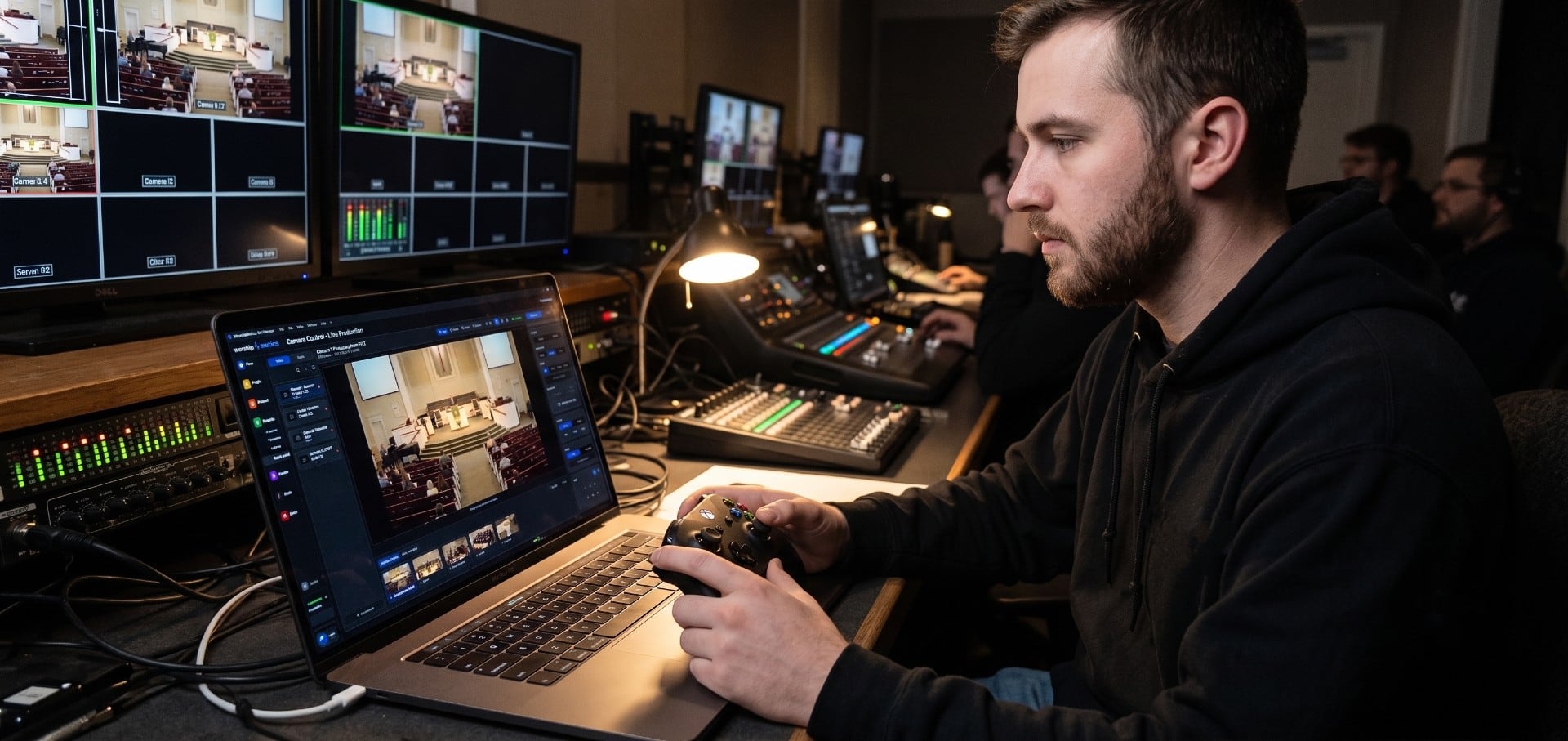
A symptom-first field guide to the PTZ and network camera failures church booths actually hit — cameras that vanish from the network, presets that drift, flicker under LED lighting, video lagging the audio — with fast checks for each, and the upgrades that end the guessing: a mapped system, cameras on watch, and AI that knows your wiring.
AI That Knows Your Wiring: How Luminos and Journey Actually Work
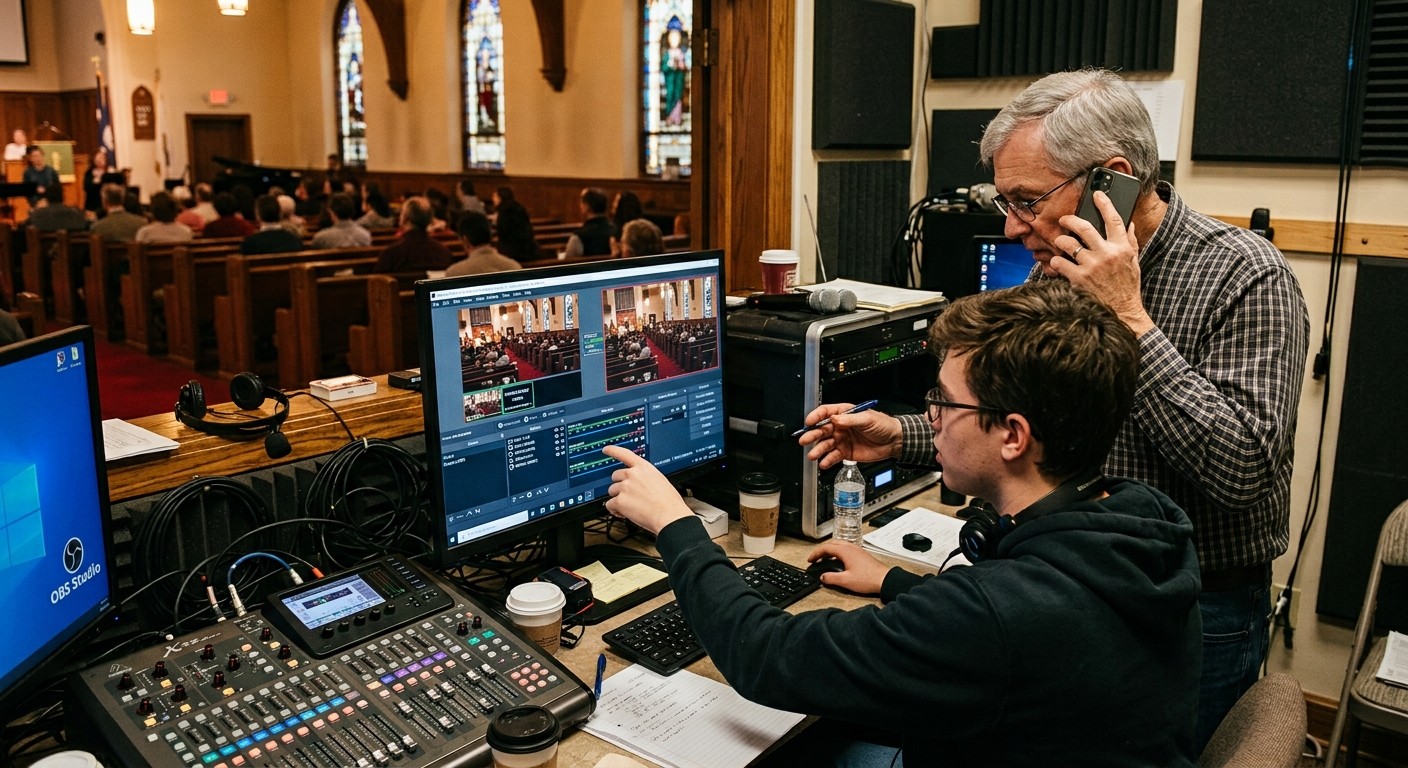
The AV manager's tour of the context architecture: how the Signal Map, live inventory, telemetry, and support history become an assistant that answers questions about YOUR booth — in the app as Luminos, on the phone as Journey.