Gear you never typed in
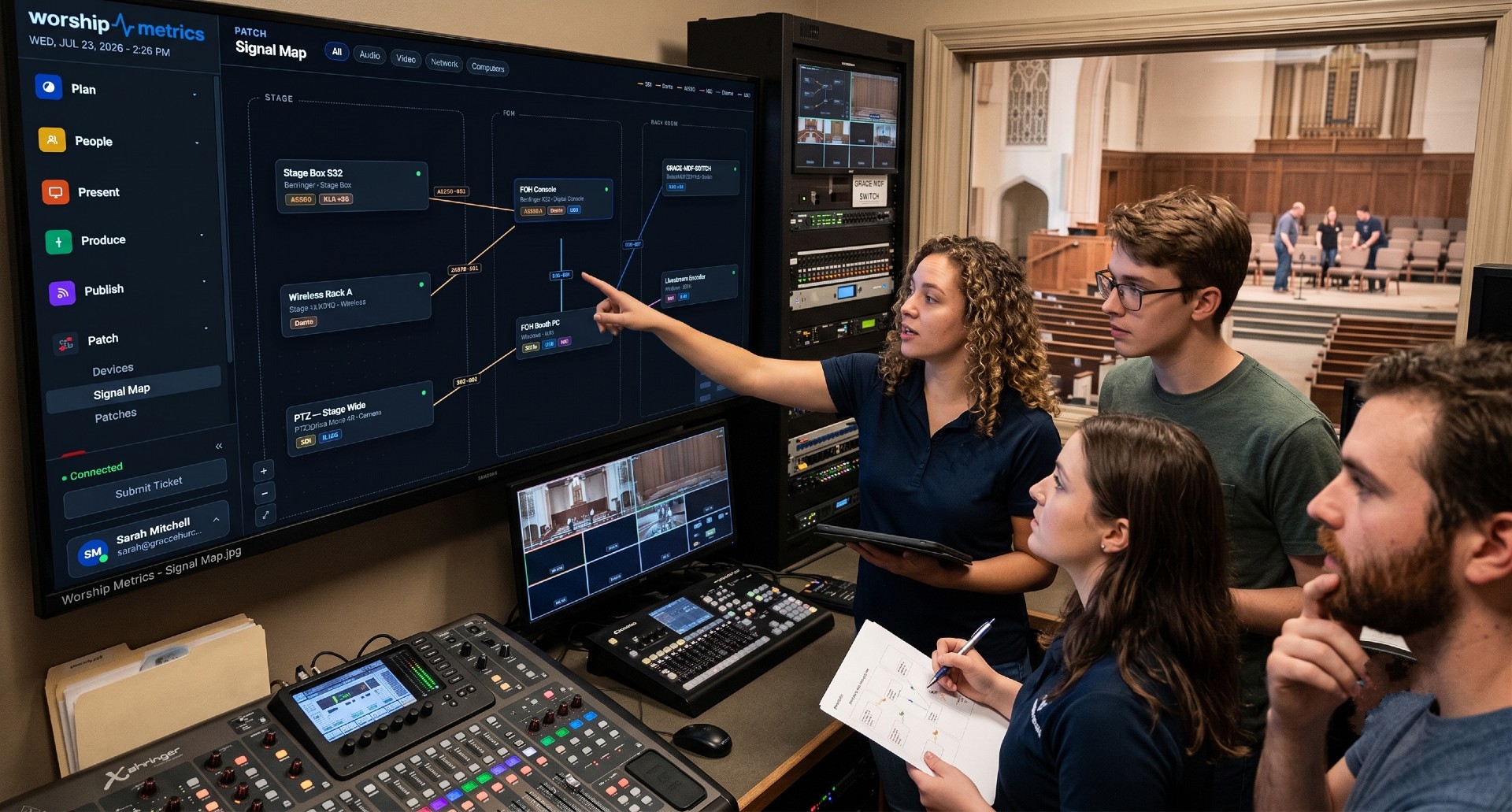
Open the Pulse inventory at a church that runs Dante and you’ll notice something a little uncanny: the Dante devices are already there. Nobody filled in a form. Nobody pasted MAC addresses into a spreadsheet. The stage box, the console’s Dante card, the Dante Virtual Soundcard on the streaming PC — listed, typed, and timestamped.
That isn’t magic, and it isn’t guesswork. It’s two independent detection paths that corroborate each other: one that reads what’s installed on the booth computer, and one that listens for what’s alive on the network. This article walks through both — because, usefully, the failure modes of detection are the same failure modes that break Dante on a Sunday.
A sixty-second Dante refresher
Dante, from Audinate, moves uncompressed multichannel audio as ordinary IP traffic over standard gigabit Ethernet. Every Dante device gets an IP address, audio flows as UDP packets, and devices stay sample-locked to a shared clock elected via PTP. Because it’s real network traffic, it rides switches and VLANs — with the care around QoS, IGMP snooping, and Energy Efficient Ethernet we cover in which AV signals survive a network switch.
The piece that matters most here: Dante devices announce themselves, using standard mDNS/DNS-SD — the same zero-configuration service advertisement that Bonjour printers and AirPlay speakers use. That design decision is what makes third-party awareness of Dante possible at all.
Path one: the soundcard Windows can’t see
Dante Virtual Soundcard (DVS) turns an ordinary computer into a Dante endpoint — typically 64×64 channels into and out of your streaming or recording machine with nothing but a network cable. On Windows, DVS runs in one of two driver modes, and the difference matters enormously for detection:
- WDM mode presents DVS as standard Windows audio devices: visible in the Sound control panel, usable by any application.
- ASIO mode presents DVS only through the ASIO driver model. ASIO-aware applications — DAWs, vMix, multitrack recorders — get low-latency access to the full channel count. The Windows Sound panel sees nothing.
That second mode is the trap for any monitoring tool that only enumerates audio endpoints the normal way. A booth PC running DVS in ASIO mode looks, to standard endpoint enumeration, like a computer with no Dante on it at all — even while 64 channels of worship audio are flowing through it.
ASIO has an answer, though, and it’s refreshingly boring: every installed ASIO driver registers itself in the Windows registry. The ASIO specification requires drivers to record themselves under a well-known registry location so that host applications can present a driver list. The WorshipMetrics Tech Manager desktop app reads that same registration list as part of its hardware snapshot. If Dante Virtual Soundcard is installed, its ASIO driver is registered — and it shows up in your machine’s telemetry regardless of which mode it’s running in, and regardless of whether the Windows mixer has ever heard of it.
This is why the inventory can honestly say “this machine has Dante audio capability” when a surface-level look at Windows says otherwise. The registry doesn’t care about driver modes.
Two adjacent captures round out the picture on the same machine:
- Audio endpoints are captured with live volume, mute state, and sample rate. If you run DVS in WDM mode, those endpoints appear here like any other device — and their sample rate is visible, which is handy since a machine sitting at 48 kHz on a 44.1 kHz Dante network is a classic silent misconfiguration.
- Installed software is inventoried hourly. Dante Controller, DVS, and Dante Via show up in the software list like any other application, and the machine’s timeline records installs, removals, and updates — so “when did the Dante driver change?” has an answer with a date on it.
Path two: listening for _netaudio on the wire
The registry tells you what’s installed on the booth PC. It says nothing about the stage box at the other end of the building. For that, the Tech Manager runs an mDNS listener as one of its network discovery probes, alongside its SNMP, ARP, and ICMP awareness of the wider AV network.
Dante devices advertise a family of DNS-SD service types with the prefix _netaudio-:
_netaudio-arc._udp_netaudio-chan._udp_netaudio-cmc._udp_netaudio-dbc._udp
Together these cover Dante’s routing control, channel advertisement, and control-and-monitoring traffic. This is exactly how Dante Controller populates its device list when you open it — WorshipMetrics simply listens to the same public announcements. A service advertisement carries the device’s name and network details, which is enough to say a Dante device named FOH-Stagebox-1 is alive at this address without touching the device itself. The same mDNS listener also recognizes AES67/Ravenna-style advertisements, so an AoIP ecosystem that isn’t pure Dante still registers.
Notice the corroboration between the two paths. DVS, when it’s running, advertises via mDNS like any other Dante device. So a healthy streaming PC produces both signals: the registry says Dante is installed, and the network says Dante is answering. When those two disagree — installed but never advertising — that gap is itself diagnostic, and it usually points at the network, not the software.
What “detected” means — and what it deliberately doesn’t
Detection feeds three places, and it’s worth being precise about each:
The inventory. Discovered Dante devices land in your AV device inventory automatically, typed by how they were found. That’s the foundation of the inventory-first maintenance practice — a device list that reflects the building as it is, not as someone documented it two staff transitions ago.
The signal map. Dante is a first-class signal type in WorshipMetrics system documentation, with its own per-cable IDs on the printable patch sheet. Detection means the map’s Dante entries correspond to devices the platform has actually heard from, not just boxes someone drew.
Monitoring, if you opt in. Flag a Dante device “Alert when offline” and it joins the monitored AV fleet, with a configurable alert delay (60 seconds by default). Crucially, offline alerts use a multi-observer rollup: a device only alarms when it’s unreachable from every telemetry machine on the network, so one booth PC with a flaky network path can’t page your whole team at 6 a.m. Observers that themselves go quiet demote the device to an honest “stale” rather than a frozen “online.” The full threshold table lives in the Pulse alert thresholds reference.
And the deliberate limit: discovered Dante devices are not audio-metered. WorshipMetrics doesn’t subscribe to your Dante flows or insert itself into your routing — the live audio metering you see in the platform comes from your production software’s own buses. Discovery is presence and identity, not signal interception. Your Dante routing stays entirely between Dante Controller and your devices, which is exactly where it belongs.
There’s a subtle bonus in that presence data: because Dante discovery depends on multicast mDNS actually traversing your network, the discovery layer doubles as a canary. If Dante devices that were visible yesterday vanish from discovery while still passing audio, something changed in your multicast handling — an IGMP setting, a new switch, an AP that started filtering mDNS. That’s the kind of early signal worth having before the week Dante Controller mysteriously shows an empty device list.
Why this context changes support conversations
Here’s the practical payoff. When something breaks on a Sunday and you reach out for help, the first ten minutes of a typical support interaction is archaeology: What console? What’s the computer? Is there Dante involved? When did anything change?
With detection in place, that archaeology is already done. The machine snapshot shows the ASIO driver list and audio endpoints with sample rates. The network discovery shows which Dante devices are currently advertising and which have gone quiet. The hourly software inventory and the machine timeline show that, say, a Dante driver update landed Thursday night — two days before the Sunday the mics went silent. The heartbeat cadence (a light beat every 15 seconds, a full snapshot every 60) means all of that is current to within about a minute, not a description from memory.
A support conversation that starts from “DVS is installed in ASIO mode, your stage box stopped advertising on mDNS at 9:04, and your booth PC’s NIC bounced at 9:03” is fundamentally different from one that starts from “okay, describe your setup.” It’s faster, calmer, and doesn’t depend on the one volunteer who knows the rig being reachable mid-service. It’s the same reason we encourage teams to keep network documentation current in the church network guide for AV and streaming — the tool just does a large share of the documenting for you.
When Dante doesn’t show up
If you run Dante and the inventory doesn’t show it, treat that as information. The usual suspects, in order:
- Different VLAN or subnet. mDNS is link-local multicast; a listener on the office VLAN can’t hear announcements on an isolated Dante VLAN. A booth PC that should see Dante needs an interface on the Dante network — which is equally true for Dante Controller.
- mDNS filtered or dropped. Managed switches with aggressive multicast settings, IGMP snooping enabled without a querier, and access points that block multicast between clients all silently eat service advertisements.
- DVS installed but not started. The registry path still reports the ASIO driver; the network path won’t, because DVS only advertises while running. That installed-but-silent combination is your hint.
- Client isolation. WiFi with client isolation enabled will neither hear nor be heard. Dante gear belongs on copper anyway, but discovery from a wireless laptop fails this way constantly.
Each of these breaks Dante Controller’s discovery too — so fixing what hides Dante from WorshipMetrics generally fixes what was about to hide it from you.
How WorshipMetrics handles this
Dante awareness in WorshipMetrics is passive, layered, and honest about its limits. On the booth machine, the Tech Manager enumerates installed ASIO drivers from their registry registrations — catching Dante Virtual Soundcard even in ASIO mode, where normal Windows endpoint enumeration sees nothing — alongside audio endpoints with live sample rate, volume, and mute state, plus an hourly software inventory that tracks Dante application installs and updates. On the network, an mDNS listener discovers Dante hardware through its _netaudio-* service advertisements (with AES67/Ravenna recognition as well), feeding your inventory and signal map automatically. Devices you choose to monitor get multi-observer offline alerting that won’t false-alarm off one machine’s bad network path — and none of it ever touches your audio routing.
See the full monitoring picture on the AV monitoring page, how the same discovery feeds your documentation on the system documentation page, and how that context accelerates real help on the phone support page.
Better livestream audio: Why your church livestream sounds bad, and how a separate stream mix fixes it. See also getting the sound board into OBS, vMix, or an ATEM · setting up a stream mix.
Connecting a UniFi Controller to WorshipMetrics: Port-Precise Truth
NextDMX 3-Pin vs 5-Pin: Wiring Church Lighting Without Frying Anything
Related Articles
Sound Board Scenes, Stream Deck, and WorshipMetrics: Making Church Audio Volunteer-Friendly
Church audio gets easier when the hard work is saved once and recalled with a button. Board scenes, Bitfocus Companion on a Stream Deck or tablet, and WorshipMetrics slide actions and monitoring turn complicated console moves into plain-word buttons a volunteer can trust.

Pastor Too Quiet, Out of Sync, or Echoey: Fixing the Three Classic Church Livestream Audio Problems
Most church livestream audio complaints come down to three problems: levels (the pastor is too quiet or the band is too loud), sync (lips and sound don't match), and room sound (echoey, distant, or doubled). Here's how to spot each, why it happens, and how to fix it in OBS, vMix, or an ATEM.
Why Your Church Livestream Sounds Bad, and How a Separate Stream Mix Fixes It
The mix that sounds great in the sanctuary almost never sounds right on a phone at home. The room adds drums, voices and reverb the board never sends. A separate stream mix (an aux, a matrix, or a second mixer) is the single biggest audio upgrade most churches can make. Here's why, and how to start.