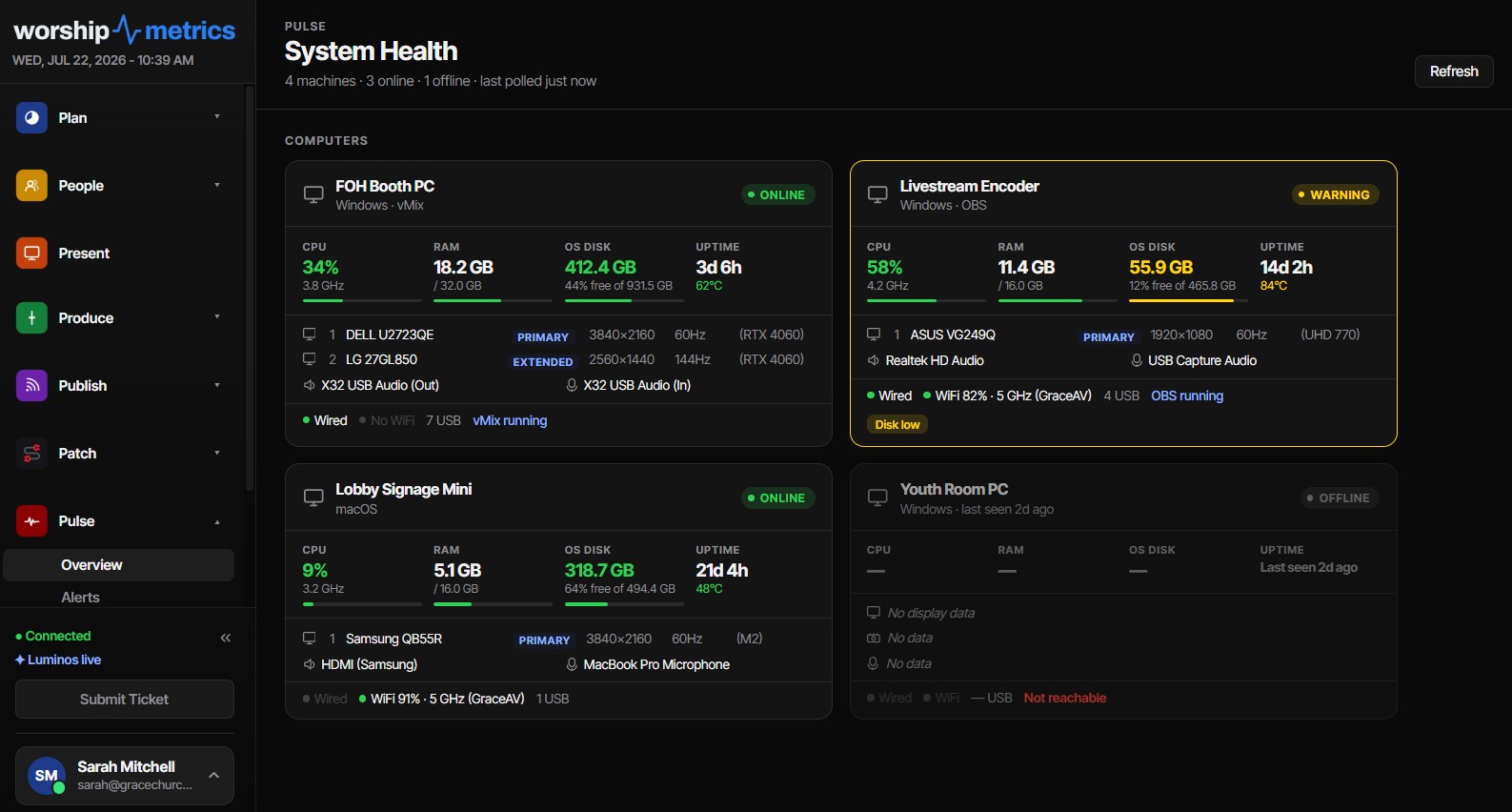
Why AV alerts belong on a phone
The defining feature of a church AV problem is that it happens when nobody is looking at a screen. The stream drops while the operator is fixing a lyric slide. The booth PC’s disk fills up on a Thursday night when the building is empty. A camera goes dark at 7 a.m. Sunday, two hours before anyone opens a laptop.
Monitoring that only works while a dashboard is open isn’t really monitoring — it’s a status page. Pulse, the monitoring layer in WorshipMetrics, watches the fleet from the server side around the clock, whenever Tech Manager is running in your booth (it starts with the computer), so detection doesn’t depend on anyone having a browser tab open. But detection is only half the job. The alert still has to reach a human, and for most volunteers the only screen that’s reliably nearby at 7 a.m. on a Sunday is a phone.
The good news: there’s nothing to install on the phone. WorshipMetrics sends alerts by email and by text message (for anyone who opts in), plus desktop notifications on the booth computer. A phone already handles both email and texts, so setup is a couple of minutes in the app.
Step 1: Confirm your number in Settings > Notifications
Text alerts go to the mobile number on your own profile, and only after you confirm it.
- Sign in to WorshipMetrics and open Settings > Notifications.
- Enter your mobile number and confirm it.
Each person confirms their own number. There’s no shared phone to configure, and nobody gets texts they didn’t opt in to.
Step 2: Turn on Text in Pulse > Alerts
- Open Pulse > Alerts and find your notification preferences.
- Turn on Text for the alerts that should reach your phone.
- Leave Desktop on for the booth computer if you want an on-screen notification there too.
That’s it. The next alert you’ve chosen arrives as an ordinary text message, on the lock screen, like any other.
Step 3: Nothing — email always goes out
You don’t have to set up email. Every alert that matters goes out by email, and livestream drop alerts go to the organization’s owner, admins, and operators by email automatically. You don’t have to remember to subscribe the right people to the alert that matters most.
Choosing which alerts reach you
Not every alert deserves to buzz every pocket. Pulse lets each person choose what reaches them and how:
- Per-type subscriptions. The alert types — machine offline, monitored AV device offline, critical resource usage, stream audio going silent, and livestream drops — can each be subscribed to individually. The streaming lead might take stream drops and nothing else; the tech director probably wants everything.
- Channels per area. Alerts are grouped into six areas — Hardware, System, Stream, Audio, Network, and Other — and for each area you choose the channels that carry it: email, text, and desktop. Network noise can stay on the booth computer’s desktop notifications while stream problems text your phone.
A sensible starting point for a typical volunteer team:
| Alert | Who should get a text | Why |
|---|---|---|
| Livestream drop | Streaming operator + tech director | Minutes matter; this one interrupts Sunday |
| Machine offline | Tech director | Usually a weekday fix, but time-sensitive |
| Resource critical | Tech director | Actionable before it becomes a Sunday problem |
| AV device offline | Whoever owns that gear | Camera and console owners know the fix |
| Stream audio silent | Sound lead | Caught in the first minute beats a comment from home |
And because nobody trusts a noisy channel, the alerting behind these messages is deliberately quiet: one alert per outage per incident, recovery auto-resolves it in the feed, and resource alerts observe hysteresis margins and a 30-minute cooldown so a machine hovering at a threshold can’t flood your phone. The exact numbers are published in the Pulse alert thresholds reference.
Two habits that keep alerts reaching you
- Check your Focus or Do Not Disturb settings. If you run a Sleep or Do Not Disturb mode overnight, or a Sunday-morning mode during services, allow texts from the WorshipMetrics alert number. An offline alert your phone politely holds until 9 a.m. has missed the entire point.
- Keep email on as the backstop. If your phone is dead at 7 a.m., the email is waiting when it charges.
Two more layers back that up. An in-app notification entry is always written for every alert regardless of your channel choices, and the alert feed keeps 90 days of filterable history — so nothing ever depends on a message having been seen in the moment. And if you happen to have a Pulse page open when something fires, it updates live without a refresh.
What to do when the alert arrives
Getting the alert is step one; the response is step two. For the alert most likely to spike your heart rate — the mid-service stream drop — keep the dropped-stream recovery playbook bookmarked on your phone. And if the stream or recording stops unexpectedly, Self Healing in Tech Manager puts a one-tap Restart in Pulse > Alerts — so you can sign in from your phone’s browser and approve the fix from wherever you are.
How WorshipMetrics handles this
Alert delivery in WorshipMetrics is layered on purpose: email that always goes out, text messages for anyone who opts in, desktop notifications on the booth computer, an always-written in-app notification feed with 90 days of history, and live-updating Pulse pages for anyone already watching. Behind it all, Pulse monitoring watches every machine, device, and stream around the clock from the server side, whenever the Tech Manager desktop app is running in your booth (it starts with the computer) and supplying the telemetry. Two minutes of setup for each person this week means the next problem finds you before Sunday does.
ChordPro for Worship Teams: One Chart, Every Key
NextDigital Signage Scheduling That Understands Church Calendars
Related Articles
Making a Complicated Church AV System Easy to Run, Without Hiring an AV Company
Many church AV systems aren't too old or too small. They're too complicated for a volunteer. A simple button panel built with Bitfocus Companion can hide that complexity behind plain-word buttons, and a church can often build it themselves. Here's when that works, when to call a professional, and how to start.
Your Church Livestream Team, Connected Even When They're Not at Church
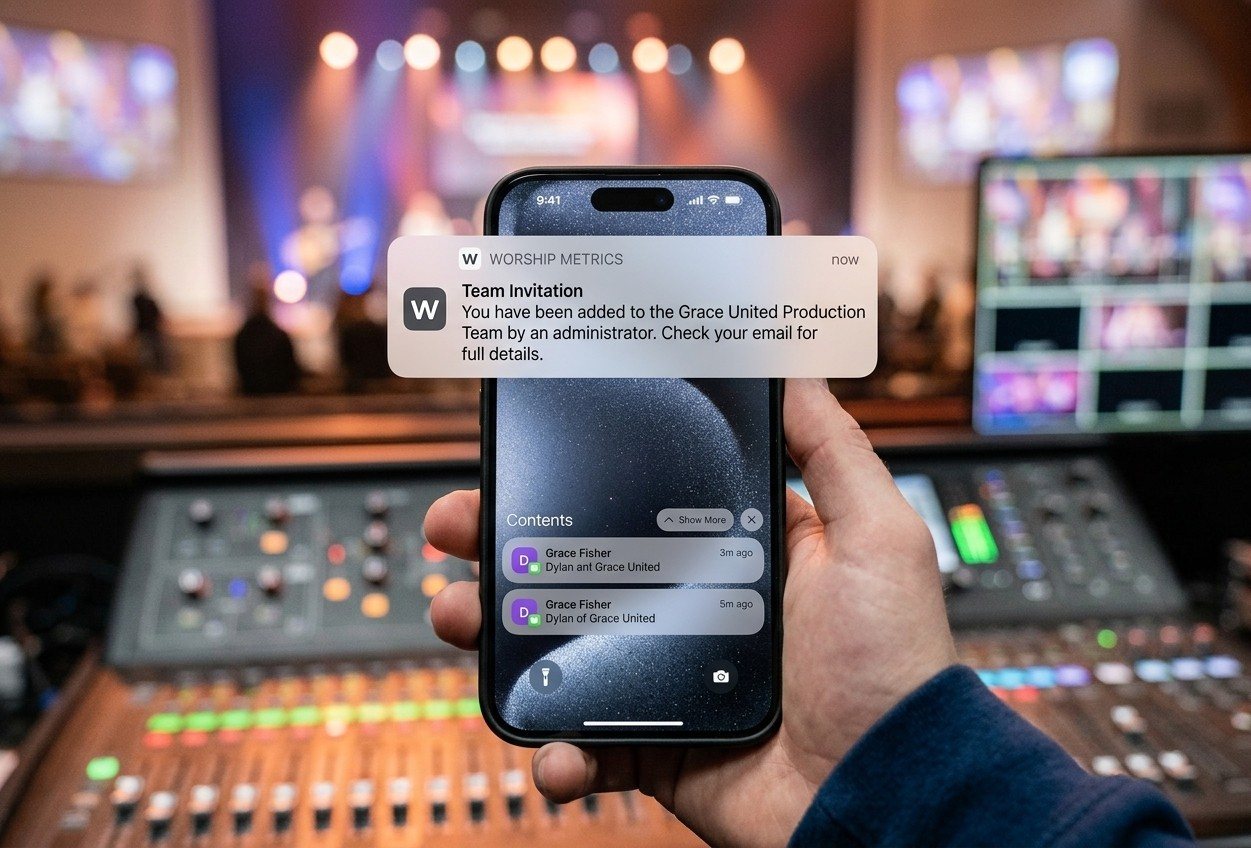
A three-person livestream team only works if everyone shares the same plan, the same wiring diagram, and the same news when something breaks. Here's how WorshipMetrics connects the director, slides, and camera volunteers through the week: chat, alerts, documentation, AI help, scheduling, and cloud control for OBS and vMix.
The Three-Person Church Livestream Team: Director, Slides, and Cameras
A church livestream runs best with three clear jobs: a director on OBS or vMix, a slides operator, and a camera operator. Here's what each role does before, during, and after the service, what skills it takes, and how the three talk to each other.