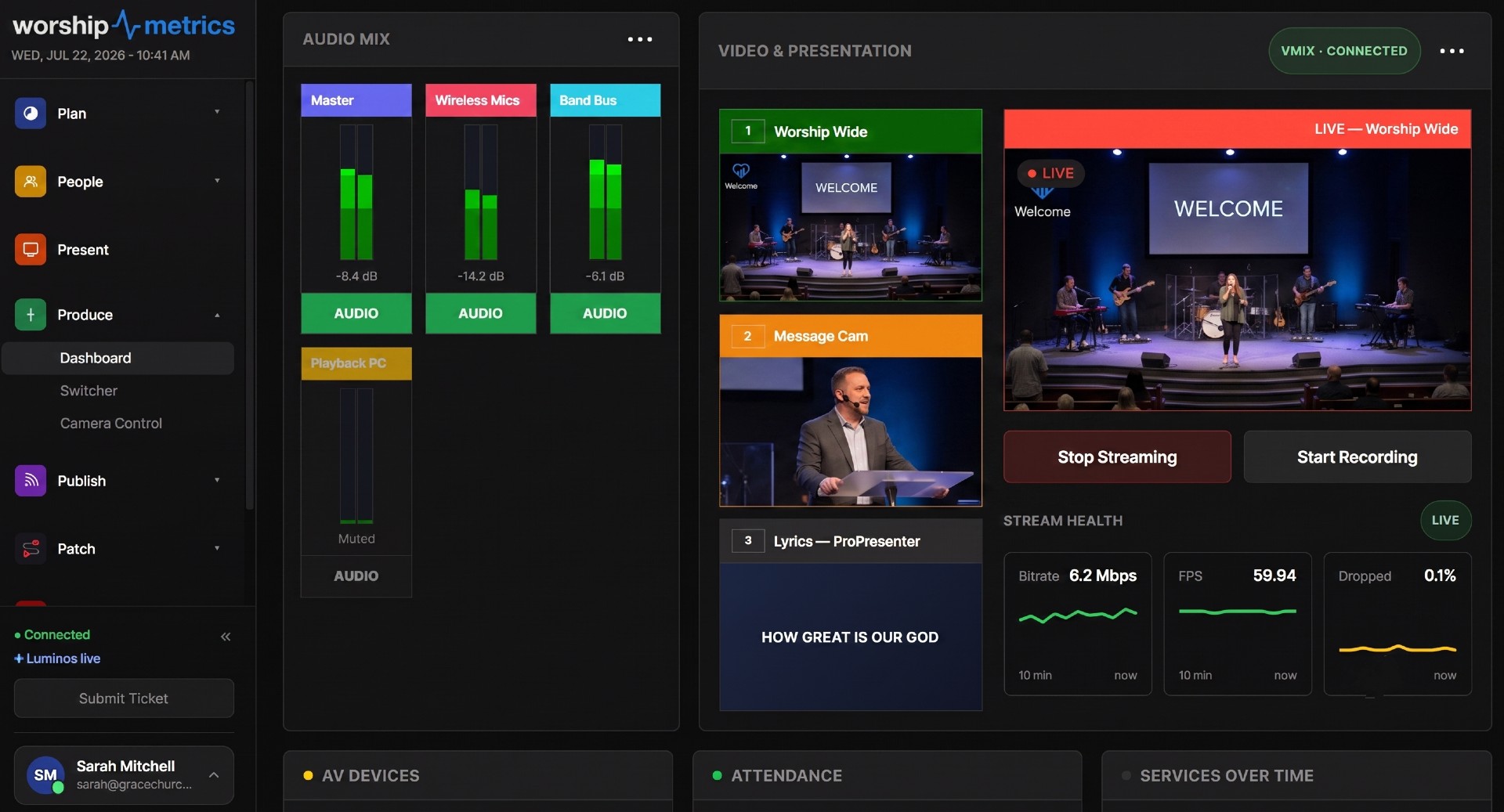
What VISCA Actually Is
VISCA started life as a Sony protocol for controlling video cameras over RS-232 serial cables. Cameras were daisy-chained, each one had an address, and a controller sent short byte sequences to pan, tilt, zoom, focus, and adjust the image. The protocol was simple, well documented, and widely copied, which is why decades later almost every PTZ camera sold into church production — PTZOptics, Sony, BirdDog, Lumens, AVer, and many others — still speaks some dialect of it.
VISCA-over-IP wraps those same byte sequences in network packets so you no longer need serial cables snaking through the ceiling. Your control surface (a joystick panel, production software, or a browser page) sends commands to the camera’s IP address, and the camera replies with acknowledgments and status. Same grammar, new transport.
That new transport is where most of the interesting behavior — and most of the trouble — lives.
The Transport: UDP Port 52381
The de facto standard for VISCA-over-IP is UDP on port 52381. Sony defined it, and most compatible cameras adopted it as the default (some brands also listen on alternate ports such as 1259, and many offer a TCP option, but 52381/UDP is the safe first guess).
UDP was a deliberate choice. Camera control is latency-sensitive: when an operator nudges a joystick, the camera should respond now, not after a retransmission handshake. UDP delivers packets with minimal overhead and no waiting.
The trade-off is that UDP makes no delivery guarantees. Packets can be dropped, duplicated, or arrive out of order, and neither side is told. The VISCA-over-IP framing adds sequence numbers and a payload-type header so the camera can detect some of this, but the fundamental truth remains: any single command you send might simply not arrive.
For one-shot commands like “recall preset 3,” that is a minor annoyance — the operator notices nothing happened and presses the button again. For continuous commands, it is a genuine hazard, which brings us to the signature failure of PTZ control.
Why Cameras Run Away
VISCA pan and tilt are modal. The controller sends a command that means “start panning left at speed 12,” and the camera pans left until it is told to stop. Releasing the joystick sends a separate stop command.
Now combine that with an unreliable transport:
- Operator holds the joystick left. Camera starts panning.
- Operator releases the joystick. The controller sends the stop packet.
- The stop packet is dropped — a switch hiccup, a Wi-Fi retry, a congested uplink.
- The camera never hears “stop.” It pans serenely past the worship leader, across the drum shield, and buries itself against the mechanical end-stop — on the live program feed.
This is the runaway camera, and every experienced PTZ operator has a story about one. It is not a defective camera; it is the protocol behaving exactly as designed over a transport that occasionally loses mail.
Well-built control software defends against this with a dead-man watchdog, borrowing the “dead man’s switch” idea from locomotives: the dangerous state (motion) must be continuously re-affirmed, and silence means stop.
The watchdog has two halves:
- While the operator holds a direction, the controller re-sends the movement command on a timer. If a packet is lost mid-gesture, the next refresh restores the intended motion within a couple of seconds instead of leaving the camera in an ambiguous state.
- If an axis goes quiet — the operator released the control, the browser tab lost focus, the gamepad unplugged — the controller automatically sends stop. Motion is never left to coast on a stale command.
If you are evaluating any PTZ control tool, this is a question worth asking directly: what happens if the stop command is lost? A tool without a watchdog will run away eventually; it is a matter of when, and whether it happens during the sermon.
Network hygiene helps too. Cameras on a clean, wired VLAN with sane multicast behavior drop far fewer packets than cameras sharing an office Wi-Fi network. Our guide to church network design for AV and streaming covers the segmentation and switching practices that make control traffic reliable, and the PTZ camera setup guide walks through addressing and placement fundamentals.
Beyond the Joystick: Pointer-Based Framing
Joysticks are the traditional PTZ interface, and for smooth on-air moves they remain excellent. But joystick operation is a genuine motor skill — speed curves, two-axis coordination, knowing when to feather the zoom — and most churches are handing the controls to a volunteer who runs cameras one Sunday a month.
Pointer-based framing tools close that gap by letting the operator describe the result instead of performing the motion:
- Click-to-center (target): click the person you want in the middle of the frame, and the software calculates the pan/tilt offset and moves the camera there. No steering required.
- Drag-a-box (frame): drag a rectangle around the subject, and the camera pans, tilts, and zooms so that rectangle becomes the new shot. One gesture replaces a coordinated three-axis move.
- Search / recover: when the camera is lost — zoomed into a blank wall after a bumped preset — a recovery gesture recenters and pulls wide for a beat so the operator can see the room and re-frame.
The practical rule of thumb: joysticks for live, on-program moves by practiced operators; pointer tools for off-program reframing, volunteer operation, and recovery. Teams that adopt pointer framing consistently report faster onboarding, which pairs well with the habits in our guide to training volunteer AV teams.
Preset Workflows That Survive Sunday
Presets are where PTZ cameras earn their keep. A preset stores pan, tilt, and zoom (and on most cameras, focus — and on some, exposure) so a shot can be recalled with one press.
Most cameras can store dozens or hundreds of presets. Resist the temptation. A volunteer confronted with forty unlabeled numbers will freeze; a volunteer with eight or nine clearly named shots will thrive. A workable Sunday set looks like:
- Wide safety shot — always preset 1, always safe to take.
- Pulpit / speaking position
- Worship leader
- Keys or side-stage
- Full band
- Congregation / reverse (if placement allows)
Three habits make presets dependable:
- Store thumbnails, or label ruthlessly. A control surface that shows a snapshot of each preset removes the guessing. If yours shows only numbers, keep a printed cheat sheet at the position.
- Verify before you rely. Stage layouts drift — a monitor wedge moves, the music stand grows. Recall every preset during soundcheck, not during the call to worship.
- Never recall a preset on the program camera. Preset recalls move at recall speed, not performance speed. Recall on a camera that is off program, confirm the frame, then cut to it. This is a switching discipline, not a camera setting — bake it into your multi-camera workflow.
Re-store presets after any physical bump to the camera, and after firmware updates, which occasionally shift preset calibration.
Autofocus Zones and Sensitivity
Stage environments are hostile to autofocus: low light, haze, moving LED walls, and high-contrast backgrounds behind low-contrast subjects. Two settings tame most hunting:
- AF zone restricts where the camera looks for focus. A full-frame (“all”) zone lets a bright screen behind the pastor steal focus; restricting the zone to the center or top of frame keeps focus on faces for speaking shots. Bottom-zone AF suits shots where the subject sits low in frame, such as a piano close-up.
- AF sensitivity controls how eagerly the camera re-focuses. Low sensitivity holds focus through momentary interruptions — someone walking through frame, a lighting change — and is usually right for locked worship shots. High sensitivity tracks a moving subject quickly and suits roving or handheld-style framing. Normal splits the difference.
For truly static shots (baptistry, wide safety), manual focus remains the most reliable option: focus once during soundcheck and the camera cannot hunt at all. Many teams run manual focus on locked cameras and zone-restricted AF on the cameras that move.
Matching Cameras Across Brands
Few churches run a single-brand fleet. A typical room mixes a couple of PTZOptics units, an older Sony, and perhaps a BirdDog — and each brand exposes image adjustment differently:
- Sony-lineage cameras (EVI/SRG families) accept the classic VISCA image commands: exposure compensation, color gain, white balance modes including manual R-gain/B-gain, backlight compensation, and one-push white balance.
- PTZOptics and many generic cameras accept a broadly similar VISCA set, with brand-specific quirks in ranges and defaults.
- BirdDog cameras expose image control through an HTTP/JSON REST interface (on port 8080) alongside their VISCA support.
The goal is not identical settings — it is identical pictures. Practical order of operations: set every camera to the same white balance approach (one-push against the same gray card under service lighting is the fastest route), then match exposure on a skin-tone subject at the main speaking position, then touch color gain only if a camera still looks different on the program monitor. Cameras feeding an NDI production pipeline benefit doubly, since NDI makes side-by-side comparison on one monitor trivial.
Re-check the match whenever lighting design changes. A camera that matched under last year’s rig may sit a full stop off under new fixtures.
How WorshipMetrics Handles This
Camera control in WorshipMetrics Tech Manager is built around exactly these fundamentals. It speaks the VISCA command set over TCP to PTZOptics cameras and over UDP 52381 to Sony, BirdDog and most NDI cameras, picking the right one per camera — and every held movement is protected by a dead-man watchdog: held moves are re-sent about every 0.8 seconds, and any move that goes quiet for 2.5 seconds stops, so a lost packet never becomes a runaway camera.
Operators can drive cameras with a virtual joystick, a physical gamepad, or the keyboard at variable speeds, or use pointer modes instead: Target (click to center), Frame (drag a box to reframe and zoom), and Search (recenter with a 1.2-second wide pull to recover a lost shot). Presets are deliberately capped at nine per camera, each stored with a thumbnail so volunteers recall shots by picture, not by number. Autofocus controls expose sensitivity (high/normal/low) and zone (all/top/centre/bottom) alongside full manual focus, and cross-brand image adjustment covers Sony and generic VISCA cameras plus BirdDog’s REST interface, so a mixed fleet can be matched from one screen. When a camera misbehaves, a soft reboot can be triggered remotely, and cameras that only offer ONVIF are supported through an ONVIF control path.
If you are planning a PTZ deployment from scratch, start with the PTZ camera setup guide, then explore Tech Manager to see fleet-wide camera control alongside switcher control and device health in one place.
Self Healing in the Booth: How Tech Manager Offers a One-Tap Restart
NextThe YouTube Live Broadcast Lifecycle for Churches: Keys, Transitions, and Gotchas
Related Articles
Controlling Projectors, PTZ Cameras, and Sound Boards with Bitfocus Companion
Bitfocus Companion can control far more than OBS and vMix. Projectors over PJLink, PTZ cameras over VISCA, digital sound boards over the network, and almost anything else with an IP address. Here's how churches connect the rest of the room, and how to plan a 'Start Service' button that does it all.
PTZ Camera Troubleshooting for Churches: The 10 Problems Behind Almost Every Sunday Failure
A symptom-first field guide to the PTZ and network camera failures church booths actually hit — cameras that vanish from the network, presets that drift, flicker under LED lighting, video lagging the audio — with fast checks for each, and the upgrades that end the guessing: a mapped system, cameras on watch, and AI that knows your wiring.
AI That Knows Your Wiring: How Luminos and Journey Actually Work
The AV manager's tour of the context architecture: how the Signal Map, live inventory, telemetry, and support history become an assistant that answers questions about YOUR booth — in the app as Luminos, on the phone as Journey.