Why Sunday-morning surprises are predictable
If your church streams to YouTube every Sunday, you have probably run into at least one of these: a broadcast that ended itself when the internet hiccuped, a “stream key” that stopped working after you scheduled a new event, or a mysterious error when you clicked Go Live. None of these are random. They all trace back to how YouTube models a live event under the hood — and once your team understands that model, most Sunday-morning surprises become predictable and preventable.
This article is a working reference for the YouTube live model: broadcasts versus streams, the lifecycle states a broadcast moves through, the auto-start and auto-stop trade-offs, scheduling, and privacy modes. At the end, we cover how WorshipMetrics drives this whole lifecycle for you.
Broadcasts and streams are two different things
The single most useful thing to understand about YouTube Live is that a live event is made of two separate objects:
- A broadcast is the event your viewers see. It has a title, a description, a thumbnail, a scheduled start time, a privacy setting, and — critically — a unique video URL. Every broadcast becomes a distinct video on your channel when it ends.
- A stream is the ingest pipe. It holds the stream key (or RTMP URL) your encoder pushes video into. It has no title your viewers see and no URL anyone watches.
The two are connected by a binding: a broadcast is bound to a stream, and whatever video arrives on that stream feeds that broadcast.
Why does this matter for a church? Because the two objects have completely different lifespans:
- Broadcasts are disposable. You create a new one for every service. Each Sunday gets its own video, its own chat, its own analytics.
- Streams are reusable. One stream — one key — can be bound to this Sunday’s broadcast, next Sunday’s, and every broadcast after that.
This is the foundation of a stable weekly workflow: configure your encoder once with a reusable key, and never touch it again. If your team pastes a fresh stream key into vMix or OBS every week, you are doing extra work and creating an extra failure point. A mistyped key at 8:45 a.m. is a preventable emergency. With a reusable stream bound to each week’s new broadcast, the encoder settings in vMix or OBS are set-and-forget.
The one caveat: a single stream can only feed one live broadcast at a time. If you run two simultaneous events (say, two campuses on one channel), each needs its own stream and key.
The broadcast lifecycle
A YouTube broadcast moves through a defined sequence of states:
- Created / Ready — the broadcast exists, is scheduled, and has a watch page, but nothing is live. Viewers who open the link see a countdown or waiting screen.
- Testing (optional) — video is flowing and visible to you in the Live Control Room, but not to viewers. This stage only exists if the broadcast has a monitor stream enabled.
- Live — viewers see the video. This is the transition that matters on Sunday morning.
- Complete — the broadcast has ended. The video finishes processing and becomes a normal on-demand video on your channel.
Two rules about these states cause most real-world confusion:
Rule one: transitions are one-way. A broadcast that reaches complete is finished forever. You cannot restart it. If something ends your broadcast at 10:20 during a service that runs to 11:00, the only path forward is a brand-new broadcast — with a brand-new URL that none of your posted links point to, and none of your current viewers are watching.
Rule two: you cannot go live without video. The transition to live requires that the bound stream is actively receiving data from your encoder. Trying to go live before the encoder is sending — or after it has stopped — fails.
Why “Invalid transition” happens
If you have automated any part of your YouTube workflow, you have probably met the dreaded Invalid transition error. It almost always means one of these:
- No data on the stream. You asked the broadcast to go live, but the encoder is not sending yet (or the stream needs a few more seconds to register as active). Start the encoder first, wait for the stream to show active, then transition.
- Skipping a required stage. If the broadcast has a monitor stream enabled, YouTube expects you to pass through testing before live. Jumping straight to live fails. If the monitor stream is disabled, the opposite is true — testing is not a valid state at all, and the broadcast goes directly from ready to live.
- Repeating a transition. Asking an already-live broadcast to go live, or an already-complete broadcast to complete, is rejected rather than ignored.
For a church workflow, the practical takeaway is about the monitor stream: it is a genuinely useful preview tool if a human is watching the Live Control Room, but if your go-live is automated or you simply want “encoder starts, service goes live,” disabling the monitor stream gives you a simpler, direct-to-live path with one less state to get wrong.
Auto-start and auto-stop: convenience with teeth
YouTube offers two automation flags on a broadcast, and they sound harmless:
- Auto-start: the broadcast transitions to live automatically when video starts arriving on the bound stream.
- Auto-stop: the broadcast transitions to complete automatically when video stops arriving.
Auto-start is mostly benign — its main risk is going live earlier than intended, broadcasting your pre-service line check to the world the moment the encoder connects.
Auto-stop is the one that ends services early. Remember rule one: complete is permanent. With auto-stop enabled, “video stopped arriving” and “the service is over” are treated as the same thing. But on a real church network, video stops arriving for all sorts of reasons that are not the benediction: the ISP blips for ninety seconds, the encoder PC drops Wi-Fi, someone unplugs the wrong cable, vMix restarts an output. After a short grace window with no data, YouTube completes the broadcast — and there is no undo. Your encoder reconnects two minutes later to a broadcast that no longer exists, your posted link now shows a 20-minute partial video, and your viewers are gone.
For churches, the safer configuration is almost always auto-stop off. With it disabled, a network blip leaves the broadcast live and waiting; when the encoder reconnects, viewers see the stream resume on the same URL. The cost is a small operational duty: someone (or something) must explicitly end the broadcast after the service, or it sits open indefinitely. That trade — a required “End” step in exchange for blip-immunity — is well worth it. If you want the full recovery playbook for mid-service drops, see what to do when your church stream drops mid-service.
Scheduling and privacy modes
Every broadcast carries a scheduled start time, and scheduling ahead is worth the habit: the watch page and URL exist days in advance, so you can put the link in your bulletin, email, and website before Sunday; subscribers can set reminders; and the countdown page gathers early arrivals instead of a dead link.
Each broadcast also has a privacy status, and it can be changed at any point in the lifecycle:
- Public — anyone can find and watch it; it appears on your channel and in search.
- Unlisted — anyone with the link can watch, but it is not listed or searchable. This is the workhorse mode for churches: great for tech rehearsals, funerals and private services shared only with a family, or congregations who want online worship available without broadcasting it to the general public.
- Private — visible only to the channel owner and specifically invited accounts. Useful for closed run-throughs.
A common and graceful pattern: schedule the broadcast unlisted, run your line check against it, flip it to public before the service, then decide after the service whether the archived video stays public or goes unlisted. Privacy is per-broadcast, so your rehearsal setting never leaks into Sunday’s event.
One more scheduling note if you stream to multiple platforms: every destination has its own event model and its own quirks (Facebook, for instance, limits how far ahead an event can be scheduled). If you fan one feed out to several platforms, each platform’s lifecycle needs driving — which is exactly where automation earns its keep. See multistreaming to YouTube, Facebook, and more for the architecture side.
A checklist for a stable YouTube workflow
Pulling the reference together, a church YouTube setup that survives real Sundays looks like this:
- One reusable stream key, configured in the encoder once and never re-pasted.
- A fresh broadcast per service, scheduled in advance so links can circulate early.
- Monitor stream disabled (unless a human actively uses the preview), so go-live is a single direct transition.
- Auto-stop disabled, so a network blip cannot permanently end the service.
- An explicit end step after the service, since auto-stop is off.
- Go-live only after the encoder is sending, to avoid invalid transitions.
How WorshipMetrics handles this
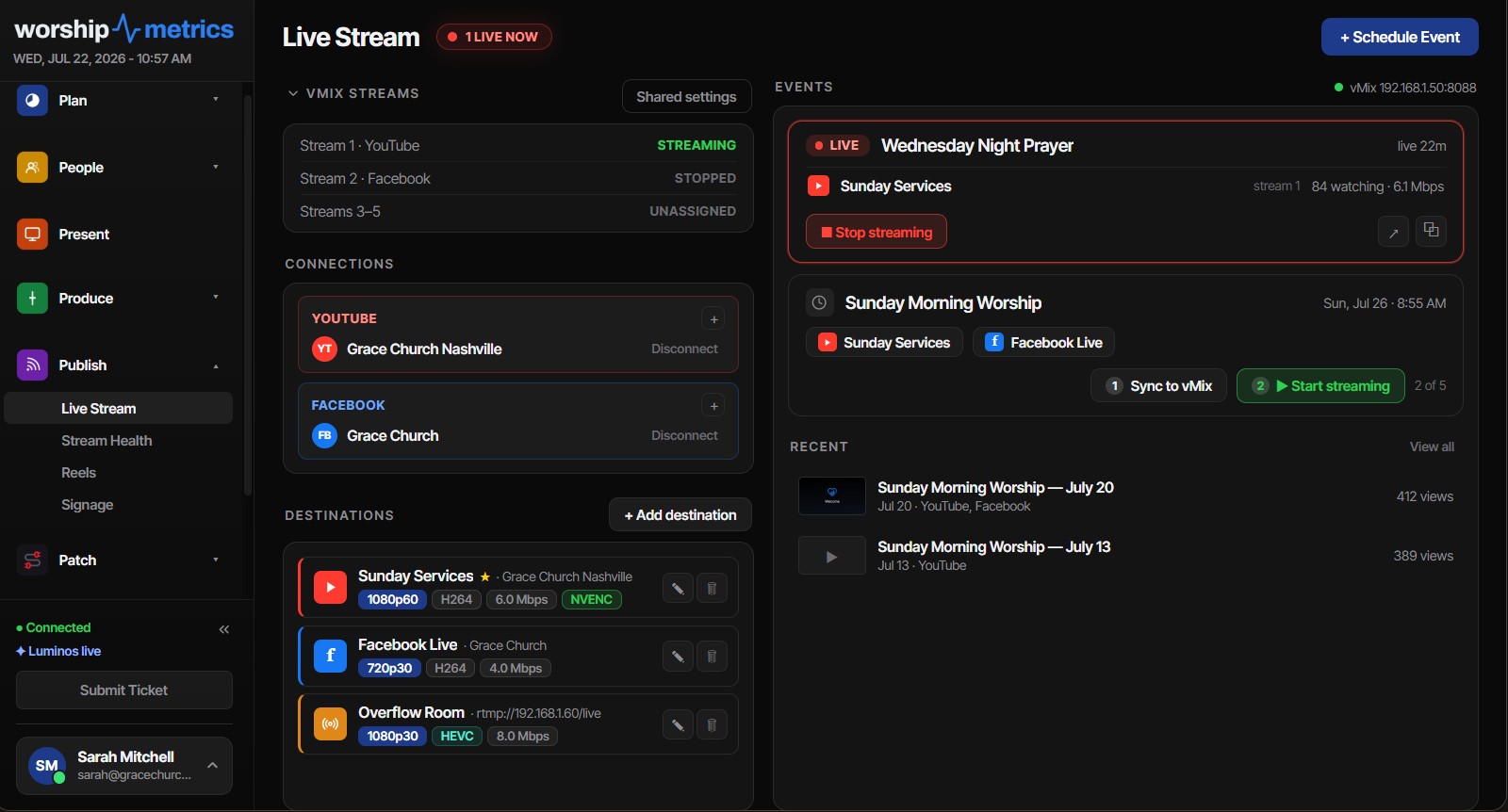
Everything in that checklist is exactly how WorshipMetrics live streaming drives YouTube on your behalf. When you connect your YouTube channel, WorshipMetrics creates each week’s broadcast and manages a reusable stream, binding every new broadcast to the same ingest key — so vMix or OBS is configured once and never touched again. Broadcasts are created with your chosen privacy mode (public, unlisted, or private), with the monitor stream disabled for a clean direct-to-live transition, and with auto-stop off so a network blip can never permanently kill a service.
On Sunday, a single event-level Go Live transitions every connected destination to live at once — YouTube alongside Facebook and up to ten simultaneous destinations fed from one feed via cloud fan-out — and End sends the complete transition everywhere when the service is over. Behind the scenes, a background reconcile checks YouTube and Facebook status every five minutes and automatically finalizes stale events, so a broadcast left open after an operator forgets to click End does not linger indefinitely. After the service, YouTube Analytics viewer numbers flow back into your attendance records automatically.
The lifecycle still exists — WorshipMetrics just makes sure every transition happens in the right order, on every platform, without your volunteers needing to think about it. See how WorshipMetrics live streaming works.
VISCA-over-IP PTZ Control: Ports, Presets, and Why Cameras Run Away
NextCamera Auto-Count Attendance: Setup, Scheduling, and Remote Runs
Related Articles
Bitfocus Companion + ATEM Mini: A Stream Deck Panel for Your Church Switcher
A Stream Deck running Bitfocus Companion turns a Blackmagic ATEM into plain-word buttons with colors that show what's live, and the same panel can run PTZ cameras, projectors, and more. Here's how to connect Companion to an ATEM and build a volunteer page.
Lyrics Over the Camera on an ATEM Mini: Luma Keys, Chroma Keys, and the Slides Computer
To put song lyrics over the camera shot on a Blackmagic ATEM Mini, feed the slides computer into an ATEM input and key it over the camera. Here's how luma and chroma keys work for lyrics, how to design slides that key cleanly, and who should run it.
ATEM Mini + OBS for Church: Hardware Camera Switching with OBS for Graphics and Streaming
Many churches use an ATEM Mini as a camera switcher and send its output into OBS over USB as a webcam. The ATEM gives volunteers real buttons; OBS adds lyrics, graphics, recording, and streaming. Here's how to set it up, split the jobs, and avoid the common sync and quality problems.