Why automate the head count
Somewhere in almost every church, an usher is standing at the back of the room on Sunday morning, quietly counting heads with a clicker. It works — churches have done it this way for generations — but it has familiar weaknesses. The count happens at whatever moment the usher is free, which is rarely the same moment week to week. Latecomers get missed. Overflow rooms get estimated. And the number lives on a paper slip until somebody remembers to type it into a spreadsheet.
Camera-based auto-counting (AI headcount, on Pro and Max) fixes the consistency problem: a camera looks at the room at a defined moment, the booth computer takes the picture, WorshipMetrics counts it in the cloud in about 30 seconds, and the result lands in the same service record as your online viewer metrics (on Max) — no clipboard required. This guide walks through the whole setup in WorshipMetrics: picking a camera source, keeping a manual counting option alongside, scheduling counts, and triggering one remotely from the web when you’re not in the building.
One thing worth saying up front: auto-counting replaces the clipboard, not the people who care about people. Your ushers still notice the new family in row six — the camera just takes the arithmetic off their plate.
Choosing a source: RTSP camera or webcam
The booth computer takes the picture — the same machine running the Tech Manager desktop app — and WorshipMetrics counts it in the cloud in about 30 seconds. The booth can pull its picture from either of two source types.
RTSP network cameras
RTSP (Real Time Streaming Protocol) is the standard way IP cameras publish video onto a network. Nearly every modern PTZ camera, security camera, and dedicated IP camera exposes an RTSP URL that looks something like:
rtsp://192.168.20.51:554/stream1The exact path varies by manufacturer — check your camera’s documentation or web admin page for the stream URL. Many cameras publish both a full-resolution main stream and a lighter substream; for counting, prefer the sharp main stream. You’re analyzing a moment in time, not motion, so resolution matters far more than frame rate.
RTSP is usually the better choice for attendance because:
- Placement freedom. The camera can live wherever the sightline is best — typically high at the rear of the room, angled down so heads don’t occlude each other — regardless of where the booth PC sits.
- You may already own one. If you have a rear-of-room PTZ camera for your stream, it likely publishes RTSP alongside its other outputs. Save a wide preset that frames the whole seating area and you have a counting view on demand. Our PTZ camera setup guide covers presets and mounting in depth.
- Coverage. A camera mounted for the purpose can see the entire seating area in one frame, which is the single biggest factor in count accuracy.
A few network notes: give the camera a static IP or DHCP reservation so the RTSP URL doesn’t silently change, and make sure the booth computer and the camera can actually reach each other — if your AV gear lives on its own VLAN, the booth needs a route to it. Our guide to church network design for AV and streaming covers VLAN layout, and most IP cameras power neatly over PoE from the same switch that carries their video.
Webcams
A USB webcam plugged directly into the booth computer is the simpler path: no network configuration, no stream URLs, no VLAN questions. It’s a great fit when:
- The booth has a natural sightline over the seating area (a rear balcony booth often does).
- You’re in a smaller room where one modest field of view covers everything.
- You want to prove the workflow before mounting a dedicated camera.
The trade-off is placement: the camera goes where the USB cable reaches, and webcam lenses tend to be wider and softer than a dedicated camera’s. If the booth is at floor level behind the congregation, a webcam will see the backs of the last three rows and little else — in that case, an RTSP camera mounted high is worth the extra setup.
Positioning, whatever the source
Counting accuracy is mostly a framing problem. Aim for:
- Height and angle. Mount high and angle down 20–40 degrees so each person occupies distinct space in the frame rather than hiding behind the row in front.
- The whole room in one frame. Every seat you can’t see is a seat you’ll under-count. If one camera can’t cover a balcony or overflow room, that’s exactly what the manual seat counter is for (next section).
- Consistent lighting. House lights at their normal service level. Dramatic walk-in looks are lovely for the stream and hard on any counting system.
Seat templates: manual counting alongside the camera
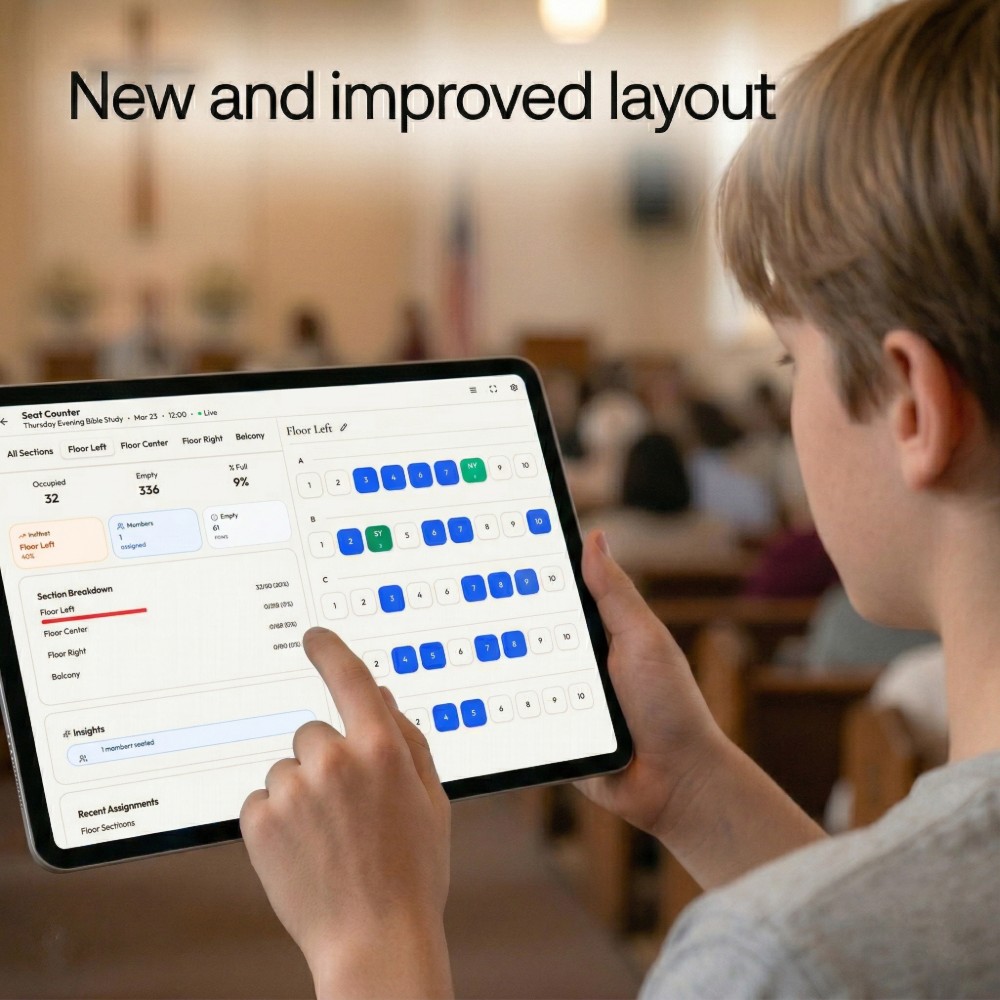
WorshipMetrics doesn’t force a choice between automatic and manual counting — the Service Metrics page includes a manual seat-map counter built on reusable seat templates, and it lives right alongside the auto-count.
A seat template is a saved map of your room: sections, rows, and seats, laid out once and reused every week. Individual seats can even be assigned to specific members. Build a template for each venue you count — main auditorium, chapel, overflow — and Sunday’s manual count becomes tapping the map rather than sketching the room from scratch.
Seat templates earn their keep in three situations:
- Validation. When you first turn on auto-counting, run manual counts alongside it for a few weeks. If the camera and the seat map agree within your comfort margin, you can trust the camera; if they diverge, the framing section above is usually why.
- Coverage gaps. Balconies, cry rooms, lobbies with overflow seating — anywhere the camera can’t see, a volunteer with the seat map covers in a minute or two.
- Camera-free venues. A chapel service or off-site gathering can use the same attendance workflow with no hardware at all.
Assigning your seat maps and the counting rhythm to a specific volunteer role is a natural fit for a serving team — one more small, well-defined job that a newer volunteer can own with confidence.
Scheduling counts
The most valuable property of an attendance number is consistency, and scheduling is how you get it. The auto-counter supports count schedules, so the booth captures the room at a defined point in the service every single week without anyone remembering to do it.
When you pick the moment, think about how your services actually flow:
- Not too early. Counting at the published start time captures the punctual half of your congregation. Most rooms are still filling well into the second song.
- Not during movement. Avoid greeting times, communion, and dismissal — people in motion are harder to count and don’t represent a settled room.
- The same moment every week. Whether it’s twenty minutes in or right at the start of the message, the specific choice matters less than never changing it. A consistent measuring stick is what makes trends real.
If you run multiple services, schedule a count for each one. Each count attaches to its service, so your 9:00 and 11:00 stay distinct numbers rather than blurring into a single Sunday total.
Triggering a count remotely from the web
Schedules handle the routine, but some Sundays aren’t routine — a snow-delayed start, a special event, or a moment when you simply want a fresh number. For those, you can trigger a count on demand from the WorshipMetrics web app, from anywhere.
Here’s what happens when you hit Run count now from the web: the request travels through the cloud to your paired booth computer, the booth grabs a frame from its configured camera source, runs the count locally, and reports the result back to your service record.
A few details worth knowing about how that remote path works:
- No firewall changes. The booth maintains an outbound-only secure connection to the cloud, so remote triggering works without opening inbound ports or touching your router’s NAT settings. If your booth can browse the web, remote counts can reach it.
- Authenticated and scoped. Remote actions go through authenticated, organization-checked routes, and only a specific allowlist of actions can be relayed to a booth at all. A booth is bound to exactly one organization when an admin pairs it with a one-time code, so a count request can only ever come from your own team.
- Honest failure. The web app waits up to 30 seconds for the booth to confirm the action. If the booth is offline, you’re told immediately instead of the request vanishing into a queue. The booth’s online badge follows the same heartbeat logic as the rest of the platform — a machine is marked offline after 90 seconds of silence — so the status you see before you click is trustworthy. Our alert thresholds reference documents that timing in full.
The practical upshot: a tech director at home with a sick kid can still make sure the special Christmas Eve service gets counted, from a phone.
How in-room and online roll into one record
An attendance number that ignores your online congregation tells an incomplete story, and one that lumps everything together hides the details. WorshipMetrics keeps both, side by side, in one place.
The Service Metrics page in Pulse pairs each week’s service plan with its recap. For every service you get:
- In-person attendance — from the camera auto-count, the manual seat-map counter, or both.
- Online viewer metrics (on Max) — how many people joined your broadcast.
- Broadcast comments — the engagement that came in during the stream.
- Booth SPL history — how loud the room actually was, if you’re capturing sound-pressure levels.
Because everything anchors to the service plan, “attendance” becomes a complete picture of who gathered — in the room and online — for that specific service. Week over week, that answers real questions: is the 9:00 growing? Did online viewership rise when in-room attendance dipped in July? If your plans originate in Planning Center, they flow in automatically — see connecting Planning Center to WorshipMetrics.
How WorshipMetrics handles this
Attendance counting lives inside Pulse, the monitoring layer of WorshipMetrics, and runs on the same Tech Manager booth app that already watches your machines and streams. The camera auto-counter, on Pro and Max, accepts an RTSP camera or a webcam, runs on a schedule or on demand, and can be triggered from the web through your paired booth — while reusable seat templates keep a manual count one tap away for the rooms no camera sees. Every count lands in the Service Metrics recap next to your online viewer numbers on Max, so each week’s record reflects your whole congregation. Learn more about Pulse monitoring and the Tech Manager booth app.
The YouTube Live Broadcast Lifecycle for Churches: Keys, Transitions, and Gotchas
NextChordPro for Worship Teams: One Chart, Every Key
Related Articles
Making a Complicated Church AV System Easy to Run, Without Hiring an AV Company
Many church AV systems aren't too old or too small. They're too complicated for a volunteer. A simple button panel built with Bitfocus Companion can hide that complexity behind plain-word buttons, and a church can often build it themselves. Here's when that works, when to call a professional, and how to start.
Your Church Livestream Team, Connected Even When They're Not at Church
A three-person livestream team only works if everyone shares the same plan, the same wiring diagram, and the same news when something breaks. Here's how WorshipMetrics connects the director, slides, and camera volunteers through the week: chat, alerts, documentation, AI help, scheduling, and cloud control for OBS and vMix.
The Three-Person Church Livestream Team: Director, Slides, and Cameras
A church livestream runs best with three clear jobs: a director on OBS or vMix, a slides operator, and a camera operator. Here's what each role does before, during, and after the service, what skills it takes, and how the three talk to each other.