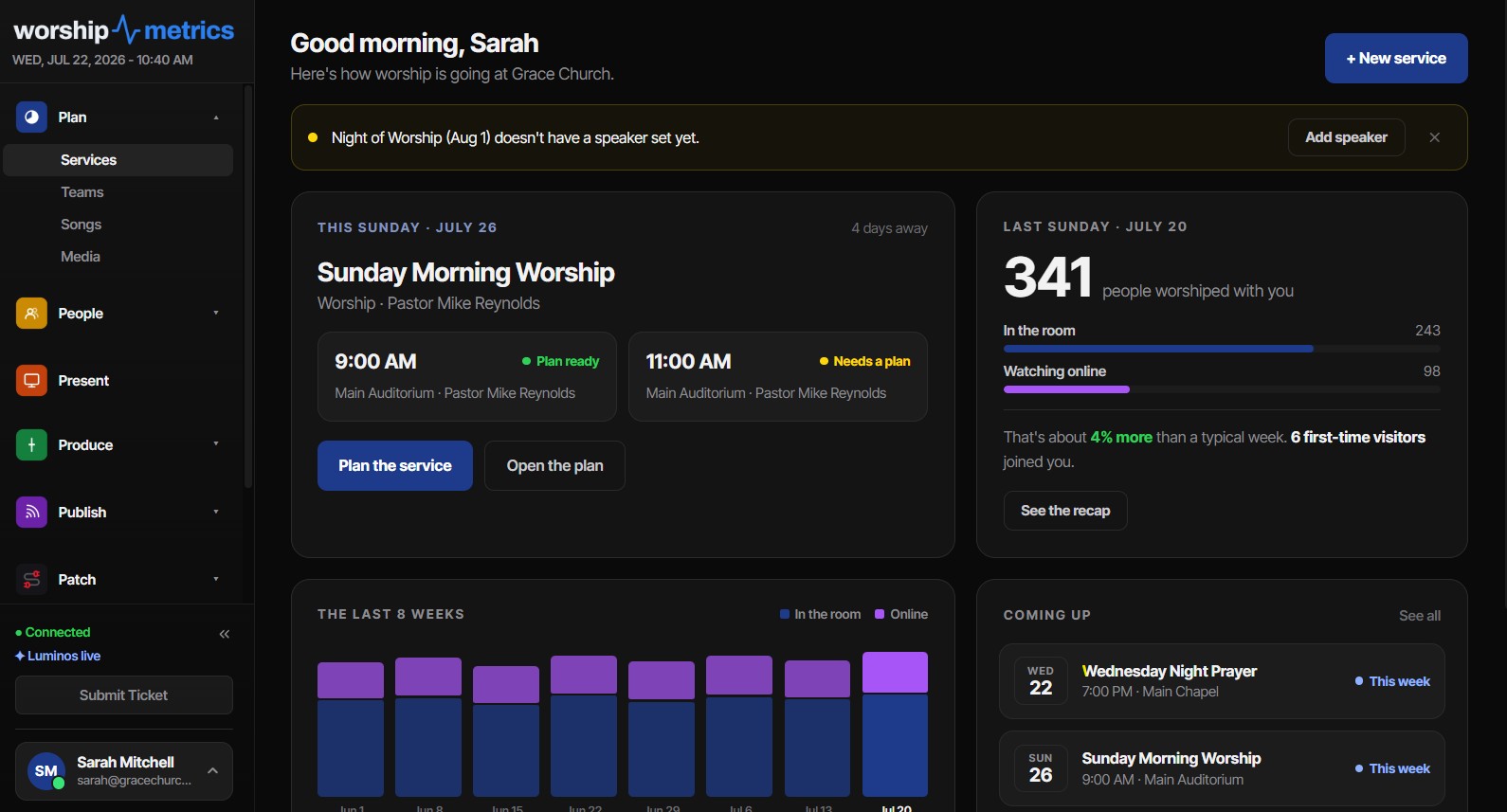
Why connect Planning Center at all?
Many churches have years of history in Planning Center Services: service types for every venue and gathering, plans stretching back through multiple worship pastors, and a team that knows exactly where Sunday lives. That history is valuable, and nobody should have to abandon it to try a new tool.
Connecting Planning Center to WorshipMetrics brings your service types, plans, plan items and times, plus people, teams, positions and scheduling, into WorshipMetrics automatically — and keeps them current with a sync that runs every five minutes. Your worship planning keeps happening wherever your team is comfortable, while your production team gets the same plans inside WorshipMetrics for run-of-show timing, cues, and the rest of the Sunday workflow.
The whole setup takes about ten minutes, and most of that is reading. Here is the full walkthrough.
Before you start
You will need two things:
- A Planning Center account with access to Services. The connection uses a Personal Access Token, and tokens inherit the permissions of the person who creates them. Create the token from an account that can see all the service types you want to bring across — an admin or a Services editor with broad access is ideal. If the token belongs to someone who can only see the youth service, that is all WorshipMetrics will be able to see, too.
- A WorshipMetrics account on any plan, including Free, with permission to manage integrations for your church.
That is it. There is no software to install and nothing to configure on the Planning Center side beyond the token itself.
Step 1: Create a Personal Access Token in Planning Center
Planning Center issues Personal Access Tokens from its developer portal rather than from the main Services interface, so this part is easy to miss if you have never done it before.
- Sign in to Planning Center as the account you chose above.
- Go to api.planningcenteronline.com in your browser. Because you are already signed in, you will land on the Planning Center API page for your account.
- Find the Personal Access Tokens section and choose to create a new token.
- Give the token a name you will recognize later — something like
WorshipMetrics syncworks well. A descriptive name matters more than it seems: months from now, when someone audits which apps have access to your Planning Center data, the name is the only clue about what each token does. - Planning Center generates two values: an Application ID and a Secret. Copy both. Treat the secret like a password — it grants the same access as the account that created it.
A quick note on stewardship: because the token acts as the user who created it, tying it to a role account (for example, a shared “tech ministry” admin) rather than a personal account means the connection survives staff transitions. If the person who created the token leaves and their Planning Center account is deactivated, tokens created under that account stop working.
Step 2: Add the token in WorshipMetrics
Inside WorshipMetrics, open your church’s integration settings and choose Planning Center. Paste in the Application ID and Secret from the previous step and connect.
Two things happen at this moment that are worth knowing about:
- The token is verified before it is stored. WorshipMetrics makes a live call to the Planning Center API with your credentials before saving anything. If the token was copied incorrectly or lacks access, you find out immediately — not silently three days later when plans fail to appear.
- The credentials are encrypted at rest with AES-256-GCM. Your Application ID and Secret are never stored in plain text. AES-256-GCM is an authenticated encryption standard, which means the stored credentials are both unreadable without the key and tamper-evident. The token is used server-side only; it never travels to browsers or volunteer devices.
Once the token verifies, the first import kicks off automatically.
What imports
The sync speaks Planning Center’s API and brings across service types, plans, items and times, plus people, teams, positions and scheduling:
| Planning Center data | What you get in WorshipMetrics |
|---|---|
| Service types | Each service type (Sunday AM, Wednesday Night, Christmas Eve) appears as a service type in WorshipMetrics, so your organizational structure carries over intact. |
| Plans | The 25 most recent plans per service type import on connect, and new plans flow in as they are created. |
| Plan items | Songs, sermon slots, announcements, transitions — the ordered items inside each plan, with their lengths. |
| Service and rehearsal times | Each plan’s times come across, so a 9:00 and 11:00 Sunday shows both times, and rehearsals are distinguished from services. |
| People, teams, positions and scheduling | Your people land in the directory, your serving teams and their positions come across, and so does who’s scheduled on each plan. |
Everything imports into WorshipMetrics’ native tables — imported plans are not a bolted-on read-only mirror. They appear in the plans list right alongside plans built directly in WorshipMetrics, and both the web app and the desktop Tech Manager browse them identically. Your production volunteers do not need to know or care where a plan originated.
You can also choose which service types to bring across, which is helpful when a Planning Center account contains service types that are not relevant to the production team — internal meetings, retired venues, or a campus that is not on WorshipMetrics yet.
What does not import: your song library
One honest boundary to be clear about: the Planning Center sync covers service types, plans, items and times, plus people, teams, positions and scheduling — it does not import your Planning Center song library. Song titles appear as plan items within imported plans, but the underlying library entries — arrangements, keys, chord charts — do not transfer through this connection today.
If you want your songs in WorshipMetrics, the song library imports from a wide range of formats directly:
- ChordPro files (
.cho,.crd,.chopro) - OpenLyrics XML
- ProPresenter 4–6 documents (ProPresenter 7 shows import straight into Present)
- Plain-text paste and MultiTracks song-structure import
It is worth adding that WorshipMetrics’ song model was deliberately built in the same shape Planning Center users already know — arrangements as first-class entities, with named keys (“Girl Key” in E, “Guy Key” in G) carrying their own starting key and capo. If your team thinks in PCO’s song vocabulary, nothing about the WorshipMetrics library will feel foreign.
Teams coming from a ProPresenter-centered workflow may also find our ProPresenter 7 setup guide useful alongside the file import.
How the 5-minute delta sync works
After the initial import, WorshipMetrics re-syncs every five minutes. Two design details make this efficient and neighborly toward Planning Center’s API:
It syncs by delta, not by brute force. Rather than re-downloading everything each cycle, the sync asks Planning Center for records changed since the last pass, using PCO’s own updated_at timestamps. If nothing changed, almost nothing transfers. When your worship leader swaps the closer at 8:40 on Sunday morning, that edit lands in WorshipMetrics within five minutes — without re-importing six months of history to find it.
It respects Planning Center’s rate limits. The Planning Center API allows roughly 100 requests per 20 seconds, and the sync deliberately paces itself under that ceiling. Your Planning Center account stays healthy, and the sync never competes with your team’s own use of PCO on a busy morning.
The practical takeaway for your team: keep planning in Planning Center exactly as you do now. Edits made there appear in WorshipMetrics within five minutes, no manual refresh or re-import required. For a Sunday-morning workflow, that means the version your volunteer AV team sees at the production desk is the version the worship leader actually published.
Imported and native plans, side by side
Some churches connect Planning Center and never build a plan directly in WorshipMetrics. Others plan their main services in PCO but build special events — a night of worship, a funeral, a conference — natively in WorshipMetrics using its templates and 17 item types. Both patterns work, because imported and native plans coexist as equals:
- Both appear in the same plans list, organized under the same service types.
- Both can be run in the live plan runner, with planned-versus-actual timing and run-of-show variance.
- Both are visible in the web app and the desktop Tech Manager, in real time.
There is no “imported plans area” to hunt through and no second-class treatment. The origin of a plan is a detail, not a dividing line — which is exactly how a mixed team of planners and production volunteers needs it to be.
Troubleshooting the connection
A few situations come up occasionally:
- The token verifies but some service types are missing. The token can only see what its creating account can see. Check that account’s permissions in Planning Center Services, or recreate the token from an account with broader access.
- The connection stops syncing after a staff change. If the account that created the token was deactivated, its tokens stop working. Create a fresh token from an active account and reconnect.
- A plan edit has not appeared yet. Give it five minutes — the delta sync runs on that cycle. If it still has not arrived, confirm the edit was saved in Planning Center and that the plan belongs to a service type included in the sync.
How WorshipMetrics handles this
The Planning Center connection exists so your team does not have to choose between the planning tool they know and the production platform they need. Service types, plans, items and times, plus people, teams, positions and scheduling, import on connect and stay current on a five-minute delta sync; your credentials are verified before storage and encrypted at rest with AES-256-GCM; and imported plans live as full citizens next to native ones — ready for run-of-show timing, production cues, and live run tracking on Sunday.
Service planning, including unlimited plans and the live run mode, is included on the free tier, and so is the Planning Center sync itself, on every plan. Explore how plans, times, and teams fit together on the services page, see how plans reach the platform in the booth through Tech Manager, and when you are ready to bring your songs across, start with the song library.
Importing Your Church Directory by CSV: Mapping, Duplicates, and a Clean Landing
NextHow AI Finds Your Sermon Moments: Inside the Reels Pipeline
Related Articles
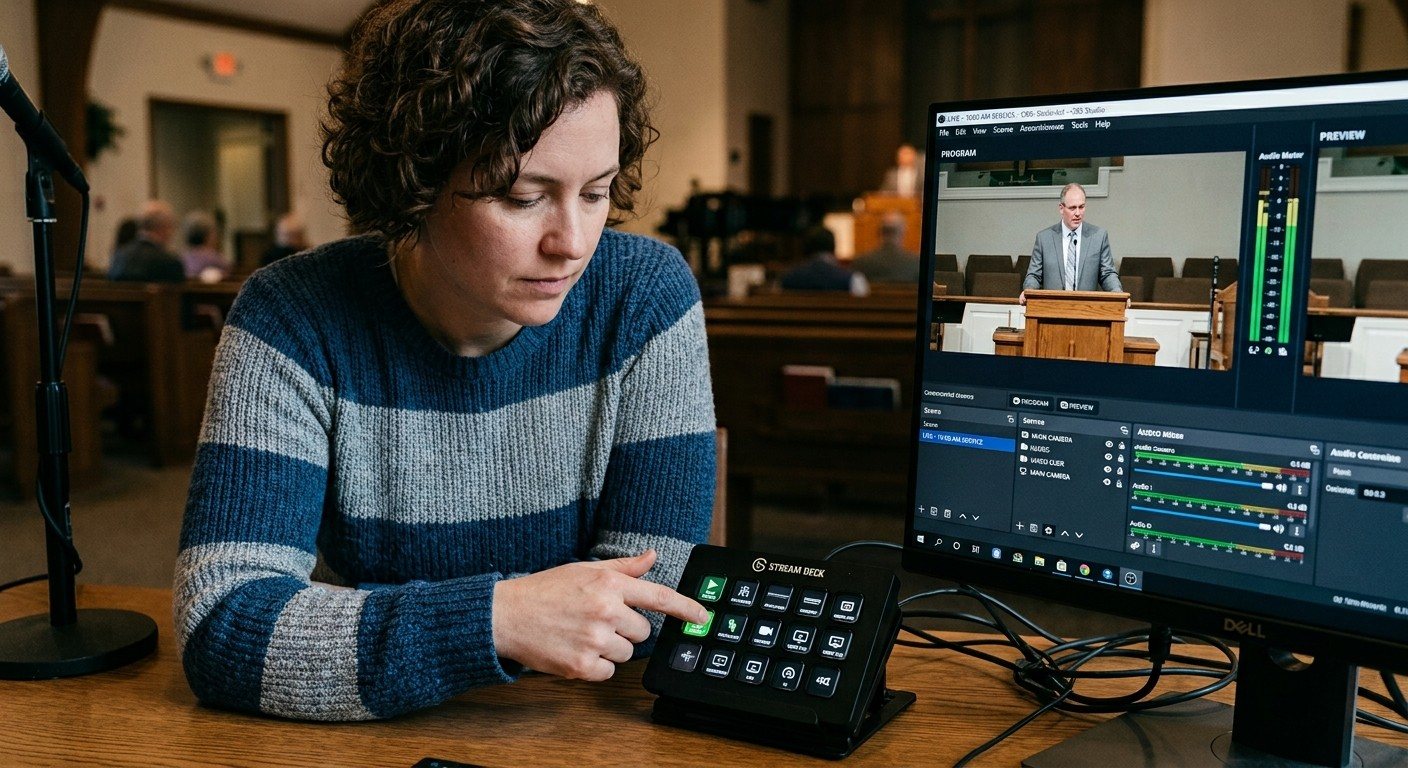
Making a Complicated Church AV System Easy to Run, Without Hiring an AV Company
Many church AV systems aren't too old or too small. They're too complicated for a volunteer. A simple button panel built with Bitfocus Companion can hide that complexity behind plain-word buttons, and a church can often build it themselves. Here's when that works, when to call a professional, and how to start.
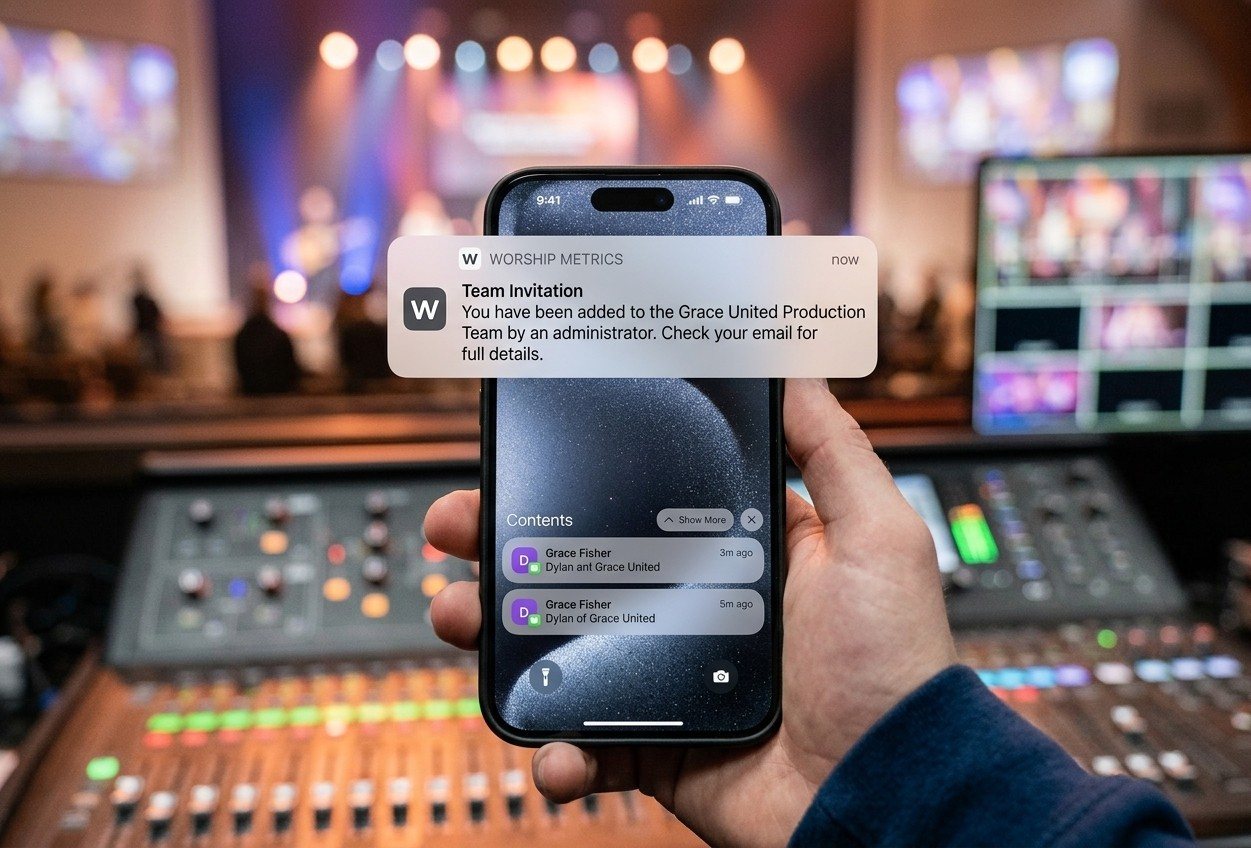
Your Church Livestream Team, Connected Even When They're Not at Church
A three-person livestream team only works if everyone shares the same plan, the same wiring diagram, and the same news when something breaks. Here's how WorshipMetrics connects the director, slides, and camera volunteers through the week: chat, alerts, documentation, AI help, scheduling, and cloud control for OBS and vMix.
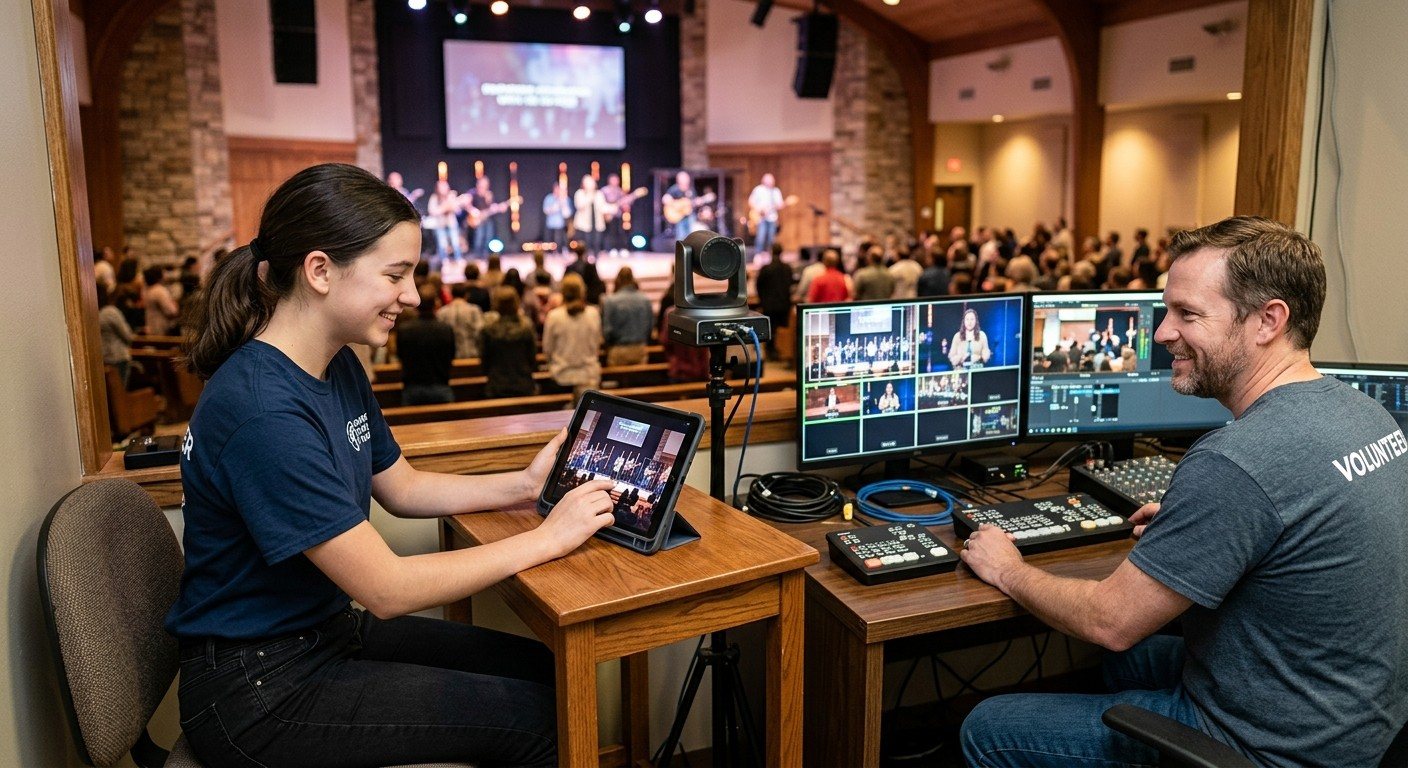
The Three-Person Church Livestream Team: Director, Slides, and Cameras
A church livestream runs best with three clear jobs: a director on OBS or vMix, a slides operator, and a camera operator. Here's what each role does before, during, and after the service, what skills it takes, and how the three talk to each other.