 Plan Services, songs, and attendance, with the team scheduled.
 People Your directory, volunteers, and team chat in one place.
 Present Lyrics, scripture, slides, and stage display, free in any browser.
 Produce One dashboard for the switcher, PTZ cameras, and the stream.
 Publish Stream Sunday, keep every sermon on your watch page, clip it.
 Pulse Know the moment the stream or a device drops.
 Patch · Signal Map
The map of your system that stays true.
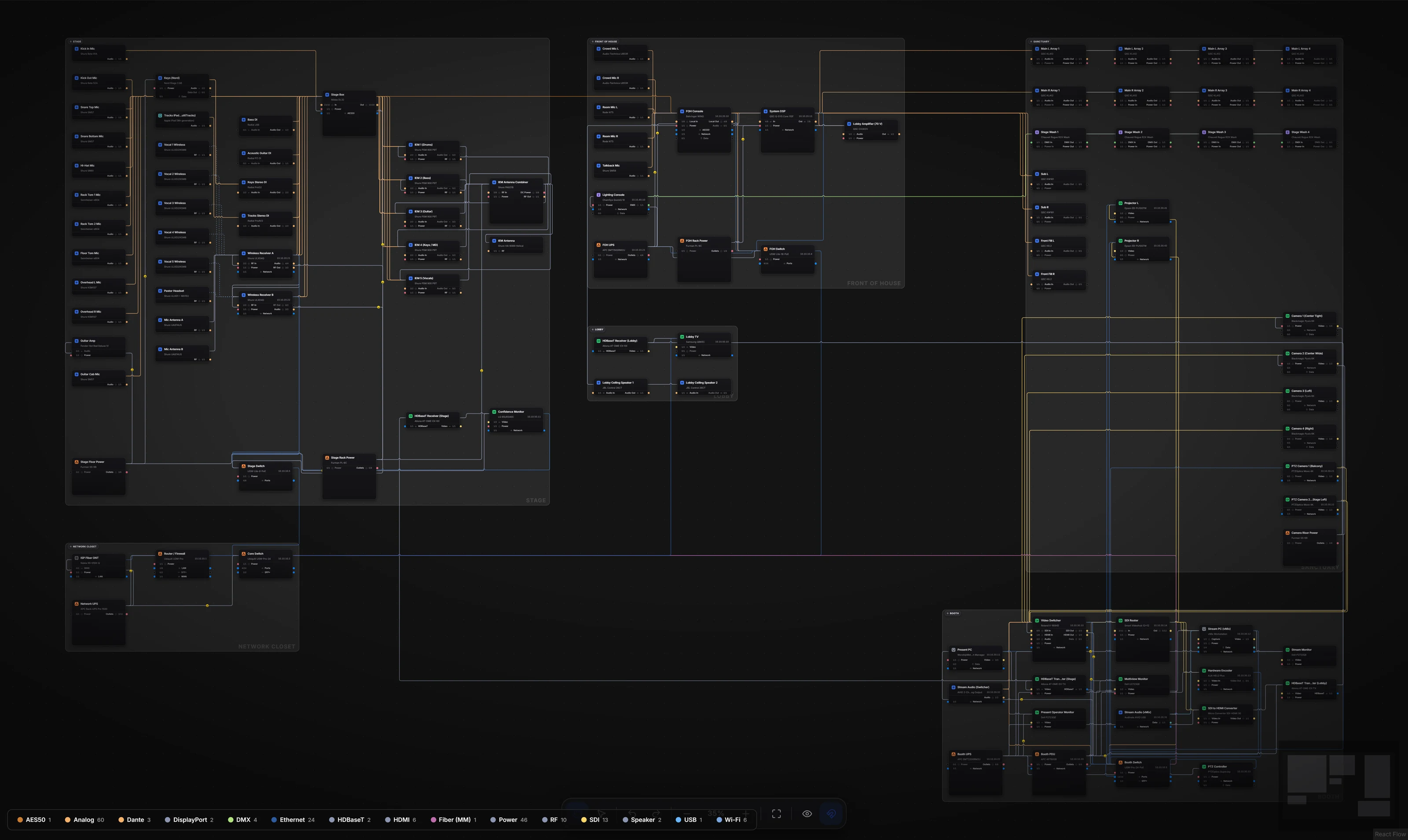
Every device as a card with its ports. Every cable drawn port to port and colored by signal. Rooms around the gear that lives together. Draw it once, let the checks tell you what is unfinished, and print it when you need paper.
The Signal Map is free on every plan. AI drafts from a drawing or a description are on Pro and Max.
On the canvas
Drawn the way an integrator would draw it.
Rooms around the gear
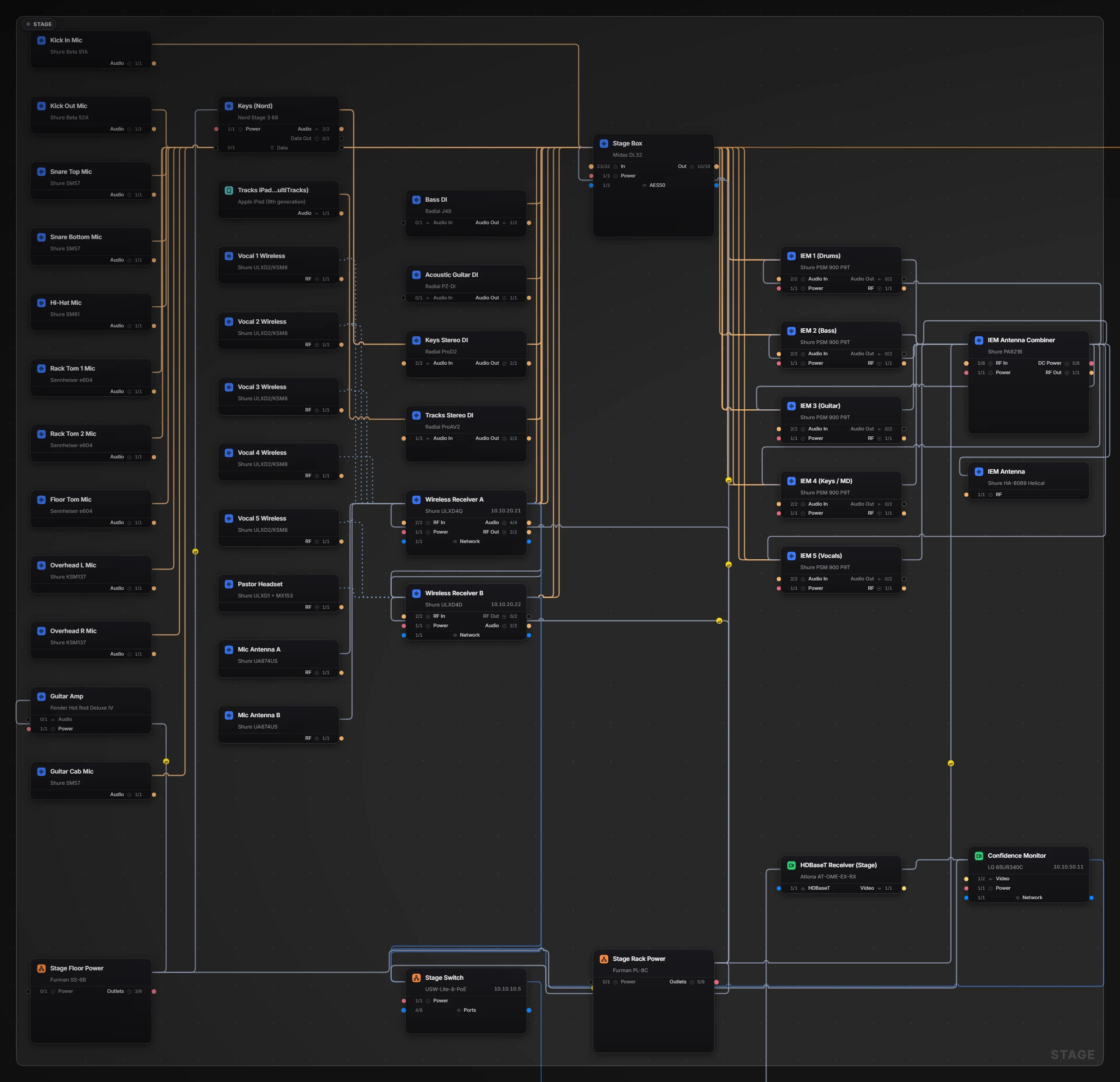
Rooms are zones built from where each device lives: Stage, Front of House, Booth, Network Closet. Add one, resize it, tint it, or group a few devices as a rack.
Cards with real ports
Every device is a card showing the ports it actually has, from the catalog or from your own record. Unconnected ports can be hidden so a finished room reads clean.
Wires colored by signal
Cables run orthogonally, colored by signal type, with line jumps at crossings and a toggle to bundle parallel runs. Wi-Fi links are drawn dashed and never get a cable number.
Labels the moment a cable exists
Draw a connection and it is numbered by its connector: NET-001, VID-003, AUD-014, the same at both ends. Those are the labels on the patch sheet, on the physical cable, and in a support call.
Drawing a cable
Port to port, three ways.
-
Drag
Drag from one port to another, or click a port and then click where it goes. Drag a wire's end to move it to a different jack.
-
Connect wizard
Right-click a card and the wizard walks it: pick the source port, then a destination device (only ones with a free, compatible port are offered), then the port, ranked as a clean fit, an adapter, or incompatible.
-
Signal awareness
The map separates network signals that can ride a switch, like Dante, AES67, NDI and Art-Net, from point-to-point links that cannot, like AES50, Ultranet and HDBaseT. A snake cannot pretend to be Ethernet.
Looking at it
Three views, and a layout that sorts itself out.
-
Auto, Detailed, Simple
Detailed shows every port on every card. Simple shows headers. Auto folds cards to their headers once you zoom out past 70%, so the whole campus stays readable.
-
Arrange
An automatic layout that is aware of the connections: least wire travel, then fit to view. Tidy rooms and Signal-flow columns are one menu away.
-
Focus and filter
Category chips, a search across devices and cables, a focus view on one device, a cable-opacity slider, label and bundling toggles, and Move to room.
What is unfinished
The map tells you what is still missing.
A badge in the corner reads something like "10 issues · 34% set up". Open it and every finding jumps you to the cable or device in question.
Seven wiring checks
Duplicate cable
Two cables joining the same two ports.
Self-loop
A cable that starts and ends on the same device.
Direction conflict
Output to output, or input to input.
Unmapped signal
A cable whose signal type is unknown.
Connector mismatch
A plug that does not fit the jack on the other end.
No port
A cable end that is not landed on a specific port.
Duplicate name
Two devices with the same name in one room.
Wi-Fi links are exempt from the signal, connector and port checks, because they have none.
Percent set up
The average of four things: devices with a make or model and a room, devices with ports, cable ends landed on a jack, and devices with any connection at all. It stays at 99 until the last one is done, so the number is honest.
Not yet wired
Gear with no cable and no place on the map waits in a tray. Drag one onto the canvas, or double-click to place it, and it joins the room it belongs to.
Finish the wiring
Cable ends that are not landed on a specific port get rule-based suggestions you accept per row or all at once. The button sits at the bottom of the badge's list, and on Patches, where the cable schedule is.
Checked against the network
Let the switches confirm the drawing.
Connect a UniFi controller in Tech Manager and, after each scan, the map learns the switch ports and which device hangs off each one, kept apart from the cables you drew so a re-scan never overwrites them. Wi-Fi clients are linked to the access point they are on.
- With a local username and password the links are exact to the port, and live PoE watts show on the switch card
- With an API key the links are to the switch, not the port
- Only switches already in your inventory are matched, by MAC address, so nothing appears that you did not add
- UniFi is the controller supported today, and the sync runs through Tech Manager at the booth
Tools
The small things that make a canvas usable.
- Hand and select tools in a dock at the bottom, with a minimap in the corner
- Undo and redo for moves, connections and cable deletions, fifty steps deep
- Zoom from 15% to 250%, fit to view, snap to grid, and hide unconnected ports
- A legend of the signal types actually present, with counts: click one to filter the map to it
- On Pro and Max, Import drawing and Describe your rig let AI draft devices and wiring from a PDF, a photo, or a description, and nothing writes until you have reviewed it
What the map feeds
Paper for the booth, context for support.
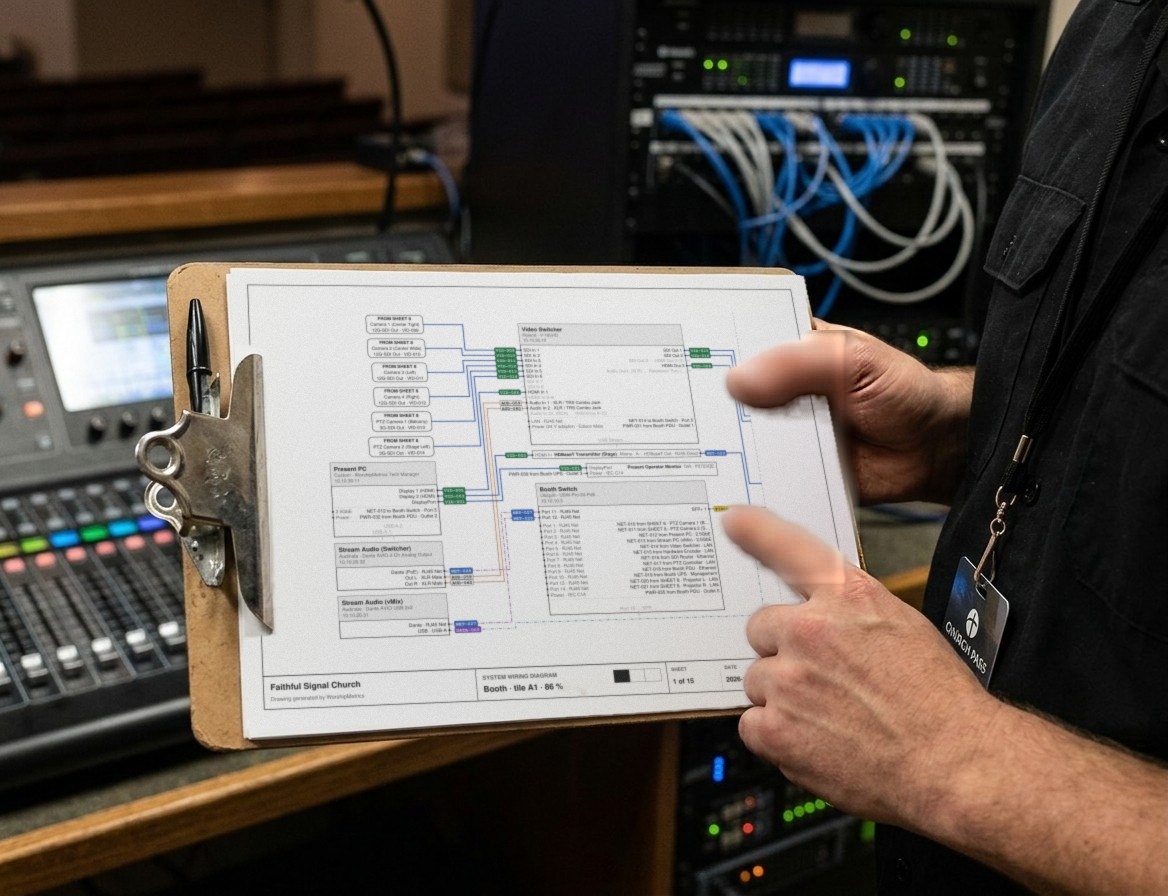
The wiring diagram (one room per sheet) and the patch sheet (grouped by room) print from this map with the same cable numbers. And Journey, in chat or on a 910-WORSHIP call, can read the connections with their ports and signal (in chat, the cable label too), so support can say which cable to check instead of asking you to describe the rack.
Technical details
For the person who reads the spec sheet.
Canvas
Snap-to-grid canvas; device cards with ports; rooms as zones from each device's location (add, resize, tint); racks; orthogonal wires colored by signal with line jumps; Wi-Fi links dashed, unnumbered, and left off the cable schedule.
Views
Auto (cards fold below 70% zoom), Detailed, Simple; zoom 15% to 250%; fit to view; minimap; cable opacity, labels and bundling toggles; hide unconnected ports.
Layout
Arrange: automatic, connection-aware layout for least wire travel, then fit to view; Tidy rooms; Signal-flow columns.
Connecting
Drag port to port, click then click, or the right-click Connect wizard with compatibility ranking (ok, adapter, incompatible); drag a wire end to re-bind.
Labels
Assigned automatically by connector: VID, AUD, NET, DATA, FIBER, PWR, RF, three digits, the same at both ends; CAB when the connector and signal are unknown.
Checks
Duplicate cable, self-loop, direction conflict, unmapped signal, connector mismatch, no port, duplicate name in a room; each finding focuses its subject.
Setup score
Mean of four ratios: documented devices (make or model, and a room), devices with ports, cable ends on a jack, devices with any connection; capped at 99 until complete.
Undo
Fifty steps covering moves, connections and cable deletions.
UniFi
Tech Manager only. API key: switch-level links. Local username and password: port-exact links and live PoE watts. Switches matched by MAC from your inventory; links marked as inferred; Wi-Fi clients linked to their access point.
Support context
Every Journey chat, text and 910-WORSHIP call loads the inventory summary. Journey reads up to 80 connections with ports and signal when it needs them, and in chat and text the cable label too.
Plans
Free on every plan. Import drawing and Describe your rig (AI drafts with mandatory review) are on Pro and Max.
From the Knowledge Base