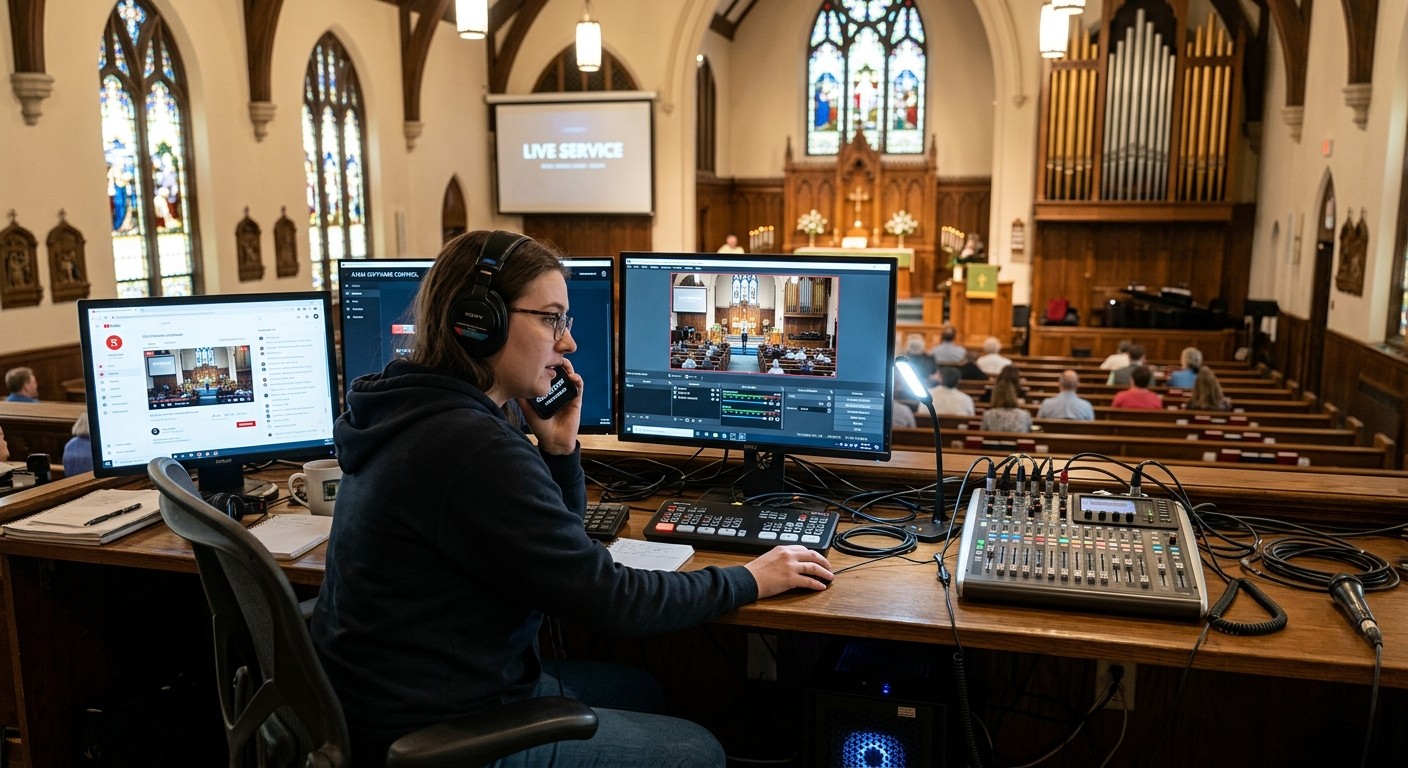
How to use this guide when the service starts in twenty minutes
This is a field guide, not a lecture. Scan the ten symptoms below, find the one on your screen, and run its fast checks in order — each one links to a full deep dive if the quick version doesn’t land the fix. Two rules make every fix below safer: change one thing at a time, and say out loud (or type in the team chat) what you touched. Half of next week’s mystery is this week’s undocumented fix.
And if you already know your real problem is that you’re back on this page every week — skip to the two upgrades at the end. A booth that rotates through a different problem every Sunday doesn’t have ten problems; it has one. (This guide is part of a series — the booth’s other front doors are vMix troubleshooting and ProPresenter troubleshooting.) And the best troubleshooting is the kind you prevent — the pre-service half of this page exists as a printable one-page checklist you can tape to the booth desk.
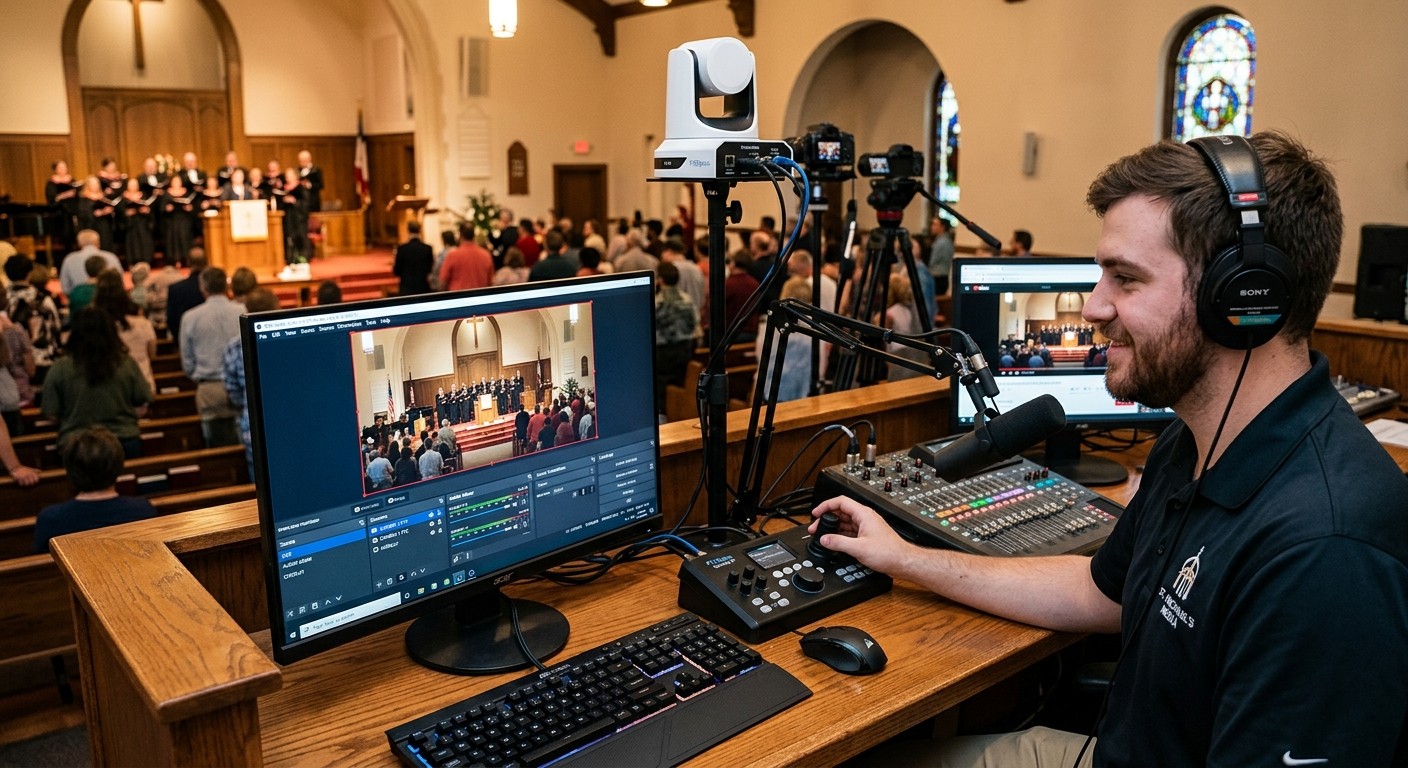
1. A source went black — camera, display capture, or NDI
Check the obvious two first: is the right scene live, and is the source’s eye icon actually on? Then follow the signal backward: does the capture device’s own utility see a picture? If yes, the problem is inside OBS (re-select the device in source properties); if no, it’s the cable or the camera, and OBS was never the culprit. Laptop display capture showing black is its own famous gotcha — the capture is running on the wrong GPU.
Deep dives: OBS black screen fixes, NDI camera not showing up, and HDMI signal dropping or going black.
2. “Failed to connect to server” — the stream won’t start
Nine times out of ten this is the stream key or the destination, not your network: keys rotate when someone clicks “End Stream” on the platform side, and a copied-with-a-trailing-space key fails silently. Re-paste the key, confirm the right service and server, and try once more before touching anything else. If the platform itself is down, no local fix exists — check its status page before you rebuild your settings in a panic.
Deep dives: OBS not connecting to YouTube or Twitch, stream key invalid errors, and Facebook Live connection failures.
3. Dropped frames — the network can’t carry your bitrate
Dropped frames (the indicator going orange or red) are a network symptom, distinct from encoding trouble. Fast sequence: confirm you’re on wired ethernet and not WiFi, kill anything else eating upload (cloud backup on the office PC counts), and if it persists, drop your bitrate 25% live — a conservative stream that holds beats an ambitious one that collapses.
Deep dives: dropping frames during a church stream, is our church WiFi good enough?, and how much bandwidth streaming really needs.
4. “Encoding overloaded” — the computer can’t keep up
The opposite problem: your machine, not your network. Fast sequence: close everything that isn’t OBS, drop the encoder preset one notch (quality falls less than you fear), and if the machine has a capable GPU, move from x264 to the hardware encoder. This warning loves to appear mid-worship, when six cameras, motion backgrounds, and a browser source all peak together.
Deep dive: why OBS says “Encoding Overloaded” in the middle of worship, plus bitrate and resolution settings that fit your machine.
5. The stream is silent
Look at the OBS audio mixer before anything else: are the meters moving? Meters moving but no audio online means a muted track or monitoring misdirection; meters dead means the mixer feed stopped upstream — most often a USB device that re-enumerated and OBS is now listening to the wrong “USB Audio Device.” Recordings silent but stream fine (or vice versa) is track assignment, not hardware.
Deep dives: no audio on YouTube or Facebook, mixer USB not recognized, and audio routing from your church mixer.
6. Audio and video drift apart
If they start together and separate over the service, that’s drift — usually a sample-rate mismatch (44.1 kHz device in a 48 kHz world) or a capture device buffering under load. If they’re offset by the same amount all service, that’s latency — fix it with a sync offset on the source, measured once, written down.
Deep dives: audio and video out of sync, why OBS audio drifts by the end of the sermon, and camera video lagging behind audio.
7. The preview looks perfect, the stream looks bad
The preview is your machine rendering at full quality; the stream is that picture squeezed through your bitrate and the platform’s transcode. Blurry-only-online means the encoder settings, not the cameras: bitrate too low for the resolution, or a downscale mismatch. The fix lives in three settings, not in new gear.
Deep dive: why OBS looks perfect in preview but blurry on the stream.
8. Fine at 9:00, struggling by 9:40
The signature of accumulation: heat, memory creep, a filling disk, a browser source leaking — nothing is wrong at the start, everything is marginal forty minutes in. This is the failure that convinces teams they’re haunted, because every pre-service test passes. The tell is in the curve, not the snapshot — which is why unwatched booths never catch it.
Deep dives: why the livestream stutters forty minutes in, and what happens if the booth PC crashes mid-service.
9. OBS won’t launch, crashed, or the recording won’t play
For launch failures: safe mode first (it disables plugins and third-party sources — if OBS opens clean, a plugin is your suspect). For a crash that took the recording with it: stop writing to that drive and try the remux — and switch future recordings to MKV so a crash can never hold a service hostage again.
Deep dives: OBS won’t launch and the service starts in an hour, and saving an unplayable recording after a crash.
10. It worked last Sunday — someone changed something
The most human failure on the list. A guest operator “improved” a scene, an update reset an encoder, someone clicked through a dialog at rehearsal. Without a baseline you’re archaeology-ing your own booth at 8:40 a.m. With one — exported profiles and scene collections, settings captured per service — “what changed?” is a thirty-second diff instead of an interrogation.
Deep dives: ending the between-Sundays settings mystery, and letting more than one person run OBS safely.
When the list stops helping: two upgrades that change the game
If this page fixed your morning, bookmark it and go do the service. But notice what every fix above quietly assumed: that you were there, that you knew which cable feeds what, and that you’d remember all of this next time. Those assumptions are the actual fragile part of a church stream — and they’re upgradeable.
Upgrade one: a mapped system is a system you can hand to someone else
Almost every fast check above starts the same way — follow the signal backward. That takes thirty seconds in a booth with a real map and half a service in a booth where the wiring lives in one veteran’s memory. A Signal Map — every device, every labeled cable, every port, printable as patch sheets — turns troubleshooting from guesswork into wayfinding, and it does something bigger between Sundays: it makes the knowledge transferable. New volunteers train against the map instead of against folklore, a labeling discipline survives re-racks, and the booth survives its builder leaving — because the system’s memory stopped being a person.
Upgrade two: Luminos — troubleshooting help that already knows your booth
Now put something on the other end of that documentation. Luminos, the AI assistant in WorshipMetrics, doesn’t answer OBS questions from generic internet checklists — it reads your church: your inventory, your Signal Map down to the cable IDs, the booth machine’s live telemetry, and every past service’s health report. Ask “why is camera two black?” and it reasons over your actual signal path and what the system can observe right now — the difference between “have you checked the cables?” and “check NET-014 at the switcher’s input 2, because the encoder is healthy and camera one shares everything else.” It’s there for the volunteer alone in the booth, it answers 910-WORSHIP by voice as Journey, and every device you document makes its next answer sharper. Luminos chat is unlimited, 24/7, on every plan, Free included.
How WorshipMetrics handles this
The ten symptoms above stop being emergencies when the system around OBS is doing its job: Tech Manager watches the machine and encoder every few seconds and offers a one-tap restart the moment a stream or recording stops, Pulse alerts your phone the moment the stream drops, every service ends with a health report that captures the settings it ran under, the Signal Map holds the wiring your team used to keep in their heads — and Luminos reads all of it, so the next troubleshooting session starts with the answers pre-loaded. Monitoring, the map, and alerts are free forever; the fastest way to a calmer Sunday is to let the system start watching this week.
Related questions
- What is the fastest way to troubleshoot OBS during a church service?
- Work from the symptom, not from theory: identify which of the ten failure shapes you're looking at — black source, refused connection, dropped frames, overloaded encoder, silent audio, drift, blurry stream, late-service degradation, a crash, or changed settings — and run that symptom's short check list in order. Change one thing at a time, and note what you touched so the next operator inherits the fix instead of the mystery.
- Why does our OBS setup fail in a different way every Sunday?
- Rotating failures are rarely ten separate problems — they're one condition producing symptoms: an unwatched machine, no settings baseline, wiring that lives in one person's head, and a single overloaded operator. Fixing this Sunday's symptom doesn't touch the condition, so next Sunday produces a new one. The fix is the system around OBS: telemetry, automation, documentation, and a team.
- How do we keep OBS troubleshooting knowledge when volunteers leave?
- Move the knowledge out of heads and into the system: a Signal Map that documents every cable and port, captured OBS settings for every service, and a support history of what was tried. Documentation like that trains new volunteers faster — and once an AI assistant like Luminos reads it, every answer it gives any volunteer is grounded in your actual booth, not generic advice.
Hardware Encoder Troubleshooting for Church Streams: The 10 Problems Behind Almost Every Sunday Failure
NextProPresenter Troubleshooting for Church Teams: The 10 Problems Behind Almost Every Sunday Failure
Related Articles
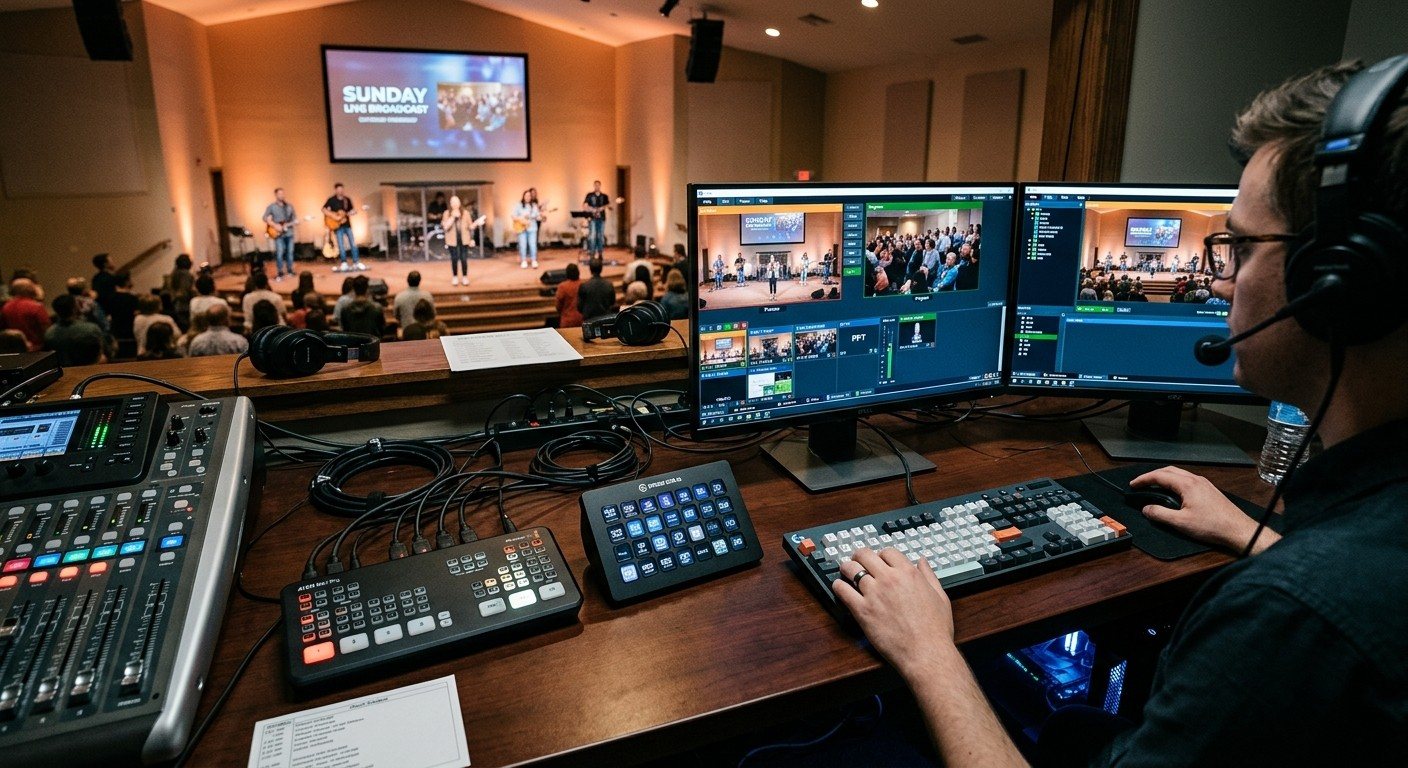
Bitfocus Companion + ATEM Mini: A Stream Deck Panel for Your Church Switcher
A Stream Deck running Bitfocus Companion turns a Blackmagic ATEM into plain-word buttons with colors that show what's live, and the same panel can run PTZ cameras, projectors, and more. Here's how to connect Companion to an ATEM and build a volunteer page.
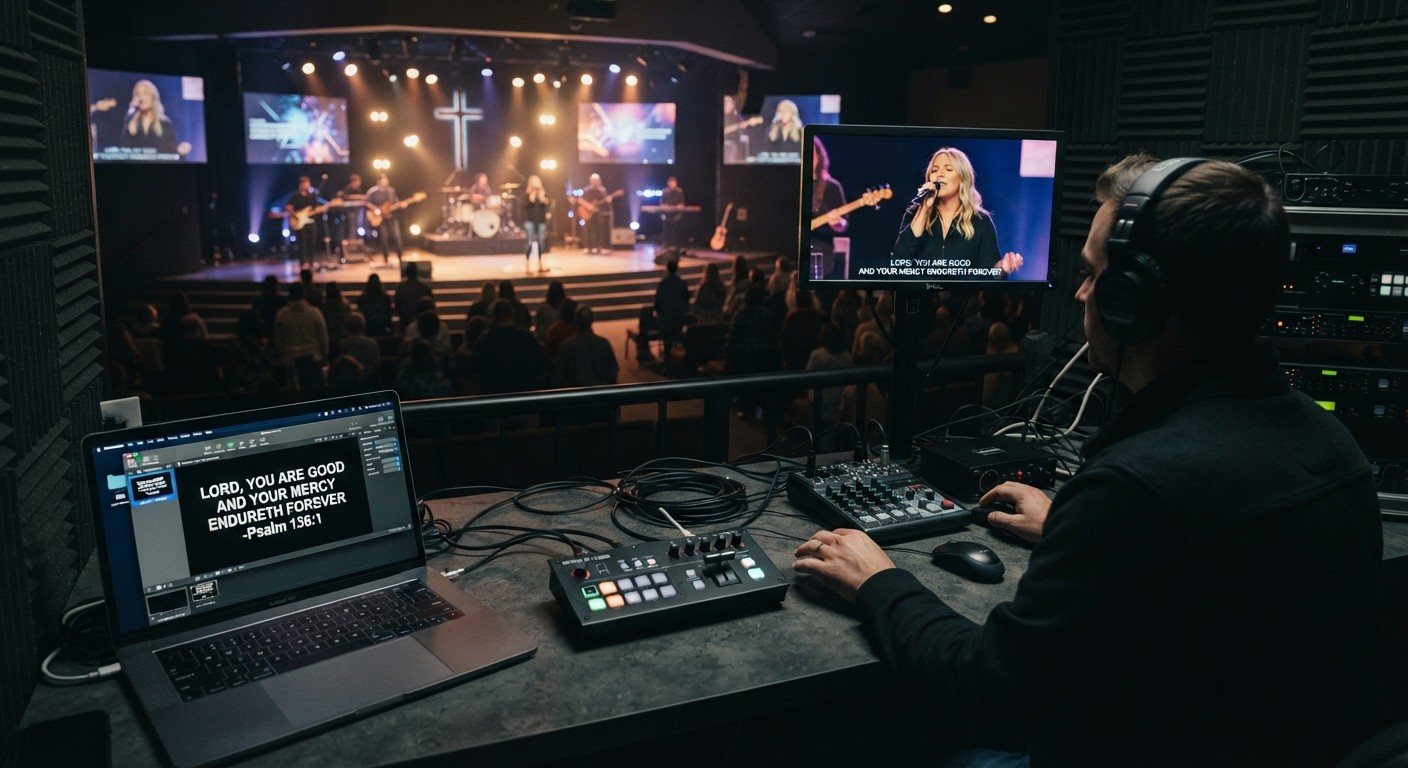
Lyrics Over the Camera on an ATEM Mini: Luma Keys, Chroma Keys, and the Slides Computer
To put song lyrics over the camera shot on a Blackmagic ATEM Mini, feed the slides computer into an ATEM input and key it over the camera. Here's how luma and chroma keys work for lyrics, how to design slides that key cleanly, and who should run it.
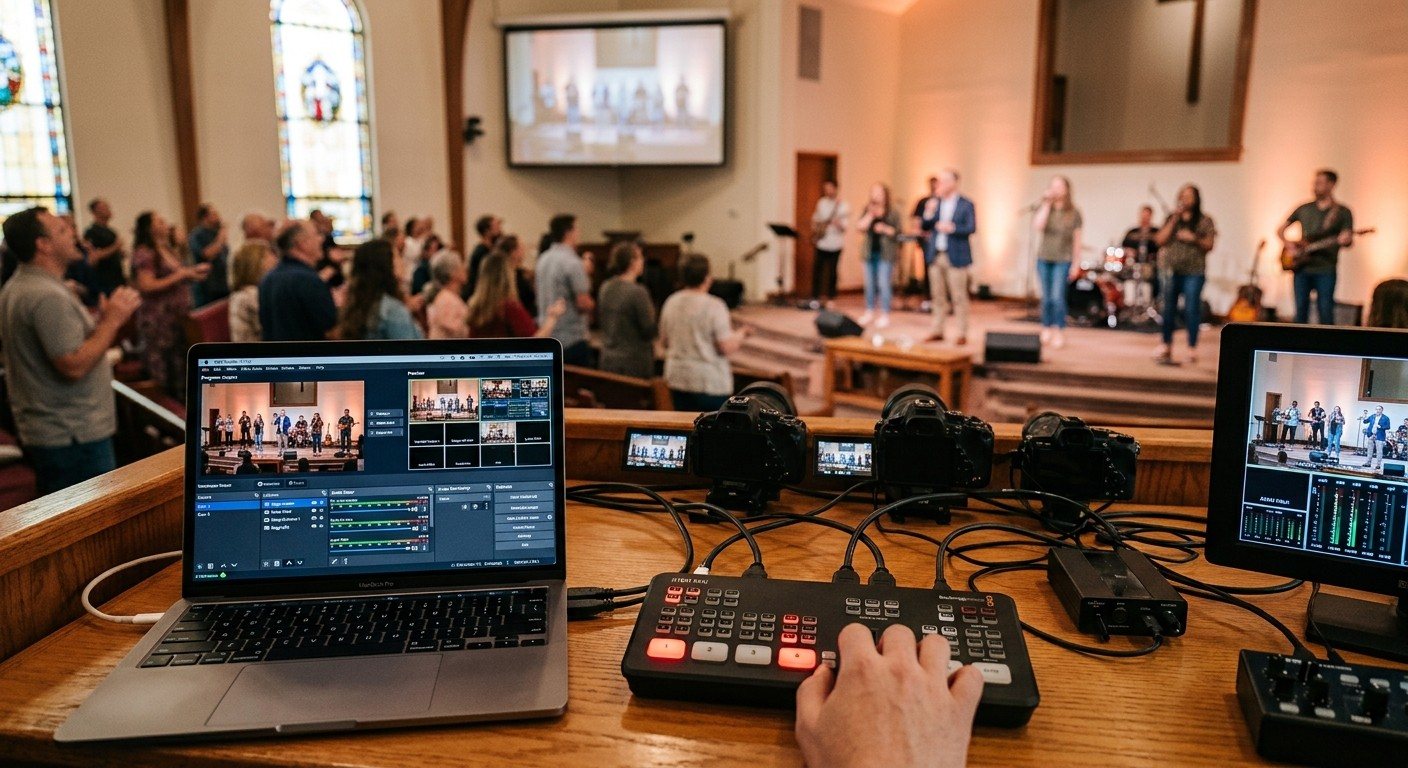
ATEM Mini + OBS for Church: Hardware Camera Switching with OBS for Graphics and Streaming
Many churches use an ATEM Mini as a camera switcher and send its output into OBS over USB as a webcam. The ATEM gives volunteers real buttons; OBS adds lyrics, graphics, recording, and streaming. Here's how to set it up, split the jobs, and avoid the common sync and quality problems.