The short answer: preview is before compression — your viewers live after it
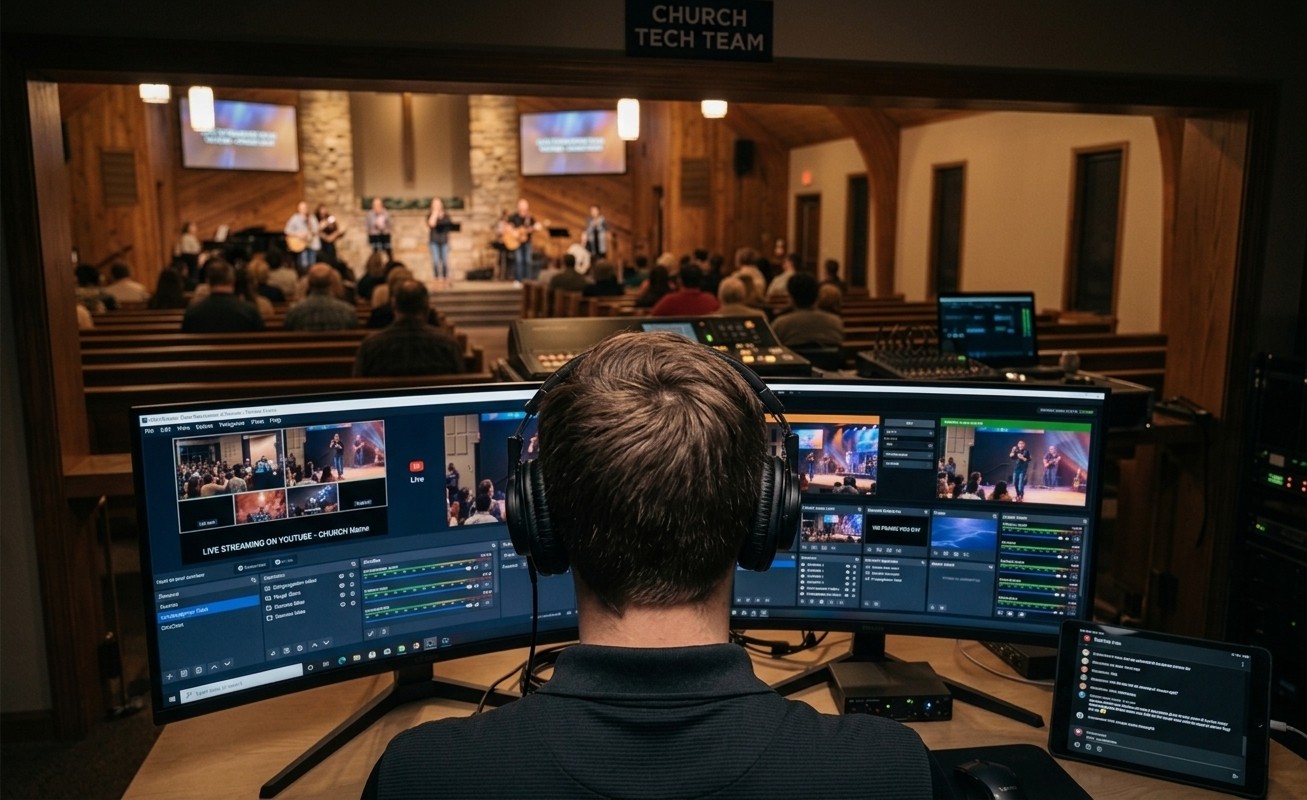
The disappointment has a precise technical location. OBS’s preview window shows the composited video — your cameras and graphics, assembled, before any compression touches them. What your congregation sees has survived two additional journeys: your encoder squeezing thirty frames a second down to your bitrate, and the platform (YouTube, Facebook) re-encoding your feed again into its own quality ladder. The preview isn’t lying. It’s just upstream of everything that costs quality.
So “blurry on the stream” is always one of three thieves. Here’s each one, its fingerprint, and its fix.
Thief 1: a bitrate too small for worship’s motion
Compression spends its budget on change between frames, and worship — a full band, moving lights, camera cuts — changes nearly everything, constantly. A bitrate that keeps the announcements crisp can be half of what the second song needs, which is why church streams so often look sharp until the room comes alive, then dissolve into mush around the moving lights.
The fix is budget honesty. Within what your connection can carry — no more than half your Sunday-measured upload — give the stream enough bitrate for its resolution, and if the budget can’t feed sharp 1080p, drop to 720p. A well-fed 720p beats a starving 1080p dramatically, every time. The bitrate calculator does the arithmetic; the encoder settings guide covers the supporting cast (CBR for the stream, sane keyframe and profile choices).
Two OBS-specific checks while you’re in settings: make sure the output (scaled) resolution isn’t upscaling a small canvas or downscaling with the cheapest filter (Lanczos costs little and looks better), and confirm the stream output is actually using the settings you think — between-Sundays settings drift is a top cause of “it looked better last month.”
Thief 2: an encoder out of headroom
Quality also dies when the encoder can’t think fast enough. x264 on a fast preset, or an encoder running near its ceiling, makes hastier compression decisions — same bitrate, worse picture, often with stutter as the tell. The fingerprint: quality that degrades as scenes get busy without the network numbers moving. The fix: a hardware encoder (NVENC/AMF/Quick Sync) if the machine has one, a resolution the hardware can afford, and scenes that don’t render eight invisible sources all morning.
Thief 3: the platform’s quality ladder (and the viewer’s player)
Sometimes your feed is genuinely fine and the complaint is real anyway: platforms re-encode everything into multiple qualities, and viewers’ players auto-select — the family on flaky WiFi is watching the 480p rung and reporting “your stream is blurry.” Before touching the booth, check the stream at source quality on a good connection. If source looks sharp, the booth is innocent; the answer is viewer education (the little gear icon) and, occasionally, sending a higher-quality feed so the platform’s rungs start from more.
How to stop guessing which thief it is
Here’s the trap of quality complaints: they arrive as vibes (“it looked soft near the end?”) hours after the evidence is gone. Telemetry turns the vibe into a verdict. Tech Manager samples bitrate, dropped frames, and encoder load every five seconds all service, so the health report separates the suspects cleanly: bitrate sagging with dropped frames is the network; steady bitrate with climbing encoder load is the machine; clean everything means look at the platform and the viewers. The report even stores the settings each stream ran with — so “it looked better last month” becomes a side-by-side, not a séance.
And the standing observation behind this whole series: quality that mysteriously varies week to week is usually a system without a baseline — settings unowned, nobody watching the meters, one exhausted operator with no attention left for trends. The booths that look consistently good aren’t lucky; they read Monday’s report, own their settings, and have enough seats filled that someone’s job is noticing. That’s the fix that doesn’t wear off.
Related questions
- Why is my stream blurry when OBS preview looks sharp?
- Because the preview is pre-compression — it's the raw composited video. Viewers see that video after your encoder squeezes it to a bitrate and after the platform re-encodes it again. If the bitrate is too low for the motion in the frame, quality is spent surviving the compression, and worship's full-motion moments suffer first.
- What bitrate stops a church stream from looking blurry?
- Enough for your resolution and motion, within your upload's honest limits: as a rule, stream at no more than half your Sunday-measured upload, and if that budget can't carry sharp 1080p, drop to 720p — a well-fed 720p looks dramatically better than a starved 1080p.
- How do I tell whether it's my encoder, my network, or the platform?
- Telemetry separates them cleanly: bitrate wobbling with dropped frames is a network story; steady bitrate with rising encoder load is a settings/horsepower story; and clean numbers on both with soft video on the platform's lower quality options is just viewers on auto-quality — check the stream at source quality first.
Are OBS Plugins Safe for a Church Stream?
NextA Different OBS Problem Every Sunday? The Fix Isn't Another Fix
Related Articles
Bitfocus Companion + ATEM Mini: A Stream Deck Panel for Your Church Switcher
A Stream Deck running Bitfocus Companion turns a Blackmagic ATEM into plain-word buttons with colors that show what's live, and the same panel can run PTZ cameras, projectors, and more. Here's how to connect Companion to an ATEM and build a volunteer page.
Lyrics Over the Camera on an ATEM Mini: Luma Keys, Chroma Keys, and the Slides Computer
To put song lyrics over the camera shot on a Blackmagic ATEM Mini, feed the slides computer into an ATEM input and key it over the camera. Here's how luma and chroma keys work for lyrics, how to design slides that key cleanly, and who should run it.
ATEM Mini + OBS for Church: Hardware Camera Switching with OBS for Graphics and Streaming
Many churches use an ATEM Mini as a camera switcher and send its output into OBS over USB as a webcam. The ATEM gives volunteers real buttons; OBS adds lyrics, graphics, recording, and streaming. Here's how to set it up, split the jobs, and avoid the common sync and quality problems.