The five settings that decide whether your stream survives
Most church streams don’t fail because of exotic problems. They fail because of five ordinary settings that someone chose eighteen months ago and nobody has looked at since: resolution, target bitrate, encoder preset and profile, GOP size, and audio codec.
Those five aren’t an arbitrary list — they’re exactly the settings a good stream health report captures alongside the telemetry, because when a stream struggles, the diagnosis almost always lives in one of them. If you know what each setting does and what “wrong” looks like in the data, you can self-diagnose most Sunday problems in minutes instead of guessing.
This article walks through each one with numbers you can actually type into vMix or OBS, then maps the common failure signatures back to the setting that causes them.
Bitrate: budget against your upload, not the platform maximum
The single most common church streaming mistake is setting bitrate based on what YouTube accepts rather than what the building’s internet can sustain. YouTube will happily take 9,000 Kbps. Your 20 Mbps cable upload, shared with the office WiFi, the lobby TVs, and 400 phones on guest WiFi, may not reliably give it.
The rule of thumb that survives contact with reality:
Total streaming bitrate (video + audio) should be no more than half of your measured, sustained upload speed — measured under Sunday conditions, not Tuesday afternoon.
Speed tests on an empty building lie. If you can, run a test during a service (or at least with the guest network loaded) and budget from that number. If your Sunday-morning upload is 10 Mbps, a 4,500 Kbps stream is comfortable; a 8,000 Kbps stream is a coin flip. For the network side of this — VLANs, QoS, and keeping the encoder off the guest WiFi — see our guide to church network design for AV and streaming.
Sensible targets for a single H.264 stream:
| Output | Video bitrate |
|---|---|
| 720p at 30 fps | 2,500–4,000 Kbps |
| 1080p at 30 fps | 4,000–6,000 Kbps |
| 1080p at 60 fps | 6,000–9,000 Kbps |
Two notes on that table. First, a clean, well-lit 720p stream looks better to viewers than a starved 1080p stream — resolution is the setting to sacrifice when bandwidth is tight, not stability. Second, if you’re multistreaming to several platforms directly from the booth, multiply the budget by the number of outputs. This is why cloud fan-out matters: pushing one feed and letting a relay service distribute it means your uplink only ever carries one stream, no matter how many destinations you serve.
CBR vs VBR: live streaming wants boring
Rate control decides how the encoder spends your bitrate budget over time:
- CBR (constant bitrate) holds output at roughly the target at all times — padding quiet moments, capping busy ones.
- VBR (variable bitrate) spends more bits on complex scenes and fewer on simple ones, which is great for file quality and terrible for a live uplink.
For the live output, use CBR (or constrained VBR with the max rate pinned to the target, which behaves the same way). The reason is your network, not the picture. A VBR encoder hits a confetti moment, a fast camera pan, or a congregation on its feet and briefly bursts well past its average — and if that burst exceeds what your uplink can move, the send buffer backs up and the encoder starts dropping frames. Streaming platforms also assume steady input when they segment and transcode; a jittery input rate makes everything downstream worse.
In the telemetry, this failure has a distinct signature: bitrate instability — the actual measured bitrate sawtoothing around the target instead of holding flat. When you see that on a report, check rate control first, and the network path second.
Save VBR (or CRF/quality-based encoding) for your local recording, where there’s no uplink to overflow and quality-per-gigabyte genuinely matters.
GOP size: the two-second rule
GOP (group of pictures) size — usually labeled keyframe interval — controls how often the encoder sends a complete frame rather than a “changes only” frame. Every streaming platform slices your feed into segments for delivery, and segments can only begin on a keyframe. Too few keyframes and the platform can’t segment cleanly; viewers wait longer to join and seeking gets clumsy. Too many and you waste bitrate re-sending full frames.
The industry answer is settled: a keyframe every 2 seconds.
- In OBS: Output → Streaming → Keyframe Interval = 2 s (don’t leave it on 0/auto for live streaming).
- In vMix: set keyframe frequency to 2 seconds in the streaming quality settings.
- If your encoder asks for GOP in frames, multiply by your framerate: 60 at 30 fps, 120 at 60 fps.
Two seconds also divides evenly into the segment lengths delivery systems actually use — WorshipMetrics’ player, for example, delivers HLS in 4-second segments, so a 2-second keyframe cadence lines up with every segment boundary. Prefer a closed GOP and disable scene-cut keyframe insertion if your encoder exposes it; live platforms want the metronome, not artistic timing.
Profile, level, and preset: what to pick and what to leave alone
Profile describes which H.264 compression tools the encoder may use. Use High profile. It’s roughly 10% more efficient than Main at the same bitrate, and every platform, browser, and hardware decoder from the last decade supports it. Baseline profile exists for very old, low-power devices — and since modern platforms transcode your feed into an adaptive ladder for viewers anyway, crippling your contribution encode to Baseline helps no one.
Level (4.0, 4.1, 4.2…) is a ceiling on resolution × framerate × bitrate so decoders know what they’re in for. Level 4.0 covers 1080p30; 1080p60 needs 4.2. Nearly every encoder sets this automatically from your other settings — leave it on auto unless a destination specifically complains.
Preset (ultrafast → veryfast → medium → slow, on x264) trades CPU for compression efficiency, and this is where good intentions hurt churches. A slower preset does produce a slightly better picture per bit — but only if the CPU finishes every frame on time. The moment it can’t, the encoder starts skipping frames, and a skipped frame looks far worse than a marginally less efficient one. In health telemetry this shows up as encoder overload and sustained low FPS, two of the most heavily penalized conditions there are.
Practical guidance:
- On x264, veryfast is the right default for a booth PC that’s also running graphics, NDI sources, and multiview. Only step slower if CPU headroom stays comfortably under ~70% during the busiest part of the service.
- If your machine has an NVIDIA GPU, NVENC offloads encoding entirely and modern generations rival x264 veryfast/faster in quality — usually the best choice for volunteer-run booths.
- Dedicated hardware encoder appliances sidestep the CPU question altogether if the booth PC is chronically overloaded.
Audio: AAC-LC, stereo, 48 kHz, 128–192 Kbps. Remember it comes out of the same uplink budget as video — small, but not free.
A baseline that survives Sunday
If you want one configuration to start from and tune with data:
- Resolution/framerate: 1080p at 30 fps (drop to 720p30 if your Sunday upload is under ~8 Mbps)
- Video bitrate: 4,500 Kbps, CBR
- Encoder: x264 veryfast or NVENC, High profile, level auto
- Keyframe interval: 2 seconds (GOP 60 at 30 fps)
- Audio: AAC-LC 160 Kbps, 48 kHz stereo
That’s a stream nearly any church uplink can carry, any platform can segment, and any booth PC can encode with headroom to spare.
Self-diagnosing from the stream health report
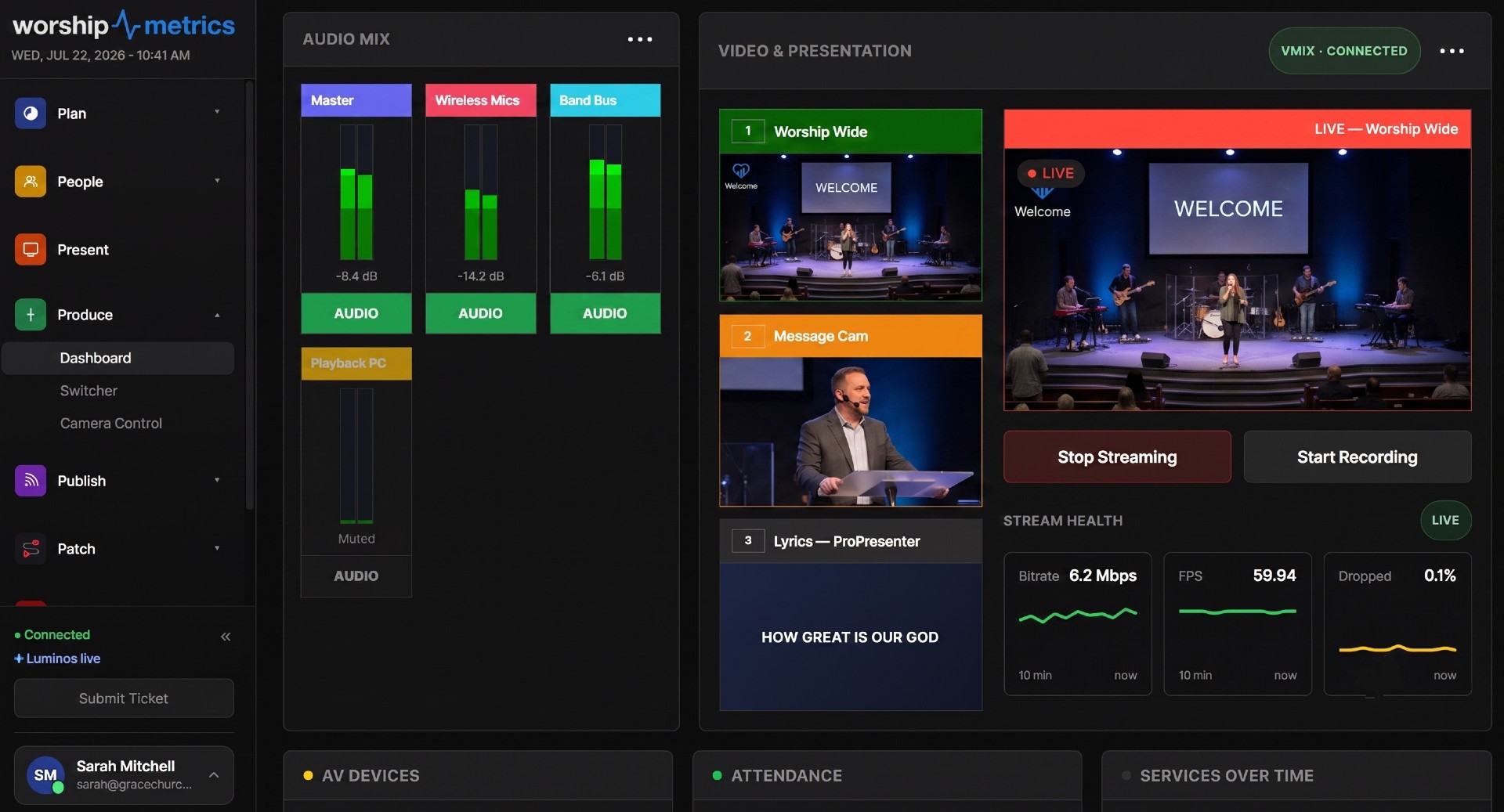
Settings and symptoms belong together, which is why the WorshipMetrics stream health report, on Max, records both. During every stream, the Tech Manager desktop app samples bitrate, FPS, encoder load, dropped-frame percentage, CPU, RAM, and free disk every 5 seconds directly from vMix or OBS, then scores the session 0–100 — with the exact encoder settings (resolution, target bitrate, preset and profile, GOP, audio codec) attached to the report. When something scores poorly, you’re never left wondering what configuration produced it.
Here’s how the weighted penalties map back to the settings in this article:
| What the report flags | Penalty | First setting to check |
|---|---|---|
| Dropped frames at 5% or more | −35 | Bitrate too high for the real uplink — lower it, confirm CBR |
| 3+ reconnects per hour | −25 | Network path and uplink stability, not the encoder — see the dropped-stream playbook |
| Sustained low FPS | −20 | Preset too slow or CPU starved — go faster, or offload to NVENC |
| Encoder overload | −18 | Same culprits as low FPS; also check background apps and thermals |
| Bitrate instability | −15 | Rate control — switch VBR to CBR, then look at network congestion |
Each flagged issue ships with a plain-English recommendation, and a 45-second reconnect grace window means one bumpy service produces one honest report instead of a pile of fragments — reconnects are counted as reconnects, not fresh sessions. Review the report Monday morning, change one setting, and compare next week’s score. That loop — not folklore — is how encoder settings get good and stay good.
How WorshipMetrics handles this
On Max, WorshipMetrics Live Streaming is built so the settings above only have to be right once. Your encoder pushes a single stream — RTMPS or SRT — to WorshipMetrics ingest, and the cloud handles the adaptive quality ladder for viewers and fans your feed out to up to 10 destinations at once, so your uplink budget never multiplies. The Tech Manager desktop app watches vMix or OBS through every service, captures the exact encoder configuration with each stream health report, and turns weak scores into specific recommendations your volunteers can act on. If Sunday’s stream struggled, the report already knows which of these five settings to look at first.
CCLI Reporting from What Was Actually Sung
NextImporting Your Church Directory by CSV: Mapping, Duplicates, and a Clean Landing
Related Articles
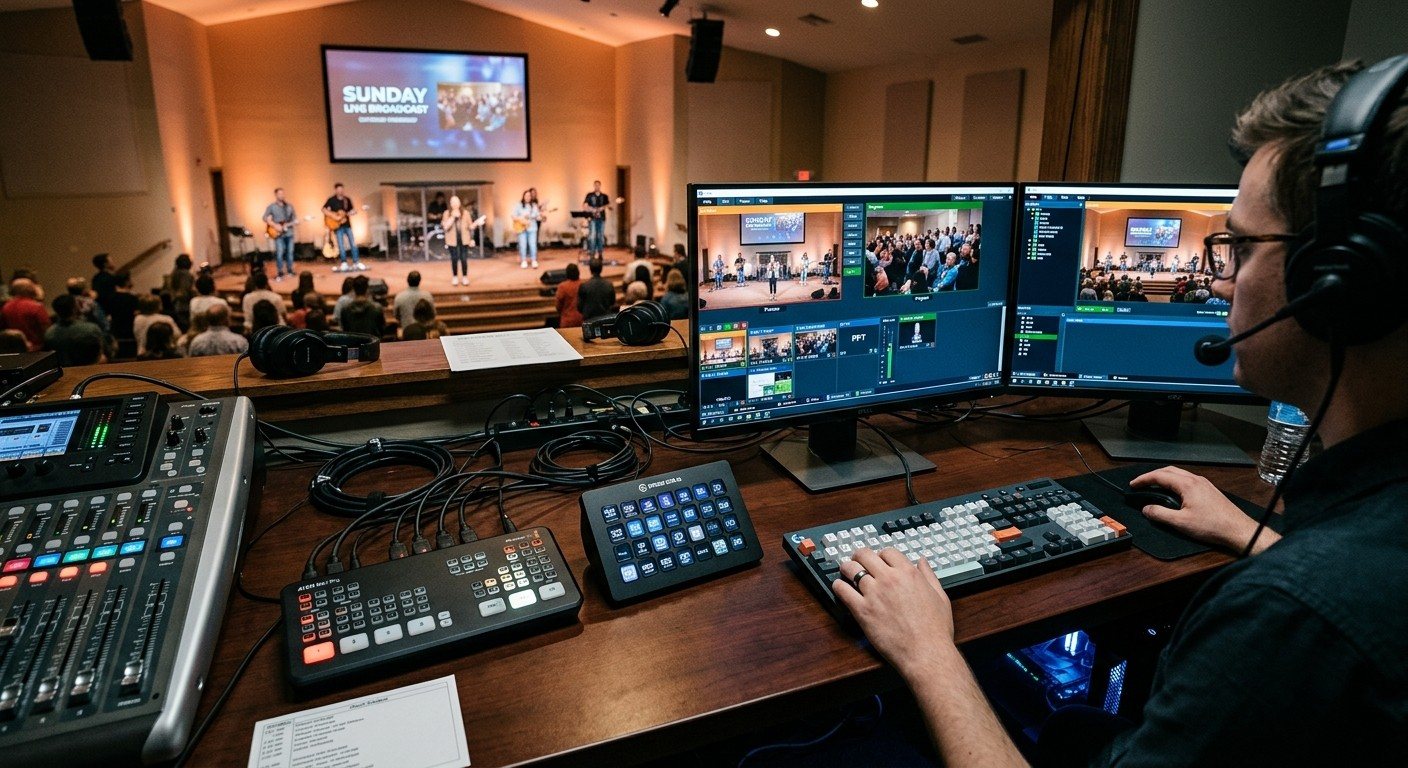
Bitfocus Companion + ATEM Mini: A Stream Deck Panel for Your Church Switcher
A Stream Deck running Bitfocus Companion turns a Blackmagic ATEM into plain-word buttons with colors that show what's live, and the same panel can run PTZ cameras, projectors, and more. Here's how to connect Companion to an ATEM and build a volunteer page.
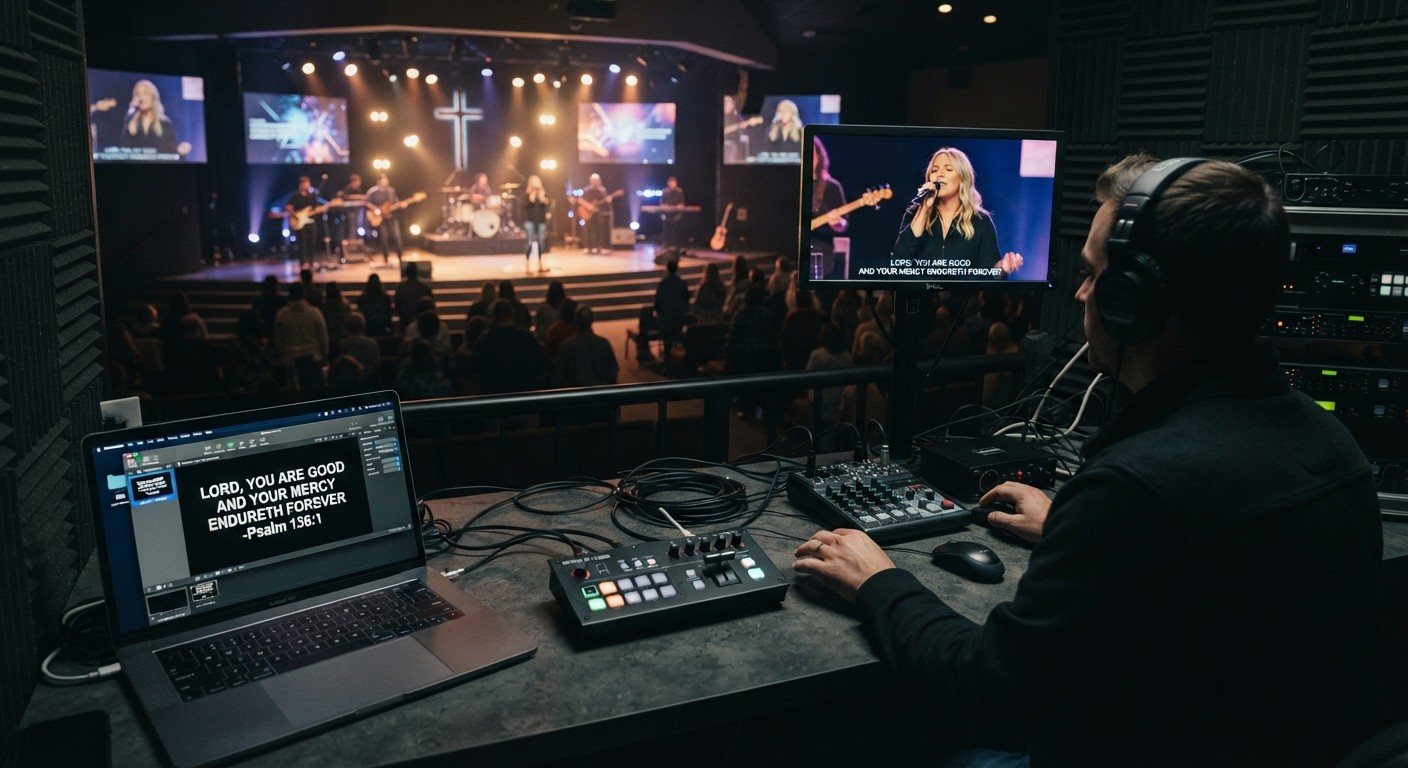
Lyrics Over the Camera on an ATEM Mini: Luma Keys, Chroma Keys, and the Slides Computer
To put song lyrics over the camera shot on a Blackmagic ATEM Mini, feed the slides computer into an ATEM input and key it over the camera. Here's how luma and chroma keys work for lyrics, how to design slides that key cleanly, and who should run it.
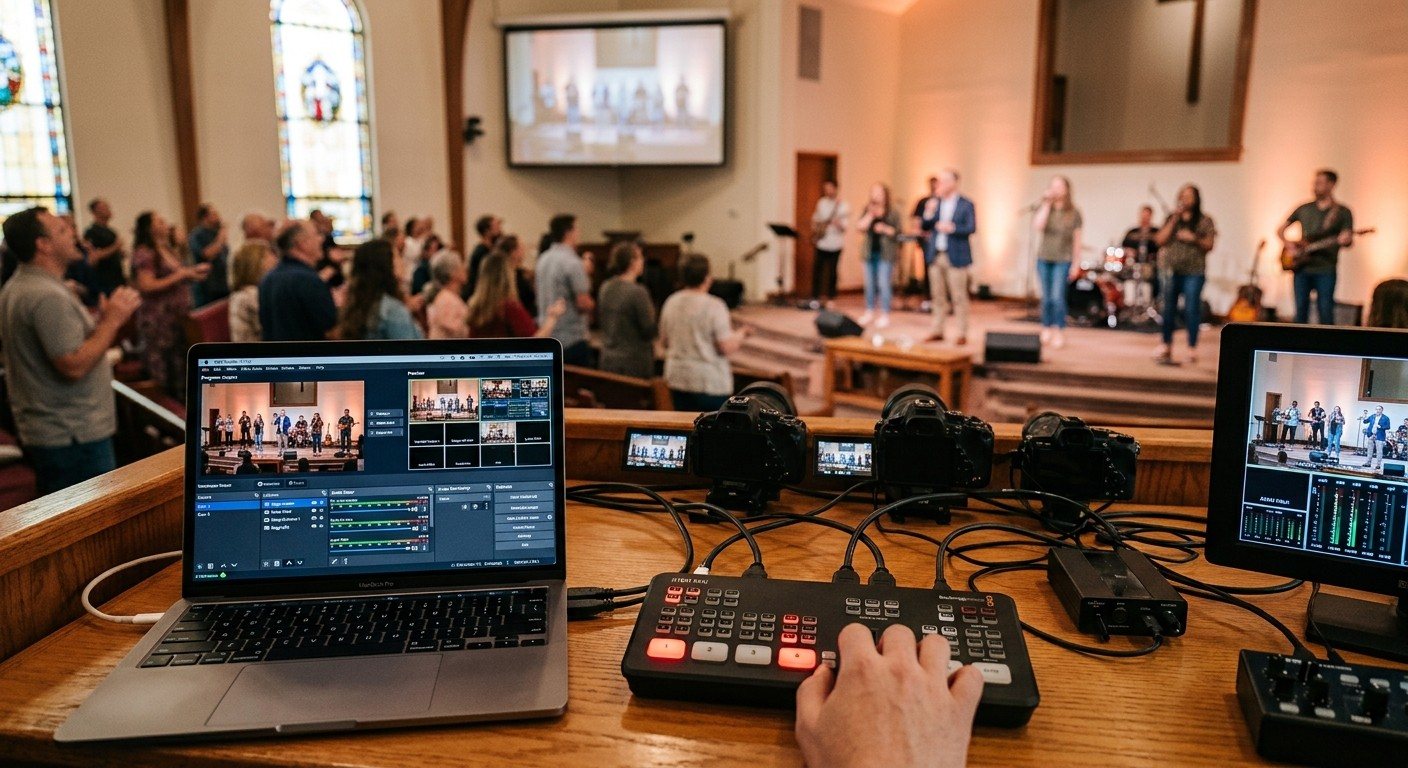
ATEM Mini + OBS for Church: Hardware Camera Switching with OBS for Graphics and Streaming
Many churches use an ATEM Mini as a camera switcher and send its output into OBS over USB as a webcam. The ATEM gives volunteers real buttons; OBS adds lyrics, graphics, recording, and streaming. Here's how to set it up, split the jobs, and avoid the common sync and quality problems.