Your IT person says your internet is “fast,” but you’re not sure if it’s fast enough for streaming. You’re worried about buffering, dropped frames, or the stream going offline mid-service. Let’s calculate your actual bandwidth needs and test your connection properly.
The Simple Answer: You Need Upload Speed, Not Download Speed
Most speed tests show download speed (fast). Streaming needs upload speed (slow on most connections):
- Download speed: How fast you download from the internet (usually 50–500 Mbps for home/small business)
- Upload speed: How fast you send to the internet (usually 5–20 Mbps)
- Streaming uses: Upload speed only
This is the key insight that surprises most people.
Calculate Your Streaming Bitrate Requirements
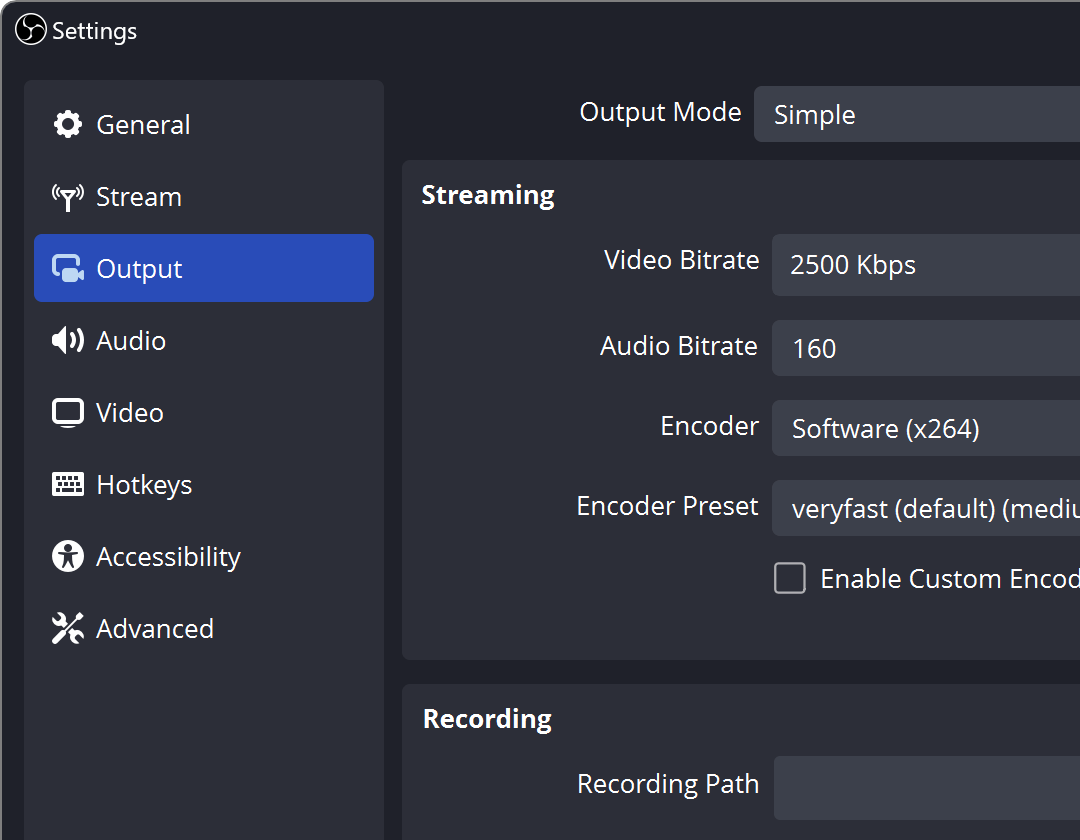
Different stream quality needs different bitrate (amount of data sent per second):
| Quality | Bitrate | Min Upload Speed |
|---|---|---|
| 480p 30fps | 1500 kbps | 2.2 Mbps |
| 720p 30fps | 2500 kbps | 3.75 Mbps |
| 720p 60fps | 4500 kbps | 6.75 Mbps |
| 1080p 30fps | 5000 kbps | 7.5 Mbps |
| 1080p 60fps | 8000 kbps | 12 Mbps |
Rule of thumb: Your actual upload speed should be 1.5x your streaming bitrate. So:
- To stream 720p safely, you need upload speed of at least 3.75 Mbps (1.5 × 2500 kbps)
- To stream 1080p safely, you need upload speed of at least 7.5 Mbps (1.5 × 5000 kbps)
The 1.5x headroom accounts for network variation and overhead.
Test Your Upload Speed Properly
Don’t just run a random speed test. Test during your service time, from your streaming PC:
Wrong way:
- Run speedtest.net on your phone while someone else is browsing the web
- Result: 50 Mbps down, 8 Mbps up — looks good!
- Problem: You didn’t measure what your streaming PC will actually see
Right way:
- On your streaming PC, close all other programs and browser tabs
- Have staff close any downloads, backups, or large file operations
- Go to speedtest.net in a browser
- Run the test
- Note the upload speed (e.g., 6.5 Mbps)
- Run it 2–3 times and take the average (network varies)
Now you have a realistic measure of what your streaming PC can use.
What Can Safely Use the Remaining Bandwidth?
If your upload is 10 Mbps and you need 5 Mbps for streaming (1080p):
Remaining: 5 Mbps for everything else.
What competes for this 5 Mbps during the service:
- Congregation Wi-Fi (staff browsing, phones, etc.)
- Security cameras uploading to the cloud
- Automatic backups (Windows updates, file syncs)
- Anyone else on the network
Strategy: Reserve bandwidth for streaming.
If streaming is critical, ensure it gets priority:
- Disable automatic updates during service (Windows, antivirus)
- Pause cloud backups during service
- Limit congregation Wi-Fi or tell staff not to download during the service
- Separate networks: If possible, put streaming on its own internet connection or wired connection isolated from Wi-Fi
For Multiple Simultaneous Streams
If you’re streaming to YouTube and Facebook at the same time:
- YouTube 1080p: 5000 kbps
- Facebook 1080p: 5000 kbps
- Total: 10,000 kbps = 10 Mbps
- Minimum upload needed: 15 Mbps (1.5 × 10 Mbps)
This is why many churches stream to one platform at a time, or use Restream (which only requires one upload stream that it redistributes).
What If Your Upload Is Too Low?
If you only have 3 Mbps upload but need 7.5 Mbps for 1080p:
Option 1: Lower the quality
- Stream 720p instead of 1080p (2500 kbps = 3.75 Mbps needed)
- Viewers can’t tell the difference on a phone anyway
Option 2: Lower the frame rate
- Stream 24fps instead of 30fps
- Slightly lower bandwidth, barely noticeable
Option 3: Upgrade your internet
- Contact your ISP and request a higher upload speed tier
- Business-class internet usually has better upload speeds
- May cost more but worth it if streaming is important
Option 4: Use Restream
- Stream once to Restream (one bitrate requirement)
- Restream handles sending to multiple platforms
- More reliable overall
Monitor Bandwidth During Service
Keep an eye on upload speed during the live stream:
- On a separate device (phone, tablet), run a speed test periodically during the service
- If upload drops below your required bitrate, your stream will suffer
- This helps you identify congestion times (e.g., “Every Sunday at 10:30am, someone starts a large download”)
Identifying patterns helps you troubleshoot and plan.
Bandwidth Load During Service
Realistic bandwidth usage during a 1-hour service:
| Activity | Upload Used |
|---|---|
| Streaming 1080p | 5 Mbps |
| Congregation Wi-Fi (light browsing) | 0.5 Mbps |
| Cloud backup/sync | 1 Mbps |
| Security cameras (if cloud-based) | 0.5 Mbps |
| Total | 7 Mbps |
If your total is 7 Mbps and you only have 8 Mbps upload, you’re at 87% capacity — any spike causes problems.
Better scenario: You have 12 Mbps upload for the same usage (60% capacity).
Business Internet vs Home Internet
Home internet (typical):
- Download: 100–300 Mbps
- Upload: 5–20 Mbps
- Stability: Good for most tasks, but can be throttled during peak hours
Business internet (better for streaming):
- Download: 50–300 Mbps
- Upload: 5–50 Mbps
- Stability: Consistent; less likely to be throttled
- Priority: Higher priority than residential customers
If streaming is central to your ministry, business internet is worth the extra cost (usually £30–60/month more).
Quick Bandwidth Checklist
Before your first stream:
- Measured upload speed during peak hours (when everyone is using the network)
- Calculated required bitrate for desired quality (use table above)
- Confirmed upload is 1.5x the bitrate needed
- Identified what other services compete for bandwidth
- Planned to pause non-essential services (updates, backups) during service
- Did a 30+ minute test stream to confirm stability
- Identified backup plan if bandwidth degrades (lower quality, pause Wi-Fi, etc.)
Streaming bandwidth reality:
- 720p: ~3.75 Mbps upload minimum
- 1080p: ~7.5 Mbps upload minimum
- Dual platform (1080p): ~15 Mbps upload minimum
- Always test from your streaming PC at service time, not from a phone
- Use speedtest.net multiple times to get an average