OBS won’t connect to Facebook Live. You’re getting “Connection Failed” or “Authentication Failed” errors, and the stream won’t start. This is usually a stream key issue, RTMP URL mismatch, or a permission problem. Let’s get Facebook Live working in minutes.
Step 1: Generate a Fresh Stream Key in Facebook
The most common fix is simply getting a new stream key:
- Go to facebook.com and log into your church’s account
- Click your profile picture (top right) and select Settings
- In the left menu, find Live Video or Broadcasting
- Look for your streaming setup (might be labeled “RTMP” or “Encoder”)
- Click Create New Stream or Get Stream Key
- Facebook will generate an RTMP URL and Stream Key
- Copy the entire RTMP URL and the Stream Key separately
You’ll use both in OBS.
Step 2: Configure OBS with Facebook’s RTMP Details
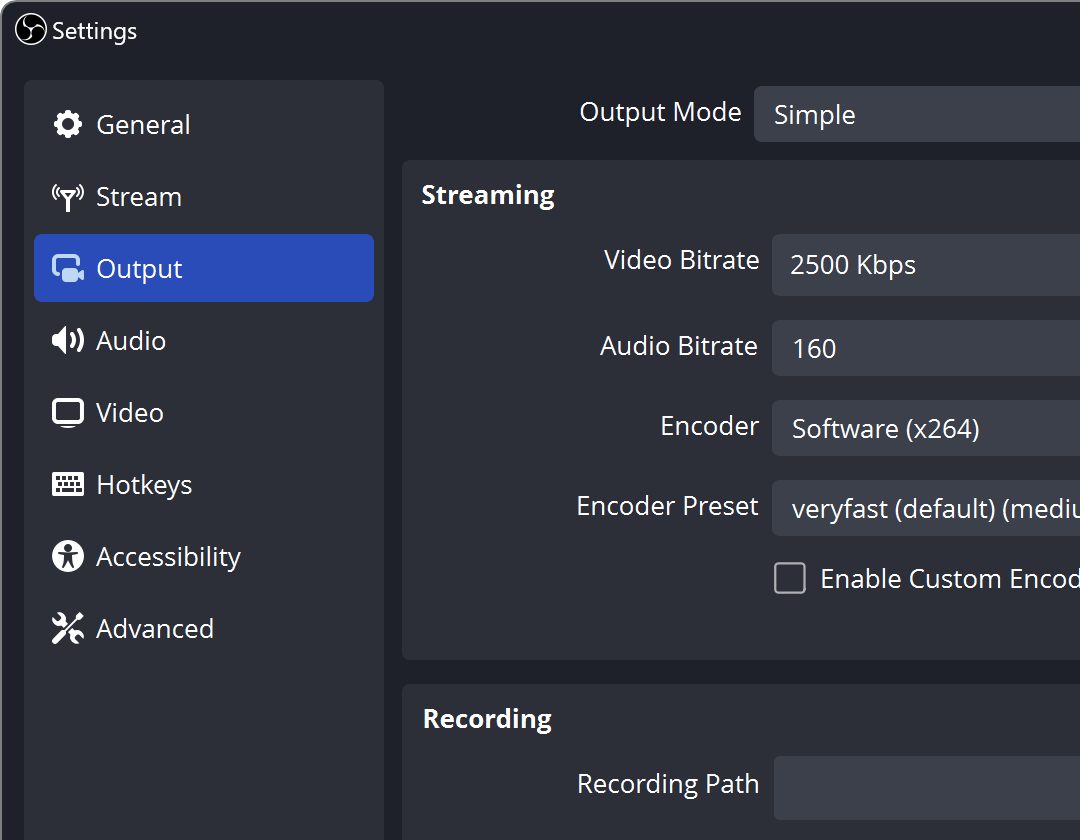
- In OBS, go Settings > Stream
- Set Service dropdown to Facebook Live (or Custom if Facebook isn’t listed)
- If using Facebook Live from dropdown:
- Paste the RTMP URL in the URL field
- Paste the Stream Key in the Stream Key field
- If using Custom, you need both in the right format:
- Server URL: (Facebook’s RTMP URL, e.g.,
rtmps://live-api-s.facebook.com:443/rtmp/) - Stream Key: (your unique key from Facebook)
- Server URL: (Facebook’s RTMP URL, e.g.,
- Click Apply and OK
Important: Make sure you’re using the RTMP URL from Facebook Studio, not a generic RTMP server. Facebook requires a specific endpoint.
Step 3: Verify You Have Permission to Stream
If you’re getting an “Authentication Failed” error:
- Verify your Facebook account has streaming permissions
- If you’re using a page (not a personal profile), make sure your account is an Admin or Editor of the page
- If you’re not the page owner, ask the owner to:
- Give you Admin or Editor role on the page
- Check if streaming is enabled for the page (some pages have restrictions)
You may need to authenticate OBS with Facebook:
- In OBS Stream settings, you may see an Authorize button
- Click it and log into Facebook when prompted
- OBS will generate a new stream key automatically
Step 4: Check Your Stream Key Format
Validate that your stream key is correct:
- Go back to Facebook Live settings
- Copy the Stream Key exactly — no extra spaces before or after
- In OBS, clear the Stream Key field and paste the new one
- Check that there are no hidden characters (sometimes copy-paste adds extra spaces)
Pro tip: To avoid hidden characters, type the stream key manually if it’s short, or use Notepad as a paste buffer (paste into Notepad, then copy from Notepad to OBS).
Step 5: Check Your RTMP URL
Verify the RTMP server address is correct:
- Facebook’s RTMP endpoint is typically:
rtmps://live-api-s.facebook.com:443/rtmp/ - Note the rtmps (not rtmp) — this is important, as it’s encrypted
- In OBS, if using Custom service, make sure the server URL starts with
rtmps:// - If you’re using the Facebook Live dropdown, OBS handles this automatically
Step 6: Disable Any VPN or Proxy
If you’re using a VPN or proxy:
- Temporarily disable the VPN during setup
- Some VPNs block RTMP connections
- Once the stream is working, you can try re-enabling the VPN
- If stream fails with VPN on, keep the VPN off during services
Step 7: Test the Connection Before Going Live
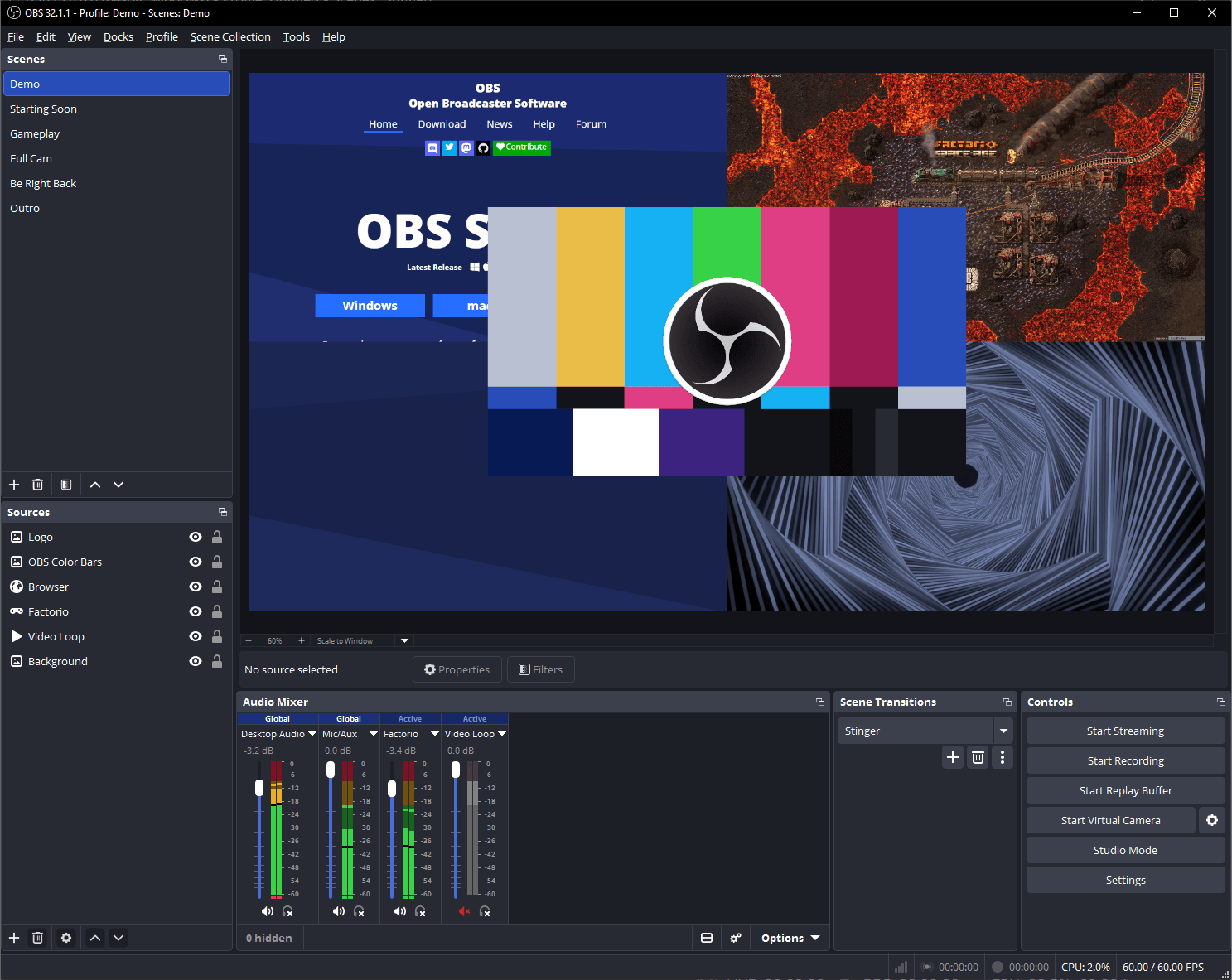
- In OBS, with Facebook settings configured, click Start Streaming
- OBS should show “Streaming” in the status bar within 10 seconds
- Go to Facebook and check if the stream is live
- If Facebook shows a live feed, you’re connected
- Stop the stream and test a few times to ensure stability
Don’t start streaming on Facebook yet — just verify the connection works.
Step 8: If Facebook Still Won’t Connect
Try these additional fixes:
Restart OBS:
- Close OBS completely
- Wait 10 seconds
- Reopen OBS
- Try connecting again
Regenerate the Stream Key:
- In Facebook, delete the current stream key
- Create a brand new stream key
- Copy it fresh and paste into OBS
- Try connecting
Check your internet connection:
- Open a browser and load facebook.com
- Can you see Facebook? If yes, internet is fine
- If no, you don’t have connectivity — fix that first
Use a different service (Restream):
- If Facebook continues failing, consider using Restream.io
- Restream acts as a go-between: you stream to Restream, and Restream streams to Facebook (and YouTube, and others)
- This is more stable for multi-platform streaming
Facebook’s 4-Hour Stream Key Expiry
Facebook stream keys expire after 4 hours of streaming. If you have long services or stream multiple times per day:
- Generate a fresh stream key before each streaming session
- Note the time you create the key
- If streaming for more than 4 hours, you’ll need to stop, generate a new key, and restart
This is a Facebook limitation, not an OBS issue.
Multistream Setup
If you want to stream to both YouTube and Facebook:
- Don’t use Facebook’s dropdown in OBS; use the Custom option
- In OBS, you can only have one service at a time
- Instead, use Restream.io as an intermediary:
- Stream from OBS to Restream
- Restream forwards to both Facebook and YouTube simultaneously
- This is more reliable than trying to manage multiple stream keys in OBS
Quick checklist:
- Generated fresh stream key from Facebook
- OBS service set to Facebook Live or Custom
- RTMP URL and Stream Key both pasted correctly
- No extra spaces in stream key
- RTMP URL uses rtmps:// (secure)
- Account has permission to stream to the page
- Test connection confirmed working
- Stream shows live on Facebook before starting service