OBS says “Stream Key Invalid” or your encoder shows “Key Rejected.” You’re 5 minutes before the service and can’t go live. This almost always means your stream key is wrong, expired, or has copy-paste errors. We’ll get you a valid key in under 2 minutes.
Immediately Regenerate Your Stream Key
The fastest fix is usually just getting a new stream key:
For YouTube:
- Go to YouTube Studio (youtube.com/studio)
- Click Create > Go Live (or Stream Settings if you’re in live mode)
- Look for RTMP Server URL and Stream Key
- Copy the Stream Key (the long alphanumeric string)
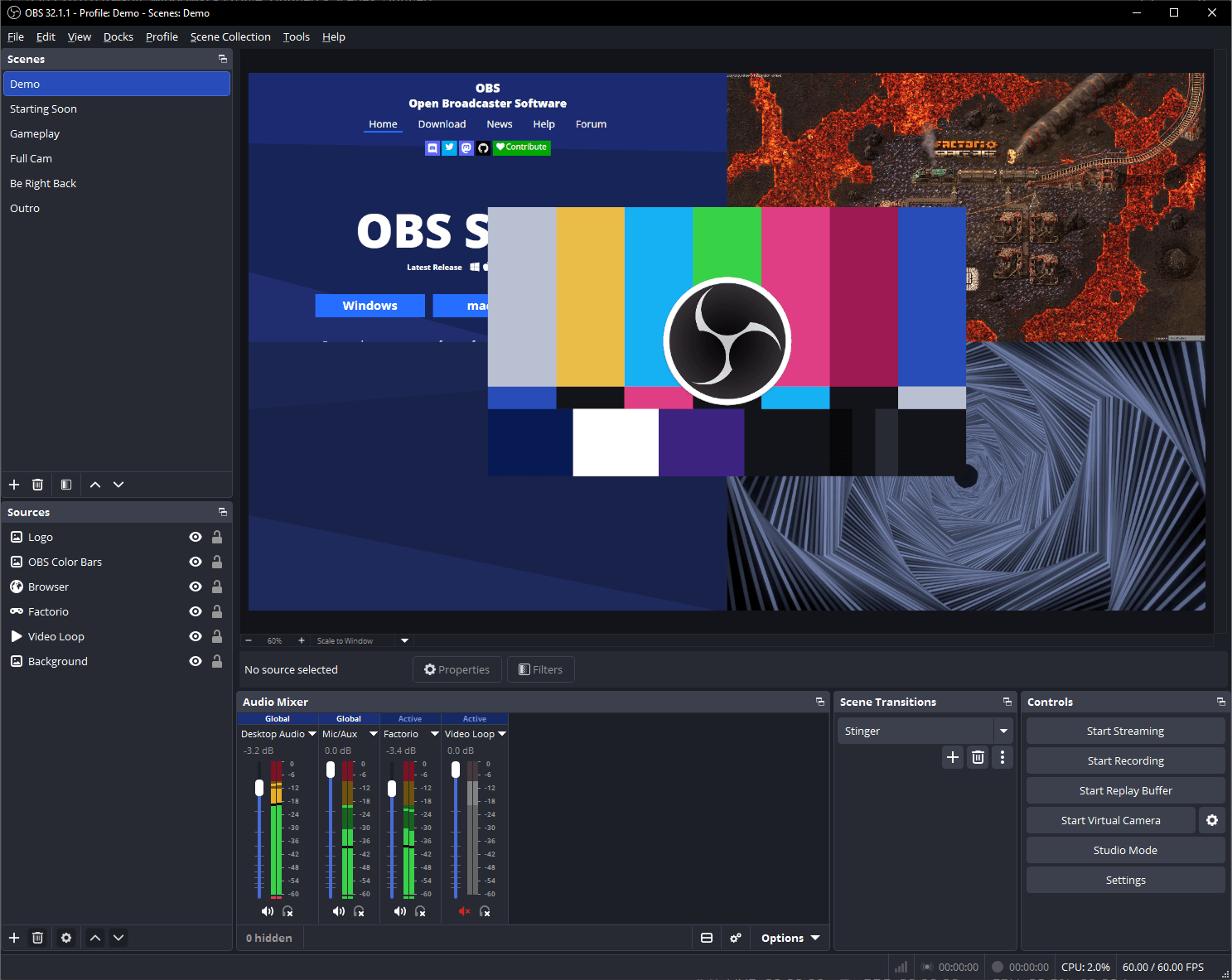
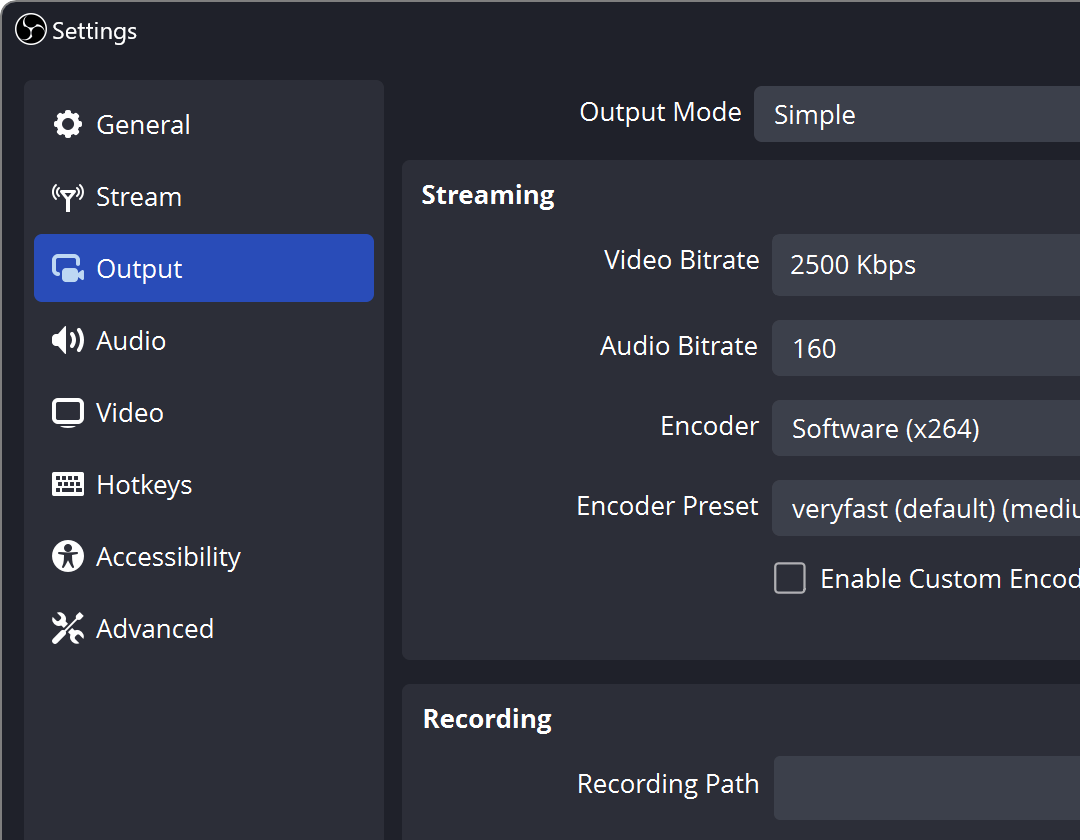
- Paste it into OBS: Settings > Stream > Stream Key
- Click Apply and try streaming
For Facebook:
- Go to Facebook.com and navigate to your page
- Click Settings > Video > Stream Keys (or Live Video)
- Click Create New Stream if the current key seems old
- Copy the Stream Key (and RTMP URL if needed)
- Paste into OBS: Settings > Stream
- Click Apply and try streaming
That’s often the entire fix.
Verify You’re Using the Complete Stream Key
Stream keys should be very long — usually 30–50 characters. If your key looks short, you may have copied wrong:
- Go back to YouTube Studio or Facebook
- Locate the Stream Key field again
- Click on it to select all the text
- Make absolutely sure you’re copying the entire key, not just part of it
- In OBS, delete your current key and paste the complete new one
Beware of copy-paste mistakes:
- Don’t include the label (“Stream Key: ”) — only the actual key
- Don’t add spaces before or after
- Don’t break it across lines
Check That You Have the Correct RTMP URL
Some setups require both the RTMP URL and the Stream Key separately:
For YouTube:
- RTMP URL:
rtmp://a.rtmp.youtube.com/live2/(or the RTMPS URL from YouTube Live Control Room) - Stream Key: (the long code)
- In OBS, set Service to YouTube (not Custom) — OBS handles the URL automatically
For Facebook:
- RTMP URL:
rtmps://live-api-s.facebook.com:443/rtmp/ - Stream Key: (your key)
- In OBS, set Service to Facebook Live or Custom
- If Custom, fill in both URL and Key
Don’t mix URLs: Make sure you’re using the correct RTMP endpoint for the platform you’re streaming to.
Copy-Paste Correctly: Use Notepad as a Buffer
Hidden characters from copy-paste are a common problem:
- Open Notepad (or any text editor)
- Go to YouTube/Facebook and copy your Stream Key
- Paste it into Notepad
- Select all the text in Notepad (Ctrl+A)
- Copy from Notepad (Ctrl+C)
- Paste into OBS (Ctrl+V)
Notepad strips out hidden formatting, so you get clean text.
Verify the Account That Owns the Stream
Sometimes the issue is authentication, not the key itself:
For YouTube:
- Make sure you’re logged into the account that owns the YouTube channel
- If you’re using a shared channel, verify the account has streaming enabled
- Go to YouTube.com/account, then Settings > Account > Channels, and verify you own or admin this channel
For Facebook:
- Make sure you’re logged into the Facebook page account
- If using a page (not personal profile), verify you’re an Admin of the page
- If not an admin, ask the page owner to make you one or regenerate the key for you
Check If Your Key Has Expired
YouTube and Facebook stream keys can expire:
YouTube stream keys expire:
- After the stream ends, the key is valid for the next stream
- Some stream keys expire if unused for 30+ days
- Generate a fresh key if it’s been a while since you last streamed
Facebook stream keys expire:
- After 4 hours of continuous streaming
- If you stream longer than 4 hours, generate a new key
- Stream keys also expire if the page is inactive for extended periods
If you haven’t streamed in weeks, generate a fresh key.
Try Connecting to Verify the Key Works
Before the service:
- Paste the new stream key into OBS
- Click Start Streaming
- Watch the OBS status bar — it should say “Streaming” within 10 seconds
- On the platform (YouTube/Facebook), check if your stream is live
- If yes, you’re good — stop the stream and you’re ready for the real service
- If no, continue troubleshooting below
If the Key Still Doesn’t Work
Try these last-resort fixes:
Restart OBS:
- Close OBS completely
- Wait 10 seconds
- Reopen OBS
- Paste the stream key again
- Try connecting
Delete and recreate from scratch:
- In OBS, go Settings > Stream
- Set Service back to None
- Click Apply
- Go back to Settings > Stream
- Set Service to YouTube or Facebook again
- Paste the fresh key
- Try streaming
Check your internet:
- Open a web browser
- Go to youtube.com or facebook.com
- Can you see the page? If not, your internet is down — fix that first
- If internet works but streaming still fails, it’s a key or account issue
Use a different browser/device to get the key:
- Sometimes cached credentials cause issues
- Open an Incognito or Private browser window
- Log into YouTube/Facebook fresh
- Generate a brand new stream key
- Copy it into OBS
Document Your Stream Key
Once you get a working key, write it down and save it:
- Create a text file called “StreamKeys.txt”
- Write:
YouTube Key: [your key]andFacebook Key: [your key] - Save it in a safe place (church shared drive, password manager)
- Before each stream, you can quickly paste the key if needed
This saves time if you ever need to troubleshoot again.
Recovery checklist:
- Regenerated fresh stream key from platform
- Copied entire stream key (no partial copy)
- Verified account is logged in and authorized
- Pasted key into correct OBS field
- RTMP URL matches platform (rtmps:// for Facebook; YouTube takes rtmp:// or its own rtmps:// URL)
- Test connection confirmed working
- Key documented for future reference