You’ve connected your mixer to the PC with USB, but Windows and OBS don’t see it as an audio device. The mixer is powered on, the USB cable is connected, but nothing shows up. This is almost always a driver issue or a cable problem. Let’s get the mixer recognized in minutes.
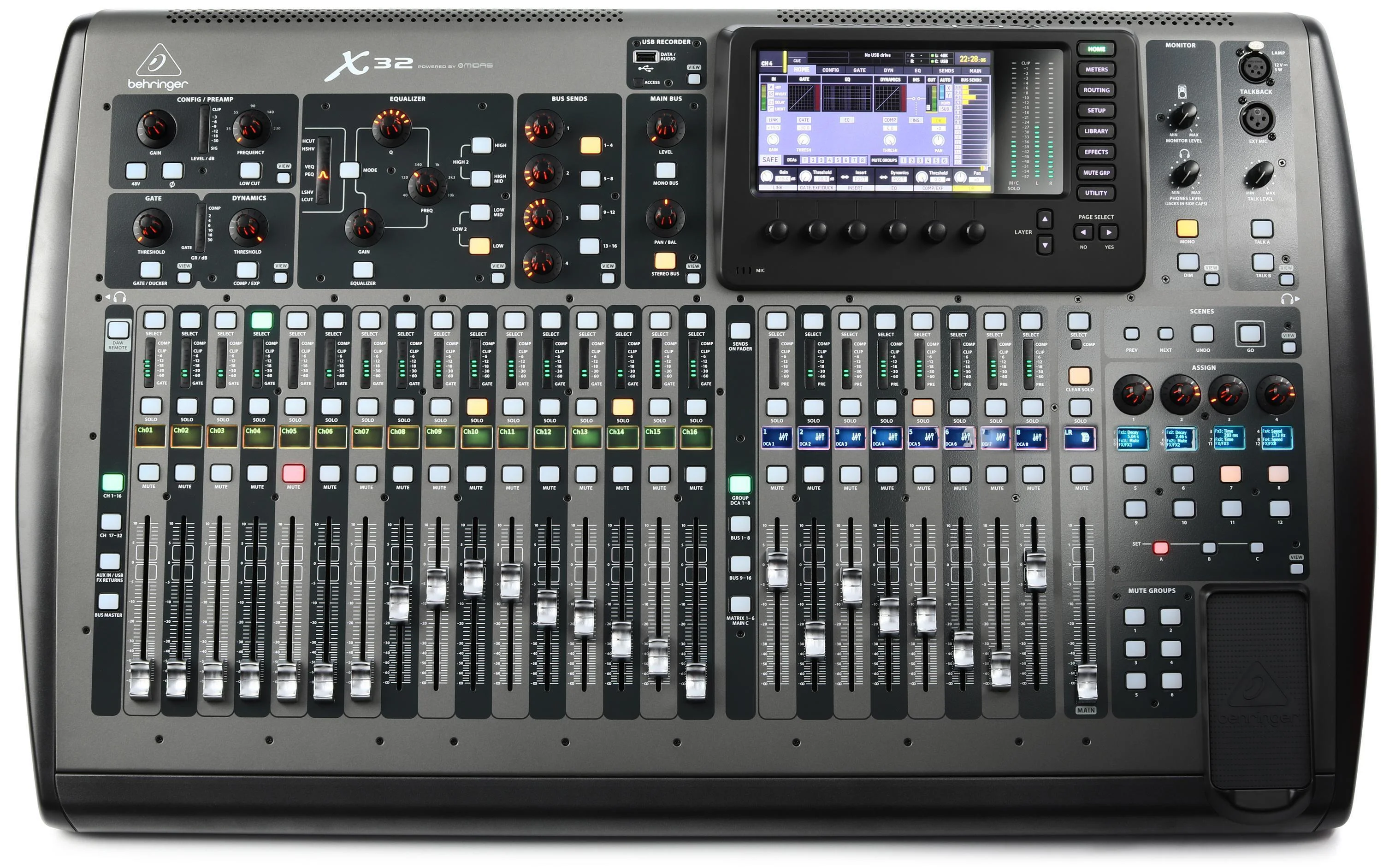
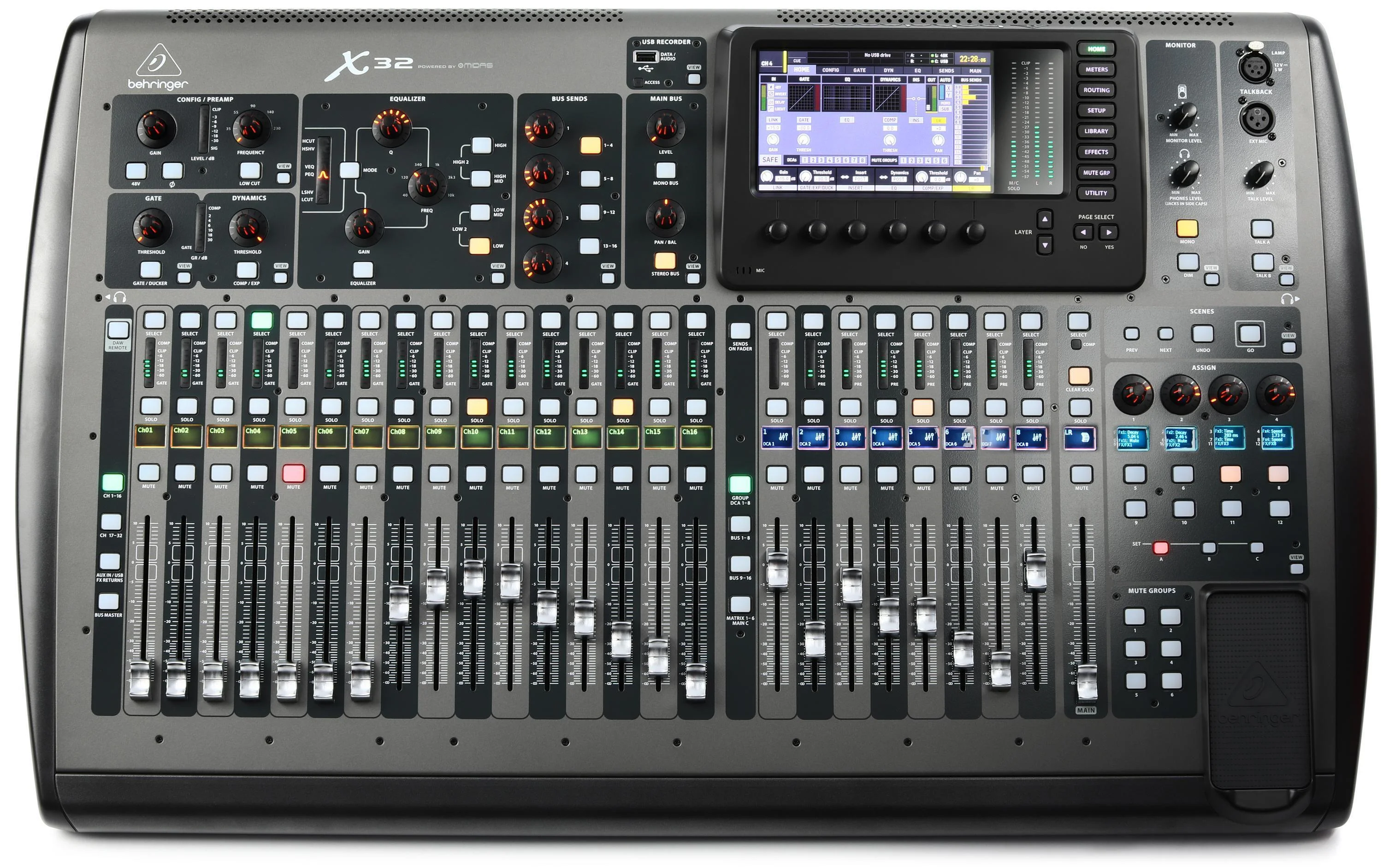
Check the USB Cable Type
The most common mistake is using the wrong USB cable:
- Look at the mixer’s USB port: Is it a USB-B port (square, slightly wider than USB-A)?
- If USB-B, you need a USB-A to USB-B cable — not a USB-A to USB-A cable
- Unplug the current cable and inspect it: look at the end going into the mixer
- If it’s a standard rectangular USB-A plug, replace it with a USB-B cable
- Connect the proper cable and proceed
USB-B cables are standard for audio equipment but are different from the cables used for printers and other devices. If you don’t have one, borrow one from another device or pick one up cheaply.
Install or Update the Mixer’s USB Driver
Most mixers require a driver to be recognized by Windows:
- Visit the manufacturer’s support website:
- Behringer X32/XR18: www.behringer.com/support
- Yamaha TF1: www.yamaha.com/support
- Allen & Heath SQ-5: www.allen-heath.com/support
- Download the USB Driver for your mixer and Windows version (32-bit or 64-bit)
- Disconnect the mixer from USB temporarily
- Install the driver and restart your PC
- Reconnect the mixer via USB
- Check Settings > Sound > Volume mixer in Windows — the mixer should now appear in the device list
If you can’t find the driver, contact the manufacturer’s support or check the mixer’s manual for the download link.
Verify Windows Can See the Mixer
- Go to Settings > Sound (Windows 10/11)
- Scroll down to Advanced > Volume mixer
- Look for your mixer in the list (it might be labeled by the brand name)
- If the mixer appears here, Windows recognizes it — skip to step 5
- If it doesn’t appear, the driver isn’t installed correctly — reinstall it (step above)
Check Device Manager for Driver Issues
If Windows sees the mixer but it’s not working:
- Right-click the Start button and select Device Manager
- Look for Sound, video and game controllers section
- Expand it and look for your mixer
- If there’s a yellow warning icon, right-click it and select Update driver
- Choose Search automatically for updated driver software
- Windows will search for the latest driver online
- Restart the PC if prompted
Select the Mixer as the Default Audio Input in Windows
- Go to Settings > Sound > Advanced > Volume mixer
- Find your mixer in the list
- Right-click on it and select Set as default device
- This makes Windows use the mixer’s audio input by default
Configure the Mixer’s USB Output
Some mixers (especially X32/XR18) have settings to determine what audio goes out via USB:
- Access the mixer’s menu or web interface
- Look for USB Settings or Card Sends (exact name varies)
- Verify the USB output is set to send the Main Mix or Master Output
- Some mixers have separate USB send knobs — make sure they’re not at zero
- Test: play audio through the mixer and check if Windows audio levels react
Consult your mixer’s manual for exact menu paths — each brand is different.
Verify OBS Can See the Mixer
Once Windows recognizes the mixer:
- Open OBS
- Go to Settings > Audio
- Under Microphone, click the dropdown
- Look for your mixer in the list
- Select it
- Click Apply and OK
If the mixer doesn’t appear in OBS’s dropdown, it may not be fully recognized by Windows yet. Restart OBS and try again.
Test the Connection
Before the service:
- Play audio through the mixer (talk into a mic, or stream audio through a channel)
- In OBS, go to the Audio Mixer panel at the bottom
- Watch the levels — do the meters react to the audio from your mixer?
- If yes, the connection is working
- If no, restart both the mixer and OBS, then test again
Troubleshoot Persistent Connection Issues
If the mixer is still not appearing:
- Try a different USB port on the PC (some ports are USB 2.0 vs 3.0; try a 2.0 port)
- Use a powered USB hub instead of plugging directly into the PC (some mixers need more power than the PC can provide)
- Uninstall and reinstall the driver: Go to Device Manager, right-click the mixer, select Uninstall device, then restart the PC and let Windows reinstall it automatically
- Check for firmware updates for your mixer (some firmware versions have USB driver issues)
Quick checklist:
- Using USB-B cable (not USB-A to USB-A)
- Driver installed and up to date
- Mixer appears in Windows Sound settings
- Mixer set as default audio device
- OBS can see the mixer in Audio settings
- Audio levels react in OBS when mixer plays audio