Viewers are watching the pastor’s lips move a half-second before the audio comes out. Or the opposite — the audio arrives first, then the video catches up. Lip sync is broken and it’s distracting. Good news: this is almost always fixable by adjusting sync offsets in your encoder. The issue is usually in how OBS or your ATEM is buffering and combining the video and audio streams.
Identify Which Direction It’s Off
First, determine if the video is ahead of audio (audio lags) or behind audio (audio leads):
- Watch the live stream (or better, have someone on the viewing end report it)
- Does the pastor’s mouth open before you hear the word (video leads, audio lags)?
- Or does the audio come first, then the mouth moves (audio leads, video lags)?
- Jot down which direction and roughly how much delay (0.5 second, 1 second, 2 seconds)
The fix depends on the direction.
Fix in OBS: Audio Sync Offset
If you’re using OBS to combine video and audio sources:
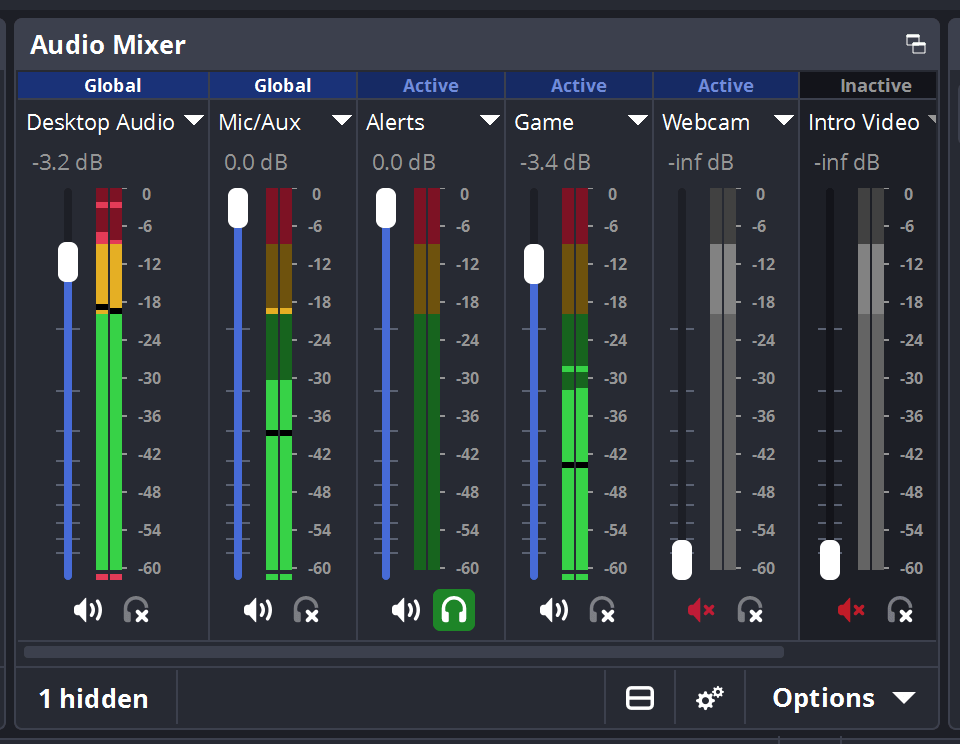
- Click on your audio source (mixer, USB interface, or mic input) in the Sources panel
- Right-click and select Filters
- Click the + button and add a Audio Delay filter
- Set the delay value:
- If audio lags (video leads): increase the audio delay by adding milliseconds (e.g., +500ms to delay audio by half a second)
- If audio leads (video lags): set the delay to negative (e.g., -500ms to advance the audio)
- Test the stream and adjust in small 50–100ms increments until sync is perfect
- Once aligned, save your OBS scene and test it a few times to ensure it’s stable
Pro tip: Most sync issues are in the 100–300ms range. Start there and fine-tune.
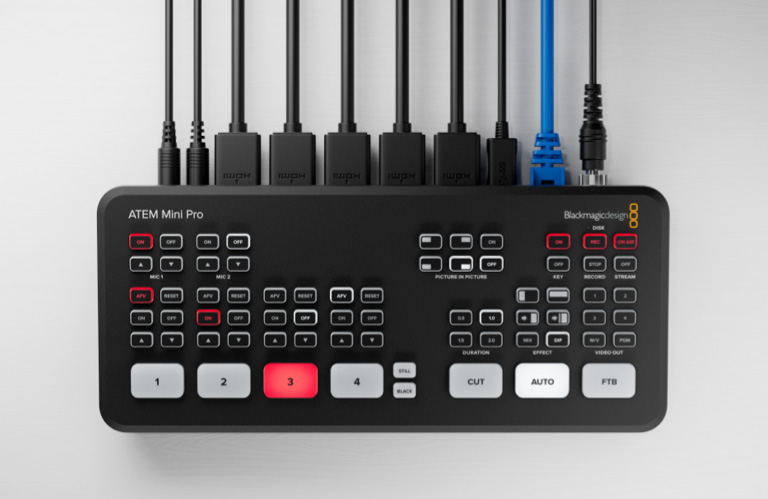
Fix in ATEM Mini: Audio Delay Compensation
If you’re using an ATEM Mini or other Blackmagic switcher:
- Open ATEM Software Control on your PC
- Go to Audio Mixer tab
- Look for the Audio Delay or Sync Offset setting (location varies by ATEM model)
- Adjust the delay value in the same way:
- If audio lags, increase the audio delay
- If audio leads, decrease the delay (use negative values if available)
- Test the stream and fine-tune in 50ms increments
- Save your project
Check your ATEM model’s manual if you can’t find the exact setting — it might be labeled differently.
Check Your Hardware Encoder Buffer
If you’re using a standalone hardware encoder (Magewell, Teradek, etc.):
- Access the encoder’s web interface
- Look for Buffer, Latency, or Delay settings
- Lower buffers = less latency but more prone to stuttering
- Higher buffers = more latency but more stable
- If video is lagging, try reducing the buffer slightly
- If you increased the buffer recently, reduce it back
- Test and save your settings
Encoders vary widely — check your specific model’s manual for exact menu paths.
Verify Your Audio Capture Method
Different audio input methods can introduce varying amounts of delay:
- USB mixer directly into PC: typically low delay (0–100ms)
- USB audio interface: typically low delay (50–150ms)
- Analog line-in with USB sound card: can have higher delay (100–300ms)
- Bluetooth speaker output: typically high delay (200–500ms)
If you’re using Bluetooth audio, that’s a common culprit. Switch to a wired USB or line-in connection if possible.
Resync Video and Audio Sources
If you’re pulling video and audio from different places:
- Verify they’re both coming from the same device when possible (e.g., audio from mixer’s USB output, video from the same mixer’s NDI output)
- If video comes from a camera and audio from a mixer, they may have inherent delays from different processing times
- Use OBS’s audio sync offset (step 1 above) to compensate for this inherent difference
- Once you find the right offset, always use those same sources together so sync stays consistent
Test Sync Before Going Live
Before the Sunday service:
- Do a test stream to YouTube or Facebook (private/unlisted, not public)
- Have someone on the viewing end watch on their phone or computer
- Watch yourself in the camera — do your lips match your words on the viewer’s end?
- If not synced, stop the test stream, adjust the sync offset, and test again
- Once it’s perfect, do a full 5–10 minute test to make sure sync stays stable
Don’t try to adjust sync live during the service — make it perfect beforehand.
Power Cycle Everything if Sync Drifts During Service
If sync starts correct but gradually drifts during the service (audio gets later over time), it’s usually a buffer overflow issue:
- Stop the stream
- Close OBS or your encoder software
- Power off the streaming PC for 30 seconds
- Restart the PC
- Reopen OBS/encoder and resume streaming
This clears any buffer buildup that caused the drift.
Quick checklist:
- Identified if audio lags or leads
- Applied sync offset in OBS or ATEM (in correct direction)
- Tested with a private test stream first
- Verified sync stays stable for 10+ minutes