You’ve set up OBS with your YouTube or Twitch stream key, hit “Start Streaming,” and immediately get “Connection Failed.” You’re moments away from the service and can’t go live. This is usually a stream key problem or OBS/platform mismatch. Let’s fix it in 60 seconds.
Step 1: Verify Your Stream Key Is Fresh and Correct
The most common cause is an invalid or expired stream key:
For YouTube:
- Go to YouTube Studio (youtube.com/studio)
- Click Create > Go Live (or find your scheduled stream)
- Copy the Stream Key (the long alphanumeric code)
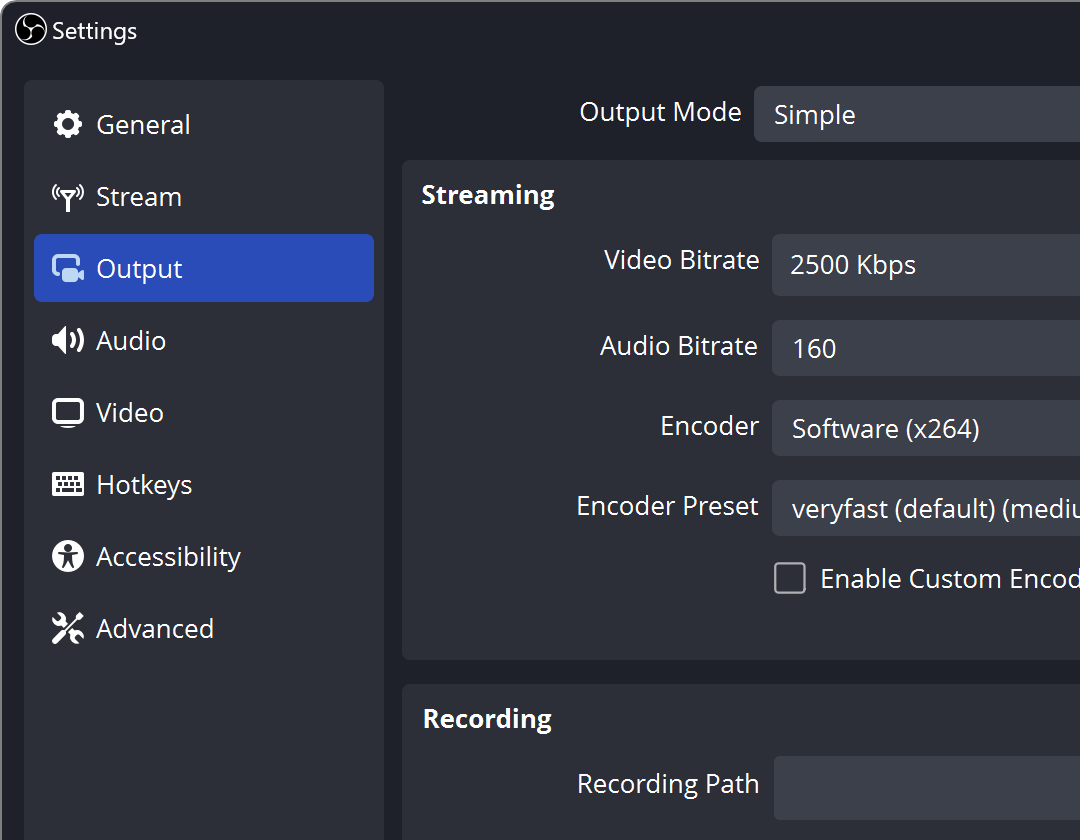
- In OBS, go Settings > Stream
- Paste the key into Stream Key field
- Check: is it a very long string (30+ characters)? If short, you copied wrong
For Twitch:
- Go to Twitch.tv and log in
- Click your profile > Creator Dashboard
- Click Settings > Stream Key
- Copy the key
- In OBS, set Service to Twitch (OBS auto-selects the RTMP server)
- Paste the key into Stream Key
If the key was old or partially copied, that’s your problem. Use a fresh key now.
Step 2: Clear Hidden Characters from Copy-Paste
Sometimes invisible spaces sneak in when copying:
- In OBS, clear the Stream Key field completely
- Open Notepad
- Go back to YouTube Studio or Twitch and copy the stream key
- Paste into Notepad
- Copy from Notepad
- Paste into OBS’s Stream Key field
- Try streaming
Notepad removes hidden formatting and spaces.
Step 3: Verify OBS Is Set to the Right Service
OBS needs to know which platform you’re using:
In OBS, go Settings > Stream:
- Check the Service dropdown
- Is it set to YouTube (for YouTube) or Twitch (for Twitch)?
- If wrong, change it to the correct service
- The RTMP URL and port should auto-populate when you select a service
- Click Apply and try streaming again
If you’re using Custom RTMP settings instead of the dropdown, verify:
- RTMP URL matches the platform (YouTube:
rtmp://a.rtmp.youtube.com/live2/, or the RTMPS URL from YouTube Live Control Room, which hasrtmpsin the server name and uses port 443) - Port is correct (typically 1935 or 443)
Step 4: Test Your Internet Connection
OBS can’t connect if your internet is down:
- Open a web browser and load google.com or youtube.com
- Does the page load? If not, your internet is down — fix that first
- If internet works, continue to step 5
Step 5: Disable Firewall (Test Only)
Firewall may be blocking RTMP:
- Temporarily disable Windows Defender Firewall (Settings > Privacy & Security > Windows Security > Firewall & network protection)
- Try streaming from OBS again
- Did it work? If yes, firewall was blocking it:
- Re-enable firewall
- Whitelist OBS Studio in firewall exceptions
- Or whitelist RTMP port (typically 1935 or 443)
- If still doesn’t work with firewall off, it’s not a firewall issue
Step 6: Try the Fallback RTMP Server
Some platforms have multiple RTMP servers. Try a different one:
YouTube fallback servers:
- Primary:
rtmp://a.rtmp.youtube.com/live2/ - Secondary: the Backup server URL shown in YouTube Live Control Room
Twitch fallback servers:
- Primary:
rtmps://live.twitch.tv/app/ - Check Twitch’s server list if neither works
- In OBS, if you’re using Custom service, try the secondary RTMP server
- Keep your stream key the same
- Try streaming
Step 7: Regenerate Your Stream Key
If the stream key was correct but OBS still won’t connect:
- Go to YouTube Studio or Twitch settings
- Delete or invalidate the current stream key
- Create a new stream key
- Copy the new key
- Paste into OBS
- Try streaming
Old stream keys can sometimes stop working. A fresh key often fixes it.
Step 8: Restart OBS
Sometimes OBS gets stuck:
- Close OBS completely
- Wait 10 seconds
- Reopen OBS
- Verify settings (service, stream key) are still set correctly
- Try streaming
Step 9: Check OBS Log for Specific Error
OBS shows detailed errors in its log:
- In OBS, go Help > Log Files > View Current Log
- Look for error messages (usually at the bottom)
- Common errors:
- “Invalid stream key” → key is wrong
- “Connection refused” → firewall or RTMP server down
- “Timeout” → internet latency or firewall
- If you see a specific error, it narrows down the problem
Step 10: Test with a Minimal Scene
Complex scenes can sometimes cause connection issues:
- Create a new, simple scene in OBS with just one video source
- Try streaming with that minimal scene
- If it works, add sources back one by one to find the culprit
(This is rare, but worth trying if nothing else works.)
OBS streaming connection checklist:
- Stream key is fresh (regenerated from platform)
- Stream key is complete and correct (30+ characters)
- No hidden spaces in stream key (test with Notepad buffer)
- OBS Service set to correct platform (YouTube or Twitch)
- Internet connection is working
- Firewall not blocking RTMP (tested with firewall off)
- OBS restarted after any settings changes
- Test with one-button go-live attempt (no complex setup)