Bitrate and resolution are the primary settings controlling stream quality, but they’re often misunderstood. Many church AV volunteers set them incorrectly, resulting in pixelated video, constant buffering, or streams that drop mid-service. This guide explains the relationship between these settings and your internet speed, then gives you specific recommendations for church streams.
Understanding Bitrate and Resolution
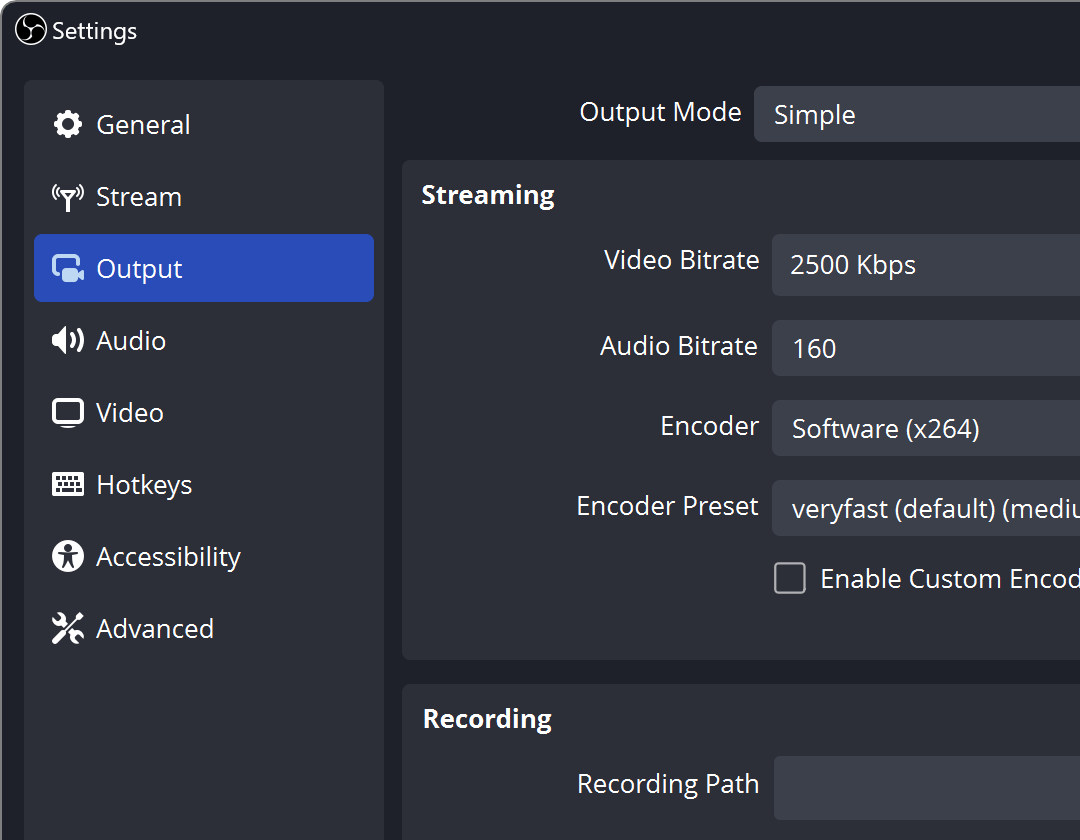
Resolution is the pixel dimensions of your video: 1280×720 (720p) or 1920×1080 (1080p). Higher resolution shows more detail but requires more data. Bitrate is the amount of data per second your encoder sends: measured in kilobits per second (Kbps) or megabits per second (Mbps). A 2,500 Kbps stream means 2.5 Megabits per second. Higher bitrate means more data, which means less compression, which means clearer video—but it also requires faster internet.
Think of bitrate as the highway bandwidth and resolution as how many lanes you’re using. 1080p at 2,500 Kbps is trying to send a lot of detail through a narrow pipe. The result is visible compression artifacts—video looks soft or slightly pixelated. 720p at 2,500 Kbps has more room, so each pixel gets more bits, resulting in sharper video.
The key constraint is your upload internet speed. If your church has 5 Mbps upload, you can’t send a 4 Mbps stream—you’d saturate your connection and packets would drop. A safe rule: your bitrate should be 60–80% of your upload speed. For 5 Mbps upload, use 2,500–3,500 Kbps bitrate. For 10 Mbps upload, use 5,000–7,000 Kbps.
Church-Specific Recommendation: 720p at 2,500 Kbps
For most churches, 720p at 2,500 Kbps is the sweet spot. It works on 5 Mbps upload (which is typical for cable internet), looks professional on YouTube and Facebook, and doesn’t strain equipment. The video is sharp enough that viewers can read sermon notes, see worship team expressions, and follow graphics. It’s what professional streamers used for years before 1080p became common.
To set this in OBS, go to Settings → Video. Set Base (Canvas) Resolution to 1280×720. Set Output (Scaled) Resolution to 1280×720 (if it’s different, OBS will downscale your sources, wasting processing power). Set FPS to 30. Then go to Settings → Output, set Bitrate to 2,500 Kbps, and enable VBR (Variable Bitrate) or set CBR (Constant Bitrate) depending on your internet stability.
Why 30 FPS instead of 60? Church streams don’t need high frame rate. You’re not streaming fast-action sports. 30 FPS is the standard for broadcasts, looks smooth to viewers, and uses half the bitrate of 60 FPS. If your worship team performs choreography or dance, 60 FPS makes movement clearer, but it requires 4,000+ Kbps bitrate to maintain quality. Most churches choose 30 FPS.
When 1080p Makes Sense
If your church has 10+ Mbps upload speed and a newer PC (i7 or Ryzen 7 with 16GB RAM), 1080p is achievable. Use 1920×1080 resolution with 4,500–5,500 Kbps bitrate at 30 FPS. This looks noticeably sharper, especially on larger monitors or projected screens in lobbies. However, it requires more processing power and bandwidth than 720p. If your encoder regularly hits 50%+ CPU usage, stick with 720p.
1080p at 60 FPS requires 7,000–8,000 Kbps and is overkill for church productions. Most churches don’t have the upload speed or processing power to maintain this reliably. Professional church productions (large megachurches with dedicated broadcast teams) sometimes use 1080p60, but it’s not necessary for volunteer-driven streaming.
Platform Preferences: YouTube vs Facebook
YouTube favors bitrate consistency. If you set 2,500 Kbps, YouTube expects 2,500 Kbps throughout your stream. Fluctuation (3,000 Kbps one second, 2,000 the next) causes YouTube to compress video quality adaptively. For this reason, use CBR (Constant Bitrate) when streaming to YouTube. CBR maintains exact bitrate regardless of scene complexity.
Facebook is more forgiving of bitrate variation. Facebook users often watch on mobile devices with variable connection speeds, so Facebook’s infrastructure handles bitrate fluctuation better. VBR (Variable Bitrate) is fine for Facebook. If you’re multistreaming to both platforms, use CBR to satisfy YouTube’s stricter requirements.
Testing Your Bitrate Settings
Before your first Sunday service, do a bitrate test. Set your chosen bitrate (2,500 Kbps for 720p) and stream for 15 minutes. Monitor OBS’s stats panel (View → Stats) and watch for dropped frames. If dropped frames are zero, your settings work. If dropped frames are non-zero, reduce bitrate by 500 Kbps and test again.
Also test from a viewer’s perspective. Open YouTube (or Facebook) in a web browser on a different device or different internet connection and watch your stream. Does it play smoothly, or does it frequently pause to buffer? If it buffers, your bitrate is too high for your upload speed. Again, reduce by 500 Kbps and test.
Ask your internet provider about your actual upload speed during peak hours. Internet speeds fluctuate. You might have 5 Mbps upload at 8 AM, but only 3 Mbps at 10 AM (Sunday morning time for most churches). If you set bitrate to 2,500 Kbps and your peak-hour upload drops to 2.8 Mbps, you’ll see dropped frames. Choose a bitrate that works even when upload speed is lower than advertised.
Codec and Encoding
The codec (encoder) is the algorithm that compresses video. OBS defaults to x264, a software encoder that works on any PC. It produces good quality but uses significant CPU power. Modern CPUs have built-in hardware encoders: NVIDIA cards have NVENC, AMD cards have VCE. These hardware encoders use less CPU but produce slightly lower quality at the same bitrate.
For churches, the difference is negligible. Use whatever encoder gives you headroom: if x264 drives your CPU to 60%, switch to hardware encoding to free up processing power. Your viewers won’t see a quality difference. If you’re editing graphics or running other applications alongside OBS, hardware encoding is essential.
Common Mistakes
Never set bitrate higher than your upload speed can sustain. If you have 5 Mbps upload and set OBS to 5,000 Kbps, you’re using your entire connection and have no margin for network variation. A momentary drop in connection causes dropped frames and buffering. Always leave 20–30% headroom.
Don’t mix resolution settings. If you set Base Resolution to 1920×1080 but Output Resolution to 1280×720, OBS captures sources at 1080p then downscales to 720p before encoding. This wastes your CPU. Set them identically.
Don’t assume your internet speed is what your provider advertises. Ask your provider for your actual average upload speed, then test it. Download the Speedtest app and run it at your service time. This real-world number is what you use to calculate safe bitrate.
Getting bitrate right is foundational to reliable streaming. Spend an hour testing before your first Sunday, then monitor dropped frames during your first month of services. Once you find the sweet spot for your internet and equipment, you rarely need to adjust.