OBS is open and ready to go, but the preview window is completely black. No camera feed, no presentation, nothing. You have minutes before the service and OBS isn’t showing anything. This is usually a capture mode mismatch or graphics driver issue. Let’s get your video back in seconds.
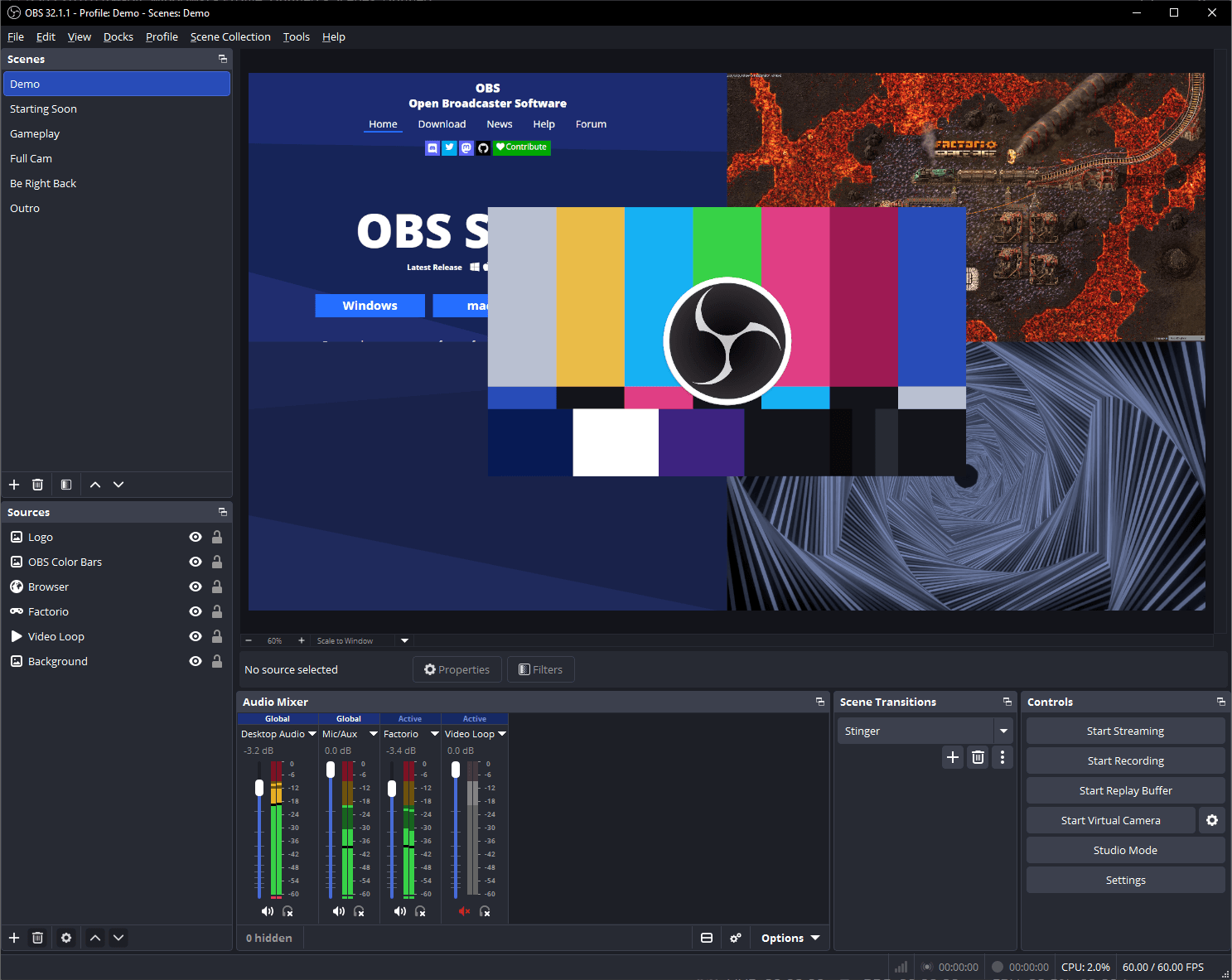
Step 1: Run OBS as Administrator
The most common fix is simply running OBS with admin privileges:
- Right-click the OBS icon on your desktop or in your Start menu
- Select Run as Administrator
- Click Yes when Windows asks for permission
- OBS will relaunch
- Check the preview — does it show video now?
This fixes black screen issues in about 40% of cases, especially for display capture and window capture.
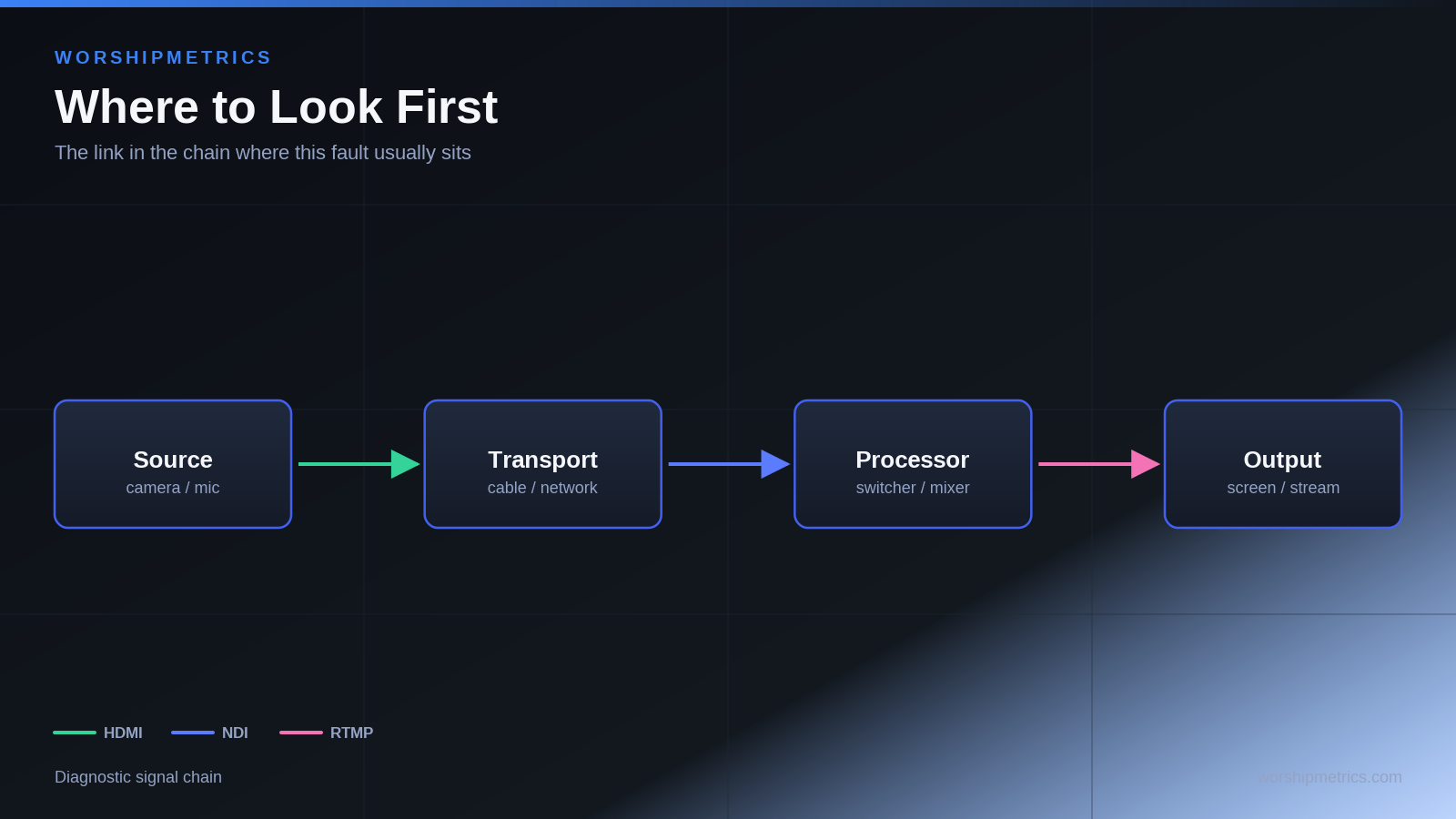
Step 2: Check Your Video Source and Capture Mode
If running as admin didn’t fix it:
- In OBS, look at the Sources panel on the left
- You should see one or more sources listed (Camera, Display Capture, Window Capture, etc.)
- Click on each source and verify it’s selected
- Look at the Properties panel on the right and check the Capture Method:
For camera input:
- If it shows a blank source, try changing the Device dropdown to your camera
- Click the dropdown and select your PTZ camera or USB camera
- If you don’t see your camera in the list, the camera may not be installed or drivers are missing
For presentation/display:
- If you’re using Display Capture: verify you’ve selected the correct Display from the dropdown (especially if you have multiple monitors)
- If you’re using Window Capture: verify you’ve selected the correct window (e.g., “ProPresenter” or “PowerPoint”)
- If you’re using Game Capture: switch to Window Capture instead — Game Capture is meant for games, not presentations
Step 3: Switch to a Different Capture Method
If one capture mode isn’t working, try another:
For capturing your presentation software (ProPresenter, PowerPoint):
- In OBS, right-click the source and select Delete
- Click + to add a new source
- If using Window Capture, try switching to Display Capture instead (capture the entire monitor)
- Or try Game Capture (though Window Capture is usually better)
- Select the right window or display
- Click OK
For capturing a camera:
- If Camera is not working, right-click and delete it
- Click + to add a source
- Select Video Capture Device
- In the Device dropdown, select your camera
- Click OK
Step 4: Check Your GPU/Graphics Settings
OBS uses graphics hardware to render the preview. If your GPU is set wrong, you get a black screen:
- In OBS, go Settings > Advanced
- Look for General section and find the Rendering or GPU setting
- Check what GPU is selected:
- If you have an NVIDIA or AMD graphics card, it may be set to Integrated graphics (built into your CPU)
- Try switching to your discrete GPU (e.g., “NVIDIA GeForce RTX 3060” or “AMD Radeon”)
- Click Apply and restart OBS
If OBS still shows black:
- Try switching back to Integrated graphics
- Sometimes the discrete GPU isn’t compatible with OBS
- Integrated GPU is fine for most streaming — it’s slower but compatible
Step 5: Check DirectX vs OpenGL Rendering
OBS can render using different graphics APIs:
- In OBS, go Settings > Advanced
- Look for Rendering or Graphics API option
- Try switching between:
- Direct3D 11 (Windows default)
- OpenGL (alternative)
- Click Apply and restart OBS
- Does the preview show video now?
Step 6: Update Your Graphics Driver
Outdated drivers can cause black screen issues:
For NVIDIA cards:
- Visit nvidia.com/drivers
- Enter your GPU model and download the latest driver
- Install it and restart your PC
- Reopen OBS
For AMD cards:
- Visit amd.com/drivers
- Download the latest driver
- Install and restart
For Intel integrated graphics:
- Visit intel.com/download
- Search for your processor model
- Download the graphics driver
- Install and restart
Step 7: Check Video Device Permissions
Windows sometimes blocks camera or display capture:
- Go Settings > Privacy & Security > Camera (Windows 10/11)
- Verify Camera is enabled for OBS Studio
- Go Settings > Privacy & Security > Screen capture
- Verify Screen capture is enabled for OBS
- Restart OBS
If permissions weren’t enabled, enable them and restart.
Step 8: Restart Everything
Sometimes OBS gets stuck in a bad state:
- Close OBS completely
- Restart your PC
- Reopen OBS
- Try adding your source again
This clears any driver or graphics issues that persisted.
Step 9: Test Each Source Separately
Before the service:
- Create a new Scene in OBS
- Add only your camera as a source
- Does the preview show the camera feed? If yes, the camera works
- Delete that source and add your presentation software
- Does the preview show the presentation? If yes, it works
- Once you confirm each source individually, add them all to your main scene
This isolates which source is causing the black screen.
Specific Fix: ProPresenter Not Showing
If you’re using ProPresenter:
- In OBS, go to your ProPresenter source
- Right-click and select Filters
- Check if there’s a Color Key or Chroma Key filter enabled
- If yes, disable it (it might be hiding your video behind a color mask)
- In source Properties, verify Window dropdown shows the right ProPresenter window (not “ProPresenter - Screen 1” but the main window)
Specific Fix: Camera Not Showing
If you’re using a USB camera or PTZ camera via HDMI:
- Verify the camera is powered on and connected
- In OBS source Properties, click the Device dropdown
- Look for your camera in the list
- If not there, the camera driver may not be installed:
- Download the driver from the camera manufacturer’s website
- Install the driver
- Restart OBS
- Now select the camera from the Device dropdown
Black screen troubleshooting order:
- Run OBS as Administrator
- Verify source is selected in Sources panel
- Try a different capture mode (Window vs Display)
- Switch GPU/Graphics setting (Discrete vs Integrated)
- Try DirectX 11 vs OpenGL rendering
- Update graphics driver
- Enable camera/display permissions in Windows
- Restart PC and OBS
- Test each source individually before going live