Viewers watching your stream see the pastor’s mouth move but the audio is delayed — or audio comes first and then the mouth follows. Lip sync is broken, and it’s distracting. This is a buffer or sync offset issue in your encoder, not a camera problem. We can fix it in minutes by adjusting sync settings.
Determine the Direction of the Sync Issue
First, figure out which is ahead and which is behind:
- Watch the live stream yourself (on a separate device if possible, like a phone or tablet)
- Does the pastor’s mouth open before the audio comes out? (Video leads, audio lags)
- Or does the audio arrive first, then the mouth moves? (Audio leads, video lags)
- Estimate the delay: is it 0.5 second, 1 second, or more?
Write this down — you’ll need it for the fix.
Fix in OBS: Audio Sync Offset
If you’re using OBS:
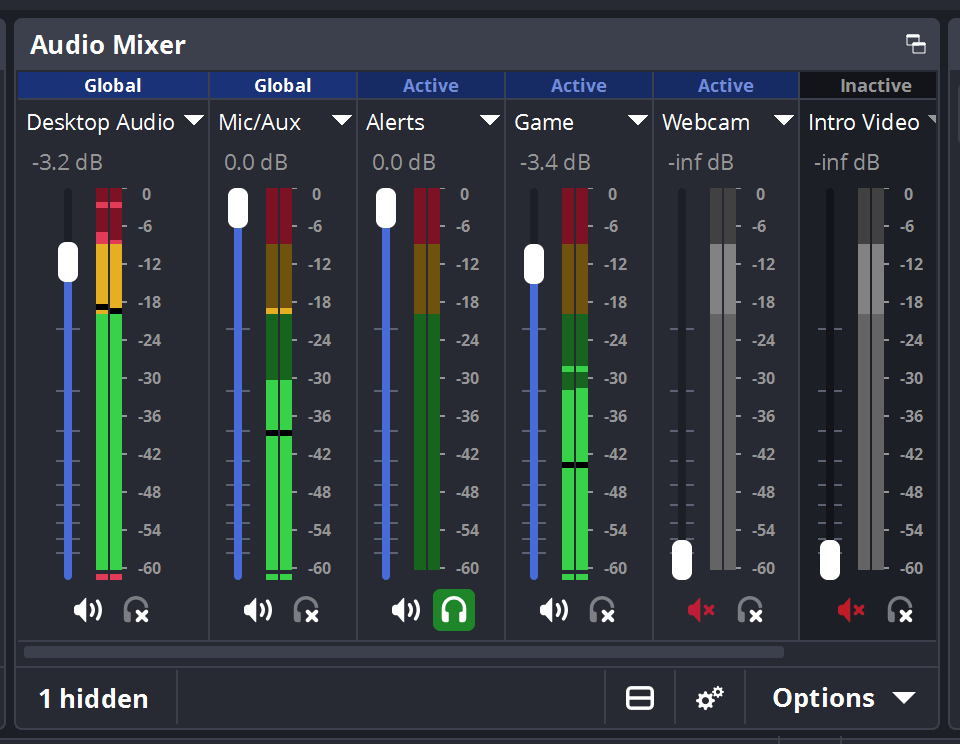
- In the Sources panel, click on your audio source (mixer input, USB interface, or microphone)
- Right-click and select Filters
- Click Add Filter (the + button)
- Choose Audio Delay (ms)
- Set the delay value:
- If audio lags (video is ahead): increase the audio delay. Start with +500ms (0.5 second) and test.
- If audio leads (video is behind): set a negative delay. Try -500ms and test.
- Do a test stream and watch the sync
- Adjust in 50–100ms increments until perfect
- Once aligned, save your scene
Tip: Most sync issues fall in the 100–300ms range. Start there and fine-tune.
Fix in ATEM Mini: Audio Delay
If you’re using a Blackmagic ATEM Mini or ATEM Mini Pro:
- Open ATEM Software Control on your PC
- Go to the Audio Mixer tab
- Look for an Audio Delay or Sync Offset option (varies by ATEM model)
- Increase or decrease based on the direction:
- Audio lags: increase the audio delay
- Audio leads: decrease the delay (or use negative offset)
- Test a stream and fine-tune in 50ms increments
- Save the project
Check your specific ATEM model’s manual if you can’t find the setting — it might be labeled differently or in a different menu.
Check Your Mixer’s USB Audio Delay
If audio is coming from your mixer’s USB output:
- Some mixers (Behringer X32, Yamaha TF1) have USB audio latency settings
- Access the mixer’s menu and look for USB Settings or Audio Settings
- Verify the USB audio buffer is set to low latency (not high)
- If you recently changed this, reset it to default
- Test the stream
A high USB buffer introduces audio delay — lowering it can help sync.
Verify Your Video Source Doesn’t Have Extra Delay
Sometimes the video source itself introduces delay:
- OBS window capture: if you’re capturing a window (e.g., presentation software), window capture can add 1–2 frames of delay
- Game capture mode: also adds delay; switch to window capture if possible
- Camera with HDMI: ensure the HDMI cable and switcher aren’t introducing delay (they typically don’t, but confirm)
If video is the problem, switching from game capture to window capture in OBS can reduce delay by 50–100ms.
Check Frame Rate Mismatch
A frame rate mismatch between video and audio can cause apparent sync issues:
- In OBS, go Settings > Video
- Check the Common FPS Values — is it 30fps, 25fps, 29.97fps, or something else?
- Verify your camera or video source is outputting the same frame rate
- If they don’t match, change OBS to match the camera’s output
- Test the stream
Mismatched frame rates don’t directly cause sync problems, but they can make it harder to correct offset.
Use a Test Stream to Verify Sync
Before going live on Sunday:
- Create a private/unlisted test stream on YouTube or Facebook
- Start streaming from OBS
- Have someone outside the booth watch the stream on their phone
- Ask them to confirm: “Is the audio and video in sync? Or is one ahead?”
- Stop the stream and adjust the sync offset
- Test again
- Repeat until perfect
Don’t try to adjust sync during the live service. Get it right beforehand.
Power Cycle if Sync Drifts During Service
If sync starts correct but gradually drifts over time:
- Stop the stream
- Close OBS completely
- Restart your streaming PC
- Reopen OBS and resume
- Sync should reset
This clears any buffer buildup that may have caused drift.
Common sync offsets to try:
- Audio lags by ~0.5 sec → try +500ms audio delay
- Audio lags by ~1 sec → try +1000ms
- Audio leads by ~0.3 sec → try -300ms
- Then fine-tune in 50ms increments
Fix it at the source: Why your church livestream sounds bad, and how a separate stream mix fixes it, and the three classic livestream audio problems.