You’re mid-service and OBS is showing “Dropped Frames: 2.3%” and climbing. Viewers are experiencing stuttering or lag, and it’s getting worse as the stream goes on. This usually points to encoding being too aggressive for your PC, or network congestion. Let’s identify which type of frame drop and fix it fast.
Identify: Network Frames vs Encoding Frames
OBS shows two different types of dropped frames. You need to know which one is happening:
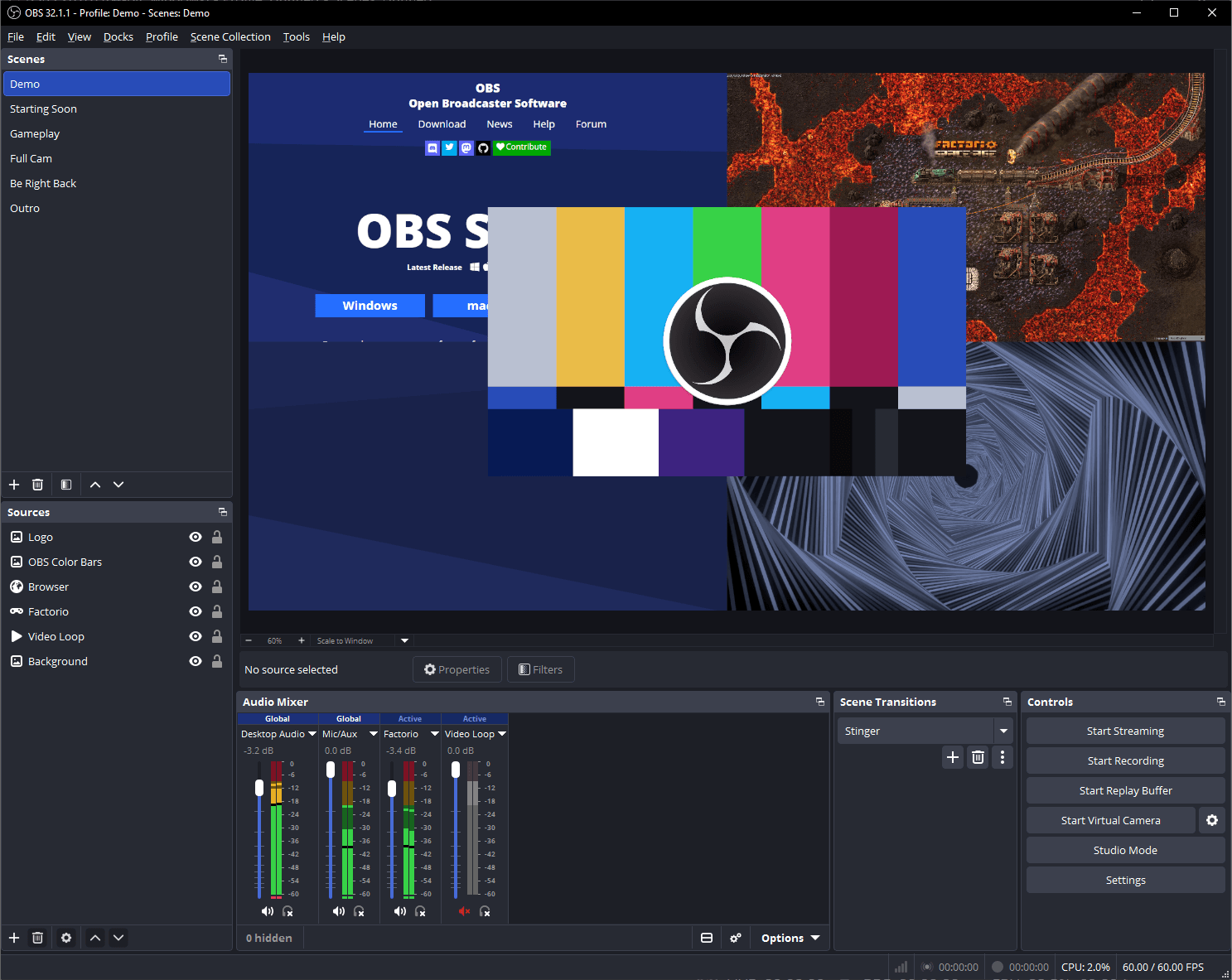
- In OBS, look at the status bar at the bottom
- It shows something like “Dropped Frames: 2.3% (5 dropped / 400 encoded)”
- Network dropped frames (the first number): means your upload speed can’t keep up
- Encoder dropped frames (in parentheses): means your PC can’t encode fast enough
Open OBS and watch during the stream. Ask yourself:
- Is the percentage growing continuously? (Usually encoding or network)
- Does it spike only during music or camera movement? (Usually encoding)
- Does it stay stable at the start but grow over time? (Usually network or thermal)
If It’s Network Dropped Frames
If the first number is climbing (network %), your internet upload speed can’t keep up:
Check your upload speed:
- Stop the stream
- Go to speedtest.net on a device connected to your streaming internet
- Run the test and check the Upload speed
- Write it down
- Do the test several times — internet speed varies
Your upload requirements:
- 720p 30fps at 2500 kbps: needs ~2.5 Mbps upload (minimum)
- 1080p 30fps at 5000 kbps: needs ~5 Mbps upload
- Include headroom: use 70% of your measured upload (if you have 7 Mbps, use up to 5 Mbps for streaming)
If your upload is too low:
- Lower OBS encoding bitrate (Settings > Output > Streaming > Bitrate)
- Reduce resolution to 720p instead of 1080p
- Reduce frame rate to 24fps (from 30fps)
- Check if other devices are downloading during the service (updates, backups) — pause them
If upload speed is fine, it’s a different issue:
- Check if your streaming PC is on Wi-Fi — switch to Ethernet if possible
- Wi-Fi is unreliable for streaming; wired connection is much more stable
- If Wi-Fi is necessary, position the PC closer to the router
If It’s Encoder Dropped Frames
If the number in parentheses is high, your PC can’t encode fast enough:
Switch to Hardware Encoding:
- In OBS, go Settings > Output > Streaming
- Find the Encoder dropdown
- If it’s set to “libx264” or “x264”, change it to:
- NVIDIA NVENC (if you have an NVIDIA graphics card)
- AMD VCE (if you have an AMD graphics card)
- Intel Quick Sync (if you have an Intel processor with integrated graphics)
- Click Apply and restart the stream
- Hardware encoding is much faster and uses less CPU
If you can’t find hardware encoding options, your PC may not have compatible hardware. Skip to the next step.
Reduce Encoding Settings:
- Go Settings > Output > Streaming
- Lower Bitrate (start at 4000 kbps if it’s higher)
- Go to Settings > Video and set Common FPS Values to 24fps (instead of 30fps)
- Change Base Resolution to 1280x720 (720p, not 1080p)
- Set Scaled Resolution to match: 1280x720
- Click Apply and test
This gives your PC an easier encoding job.
Close Background Programs:
- During the stream, close all non-essential apps:
- Email, web browsers, Discord, Slack
- Disable Windows updates
- Close antivirus scans
- Open Task Manager (Ctrl+Shift+Esc)
- Look at CPU Usage — it should be below 80% during streaming
- If above 80%, close more programs or reduce OBS settings
Check Temperature:
- If your streaming PC is in a hot room or enclosed booth, it may thermal-throttle
- Use a temperature monitor (e.g., HWInfo) to check CPU/GPU temps during streaming
- Temps above 85°C cause throttling and frame drops
- Improve ventilation or add a fan to the booth
Reduce Scene Complexity
Complex scenes with many sources can drop frames:
- In OBS, review your active Scene
- Disable any sources you’re not currently using
- Hide (not delete) overlay graphics, lower-third graphics, etc. when not needed
- Reduce the number of filters on sources (each filter adds encoding overhead)
- Simplify your scene to only what’s currently on screen
Close Browser Sources and Plugins
Browser sources and certain plugins use CPU:
- In OBS, look for any Browser sources
- Delete or hide them if you’re not using them actively
- Some plugins (OBS-NDI, RTMP plugins) also use resources — disable if not needed
- Close them and restart OBS
Check Network Stability (Not Just Speed)
Even if your upload speed is fast, packet loss or latency can cause drops:
- Open Command Prompt (Windows) or Terminal (Mac)
- Type:
ping 8.8.8.8 -c 30(Mac) orping 8.8.8.8 -n 30(Windows) - Look at the results for % packet loss
- Should be 0% packet loss
- If you see any % loss, your network is unstable:
- Switch to wired Ethernet (if possible)
- Restart your router and modem
- Contact your ISP if problem persists
Monitor Dropped Frames Live
During the service:
- Keep an eye on OBS’s frame drop % in the status bar
- If it starts climbing above 2–3%, something is degrading:
- Thermal throttling (PC overheating)
- Network congestion (someone started a download)
- More scene complexity
- If it’s clearly degrading, you may need to reduce bitrate mid-stream
You can adjust bitrate live without restarting:
- Go Settings > Output > Streaming
- Lower the bitrate
- Changes take effect immediately
Quick fixes in order:
- Verify upload speed supports your bitrate
- Switch to hardware encoder (NVENC/VCE/Quick Sync)
- Reduce bitrate to 4000–5000 kbps max
- Switch to 720p 24fps if necessary
- Close background programs
- Check CPU temp (should be below 85°C)
- Use wired Ethernet, not Wi-Fi
- Test with dropped frames below 1%