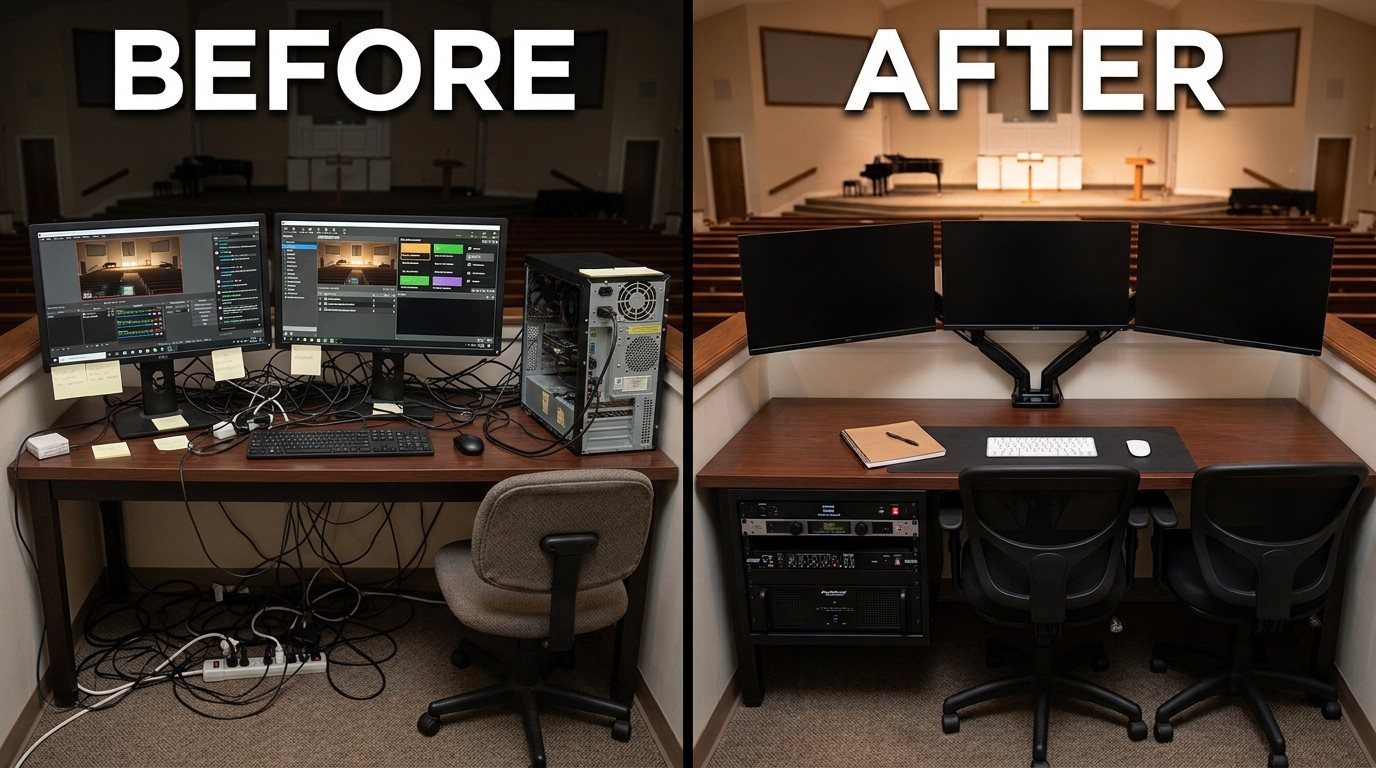
The booth is shared, public equipment
A church booth isn’t anyone’s personal desk. It’s used by different volunteers every week, often in the dark, during worship, a few feet from the congregation. Everything about it should make that easier.
These twelve tips come from what we see in church booths and what we build into our Livestream Systems. None of them needs a big budget all at once.
1. Buy commercial grade for anything shared
Shared, weekly-use gear takes a beating: many hands, coffee nearby, cables tugged, buttons pressed hard. Commercial-grade equipment is built for that. It lasts longer, carries better warranties, cleans up properly and looks professional.
Cheaper consumer gear often has to be replaced before it ever pays for itself. Spend where hands touch and where failure stops the service. (See consumer vs. commercial-grade AV gear for churches.)
2. Use matched, calibrated monitors
Monitors are where you judge the picture. If they’re different makes and sizes, every one shows color differently, and it becomes impossible to tell what the stream actually looks like.
Use one model for the operator monitors, color-calibrated to the video standard (Rec.709), and lock the menu buttons so nobody “fixes” the color on a Sunday. (See why your booth monitors don’t match.)
3. Mount monitors on arms or stands
Table space is the most valuable space in the booth. Monitor arms (or a stand) lift screens off the table, put them at eye level, and leave room to work, write notes and welcome a second person.
4. Choose quiet, washable keyboards and mice
Keyboards and mice are the most-touched objects in the booth. Don’t cheap out:
- Washable, sealed keyboards and mice, the kind made for healthcare, can be wiped with disinfectant between services
- Quiet keys and silent-click mice. Loud, clicky mechanical keyboards carry across a quiet sanctuary during prayer
- Light-colored or backlit keys, easy to read in a dark booth
5. Put the equipment in a rack
A small, properly installed equipment rack holds the streaming computer, capture, network switch and power. Rack-mounted gear stays put: no cables tugged loose, no ports snapped by a bump or a shove. (See why church AV belongs in a rack.)
A good church AV system puts the equipment in the rack and leaves plenty of table space for volunteers. That’s how every one of our Livestream Systems is built: a 4U rackmount computer, not a tower under the table.
6. Manage the cables you can see
- Label both ends of every cable
- Hook-and-loop straps, not zip ties, so changes don’t mean cutting
- A cable tray or raceway under the table edge
- Strain relief so a pulled cable doesn’t yank a port
(See cable management for church booths.)
7. Keep a wiring diagram in a binder
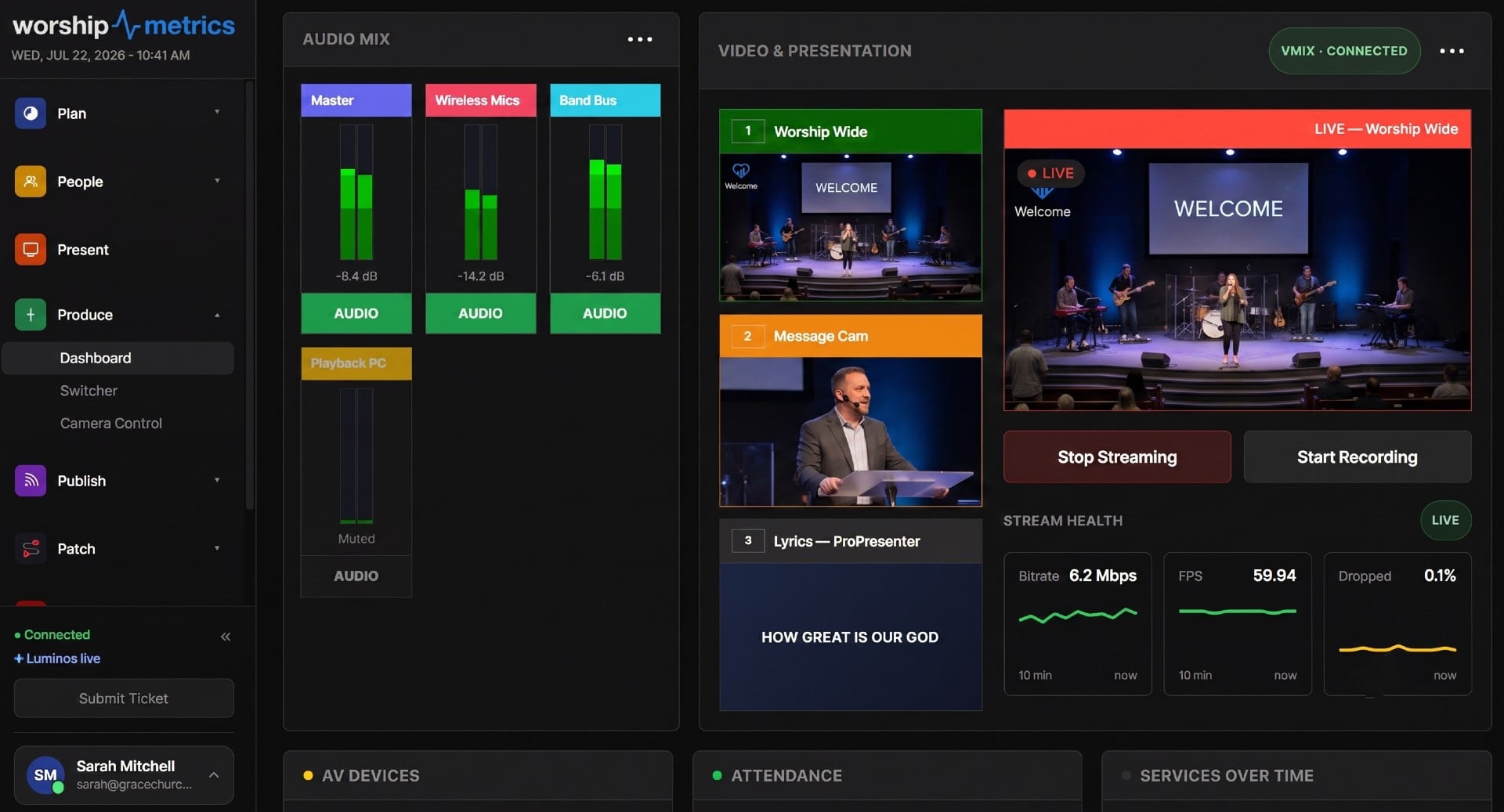
Put a printed wiring diagram in a three-ring binder that lives in the booth, so any volunteer can answer “what plugs into what?” WorshipMetrics’ Signal Map keeps the digital diagram, and prints the copy for the binder. When something changes, update it once and reprint the page, so the binder never drifts from reality.
8. Post a one-page Sunday checklist
A laminated page with the start-up order, the shutdown order and what to do if the stream stops. (See the Sunday checklist.) Pair it with alerts on more than one phone, so nobody has to stare at the stream to know it’s working. (See Self Healing.)
9. Label the buttons in plain words
“Pastor Wide,” “Lyrics Over Camera,” “Start Stream.” Not “Scene 4.” Plain labels on Stream Deck buttons and software scenes let a new volunteer succeed on their first Sunday.
10. Light the booth, not the room
Small hooded task lights let volunteers read notes and keys without spilling light into the sanctuary or glaring on the monitors.
11. Make room for one more
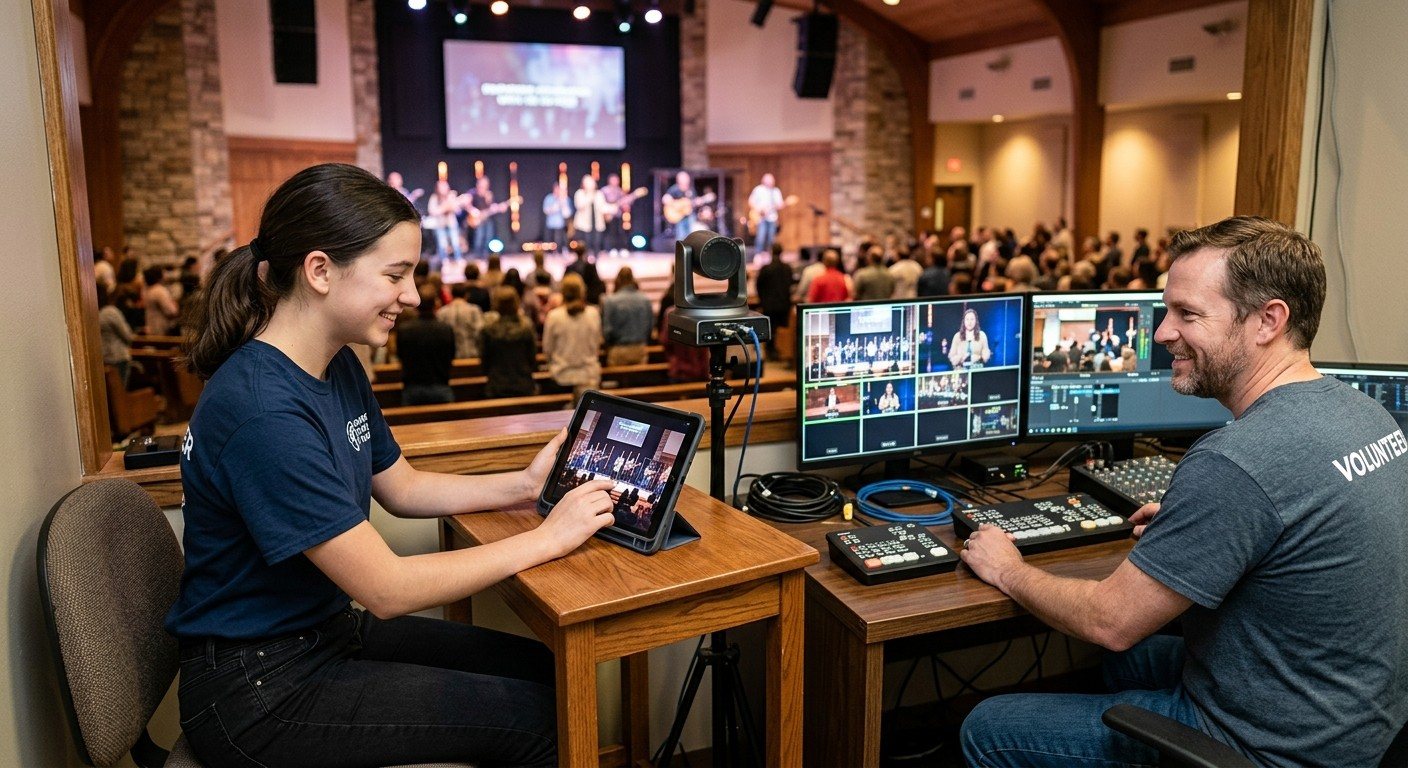
There should always be an open chair and space for another person to sit in, learn and feel welcome. Add a few smaller stations next to the main streaming computer, such as a laptop for slides, a tablet for cameras, a screen for the stream monitor, so young people and new volunteers can be part of the team instead of watching over a shoulder. (See make room for one more.)
12. Give old equipment a second ministry
When you replace monitors or computers, don’t throw the old ones out. Donate them to your AV Club or set them up as a training station. An old laptop can even become an overflow or confidence screen. (See how to start a church AV Club.)
Start with the table
If you only do one thing this month, clear the table: monitors on arms, equipment in a rack, cables managed. It changes how the booth feels for every volunteer who sits down.
Planning a refresh? Map your current system and note what’s on the table today. We’ll show you what to rack, what to replace with commercial-grade gear, and what to reuse.
Related reading
- Why our church AV system is too hard for volunteers
- Building a tech booth for youth ministry
- Cable labeling that survives volunteer turnover
Make the booth easier to run: How to make your church livestream easier for volunteers: the three-seat setup. See also the three-person church livestream team · smaller seats get more yeses.
One button panel for the whole booth: Bitfocus Companion for churches: one button panel for your whole AV system. See also designing Companion pages for volunteers · a touch control panel with an Android tablet.
Related questions
- How do we make our church AV booth easier for volunteers?
- Clear the table by mounting monitors on arms and putting equipment in a rack; use matched, calibrated monitors; choose quiet, washable keyboards and mice; label every cable and keep a printed wiring diagram in a binder; post a one-page Sunday checklist; and leave an open chair so a new volunteer can sit in and learn.
- Is commercial-grade AV equipment worth it for a church?
- For anything shared and used every week, usually yes. It lasts longer, survives many hands, is easier to clean and support, and looks professional. Cheaper consumer gear often has to be replaced before it ever delivers its full value.
- What should be on the table in a church booth, and what should be in the rack?
- On the table: only what volunteers touch, like monitors on arms, keyboard, mouse, Stream Deck, camera joystick and the sound board. In the rack: the streaming computer, capture, network switch, power and anything with cables that shouldn't be bumped.
Why Is It So Hard for a Small Church to Find an AV Integrator?
NextBitfocus Companion + ATEM Mini: A Stream Deck Panel for Your Church Switcher
Related Articles
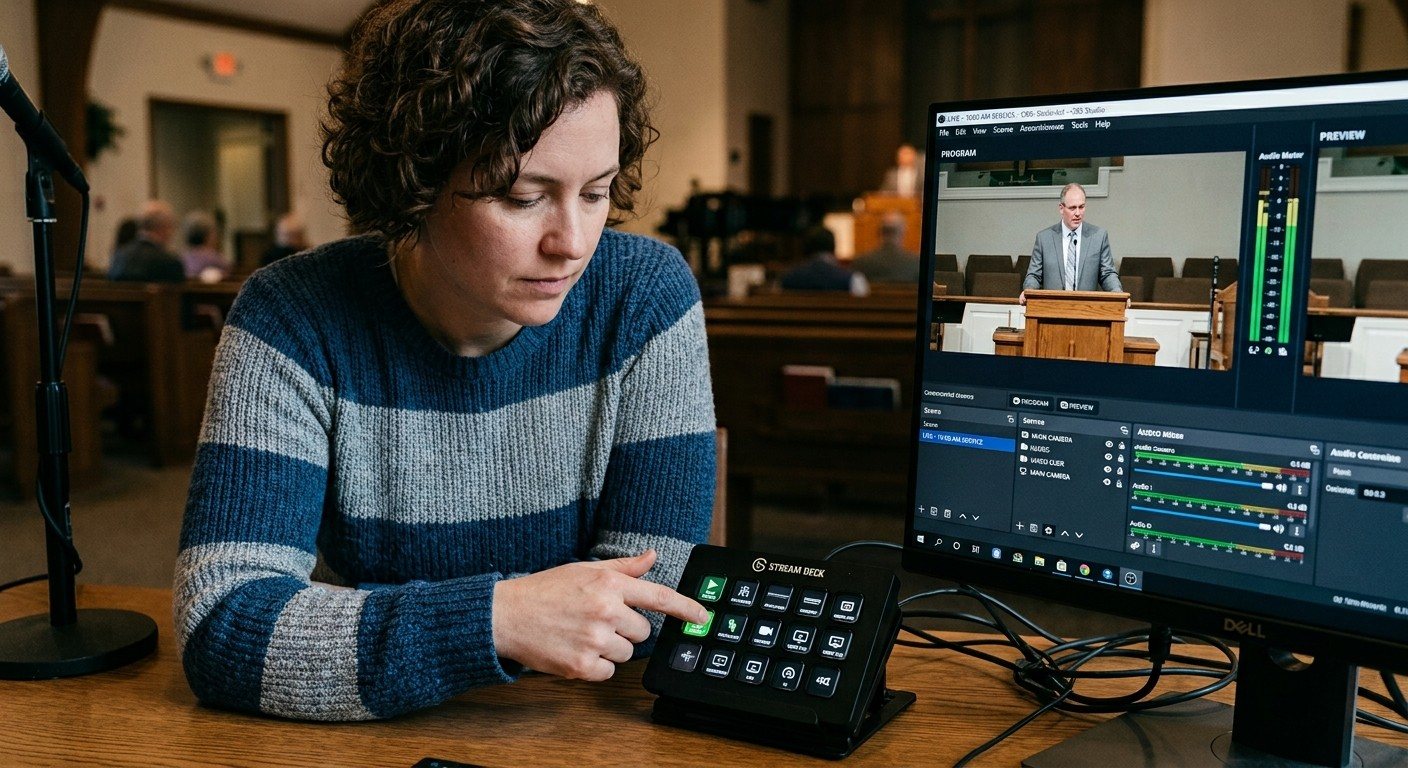
Making a Complicated Church AV System Easy to Run, Without Hiring an AV Company
Many church AV systems aren't too old or too small. They're too complicated for a volunteer. A simple button panel built with Bitfocus Companion can hide that complexity behind plain-word buttons, and a church can often build it themselves. Here's when that works, when to call a professional, and how to start.
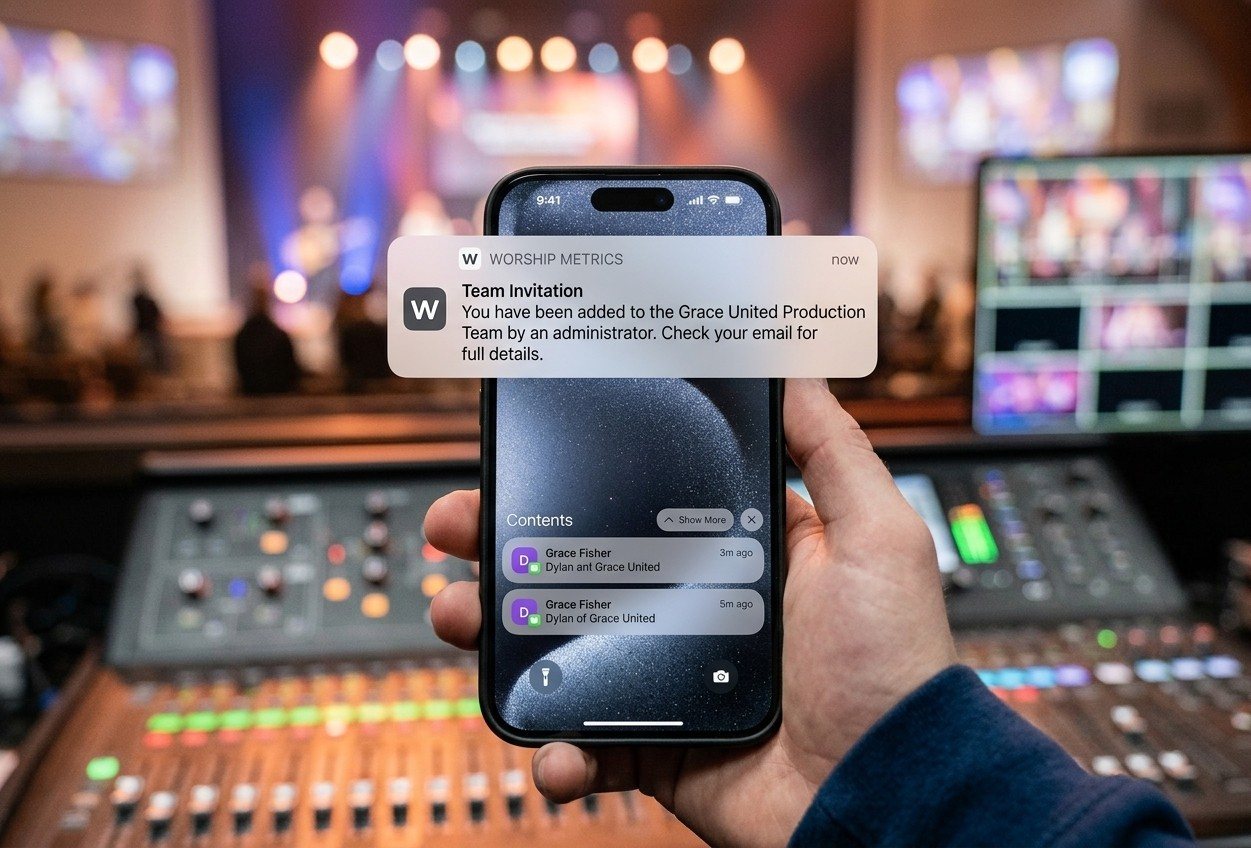
Your Church Livestream Team, Connected Even When They're Not at Church
A three-person livestream team only works if everyone shares the same plan, the same wiring diagram, and the same news when something breaks. Here's how WorshipMetrics connects the director, slides, and camera volunteers through the week: chat, alerts, documentation, AI help, scheduling, and cloud control for OBS and vMix.
The Three-Person Church Livestream Team: Director, Slides, and Cameras
A church livestream runs best with three clear jobs: a director on OBS or vMix, a slides operator, and a camera operator. Here's what each role does before, during, and after the service, what skills it takes, and how the three talk to each other.