The computer in the closet
Almost every church has one: a laptop or desktop that was retired from the office but still works. With NDI, it can become a screen for any room in the building, for free.
What it does
The free NDI Tools include a viewer that shows any NDI source on a computer’s screen:
- Windows: NDI Studio Monitor
- Mac: NDI Video Monitor
Connect the computer to a TV by HDMI, open the viewer, pick a source, and go full screen. The computer is now doing the job of an NDI decoder.
Where churches use it
- Overflow rooms on Easter and Christmas Eve, showing the program feed
- The cry room and the nursery, so parents don’t miss the sermon
- A stage confidence monitor, showing lyrics or the next slide from Present or ProPresenter over NDI
- The lobby, so late arrivals can see what’s happening
- The green room for worship leaders and speakers
- A second booth display, showing any camera full screen for the camera operator
How to set it up
- Install the free NDI Tools from ndi.video.
- Connect the computer by network cable to the production network. Not Wi-Fi, if you can avoid it.
- Open Studio Monitor (Windows) or Video Monitor (Mac) and choose the source.
- Go full screen and hide the on-screen controls.
- Set power settings to never sleep and turn off screen savers and notifications.
- Pause updates around big services, and test it the week before.
Old laptop or hardware decoder?
| Old laptop or PC | Hardware decoder | |
|---|---|---|
| Cost | Free, if you already own it | A modest one-time purchase |
| Setup | A few minutes of software | Plug in and pick a source |
| Starts up | Boots, logs in, opens the app | Straight into the picture |
| Updates | Operating system and app updates | Occasional firmware |
| Best for | Occasional rooms, trying NDI out | Screens that must work every Sunday |
A good pattern: start with a laptop to prove the idea in the overflow room, then move permanent screens to a hardware decoder like the Magewell Pro Convert NDI to HDMI. (See NDI encoders and decoders and how to put your livestream on lobby and overflow TVs.)
Reuse first
This is the same idea behind our Livestream Systems: reuse what still works, and only buy what’s missing. Map your current system, including the spare computers in the closet, and we’ll show you where each one can help.
More low-cost NDI ideas on our NDI for churches page.
Related questions
- Can an old computer display our livestream on a TV?
- Yes. Install the free NDI Tools and run NDI Studio Monitor (Windows) or NDI Video Monitor (Mac). Pick your program feed or any other NDI source, set it full screen, and connect the computer to the TV by HDMI.
- Is an old laptop as good as a hardware NDI decoder?
- For occasional use, it's a great free option. For screens that must work every week, a hardware decoder like the Magewell Pro Convert NDI to HDMI is more reliable: it powers on straight into the picture and has no operating system updates to worry about.
- What kind of computer do we need?
- Most laptops and PCs from the last several years can decode one NDI feed. Use a wired network connection, set it to never sleep, and give it no other job during services.
NDI vs. SDI vs. HDMI for Churches: Which Cable for Which Job?
NextHow Do We Put Past Services and Sermons on Our Church Website?
Related Articles
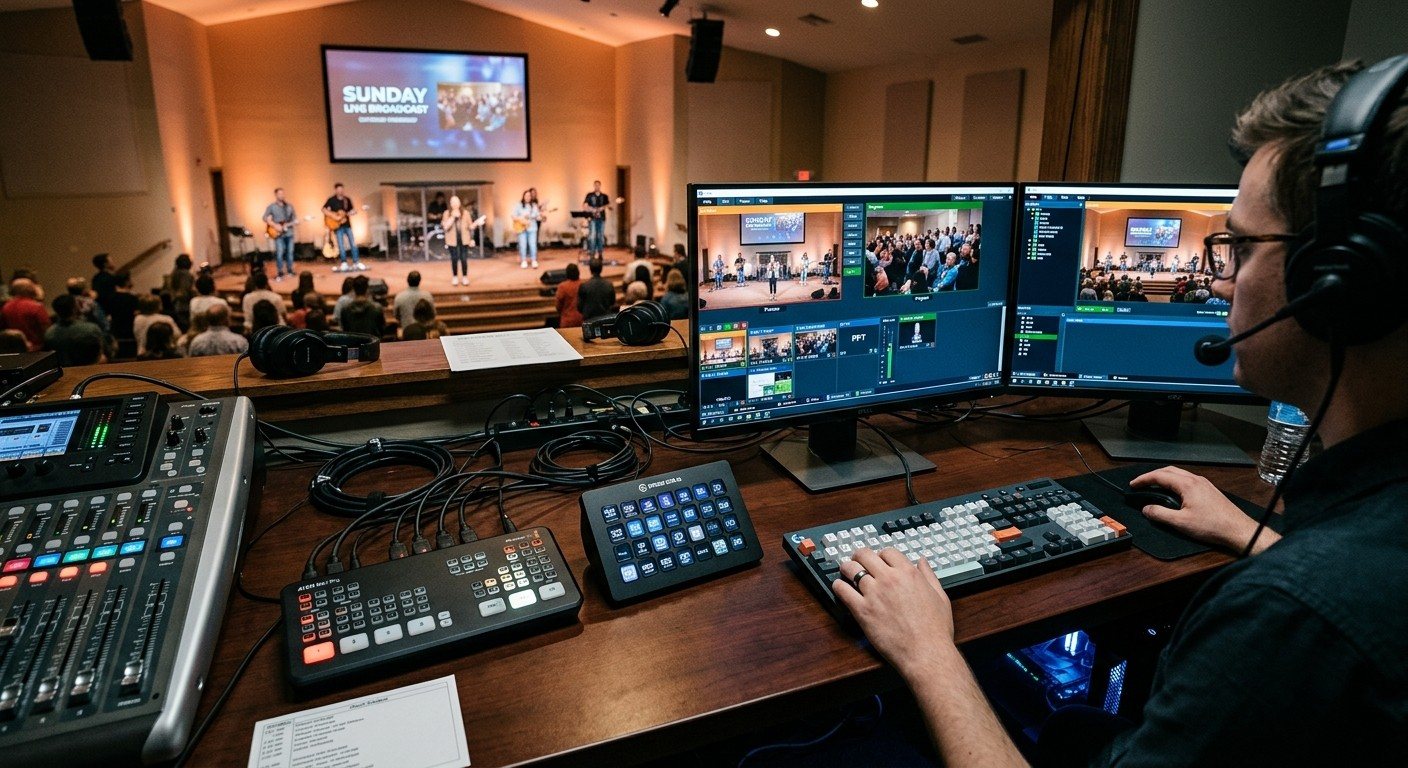
Bitfocus Companion + ATEM Mini: A Stream Deck Panel for Your Church Switcher
A Stream Deck running Bitfocus Companion turns a Blackmagic ATEM into plain-word buttons with colors that show what's live, and the same panel can run PTZ cameras, projectors, and more. Here's how to connect Companion to an ATEM and build a volunteer page.
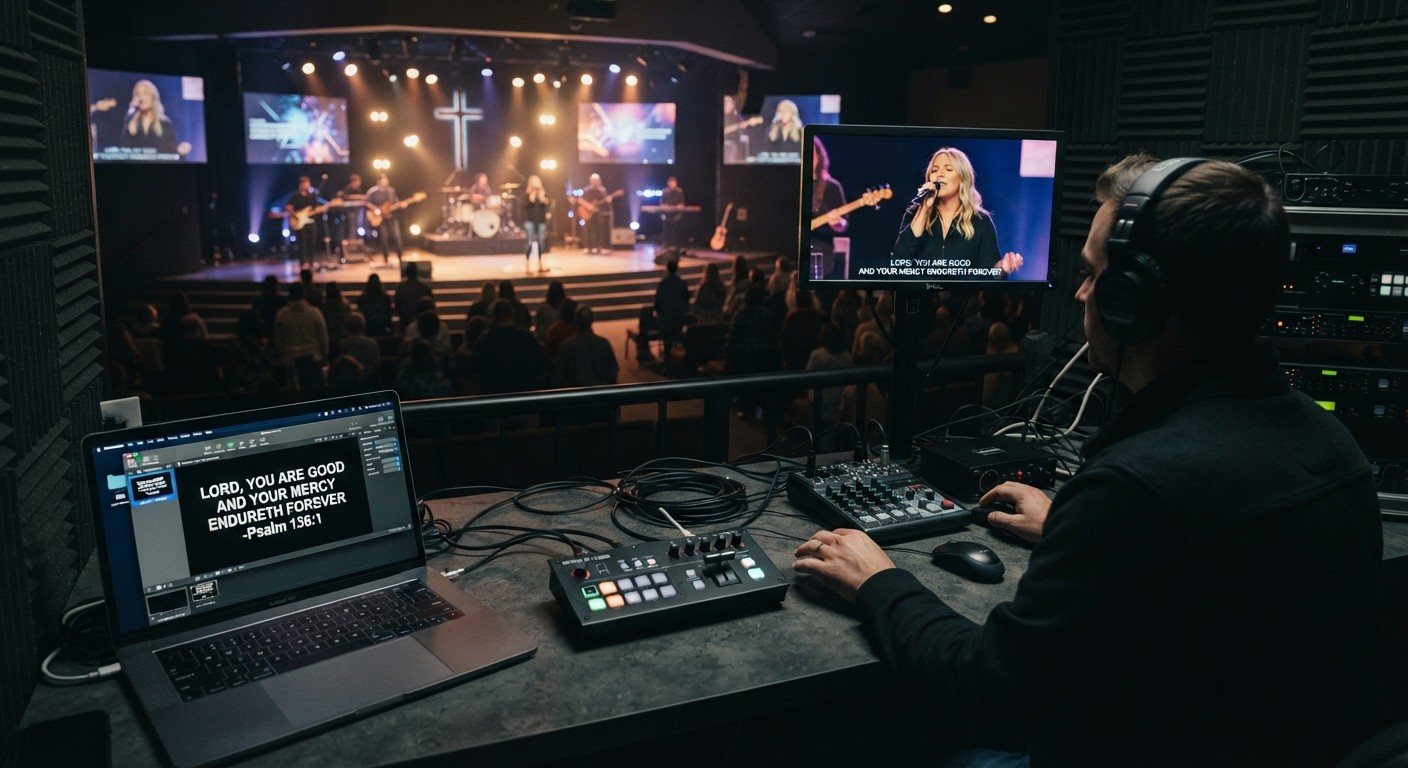
Lyrics Over the Camera on an ATEM Mini: Luma Keys, Chroma Keys, and the Slides Computer
To put song lyrics over the camera shot on a Blackmagic ATEM Mini, feed the slides computer into an ATEM input and key it over the camera. Here's how luma and chroma keys work for lyrics, how to design slides that key cleanly, and who should run it.
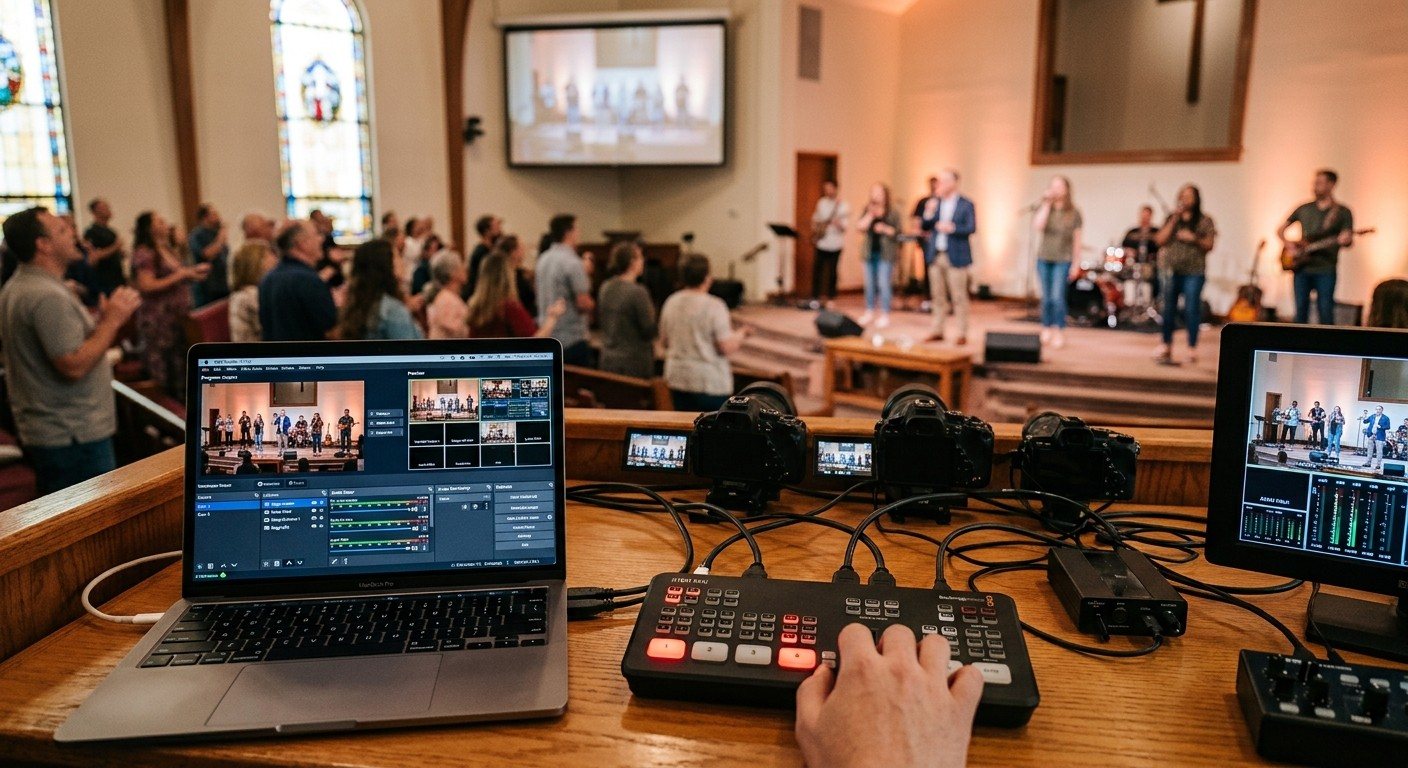
ATEM Mini + OBS for Church: Hardware Camera Switching with OBS for Graphics and Streaming
Many churches use an ATEM Mini as a camera switcher and send its output into OBS over USB as a webcam. The ATEM gives volunteers real buttons; OBS adds lyrics, graphics, recording, and streaming. Here's how to set it up, split the jobs, and avoid the common sync and quality problems.