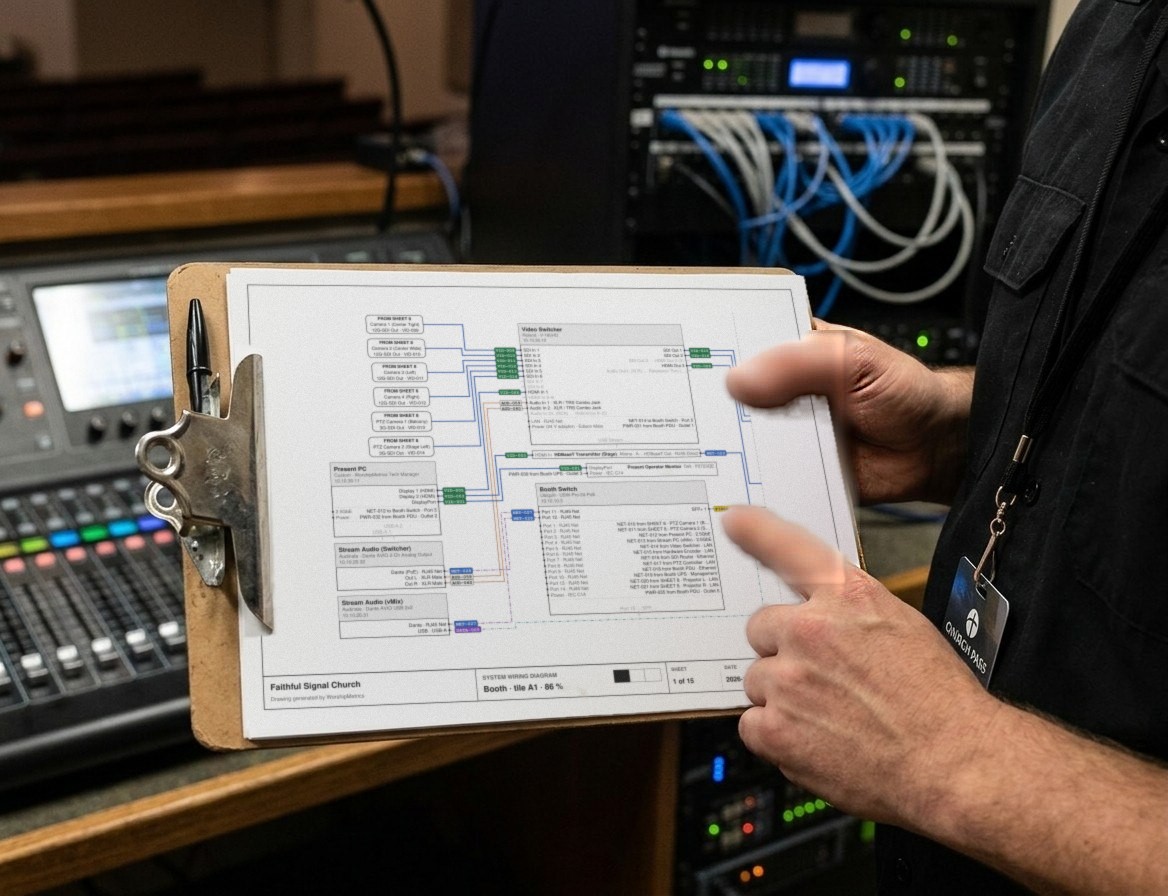
Most expensive mistakes in church video happen before anyone buys a camera. A camera mounted where the pastor walks out of the shot. A cable run 20 feet too long for HDMI. A stream that sounds terrible because it gets the room’s mix. A booth that only works when one person is in it.
None of those are gear problems. They’re design problems, and they’re cheap to fix on paper and expensive to fix after the drywall is patched. This guide walks through designing a church video system in the order that avoids them: purpose, room, cameras, signal flow, cabling, network, power and documentation.
If you want the bigger picture first, the companion guide How to Live Stream a Church Service lays out complete setups by budget. This article is about getting the plan right.
Step 1: Decide what the system is for
Write down, in a sentence or two, what the video system has to do. It sounds obvious, but the answer changes everything downstream:
- Stream only. Video leaves the building for YouTube, Facebook or your website. The computer or switcher has one job.
- Stream and record. Same, plus a clean local recording for sermon clips and the archive.
- Screens in the room. IMAG (the speaker’s face on the big screens), confidence monitors for the stage, lobby TVs and overflow rooms. Now the system feeds people in the building, and latency and reliability in the room matter as much as the stream.
- More than one room or campus. Video has to travel between buildings.
A church that only streams can run a simpler, cheaper system than one that feeds IMAG. If you haven’t had this conversation as a team, What Is Our Church Live Stream Actually For? is a good place to start.
Step 2: Walk the room with a tape measure
Before choosing a single model, walk the sanctuary and write down:
| Measure or note | Why it matters |
|---|---|
| Distance from each possible camera spot to the pulpit | Decides how much zoom you need (see Choosing a PTZ Camera) |
| Height of each spot, and anything in the line of sight | Heads, lights, speakers and balcony rails end up in frame |
| Where the speaker actually walks | A pastor who paces needs a wider tight shot or an operator |
| What’s behind the speaker | Projection screens, windows and LED walls wreck exposure |
| Light level on the platform during the sermon | Dim platforms make every camera look worse |
| Where the booth is, and the cable path from each camera to it | Cable type and length follow from this |
| Where power and network already exist | Saves electricians and cable pulls |
| Fire exits, aisles and accessibility routes | Tripods and cable can’t block them |
Do the walk during a service if you can. You’ll notice the things a quiet Tuesday hides: the greeter who stands in front of the back-wall camera, the sun through the east windows at 10:30, the worship leader who drifts stage left.
Step 3: Place the cameras
Here is the layout most churches should start from, and adapt to their room:
Main camera, center rear
The pulpit shot. As straight-on and as close to the speaker's eye line as the room allows. A riser or the balcony rail keeps heads out of the frame.
Side camera, 30–45° off center
Worship leader, band and reaction shots. It gives whoever is switching a second angle to cut to.
Wide camera, rear
The safety shot: the whole platform, always usable. Frame it once and leave it alone during the service.
Booth
Cameras, slides and the sound board's stream mix meet the switcher or streaming computer here, then go out to the internet.
One cable per camera
A network PTZ camera needs one Cat6 run, up to 100 m (328 ft), carrying video, control and PoE power. An SDI camera needs coax plus a separate power feed and control cable.
Watch the background
Don't aim a camera into a projection screen, a window or a bright wall behind the speaker. The camera exposes for the bright spot and the face goes dark.
Camera 1: the main camera, center rear
This is the camera viewers watch most. Put it as straight-on to the pulpit as the room allows, and as close to the speaker’s eye line as you can. A camera on a riser behind the last row, or on the balcony rail, keeps the backs of heads out of the frame without looking down on the pastor.
A small downward angle is fine. A steep one, like a camera high on the back wall of a tall room, makes every speaker look shorter and shows the top of their head. If the only spot is high, choose more zoom so you can shoot from farther back at a flatter angle.
Camera 2: the side camera, 30 to 45 degrees off center
The side camera gives whoever is switching a second angle: the worship leader, the band, the baptism, the moment someone in the front row responds. Place it on a side wall or a front corner, about 30 to 45 degrees off the center line. Much less than that and it looks like a second copy of camera 1. Much more and you’re shooting profiles.
Camera 3: the wide camera, rear
The wide shot is your safety net. It frames the whole platform, and it’s always usable when a PTZ is moving or a volunteer misses a shot. Frame it once and leave it alone during the service. It can share a riser with camera 1 or sit in a rear corner.
What changes with fewer or more cameras
- One camera: put it where camera 1 goes, and use a framing that’s slightly wider than a tight shot so you don’t need to move it much.
- Two cameras: camera 1 plus the wide. Add the side angle third.
- Four or more: a second side angle, a camera on the band, or a reverse shot of the congregation for special moments. Each new camera is worth less than the one before it unless someone is there to run it.
Your shot list matters as much as the positions. A shared vocabulary (“wide”, “tight”, “two-shot”, “reaction”) makes a camera team faster. See A Shared Shot Vocabulary for Church Camera Teams.
Step 4: Draw the signal flow
Once the cameras have homes, draw how every signal gets from where it starts to where it ends up. A church stream has four kinds of signal:
- Video: cameras, slides and lyrics, and any playback, into a switcher or streaming computer.
- Audio: the sound board’s stream mix into the same place.
- Control: camera control, switcher buttons and remote access.
- The stream itself: one encoded feed out to the internet.
Here’s how that looks for a typical church streaming computer, color-coded by cable type:
- Video (SDI / HDMI / DisplayPort)
- Network (Ethernet / NDI / Dante)
- Audio
- USB / control
- Internet
- Power
What plugs in
-
SDI / HDMI cameras
Wired cameras; SDI runs long distances without trouble
Plugs into the capture card by SDI or HDMI
-
ProPresenter computer
Lyrics, slides, scripture, sermon notes
Into the capture card by HDMI, or over the network by NDI
-
Network PTZ cameras
NDI|HX PTZ: video, audio, control and power on one cable
Plugs into the PoE network switch
-
Camera joystick
Pan, tilt, zoom and presets for the camera operator
Plugs into the PoE network switch
-
PoE network switch
Powers the cameras and carries their video and control signals
Connects to the network card by Ethernet
-
Sound board (audio console)
Your mix for the stream and recording
By USB, Dante over the network, or inside the SDI signal
-
Stream Deck Option
One-button scenes for volunteers
Plugs into a USB port
-
UPS battery backup Option
Keeps everything running through a power blip
Powers the whole system
Inside the computer
-
Capture card (Magewell)
Turns camera and slide signals into video: 4 · 8 SDI · 12+ with 4K
-
USB ports
Audio from the sound board, Stream Deck buttons
-
Network card
NDI cameras, Dante audio, internet. Dual 10GbE on Broadcast
-
Processor + memory (CPU, RAM)
Core Ultra 5 / 7 or Xeon W, 32-64GB; error-correcting memory on Broadcast
-
Production software: vMix or OBS
Switching, graphics, lyrics, recording
-
WorshipMetrics Tech Manager
Watches temperatures, dropped frames and stream status
-
Graphics card (NVIDIA RTX)
Encodes the stream and drives the monitors and screens in the room
-
Recording drives
System drive plus 2-4TB for every service
-
Remote management Best · option
Lets our team restart or repair it without a site visit
Where it goes
-
Livestream
YouTube, Facebook and your website at once
Sent out over the internet
-
Lobby TVs + overflow rooms Option
Over the network through Magewell NDI converters
Sent over the network by NDI
-
WorshipMetrics cloud
Health alerts on your phone, Browser Camera Control (beta)
Tech Manager reports over the internet
-
Operator monitors
Multiview of every camera plus the controls
From the graphics card by HDMI or DisplayPort
-
Projector / IMAG screens
The live picture on the screens in the sanctuary
From the graphics card by HDMI or DisplayPort
-
Confidence monitor Better & Best
Lyrics and notes for the people on stage
From the graphics card by HDMI or DisplayPort
-
Service recordings
A full-quality copy to archive or edit later
Saved on the recording drives
-
WorshipMetrics support team Best
Remote recovery when something freezes
Connects over the internet
A few design choices in that drawing are worth copying, whatever gear you choose:
- Slides come in as a video source. Whether you run ProPresenter, EasyWorship or WorshipMetrics Present, the lyrics reach the stream over HDMI, SDI or NDI, ideally with a transparent background so they can sit over the camera. See How Do I Put Lyrics and Slides on Our Church Livestream?
- The stream gets its own audio mix. The room mix is built for a loud, live space and usually sounds thin online. Send an aux or matrix to the stream. Why your church livestream sounds bad explains how, and Getting your sound board into OBS, vMix or an ATEM covers the connections.
- Control has a path too. PTZ cameras need a control connection back to the booth. With network cameras it rides on the same cable; with SDI cameras it’s a separate serial or network run.
- One feed leaves the building. Send one stream to a service that delivers it to YouTube, Facebook and your website. Don’t make the booth computer encode three separate streams. See How to Simultaneously Stream to YouTube, Facebook & More.
Step 5: Choose cables by distance and job
Every camera position from Step 3 now has a cable path. Pick the cable type by how far it has to go and what it has to carry:
| Cable | Practical distance | Carries | Good for |
|---|---|---|---|
| Cat6 (network) | 100 m (328 ft) per run | NDI video, audio, camera control, PoE power | Network PTZ cameras, NDI converters, the booth’s internet |
| 3G-SDI (coax) | About 100 m (300 ft) on good 75-ohm cable | 1080p video and embedded audio | Long camera runs, IMAG, broadcast-style systems |
| 12G-SDI (coax) | About 50 m (160 ft) | 4K video | 4K cameras close to the switcher |
| HDMI | About 15 m (45 ft) at most, often less, before you need an active cable or extender | Video and audio | Gear in the same booth or rack |
| USB (UVC cameras) | About 5 m (16 ft) without active extension | Video and control | A single camera near the computer |
| Fiber | Hundreds of meters to kilometers | Whatever the converters on each end carry | Between buildings, very long runs |
Rules of thumb that save Sundays:
- Pull one spare. Every run you pull through a ceiling, pull two. The spare costs a few dollars now and saves a lift and a day later.
- Label both ends. Same label on the camera end and the booth end, matching your drawing.
- Keep video and power apart where you can, and avoid running signal cable alongside lighting dimmer feeds.
- Test every run before the ceiling tiles go back.
The NDI vs. SDI vs. HDMI guide goes deeper on which signal fits which job.
Step 6: Plan the network like it’s part of the video system
If you choose network cameras, your network is your video system. Plan it that way:
- Give AV its own switch or VLAN. Guest WiFi and the office should never share a congested path with camera video. The church network guide and What Network Does a Church Need for NDI? cover the design.
- Budget PoE power. Each PTZ camera draws from the switch’s power budget. Add up the cameras’ maximum draw and pick a switch with headroom. PoE Classes for Church AV explains the classes.
- Wire the streaming computer. Never stream over WiFi. And size the stream to your internet: a good rule is to stream at no more than half your upload speed as measured on Sunday morning, not Tuesday afternoon. See Is Our Church WiFi Good Enough to Livestream?
Step 7: Power and resilience
- Put the booth on a UPS (battery backup) so a power blip doesn’t end the stream or corrupt a recording.
- Keep audio and video on the same electrical ground where you can. Different circuits between the sound board and the video gear are a classic source of hum.
- Record locally as well as streaming. If the internet drops, you still have the service.
- Decide who gets told when something breaks. A stream that dies at 10:42 should alert someone before a member texts the pastor. Tech Manager watches the booth computer, the cameras and the stream for free, and Self Healing offers a one-tap restart when the stream stops.
Step 8: Document it so someone else can run it
The best-designed system still fails the Sunday its designer is on vacation, unless it’s written down. At minimum, keep:
- A wiring diagram like the one above, for your actual gear.
- A patch sheet: every cable, both ends, labeled.
- A device list: every camera, converter and switch, with its IP address and login location.
- A one-page Sunday checklist for whoever is on.
WorshipMetrics’ system documentation tools do this for free on every plan: a gear list and Signal Map that show how everything connects, network discovery that finds your devices and their IP addresses, and printable wiring diagrams and patch sheets with every cable labeled. Support and our AI phone line use the same map, so the person helping you on a Sunday sees your system instead of guessing.
Step 9: Phase the budget
Few churches build the whole system at once. A sensible order:
- Audio for the stream. A separate stream mix fixes the most common complaint for almost no money.
- The main camera and a dependable streaming computer or switcher.
- Cabling and network for the cameras you’ll add later, pulled now while the ceiling is open.
- The wide and side cameras.
- Screens in the room, if they’re part of the purpose from Step 1.
AV Budget Planning & Gear Upgrade Roadmap for Churches has more on spreading it over several budget years.
Get your plan checked before you buy
You don’t have to design this alone. Map your current system, mark what you have and what you need, and send it with a system quote request. We’ll tell you which Livestream System tier fits, what you can reuse, and whether a single upgrade would do. Prefer to talk it through? Call 910-WORSHIP.
Related questions
- Where should cameras go in a church sanctuary?
- Most churches start with three positions: a main camera at the back, centered on the pulpit and close to the speaker's eye line; a side camera 30 to 45 degrees off center for the worship leader and band; and a wide camera at the back that frames the whole platform and stays put. Avoid aiming any camera into projection screens, windows or a bright back wall.
- What cable should we run for church cameras?
- For network (NDI) PTZ cameras, one Cat6 run per camera, up to 100 meters (328 feet), carries video, control and PoE power. For SDI cameras, run coax for video plus power and a control cable. HDMI is fine for short runs of about 15 meters (45 feet) or less; beyond that you need an extender or a different signal.
- Should the stream use the same audio mix as the room?
- No. The room mix is built for a live, loud space and usually sounds thin and vocal-light online. Send the stream its own mix from an aux or matrix on the sound board, and have someone listen to it on headphones during the service.
- Do we need to document our church video system?
- Yes. A wiring diagram, a patch sheet and a list of every device with its IP address are what let a new volunteer, an integrator or a support person fix a Sunday problem without the one person who built it. WorshipMetrics' Signal Map and printable patch sheets are free on every plan.
Church Streaming Services Compared: Resi, BoxCast, YouTube, Facebook and More (2026)
NextEasyWorship vs ProPresenter: Which Fits Your Church? (2026)
Related Articles
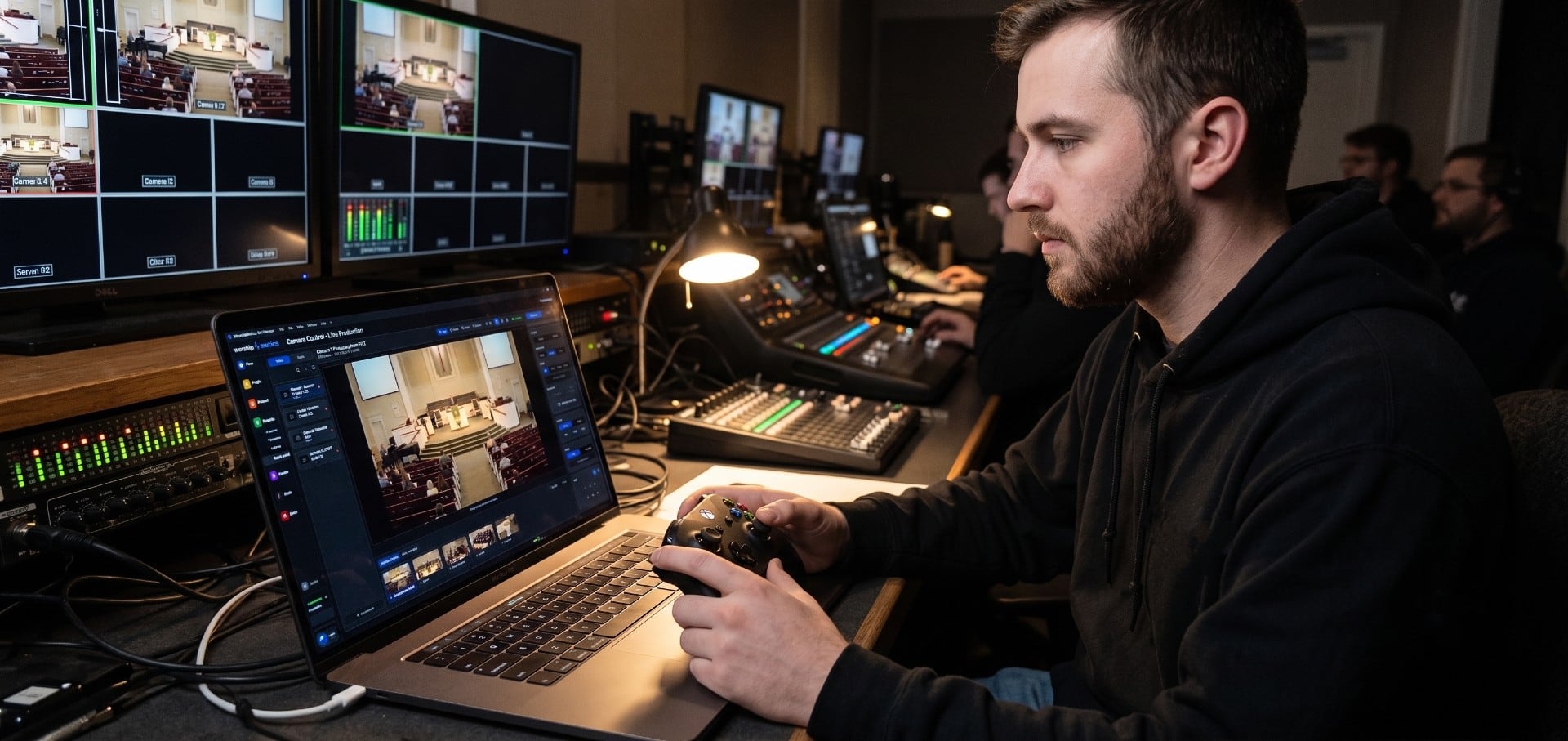
Choosing a PTZ Camera for Church Live Streaming
How to choose PTZ cameras for a church: how much zoom your room needs (with the math), NDI vs SDI vs HDMI vs USB, how many cameras to buy, sensors and low light, control and auto-tracking, and current models and prices at every budget.
Church Streaming Services Compared: Resi, BoxCast, YouTube, Facebook and More (2026)
Church live streaming services side by side: what Resi, BoxCast, Subsplash, Vimeo, Restream, Castr, SermonAudio, YouTube and Facebook cost in 2026, how each handles reliability and simulcasting, what happens to your recordings, and which fits your church.
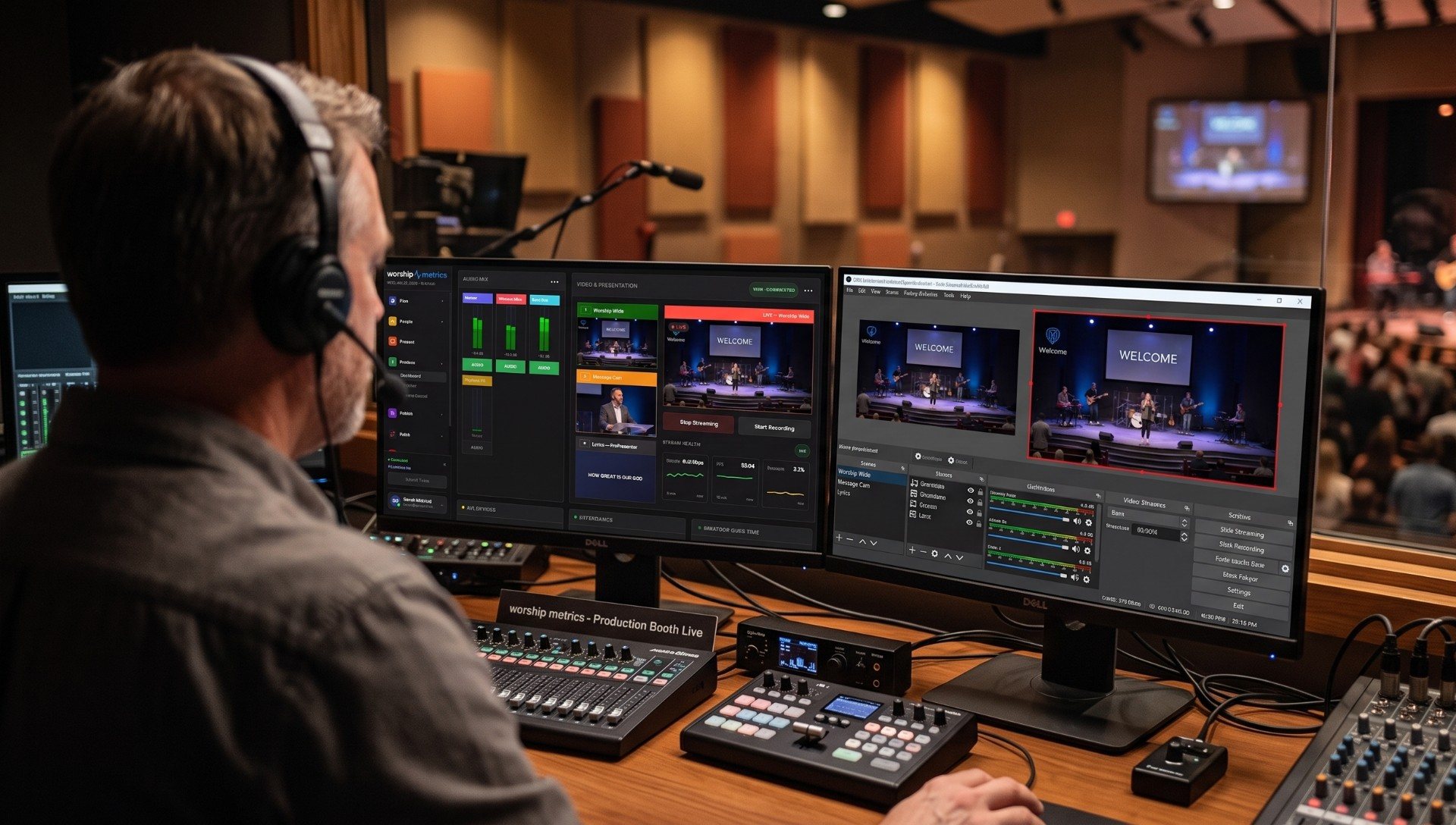
How to Live Stream a Church Service: The Complete Setup Guide
The best way to live stream a church service, start to finish: the parts every church stream needs, complete starter, mid-size and pro setups with gear, software and destinations, a first-stream checklist, and how to keep it running every Sunday.