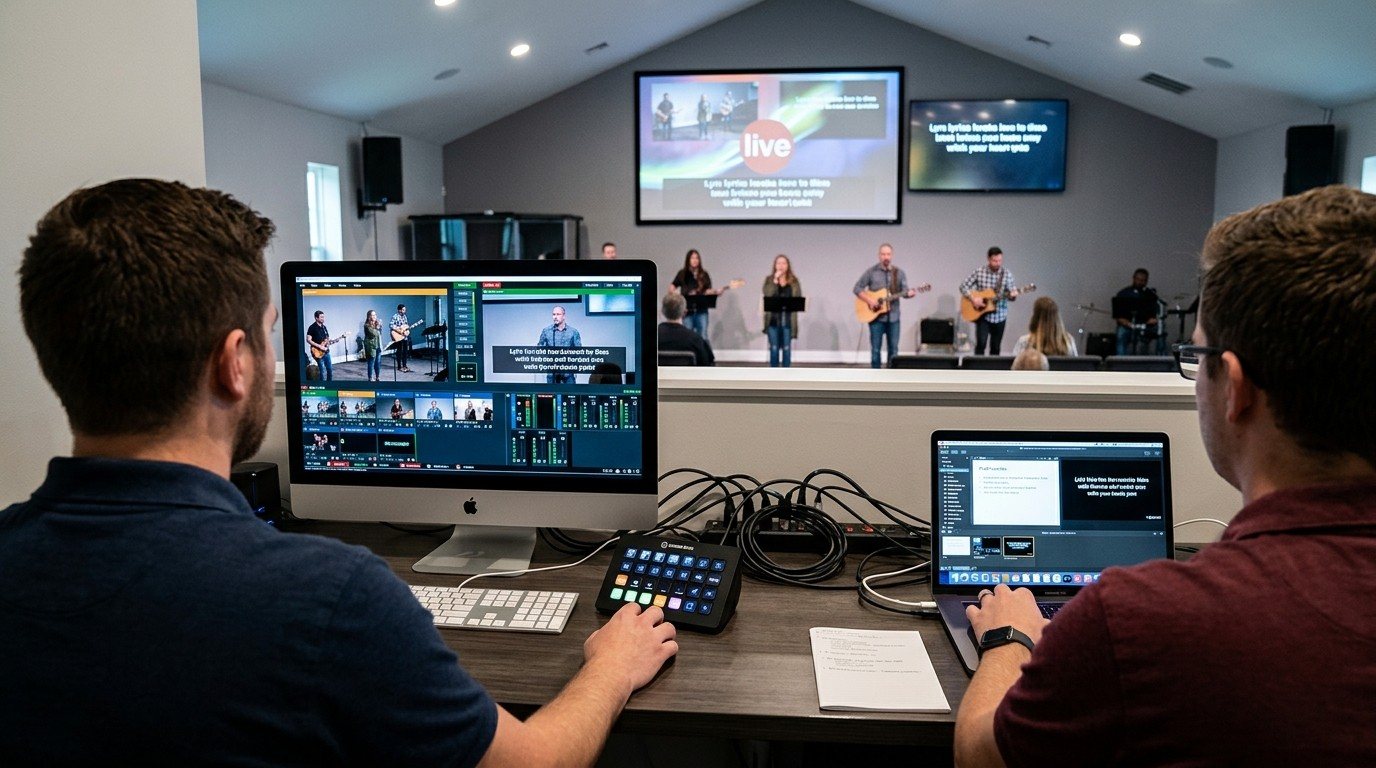
A remote for vMix, already included
Every copy of vMix includes a Web Controller. It’s a small website that runs on the vMix computer, and any phone, tablet, or laptop on the same network can open it in a browser. No app to install, no extra cost.
For churches, that means the director doesn’t have to do everything. A volunteer beside the booth, or in the back row, can help with one job from their own device. (See splitting vMix roles for church volunteers.)
Turning it on
- In vMix, open Settings, then Web Controller. It’s enabled by default.
- Note the Web Site Address: the vMix computer’s IP address and port. The port is 8088 by default.
- Set a username and password. A blank password means anyone on the network can control vMix.
- Leave Restrict access to LAN only checked, so it can’t be reached from the internet.
- On a volunteer’s device, connected to the same network (Wi-Fi is fine), type the address into the browser.
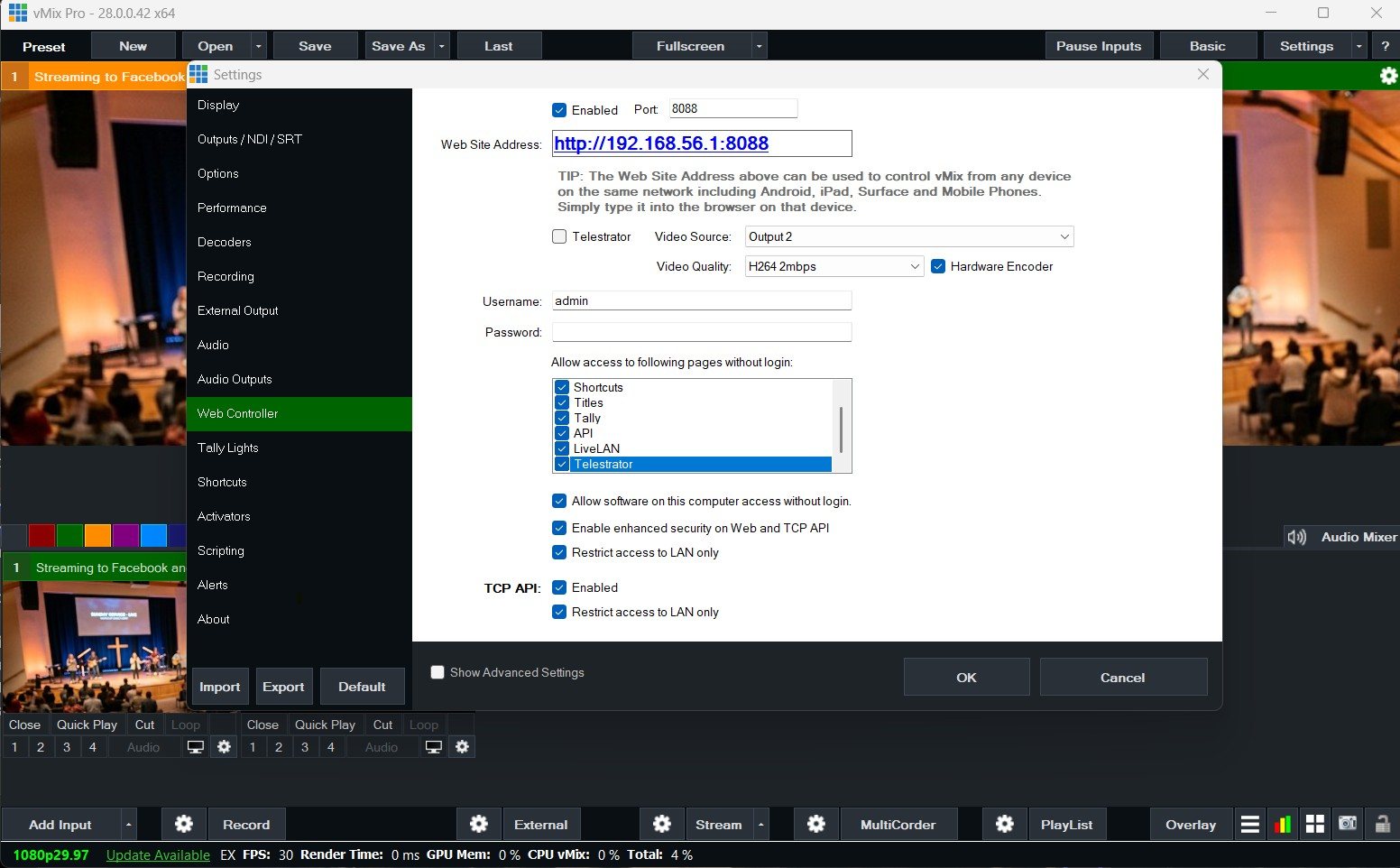
Tip: give the vMix computer a fixed IP address, so the address on the volunteers’ bookmarks never changes. Write it in the booth binder or the Signal Map.
What each page does
| Page | What a volunteer can do | Good for |
|---|---|---|
| Switcher | Switch inputs and transitions, like a hardware switcher | A backup director, or a director who prefers a tablet |
| Title Editor | Change any title’s text and update it live, or apply saved presets | The titles seat |
| Shortcuts | Run any shortcut you’ve set up in vMix, such as start or stop the stream, start recording, or put a PTZ input in preview | The stream and record seat, the camera seat |
| Tally Lights | Turn a phone into a light that shows when an input is live | A camera operator or presenter |
| LiveLAN | Watch the vMix output in the browser | Checking what’s on air from another room |
| Telestrator | Draw over the video | Teaching moments, sports-style replays |
You can also choose, page by page, which ones open without a login, under “Allow access to following pages without login.” For a church, it’s usually safer to require the login for everything except Tally.
Phone or computer?
A phone works in a pinch. For a seat someone holds for a whole service, a laptop or tablet is much easier: bigger buttons, a bigger title editor, and fewer mistaken taps.
Keeping it safe on Sunday
- Always set a password. Anyone on the network could otherwise switch your stream.
- Keep “Restrict access to LAN only” checked.
- Keep the Web Controller on the staff or AV network, not the guest Wi-Fi.
- Rehearse. A remote can do anything the booth can, including mistakes.
When you want more
The Web Controller covers one vMix job at a time. For the whole team (chat, alerts, wiring diagrams, AI help, scheduling, and a WorshipMetrics vMix panel that works from anywhere on Pro and Max), see from the Web Controller to WorshipMetrics. To control gear beyond vMix, like projectors, an ATEM switcher, or lights, see vMix + Bitfocus Companion.
Build your own buttons: vMix shortcuts as a volunteer button panel in the Web Controller.
Related questions
- How do I turn on the vMix Web Controller?
- It's on by default. In vMix, open Settings, then Web Controller, to see the web address (the vMix computer's IP address and port, 8088 by default). Type that address into a browser on any device on the same network. Set a username and password on the same screen.
- Can the vMix Web Controller work over Wi-Fi?
- Yes. Any phone, tablet, or computer on the same local network can use it, whether it's wired or on Wi-Fi. Keep the vMix computer itself wired for the stream, and keep 'Restrict access to LAN only' checked so it can't be reached from the internet.
- What can you do with the vMix Web Controller?
- Its pages include Shortcuts (run any vMix shortcut you've set up), Switcher (switch inputs and transitions like a hardware switcher), Title Editor (change title text and update it live, or apply presets), Tally Lights, LiveLAN (watch the output), and Telestrator.
Splitting vMix Roles for Church Volunteers: Titles, Cameras, Stream, and More from One vMix PC
NextFrom the vMix Web Controller to WorshipMetrics: Growing Your vMix Volunteer Team
Related Articles
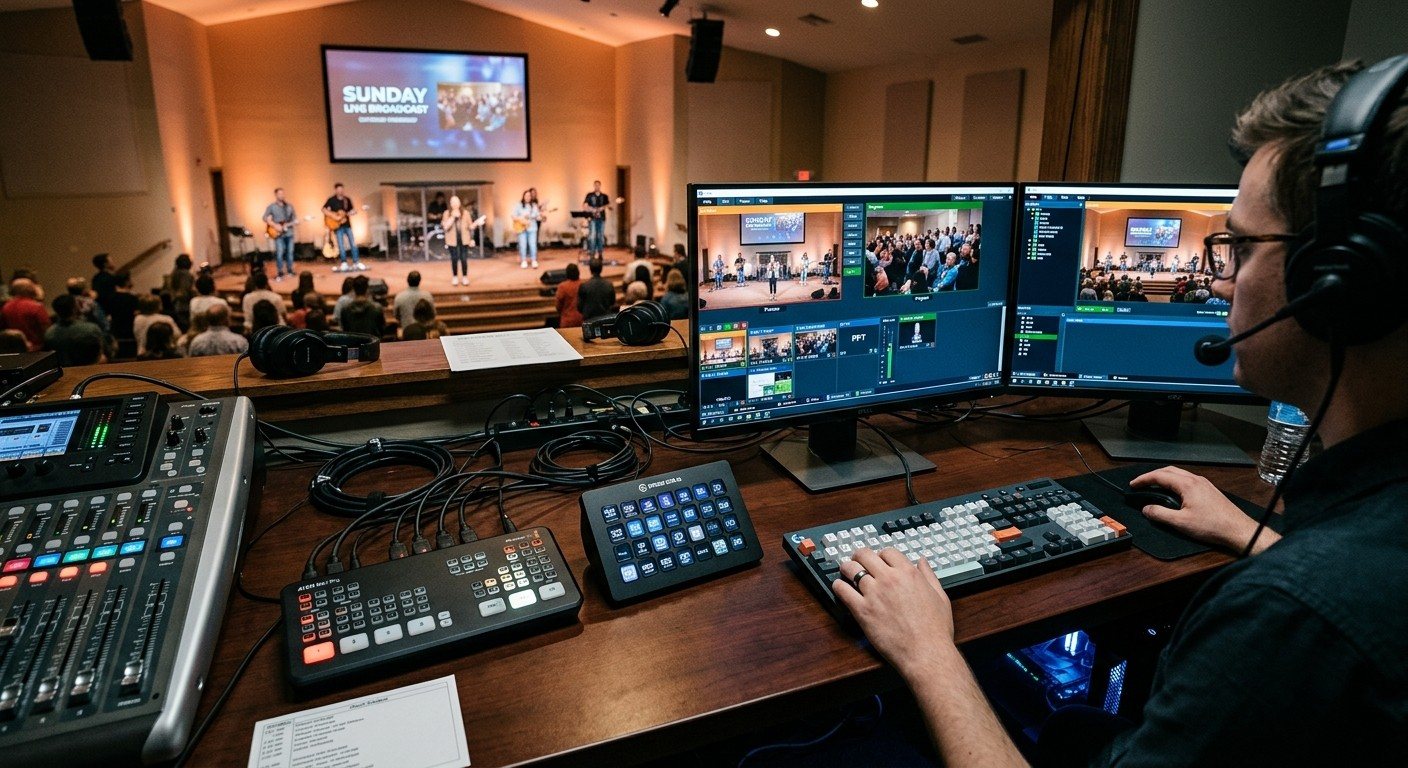
Bitfocus Companion + ATEM Mini: A Stream Deck Panel for Your Church Switcher
A Stream Deck running Bitfocus Companion turns a Blackmagic ATEM into plain-word buttons with colors that show what's live, and the same panel can run PTZ cameras, projectors, and more. Here's how to connect Companion to an ATEM and build a volunteer page.
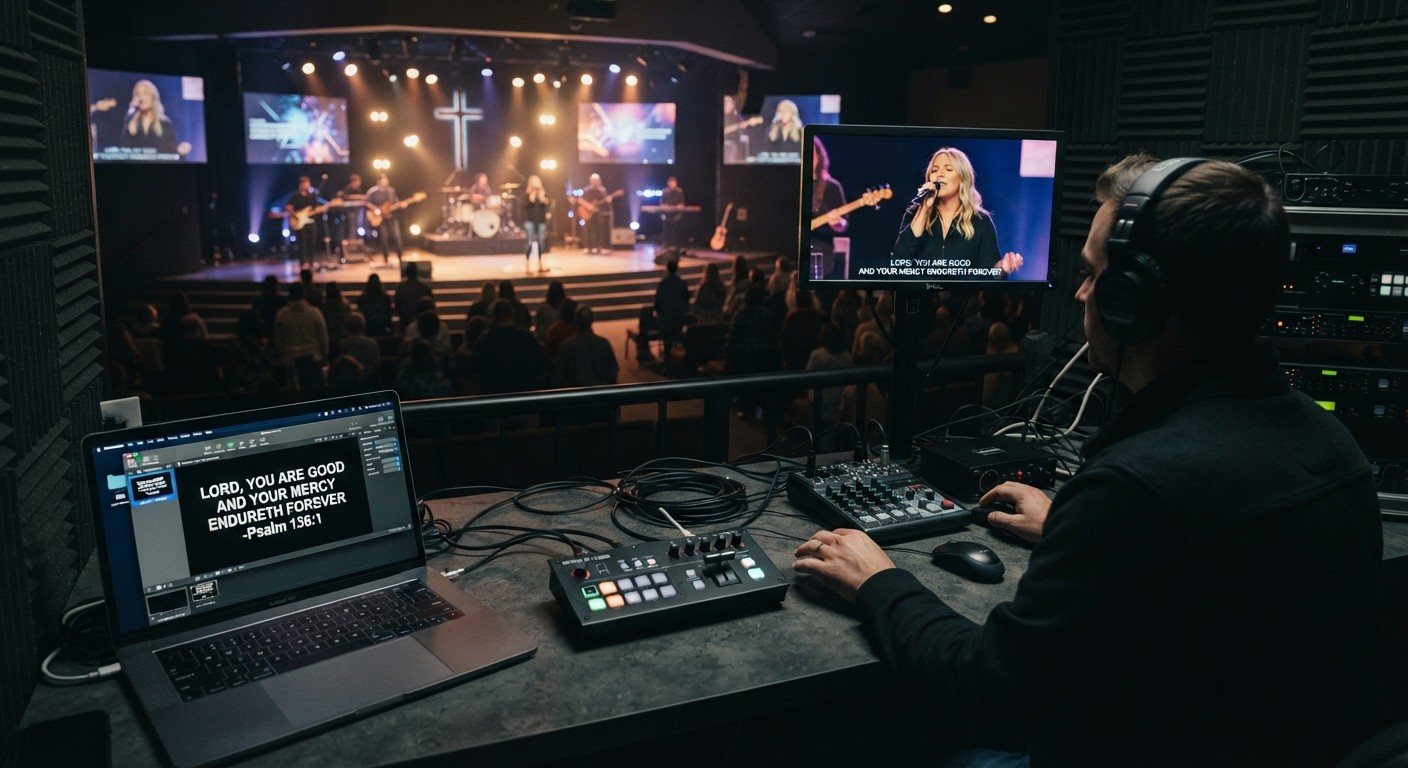
Lyrics Over the Camera on an ATEM Mini: Luma Keys, Chroma Keys, and the Slides Computer
To put song lyrics over the camera shot on a Blackmagic ATEM Mini, feed the slides computer into an ATEM input and key it over the camera. Here's how luma and chroma keys work for lyrics, how to design slides that key cleanly, and who should run it.
ATEM Mini + OBS for Church: Hardware Camera Switching with OBS for Graphics and Streaming
Many churches use an ATEM Mini as a camera switcher and send its output into OBS over USB as a webcam. The ATEM gives volunteers real buttons; OBS adds lyrics, graphics, recording, and streaming. Here's how to set it up, split the jobs, and avoid the common sync and quality problems.