A button panel that’s already in vMix
Before you buy a Stream Deck or install anything, look at what vMix already gives you. Every vMix shortcut can become a button on the Web Controller’s Shortcuts page. vMix serves that page to any phone, tablet, or computer on the church network that asks for it, and you can protect it with a password.
That means you can build a simple, custom button panel for a volunteer, in plain words, entirely inside vMix.
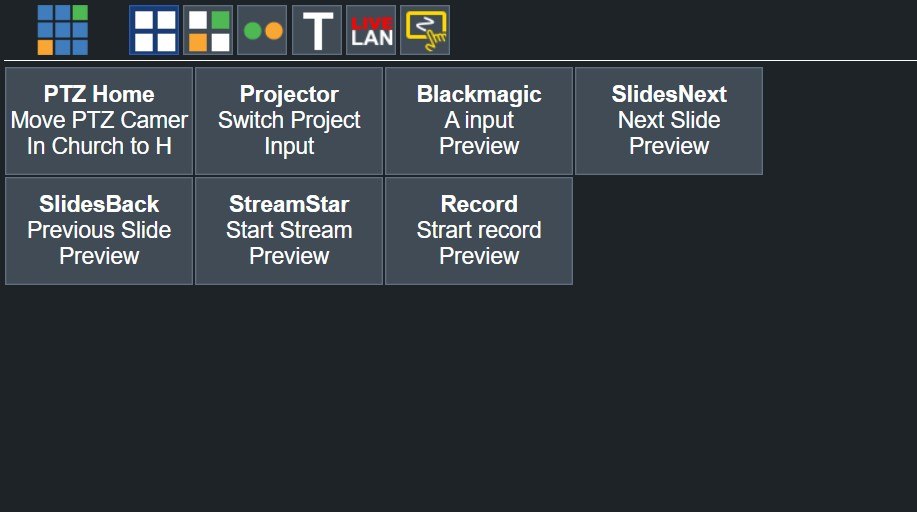
How to create a shortcut button
- In vMix, open Settings, then Shortcuts, and click Add.
- Key/Control: optional. Pick a keyboard key, or click Find and press a button on a connected controller, if you also want a physical trigger.
- Function: what the button does, such as
PreviewInput,Cut,Fade,StartStreaming,StartRecording, orPTZHome. - Input: which input it acts on. Choose a specific input, or Preview to act on whatever is in Preview.
- Title, Description1, Description2: the words on the button. Write them for a volunteer: “Pulpit,” “Camera 2,” “Slow move.”
- Check Show in Web Controller.
- Click OK.
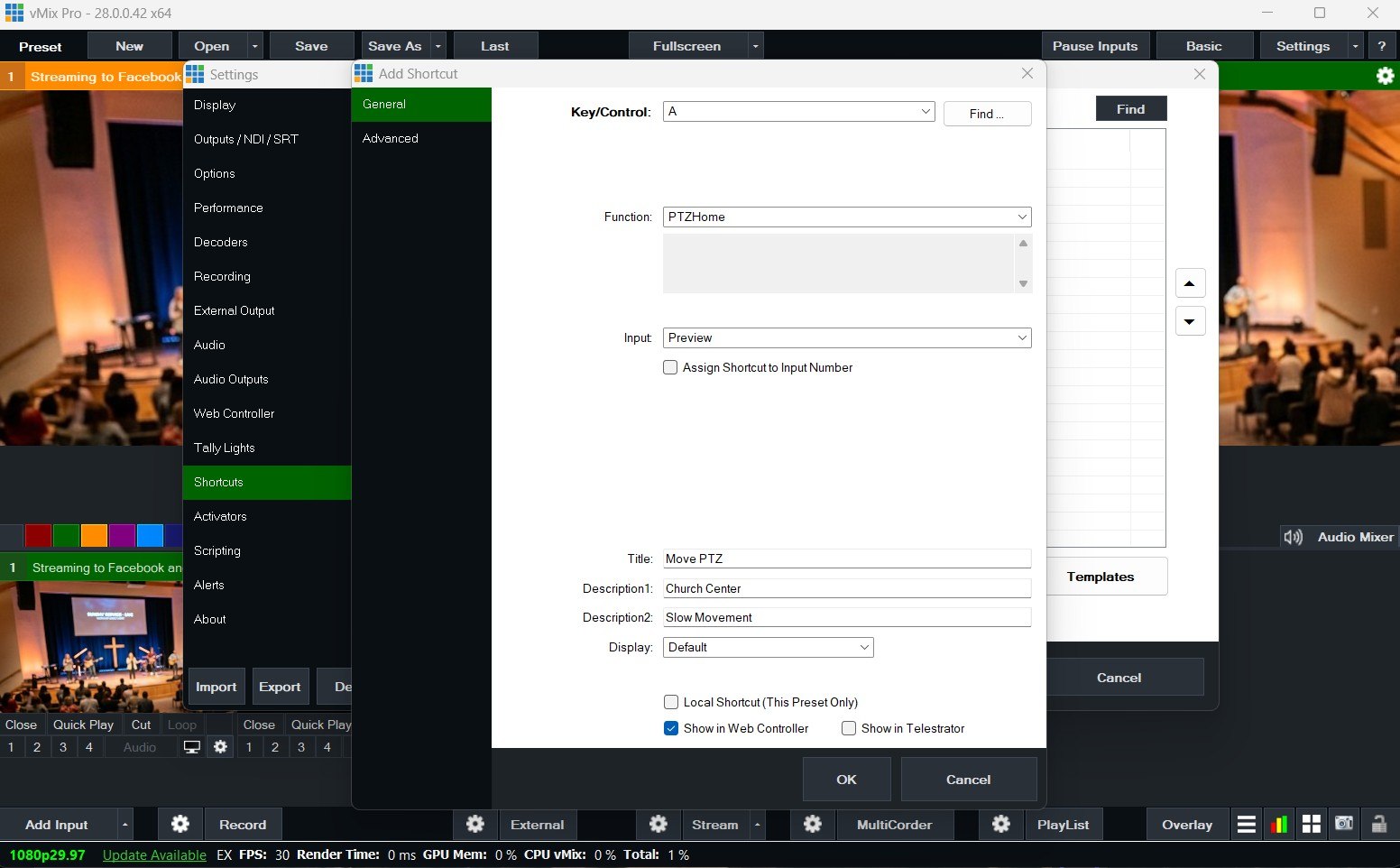
Open the Web Controller on a volunteer’s device, tap Shortcuts, and the new button is there.
Buttons worth making for each seat
| Seat | Shortcut buttons |
|---|---|
| Stream and record | Start Stream, Stop Stream, Start Recording, Stop Recording |
| Cameras | One PreviewInput button per PTZ virtual input (“Pulpit,” “Wide,” “Piano”), PTZ Home |
| Titles | Lower third in and out (overlay on/off) |
| Backup director | Cut, Fade, Welcome loop |
For the seats themselves, see splitting vMix roles, calling PTZ shots with virtual inputs, and who starts the stream?
Make the panel volunteer-friendly
- Plain words in the Title. “Start Stream,” not “StartStreaming.”
- Use Description1 for the “what” and Description2 for the “how”: “Camera 2” / “Slow move.”
- Keep the panel short. Only show the buttons a volunteer needs; uncheck Show in Web Controller for the rest.
- Keep “Stop” buttons separate from “Start” buttons, and test every button in a run-through.
- Set a Web Controller password, and keep “Restrict access to LAN only” checked.
- Use Local Shortcut (This Preset Only) for buttons that only make sense in one vMix preset.
Shortcuts or Bitfocus Companion?
They’re the same idea, built for different jobs.
| vMix shortcuts + Web Controller | Bitfocus Companion | |
|---|---|---|
| Cost and setup | Free, built into vMix | Free, a separate install |
| Controls | vMix | vMix plus hundreds of other devices |
| Buttons show what’s live | No, buttons are labels | Yes, colors and live text |
| Where the buttons live | Any browser on the church network | Stream Deck, tablets, browsers, and WorshipMetrics Present |
| Best for | A quick panel for one vMix job | One panel for the whole booth |
Many churches start with vMix shortcuts, then move to Bitfocus Companion when they want one button to also switch the projector, a Blackmagic ATEM, or the lights. (See vMix + Companion for projectors, ATEM, and lighting.)
Where WorshipMetrics helps
The Signal Map keeps a record of what each button does and which devices it touches, so the panel outlives the person who built it. And when volunteers are ready for more than one vMix job, WorshipMetrics adds team chat, alerts, and a vMix panel that works from anywhere. (See from the Web Controller to WorshipMetrics.)
Related questions
- How do I add buttons to the vMix Web Controller?
- Create a shortcut in vMix (Settings, Shortcuts, Add), choose its Function and Input, give it a Title and descriptions, and check Show in Web Controller. It then appears as a button on the Web Controller's Shortcuts page on any device on the church network.
- What can a vMix shortcut do?
- Run almost any vMix function: put an input in Preview, cut or fade, toggle an overlay, start or stop the stream or recording, recall a PTZ position, and much more. The same shortcut can also be triggered from a keyboard key or a connected controller.
- Is a vMix shortcut panel the same as Bitfocus Companion?
- They're similar ideas: plain buttons that run actions. vMix shortcuts are built in and control vMix itself. Bitfocus Companion adds button colors that show what's live, Stream Deck and tablet layouts, and control of other equipment like projectors, ATEM switchers, and lighting.
Calling PTZ Camera Shots in vMix from a Phone or Tablet: Virtual PTZ Inputs for Church Volunteers
NextWho Starts the Stream? Giving One Volunteer the vMix Stream and Recording Job
Related Articles
Bitfocus Companion + ATEM Mini: A Stream Deck Panel for Your Church Switcher
A Stream Deck running Bitfocus Companion turns a Blackmagic ATEM into plain-word buttons with colors that show what's live, and the same panel can run PTZ cameras, projectors, and more. Here's how to connect Companion to an ATEM and build a volunteer page.
Lyrics Over the Camera on an ATEM Mini: Luma Keys, Chroma Keys, and the Slides Computer
To put song lyrics over the camera shot on a Blackmagic ATEM Mini, feed the slides computer into an ATEM input and key it over the camera. Here's how luma and chroma keys work for lyrics, how to design slides that key cleanly, and who should run it.
ATEM Mini + OBS for Church: Hardware Camera Switching with OBS for Graphics and Streaming
Many churches use an ATEM Mini as a camera switcher and send its output into OBS over USB as a webcam. The ATEM gives volunteers real buttons; OBS adds lyrics, graphics, recording, and streaming. Here's how to set it up, split the jobs, and avoid the common sync and quality problems.