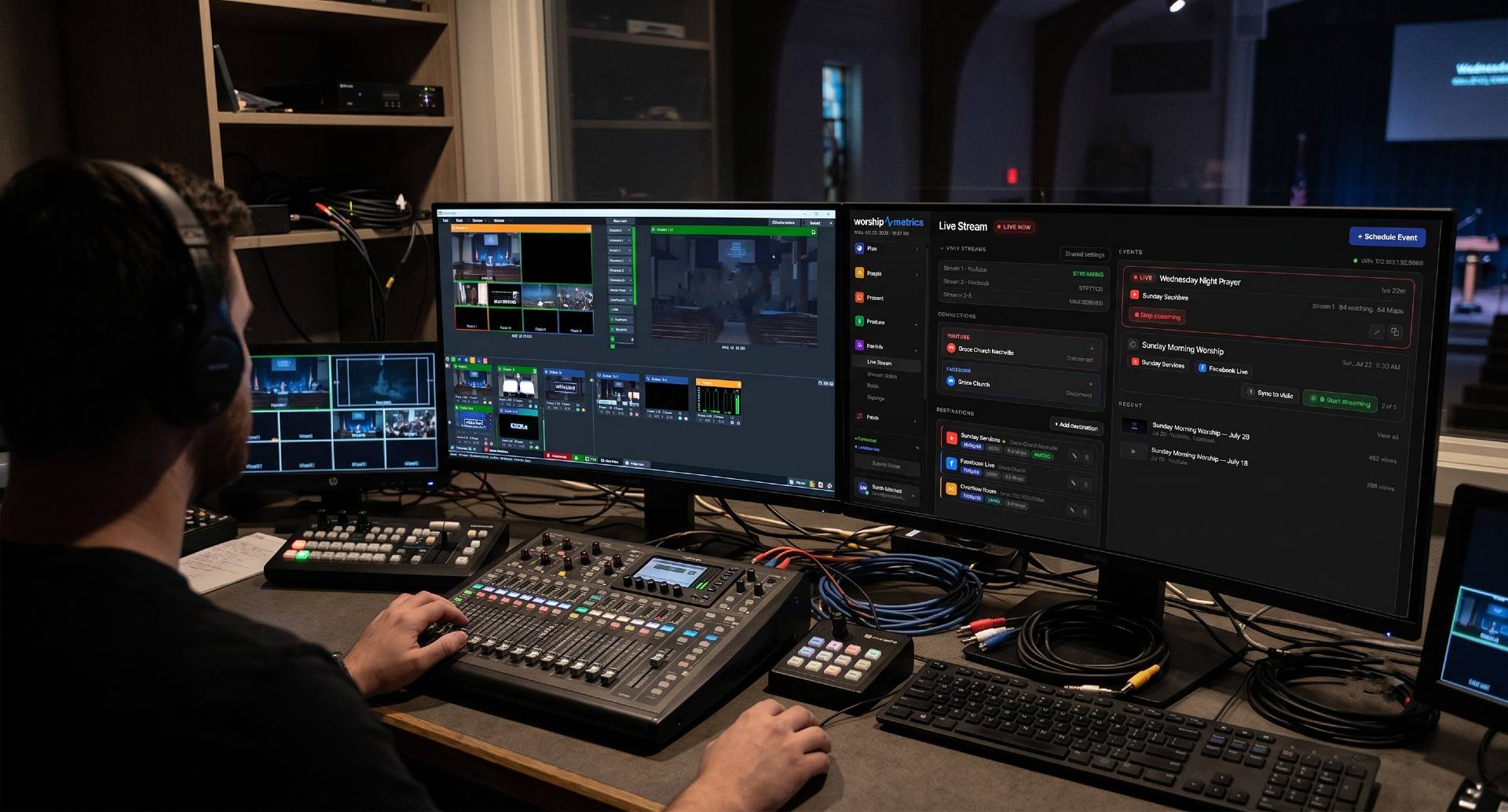
Why the protocol choice matters
Every live stream begins with one unglamorous decision: which protocol carries your video from the booth to the cloud. WorshipMetrics accepts two on its ingest hostname, stream.worshipmetrics.com — RTMPS and SRT — and the right choice depends almost entirely on the quality of your church’s internet uplink. This guide explains what each protocol actually does, when SRT is worth the extra setup, and how to configure vMix or OBS for either one before Sunday.
Two protocols, one destination
When you go live with WorshipMetrics on Max, your encoder pushes a single feed to stream.worshipmetrics.com. From there the platform handles the adaptive bitrate ladder, DVR, delivery to your watch page and embedded player, and cloud fan-out to up to 10 simultaneous destinations — YouTube, Facebook Live, and the rest. (If multi-destination streaming is new to you, start with one feed up, restreamed everywhere.)
That architecture has a practical consequence: your booth only has to deliver one good copy of the stream. All of your effort should go into making that single uplink as reliable as possible, and the protocol you choose is the first lever.
What RTMPS is
RTMP (Real-Time Messaging Protocol) dates back to the Flash video era, and it stuck around long after Flash because every encoder and every platform speaks it. RTMPS is simply RTMP wrapped in TLS encryption — the same security layer HTTPS uses — so your stream key and your video travel encrypted.
RTMP rides on TCP, which guarantees every packet arrives in order. That sounds ideal, but TCP’s guarantee comes with a catch called head-of-line blocking: if one packet is lost, everything behind it waits until the retransmission arrives. On a clean wired connection you’ll never notice. On a connection with even occasional packet loss or jitter, throughput sags, the encoder’s output buffer backs up, and you get the classic symptoms — dropped frames, bitrate oscillation, and eventually a disconnect.
RTMPS is the right default when your church has a solid wired uplink (fiber or cable) with comfortable headroom above your streaming bitrate, and your ping times to the internet are consistently low. It’s the simplest to configure: a URL and a stream key, and every encoder on earth supports it.
What SRT is
SRT (Secure Reliable Transport) is a newer open-source protocol, originally developed by Haivision and now maintained by a broad industry alliance. It was designed for exactly the situation many churches live in: pushing broadcast video across the unpredictable public internet.
SRT rides on UDP instead of TCP and implements its own smarter recovery. Rather than stalling the whole stream when a packet goes missing, SRT selectively retransmits only the lost packets inside a latency buffer you configure. If a retransmission arrives within the buffer window, the viewer never knows anything happened. The protocol also continuously measures the link and adapts to jitter and bandwidth changes far more gracefully than TCP can.
Three SRT concepts matter for setup:
- Stream ID — a text identifier sent during the handshake that tells the server which channel this stream belongs to. This is SRT’s equivalent of a stream key’s routing job.
- Passphrase — enables AES encryption on the stream. SRT requires passphrases to be 10–79 characters. This is the security job that TLS does for RTMPS.
- Latency — the size of the recovery buffer. Bigger buffers survive worse networks at the cost of a little extra glass-to-glass delay. A common starting point is 3–4× your round-trip time to the ingest server, and most encoders default to something in the 120 ms–2 second range.
WorshipMetrics issues both a stream ID and a passphrase for SRT ingest, so your uplink is authenticated and encrypted end to end.
When SRT beats RTMPS for a church uplink
Choose SRT when any of these sound familiar:
- Your uplink loses packets. Fixed wireless, rural DSL, bonded cellular, or any connection where a speed test looks fine but streams still stutter. SRT’s selective retransmission is built for this.
- Sunday morning is your network’s worst hour. Check-in kiosks, lobby Wi-Fi, and a full building all compete for bandwidth. Congestion causes jitter and loss, and SRT rides through both better than RTMPS. (Segmenting AV traffic onto its own VLAN helps even more.)
- You’ve had mid-service drops before. If your post-mortems keep pointing at the uplink rather than the encoder, switching protocols is one of the highest-leverage changes you can make. Our guide to what to do when your stream drops mid-service covers the recovery side.
- Your ingest point is far away. Longer network paths mean higher round-trip times, which magnify TCP’s head-of-line blocking. SRT’s buffer absorbs the distance.
Stick with RTMPS when your connection is genuinely solid and you value the simplest possible configuration. There’s no prize for using the fancier protocol on a link that doesn’t need it — a healthy RTMPS stream over good fiber is every bit as watchable.
Setting up vMix
vMix keeps its two ingest paths in different places, which surprises people the first time.
RTMPS lives in the streaming panel:
- Click the gear next to the Stream button.
- Choose Custom RTMP Server as the destination.
- Enter the RTMPS URL and stream key from your WorshipMetrics channel’s streaming settings.
- Pick your quality profile (more on encoder settings below) and save.
SRT lives in Outputs:
- Open Settings → Outputs and click the gear icon next to an output.
- Set the type to SRT and the mode to Caller (your encoder initiates the connection).
- Enter the hostname
stream.worshipmetrics.com, plus the port, Stream ID, and Passphrase exactly as shown in your channel’s ingest settings. - Set Latency in milliseconds — start around 4× your ping to the server, and don’t go below 120 ms.
If you’re newer to vMix generally, the complete vMix guide for churches walks through the full production setup around this.
Setting up OBS
RTMPS is the familiar path:
- Settings → Stream, set Service to Custom.
- Paste the RTMPS URL into Server and the stream key into Stream Key.
SRT in OBS goes through the same Custom service, but the entire configuration lives in the URL, because OBS hands SRT off to its built-in FFmpeg engine:
srt://stream.worshipmetrics.com:PORT?streamid=YOUR_STREAM_ID&passphrase=YOUR_PASSPHRASE&latency=800000Three things to watch:
- Use the port from your WorshipMetrics ingest settings, and leave the Stream Key field blank — everything rides in the URL.
- FFmpeg expects
latencyin microseconds, not milliseconds.800000is 800 ms. This trips up nearly everyone once. - The passphrase must be 10–79 characters; if the connection is rejected instantly, a mistyped passphrase or stream ID is the usual culprit.
For the rest of your OBS build-out — scenes, audio, and encoder tuning — see the complete OBS Studio guide for churches.
Encoder settings that work with either protocol
The protocol carries the stream; the encoder settings determine what’s in it. These defaults serve almost every church well on either RTMPS or SRT:
| Setting | Recommendation |
|---|---|
| Codec | H.264, High profile |
| Rate control | CBR (constant bitrate) |
| Keyframe interval | 2 seconds |
| 1080p30 bitrate | 4,500–6,000 kbps |
| 720p30 bitrate | 3,000–4,500 kbps |
| Audio | AAC, 128–256 kbps stereo |
Two rules of thumb: keep your total streaming bitrate under about half of your measured upload speed (measured on a Sunday morning, not a quiet Tuesday), and never use variable bitrate for the uplink — CBR keeps the network load predictable, which both protocols reward.
Test it before Sunday
A protocol change deserves a midweek rehearsal, not a live debut:
- Stream to your channel midweek for at least 20–30 minutes at full production settings, and watch the output on the actual watch page or player your congregation uses.
- Stress the connection. While the test stream runs, have someone pull large downloads on the church network. An SRT stream with a properly sized latency buffer should sail through; if it doesn’t, increase the buffer.
- Simulate a hiccup. Briefly disrupt and restore the network path if you can do so safely. You want to learn how your encoder reconnects now, not at 10:07 on Sunday.
- Review the stream health report. On Max, if you run the WorshipMetrics Tech Manager on the booth PC, it samples bitrate, FPS, encoder load, and dropped frames from vMix or OBS every 5 seconds during the stream and produces a 0–100 health score afterward, with plain-English recommendations for anything it penalized — dropped frames, reconnects, bitrate instability, or encoder overload. A clean midweek report is the best confidence you can carry into Sunday.
How WorshipMetrics handles this
WorshipMetrics live streaming, on the Max plan, accepts both RTMPS and SRT (stream ID + passphrase) at stream.worshipmetrics.com, with the live input for each channel provisioned automatically and self-healing behind the scenes — there’s nothing to build server-side before you stream. Your booth pushes one feed; the cloud handles adaptive bitrate delivery, the hosted watch page and embeddable player, automatic recording of every service, and fan-out to up to 10 destinations at once. The Tech Manager desktop app rounds out the loop, driving vMix or OBS and turning every stream’s telemetry into a health score your team can actually act on — so the protocol decision you made in this article keeps proving itself, week after week.
Reading Your Stream Health Score: What the 0-100 Number Actually Means
NextSelf Healing in the Booth: How Tech Manager Offers a One-Tap Restart
Related Articles
Bitfocus Companion + ATEM Mini: A Stream Deck Panel for Your Church Switcher
A Stream Deck running Bitfocus Companion turns a Blackmagic ATEM into plain-word buttons with colors that show what's live, and the same panel can run PTZ cameras, projectors, and more. Here's how to connect Companion to an ATEM and build a volunteer page.
Lyrics Over the Camera on an ATEM Mini: Luma Keys, Chroma Keys, and the Slides Computer
To put song lyrics over the camera shot on a Blackmagic ATEM Mini, feed the slides computer into an ATEM input and key it over the camera. Here's how luma and chroma keys work for lyrics, how to design slides that key cleanly, and who should run it.
ATEM Mini + OBS for Church: Hardware Camera Switching with OBS for Graphics and Streaming
Many churches use an ATEM Mini as a camera switcher and send its output into OBS over USB as a webcam. The ATEM gives volunteers real buttons; OBS adds lyrics, graphics, recording, and streaming. Here's how to set it up, split the jobs, and avoid the common sync and quality problems.