Where Team Files Usually Live (and Why That Goes Wrong)
Every church tech team has lived some version of this Saturday night: the stage plot is in one person’s text thread, the run sheet is an email attachment three replies deep, and the setlist PDF is “somewhere in the shared drive.” None of those tools are bad. They just weren’t built for a team that plans together, and the files end up scattered across as many places as you have volunteers.
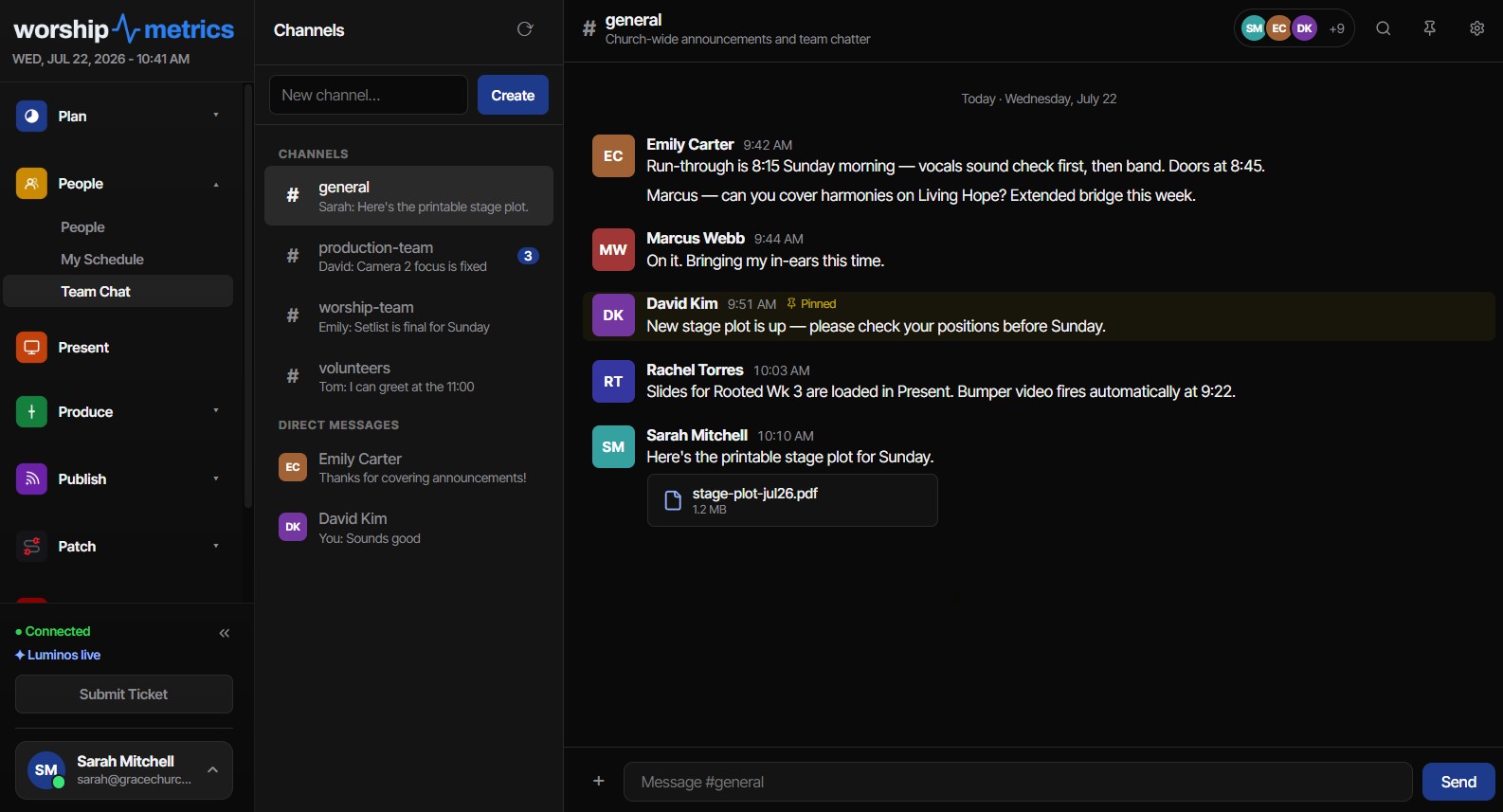
The fix is simple: put the files where the conversation already is. WorshipMetrics Team Chat lets you drop a file straight into a channel or direct message — the same channels where your band, tech crew, and staff are already talking — so the stage plot lives next to the discussion about the stage plot.
This article is the reference for how that file sharing works: which formats are supported, why there’s a 25 MB per-file limit, why SVG and HTML are deliberately declined, and how the storage behind it keeps church files private.
What You Can Share: The Supported Format Families
Rather than maintaining a long list of individual extensions, Team Chat accepts files by family — broad categories of file types that are safe to store and view. Five families cover nearly everything a worship or tech team passes around:
| Family | Typical files | Common church uses |
|---|---|---|
| Images | JPG, PNG, GIF, WebP | Stage photos, booth wiring shots, whiteboard captures, graphics proofs |
| Video | MP4, MOV, and similar | Short clips: a rehearsal moment, a lighting look, a countdown preview |
| Audio | MP3, WAV, M4A, and similar | Click/reference tracks, voice memos, a mix snippet for feedback |
| Any PDF | Run sheets, stage plots, chord charts, manuals, signed forms | |
| Office documents | Word, Excel, PowerPoint | Draft announcements, volunteer rosters, planning spreadsheets |
Plain text files (a .txt lyric sheet or a .csv export) ride along as well.
The upload check is an allowlist: if a file belongs to one of these families, it goes through; if it doesn’t, the upload is politely declined rather than quietly accepted and worried about later. That means archives (.zip), installers, and executables don’t belong in chat — and two formats you might expect to work, SVG and HTML, are declined on purpose. More on why below.
The 25 MB Cap: What Fits, and What to Do When It Doesn’t
Every file shared in Team Chat can be up to 25 MB. In practice, that ceiling is roomier than it sounds:
- Photos from a modern phone run 2–8 MB each. Fits with room to spare.
- PDFs — even a 40-page manual with images — rarely crack 10 MB.
- Office documents almost never approach the limit unless they’re stuffed with full-resolution photos.
- Audio fits comfortably for voice memos and MP3 reference tracks; a full-length WAV of a service recording will not, and that’s fine — chat is for the snippet, not the archive.
- Video is the one family where you’ll meet the cap. A minute or so of 720p H.264 fits; a ten-minute 4K rehearsal recording does not.
When a file is genuinely bigger than 25 MB, you have two good options:
- Shrink it. Export the slide deck as a PDF instead of the original presentation file, trim the video to the thirty seconds that matter, or export the photo at a sensible resolution. Nine times out of ten, the smaller version communicates just as well.
- Link it. Large media — full service recordings, raw camera files, multitrack sessions — belongs in whatever large-file storage your church already uses. Paste the link into chat, add a sentence of context, and pin the message. The conversation stays in one place even when the bytes live elsewhere.
The cap isn’t arbitrary. Keeping chat files modest means uploads finish fast on sanctuary Wi-Fi and messages load quickly on a volunteer’s phone in the booth. Chat is the coordination layer; it works best carrying the working documents, not the archive.
Why SVG and HTML Files Are Blocked
This is the question that surprises people, because SVG feels like “just an image” — many stage-plot and diagramming tools export it by default. Here’s the honest reason both are declined.
An SVG is not a picture; it’s a program that draws a picture. SVG files are XML documents, and the format legitimately allows embedded JavaScript and references to outside resources. When a browser displays an SVG, it doesn’t just paint pixels the way it does with a JPG — it interprets a document, scripts and all. A maliciously crafted SVG shared into a team chat could run code in the browser of everyone who views it.
HTML is an executable document by definition. A shared .html file opened from chat is a full web page running with scripts, forms, and redirects — inside a context where your team is signed in and trusting. That’s the classic recipe for the attack security folks call stored cross-site scripting: hide code in an uploaded file, wait for teammates to open it.
Could a filter scrub the dangerous parts out instead of blocking these formats? Sanitizing active content is an arms race, and a church chat platform’s first duty is to be boring and safe. Blocking the two active-document formats outright — while accepting every passive media family your team actually needs — removes the entire category of risk.
The practical workaround takes ten seconds: export your SVG as a PNG or PDF before sharing. Every diagramming and design tool offers this. Your stage plot looks identical, prints better, and previews on every phone — and the file you shared can never do anything except be looked at.
How Private Storage and Expiring Links Protect Your Files
Where do the files actually go? Not onto a public web server, and not into the message itself. Every file shared in Team Chat is stored in private cloud object storage — a locked bucket that the public internet cannot browse, list, or guess its way into. Uploads travel over an encrypted connection directly to that storage, so your file takes the shortest safe path from your device to its locked home.
Access works through signed URLs, and the concept is worth two sentences because it’s the heart of the privacy story. A signed URL is a link that carries its own cryptographic permission slip: it names exactly one file, it’s mathematically verifiable, and it expires one hour after it’s issued. When you tap a file in chat, WorshipMetrics issues you a fresh signed link on the spot; an hour later, that particular link is dead.
Think of it as the difference between a copied master key and a visitor badge. A plain public link is a master key — anyone who ever gets a copy can use it forever, and links have a way of escaping through forwarded messages, browser history, and screenshots. A signed link is a visitor badge with a stamp-out time: even if one leaks, it dies within the hour, and the file behind it was never publicly reachable in the first place.
For a church, this matters more than it might for a hobby group. Team channels carry rosters with contact details, photos that include minors, counseling-adjacent notes, and building documents. Those deserve better than “anyone with the link.” And because chat access itself follows your team’s sign-ins — public channels for the whole team, invite-only private channels, and direct messages — files inherit the audience of the conversation they were shared into. If you’re setting up who can sign in at all, our guide to linking logins to directory people covers that foundation.
Practical Patterns: Stage Plots, Run Sheets, and Setlists
A few habits that healthy teams converge on within a month:
Pin the stage plot in the band channel. Export it as PDF or PNG (remember: not SVG), share it with a one-line summary of what changed, and pin the message. Pins live at the top of the channel, so “where’s the current plot?” has a permanent answer. When the plot changes, share the new version and move the pin — the old one stays in history for reference.
Drop the run sheet where the crew already reads. A Saturday-evening post of the Sunday run sheet PDF, with an @mention for the roles it affects, beats an email that half the team won’t open until they’re already in the building. If your volunteers are still learning the rhythm of a service, pairing this habit with a simple onboarding plan helps — our guide to training volunteer AV teams has a structure worth borrowing.
Share setlists and charts as PDF or plain text. Chord charts travel beautifully as PDFs, and plain-text formats work too — if your team writes charts in ChordPro, our ChordPro reference for worship teams covers that format in depth.
Use photos as documentation. A phone photo of the patch bay after a re-rack, posted to the tech channel, is the cheapest system documentation you’ll ever create — and it pairs naturally with a real labeling discipline like the one in our cable labeling guide.
Keep quick decisions in polls, not attachments. For “which rehearsal night works?” questions, a built-in poll (two to ten options, single- or multiple-choice, live tallies) beats a spreadsheet every time.
Quick Troubleshooting
- “My upload was declined.” Check the format first — SVG, HTML, archives, and executables are blocked by design. Export to PDF or PNG and try again.
- “My file is too big.” The limit is 25 MB per file. Compress, trim, or export a lighter format; for genuinely large media, share a link to your church’s large-file storage instead.
- “A file link stopped working.” Signed links expire after one hour — a feature, not a failure. Open the file from the chat message again and a fresh link is issued automatically.
How WorshipMetrics Handles This
Team Chat is part of the People side of WorshipMetrics, so your channels, direct messages, and shared files live alongside your directory, teams, and serving schedules — the same people, the same sign-ins, one place. Files up to 25 MB across the image, video, audio, PDF, Office, and text families are stored privately with expiring signed links; active-document formats stay out by design. Chat works identically on the web and desktop apps and is mobile-friendly in the booth, and because the free tier includes unlimited users, your whole team can be in the conversation from day one. When those files are coordinating an actual service order, service planning keeps the plan in the same place your team is already talking.
SDI Generations Explained: HD, 3G, 6G, and 12G for Church Video
NextWhat Tech Manager Actually Sends: A Tour of the Booth Heartbeat
Related Articles
Making a Complicated Church AV System Easy to Run, Without Hiring an AV Company
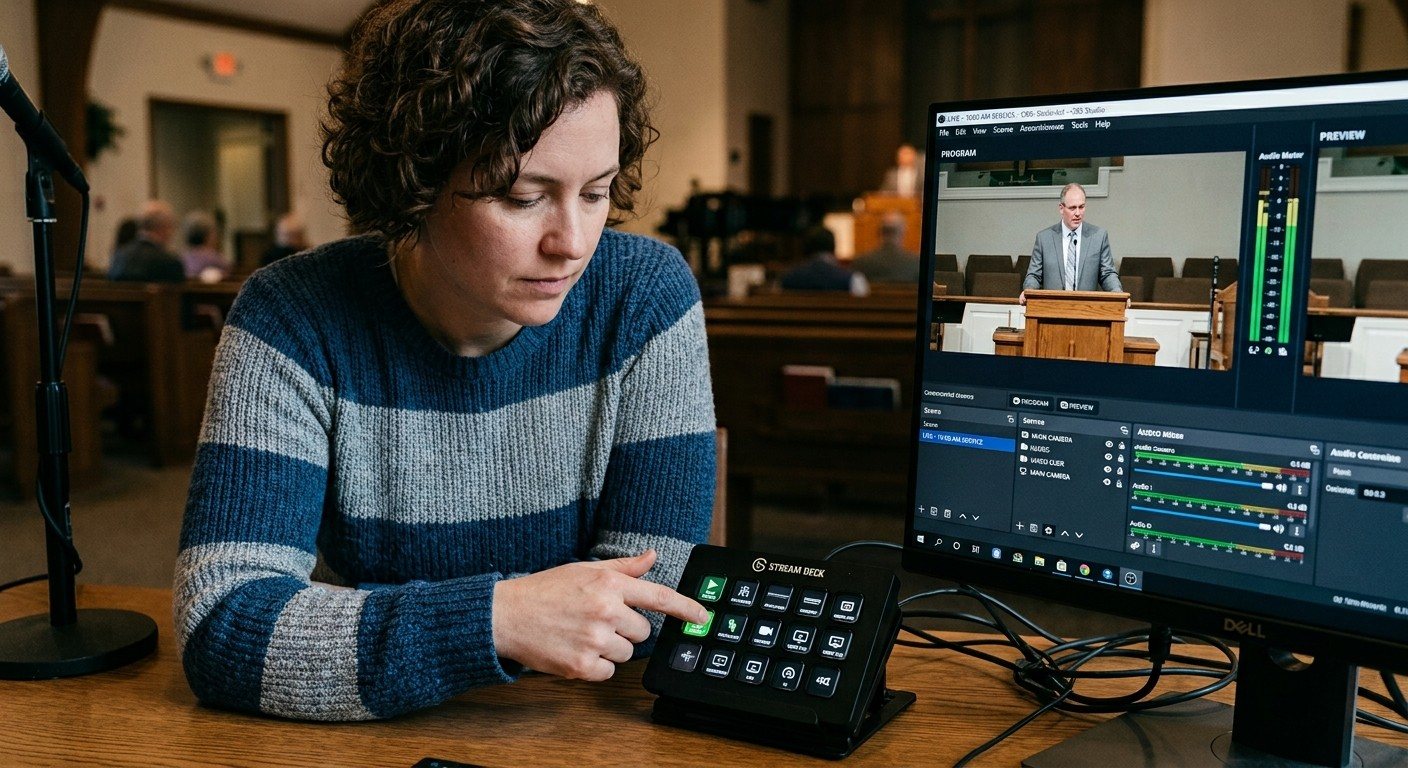
Many church AV systems aren't too old or too small. They're too complicated for a volunteer. A simple button panel built with Bitfocus Companion can hide that complexity behind plain-word buttons, and a church can often build it themselves. Here's when that works, when to call a professional, and how to start.
Your Church Livestream Team, Connected Even When They're Not at Church
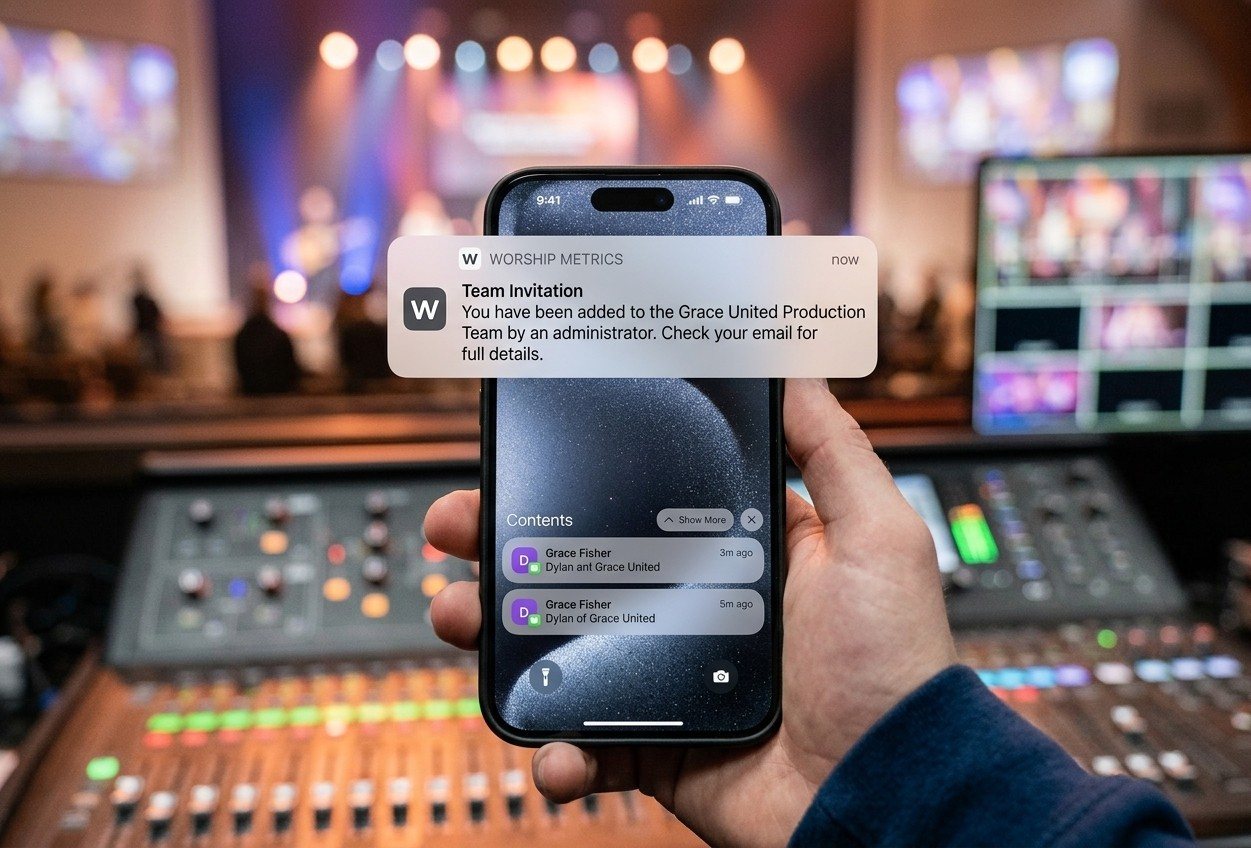
A three-person livestream team only works if everyone shares the same plan, the same wiring diagram, and the same news when something breaks. Here's how WorshipMetrics connects the director, slides, and camera volunteers through the week: chat, alerts, documentation, AI help, scheduling, and cloud control for OBS and vMix.
The Three-Person Church Livestream Team: Director, Slides, and Cameras
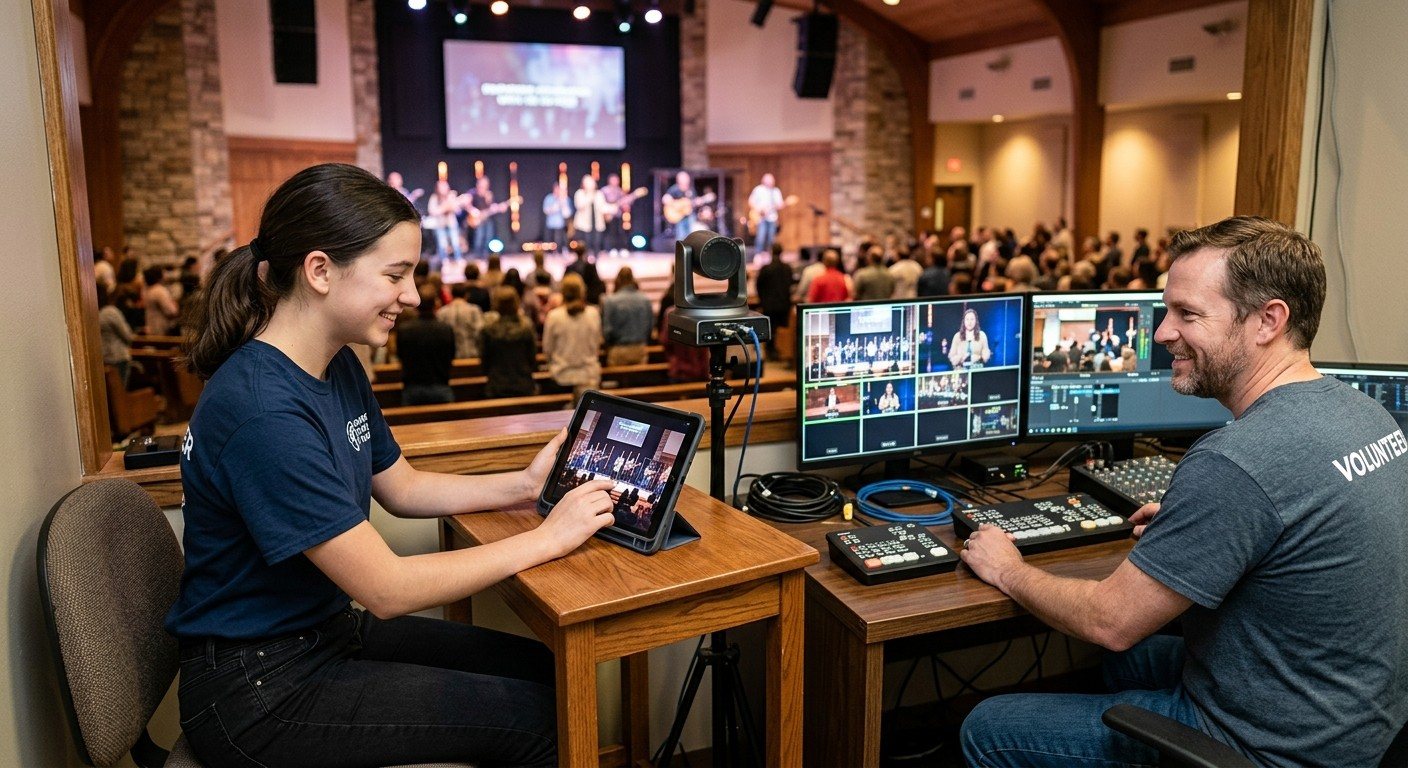
A church livestream runs best with three clear jobs: a director on OBS or vMix, a slides operator, and a camera operator. Here's what each role does before, during, and after the service, what skills it takes, and how the three talk to each other.