A hardware PTZ joystick costs anywhere from about $275 to over $6,000. A wired Xbox-compatible controller costs $20 to $30, an official Xbox controller about $50 to $65, and half your volunteers already know how to use one. With the right software, it drives PTZ cameras very well: smooth analog pan and tilt, zoom on the triggers, focus on the bumpers and four presets under your right thumb.
This guide covers what you need, how to set it up in WorshipMetrics Camera Control, what every button does, and how to fix a controller that won’t respond. If you’re weighing a game controller against a dedicated joystick, read our PTZ joystick comparison too.
What you need
- PTZ cameras on your network. Anything that takes VISCA over IP or ONVIF works, which covers nearly every PTZ camera churches buy, plus Panasonic AW and Canon XC heads over their own network control. The camera list shows the catalogued models.
- Tech Manager on a computer at church. It’s the free WorshipMetrics desktop app for Windows and Mac, and it’s what actually talks to the cameras. Download it here.
- An Xbox or compatible controller. A wired USB controller is the simplest on Windows. Bluetooth works too. On a Mac, an Xbox controller over Bluetooth is the dependable connection.
- Chrome or Edge, for control from another computer. Driving the cameras from a browser is part of the Pro and Max plans, in beta. In the booth, Tech Manager is all you need.
Set it up
- Add your cameras. In Tech Manager, open Produce > Camera Control and click Add camera, or use Discover cameras to scan the network. Add each camera’s video address (RTSP) so you see its picture while you drive.
- Store your presets. Aim each camera at the shots you use every week and save them: click Store, then a preset slot. Put your four most-used shots in presets 1 to 4, because those are the ones the A, B, X and Y buttons recall. Name them the way your team talks: Pulpit, Wide, Band, Baptistry.
- Connect the controller to the computer you’re operating from, by USB cable or Bluetooth.
- Turn on controller control. Pick a camera, then click the game controller button above its picture.
- Press any button once. Browsers and apps keep a controller hidden until it’s used. The panel switches from “Waiting for a controller” to “Controller connected”.
- Set the speed. Under Pan & Tilt, choose Slow, Med or Fast, or switch to Variable for a slider. That’s the top speed the stick can reach, so for on-air moves start on Slow.
That’s it. Push the right stick and the camera moves.
What every button does
| Control | What it does |
|---|---|
| Right stick | Pan and tilt. The further you push it, the faster the camera moves, up to the speed you set (Slow, Med, Fast or the slider). |
| Left stick, up and down | Zoom in and out. |
| Left and right triggers | Zoom out and zoom in. |
| Left and right bumpers | Focus near and focus far. |
| A, B, X, Y | Recall presets 1, 2, 3 and 4. |
| D-pad | Nudge the camera up, down, left or right at half speed. |
| Menu button | One-push auto-focus. |
| Click either stick | Stop. |
A few things worth knowing:
- The right stick is proportional. A small push gives a slow creep for on-air reframes, a full push gives the top speed you set. Direction snaps to the nearest of eight (up, down, left, right and the diagonals), which keeps moves straight.
- Zoom has its own speed. The left stick and the triggers zoom at the zoom speed set under Zoom, whatever the stick angle.
- The controller drives the selected camera. To move to another camera, click it in the list or the grid, then keep driving.
- Presets 5 to 9 live on the keyboard. Turn on keyboard control and the number keys 1 to 9 recall presets; Shift plus a number stores one.
Drive from a browser or from home
On Pro and Max, Camera Control also runs in a browser (beta), so the camera operator doesn’t have to sit at the booth computer. A volunteer can drive from a laptop in the back row or from home on a Saturday rehearsal.
- Connect the controller to the computer you’re using, not the booth computer.
- Use Chrome or Edge. Safari is unreliable with game controllers.
- Keep the Camera Control tab in front. Browsers stop sending controller input to a tab in the background, and any move in progress stops the moment the page is hidden, so a camera never keeps panning on its own.
- Each move travels from your browser to WorshipMetrics and on to the Tech Manager at church. The camera card shows the round trip after each move.
Only one person drives a camera at a time. If someone else has it, their name shows on the picture, and Take control hands it to you (they’re told).
If the controller doesn’t respond
| What the panel says | What to do |
|---|---|
| Controllers not supported here | This browser can’t read game controllers. Use Chrome, Edge or the Tech Manager app. |
| Waiting for a controller | Make sure it’s connected to this computer, then press any button once. |
| Controller input paused | Another window is in front. Click anywhere on the Camera Control page to resume. |
| Connected, but the camera doesn’t move | Check that the camera shows Online, and that nobody else is driving it. If it never answers, open the camera’s settings and check its IP address, VISCA port and VISCA dialect. |
| The camera moves too fast or too slow | Change Slow, Med or Fast (or the Variable slider). The stick scales up to that speed. |
Do you still need a hardware joystick?
For most churches, no. A hardware joystick still has real strengths: buttons to switch cameras without looking, a zoom rocker under your thumb, and no computer in the loop. If your church already owns one, keep it. It talks to the cameras directly, so it works alongside Camera Control. WorshipMetrics doesn’t read hardware joysticks, so the two don’t share the “who’s driving” control.
For the full comparison, with current joystick prices, see PTZ joystick vs. a game controller. For everything Camera Control does beyond the controller, see the PTZ camera controller page.
Related questions
- Can you control a PTZ camera with an Xbox controller?
- Yes. A PTZ camera takes its commands over the network (VISCA or ONVIF), so any software that reads a game controller can turn stick moves into camera moves. WorshipMetrics Camera Control does this in Tech Manager on the booth computer, free, and in Chrome or Edge from any computer on the Pro and Max plans.
- Which controllers work?
- Xbox controllers and compatible ones, by USB cable or Bluetooth. Many inexpensive wired PC controllers present themselves as Xbox controllers and work the same way. Connect the controller to the computer you're operating from, then press any button once so the app can see it.
- Does the camera move faster the further I push the stick?
- Yes. The right stick's speed scales with how far you push it, from a crawl up to the speed you set for that camera (Slow, Med, Fast or a slider). Zoom runs at the zoom speed you set.
- How many presets can I recall from the controller?
- Four: A, B, X and Y recall presets 1 to 4 on the selected camera. Each camera holds up to nine presets, and the keyboard's 1 to 9 keys recall all of them.
- Can I switch between cameras from the controller?
- Not from the controller itself. The controller drives whichever camera is selected on screen, so pick the camera with a click or a tap, then drive it. A hardware PTZ joystick's camera-select buttons are one thing it still does better.
- Can I use the controller from home?
- Yes, on Pro and Max (beta). Open Camera Control in Chrome or Edge, connect the controller to the computer in front of you, and every move goes through WorshipMetrics to the Tech Manager at church. A controller plugged into the booth computer can't be used from home.
How to Organize Sermon Series Online So People Watch the Next Part
NextBuild the Church Tech Schedule in 20 Minutes: Positions First, Then People
Related Articles
Church AV Upgrade: What to Keep and What to Replace
A church AV upgrade almost never means starting over. Here's the decision table churches use to keep the cameras and the sound board, replace the computer and the cables, and quote only what's missing.
Controlling Projectors, PTZ Cameras, and Sound Boards with Bitfocus Companion
Bitfocus Companion can control far more than OBS and vMix. Projectors over PJLink, PTZ cameras over VISCA, digital sound boards over the network, and almost anything else with an IP address. Here's how churches connect the rest of the room, and how to plan a 'Start Service' button that does it all.
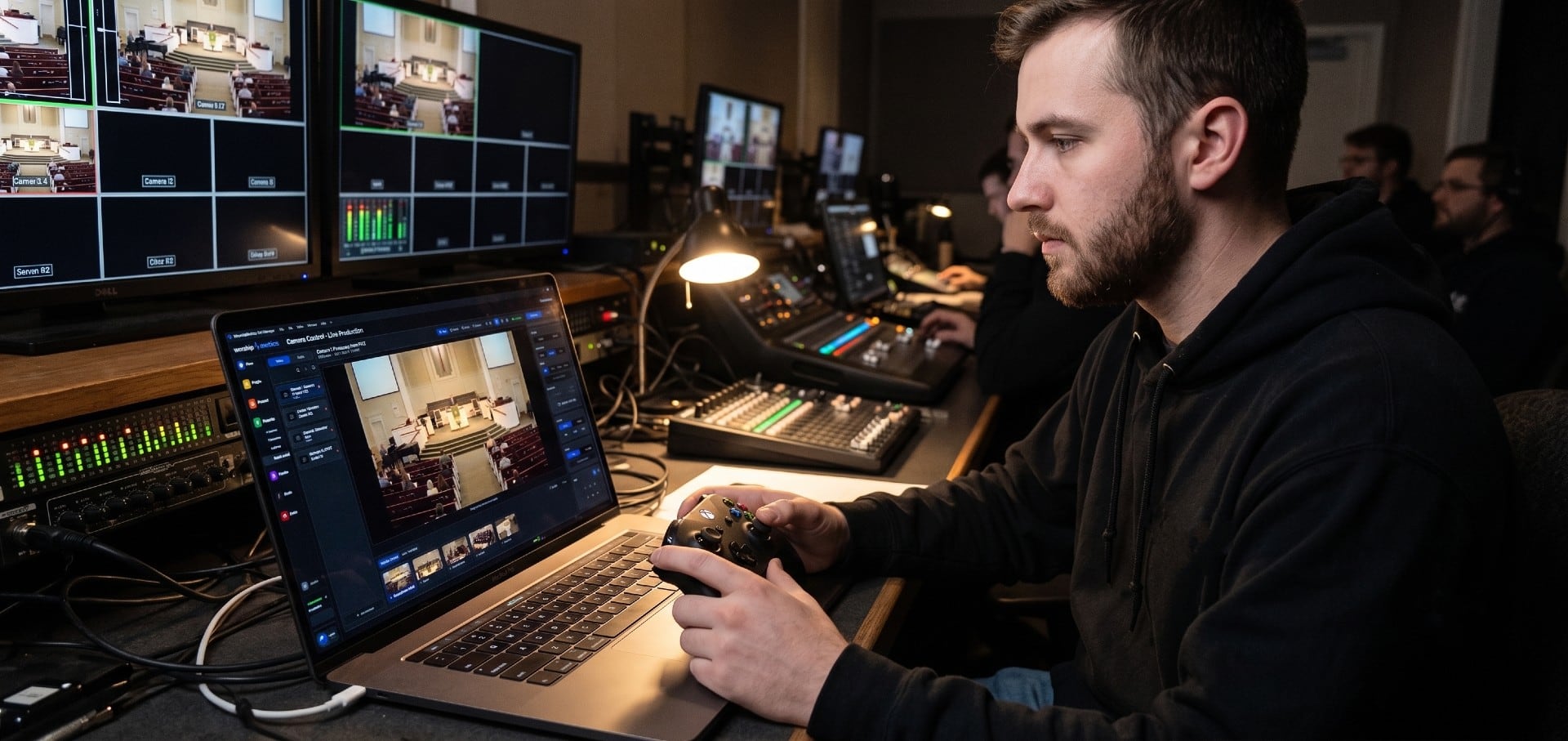
PTZ Camera Troubleshooting for Churches: The 10 Problems Behind Almost Every Sunday Failure
A symptom-first field guide to the PTZ and network camera failures church booths actually hit — cameras that vanish from the network, presets that drift, flicker under LED lighting, video lagging the audio — with fast checks for each, and the upgrades that end the guessing: a mapped system, cameras on watch, and AI that knows your wiring.