Why Scheduling Emails Deserve a Lifecycle, Not Just a Send Button
Most volunteer no-shows are not flakiness. They are communication gaps: an invite that was never confirmed, a decline that nobody saw, a reminder that never arrived, or a cancellation that reached the leader but not the volunteer. If you have ever stood in a sound booth at 8:40 a.m. wondering whether your camera operator is coming, you know the real cost is not the missed email — it is the uncertainty.
That is why scheduling communication works best as a lifecycle: a connected chain of messages where each email knows what came before it and what should happen next. An invite that can be answered in one tap. A decline that immediately reopens the position and tells the right leader. A reminder that goes out exactly once, the day before. A nudge when a position is still empty with days to spare. A clear notice when plans change and someone is released.
This article walks through each stage of that lifecycle as WorshipMetrics runs it, with practical notes for schedulers and team leaders along the way.
The Assignment Lifecycle in One Picture
Every scheduled position moves through a small set of states, and every email in the system exists to move an assignment from one state to the next:
| Status | What it means | Email involved |
|---|---|---|
| Unfilled | The position exists but nobody is assigned | Unfilled-position nudge to leaders |
| Invited | Someone has been asked and the invite email is out | Invite with accept/decline buttons |
| Confirmed | The volunteer accepted | Day-before serve reminder |
| Declined | The volunteer said no; the vacancy reopens | Decline alert to team leaders |
| No-show | Confirmed but did not serve | — (recorded for follow-up) |
| Completed | Served as scheduled | — |
Two things are worth noticing in that table. First, declined is not a dead end — it automatically feeds back into unfilled, which is what keeps the roster honest. Second, every status has a clear owner: the volunteer answers invites, and leaders act on declines and nudges. Nobody has to babysit a spreadsheet to know where things stand.
Stage One: The Invite, and Why It Needs No Login
The single biggest barrier to volunteer responses is the login screen. A volunteer opens the invite on their phone in a grocery store line, taps a button, gets asked for a password they set two years ago, and gives up. The invite sits unanswered, and the scheduler reads silence as a maybe.
WorshipMetrics removes that barrier with tokenized response links. Each invite email carries Accept and Decline buttons whose links embed a unique, single-purpose token tied to that specific assignment. Tapping either button records the response immediately — no account, no password, no app install. The token stays valid right up until the service starts, so a volunteer who finds the email Thursday night can still answer it.
A few practical notes on invites:
- Drafting is silent; sending is deliberate. When you build a schedule in the assignment matrix, filling cells is a draft action — no email leaves the building. One Send action then batch-invites everything outstanding at once. This means you can rearrange the whole month freely and volunteers only ever see the final version.
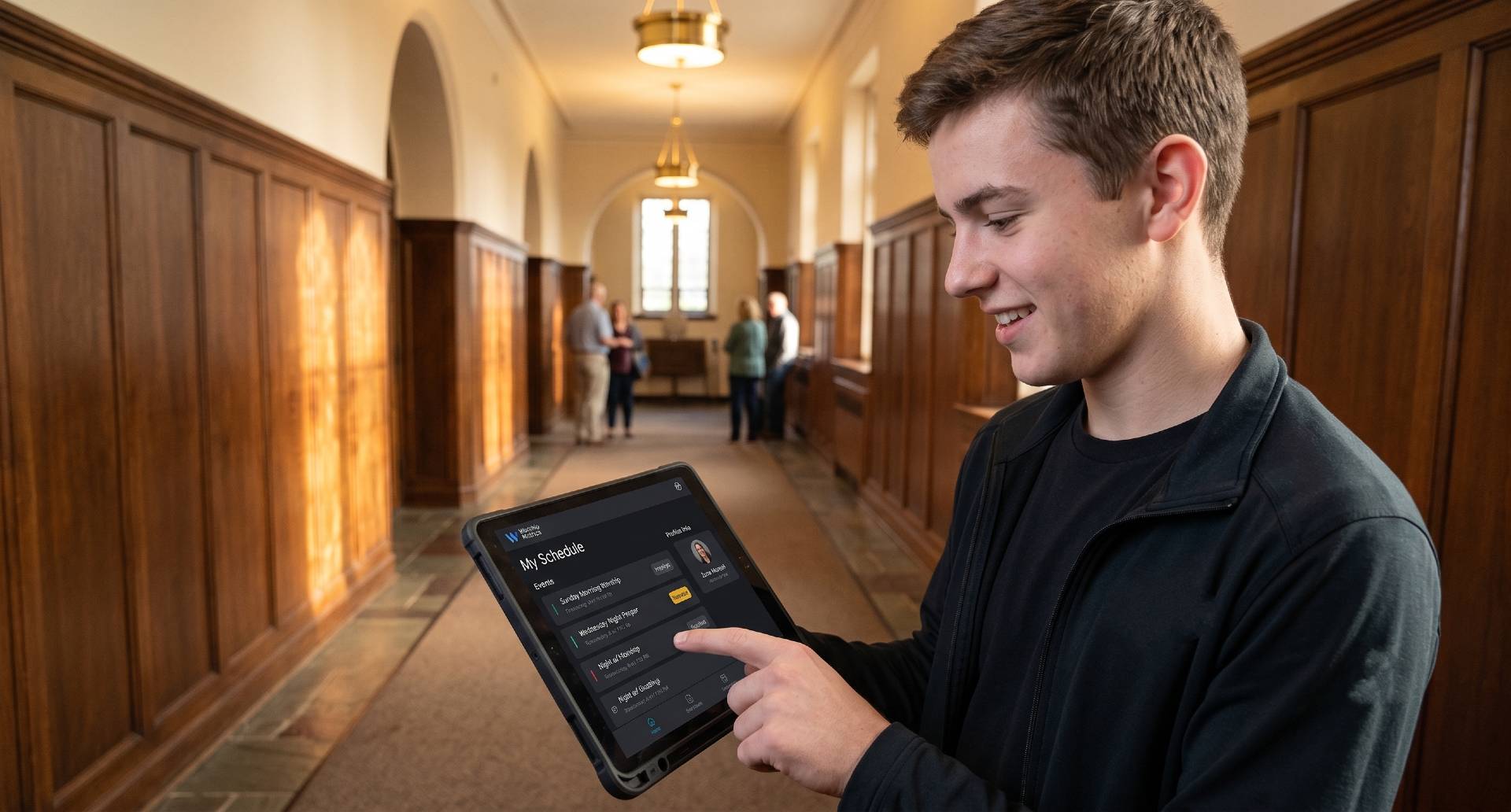
- Responses land in the volunteer’s own view too. Anyone who prefers working from a screen instead of an inbox can accept or decline the same assignments from their My Schedule page, where they can also enter blockout date ranges. The scheduler sees those blockouts as warnings at assign time — a caution flag, never a hard block, because leaders sometimes know things the calendar does not.
- Email is the channel. Scheduling communication today is email end to end, which is also the channel every volunteer demographic reliably has.
If your roster itself needs work before invites can go anywhere useful, start with a clean directory — the CSV import guide covers getting everyone’s email addresses in accurately the first time.
Stage Two: The Decline — Where Good Systems Earn Their Keep
A decline is the moment scheduling systems most often fail quietly. The volunteer taps No, feels they have done their part (they have), and the information goes… somewhere. Often it goes only to whoever clicked the original invite button, who may be a church administrator three teams removed from the problem.
Here is what a decline actually triggers in WorshipMetrics:
- The assignment flips to declined and the vacancy reopens. The position immediately shows as needing coverage again in the plan’s staffing roll-up, so anyone looking at the schedule sees the true state — not last Tuesday’s optimistic version.
- The volunteer can say why. Decline reasons are captured with the response. Over time these are gold for leaders: a string of “out of town” declines is a scheduling-rhythm problem; a string of “not comfortable on camera yet” declines is a training opportunity.
- The team’s actual leaders are notified. Decline alerts route to the leaders of the team the position belongs to — the people who can actually fix the gap — rather than only the original sender.
- Finding a replacement keeps the history. When a leader assigns someone new to the reopened spot, the replacement assignment is chained to the one it superseded. Weeks later you can still see that the 11 a.m. camera slot was originally Dana’s, Dana declined on Wednesday, and Marcus covered it — useful context when you are trying to be fair about who gets asked to cover gaps.
The design principle underneath all of this: a decline is good data delivered early. A volunteer who declines on Tuesday gave you five days to solve the problem. The system’s job is to make sure those five days are not wasted in someone’s unread inbox.
Stage Three: The Day-Before Reminder — and Why It Cannot Double-Send
Reminders are where automation usually goes wrong in one of two directions: reminders that silently stop going out, or reminders that fire twice and train volunteers to ignore them. Both failure modes erode the same thing — trust that the email means something.
WorshipMetrics runs reminders on a 15-minute sweep. Every quarter hour, a server job looks for confirmed assignments whose service is the next day and sends each volunteer a serve reminder with the essentials: what they are serving, when, and where.
The sweep is built to be idempotent — a technical word for a simple promise: running it twice cannot send twice. Before any reminder goes out, the sweep claims that specific reminder in the database, and only the sweep that wins the claim sends the email. If two sweeps ever overlap, or a server restarts mid-sweep, or the same job runs again fifteen minutes later, the claim has already been taken and no duplicate leaves the building. Volunteers get exactly one reminder per assignment, every time.
For schedulers, the practical takeaway is that you do not need a Saturday-night text blast as a safety net. Everyone who confirmed gets their reminder the day before, automatically, once.
Stage Four: Unfilled-Position Nudges
Reminders help the people who said yes. Nudges help with the positions nobody has said yes to.
As a service date approaches with positions still unfilled — whether never assigned, or reopened by a decline — the same 15-minute sweep sends unfilled-position alerts to the team’s leaders days before the service. The point of the lead time is options: with several days in hand, a leader can invite a second-choice volunteer, simplify the service plan, or consolidate roles. With two hours in hand, the only option is scrambling.
If you schedule several weeks at a time (a good habit — volunteers decline less when asked earlier), the nudges act as a rolling safety check across every upcoming plan, so a vacancy three Sundays out never has to be discovered by accident.
Stage Five: Cancellation Notices
Plans change: a service gets restructured, a position gets cut, a leader reshuffles the team. When an assignment is cancelled, the volunteer receives a cancellation notice automatically, so nobody shows up at 7:30 a.m. for a role that no longer exists.
This is the most overlooked email in the lifecycle, and arguably the most pastoral one. Showing up to serve and discovering you were not needed — and nobody told you — is how churches lose faithful volunteers. An automatic notice costs nothing and protects that trust.
A Note on Deliverability
All WorshipMetrics scheduling email comes from a single, consistent sender identity: WorshipMetrics <noreply@worshipmetrics.com>. That consistency is deliberate — it means one address to allowlist. Two habits pay off here:
- When onboarding a new volunteer, ask them to add that address to their contacts. Mail providers treat known senders far more kindly.
- If a volunteer reports missing invites, have them check spam once and mark the message “not spam” — that single action teaches most providers to deliver future messages to the inbox.
If your team already plans services in another tool, note that assignments and teams can ride along when you connect Planning Center to WorshipMetrics, so the people you schedule and the plans they serve on stay in one place.
How WorshipMetrics Handles This
The whole lifecycle above ships as part of serving-team scheduling in WorshipMetrics: tokenized no-login accept/decline links, automatic vacancy reopening with leader alerts on declines, the double-send-proof day-before reminder sweep, unfilled-position nudges, and cancellation notices — all wired to the same directory your church already lives in. Explore the People pillar for teams, positions, and volunteer self-service, and the Services pillar for plans, service times, and the scheduling matrix the emails serve.
What Tech Manager Actually Sends: A Tour of the Booth Heartbeat
NextWhat Happens If the Booth PC Crashes Mid-Service?
Related Articles
Making a Complicated Church AV System Easy to Run, Without Hiring an AV Company
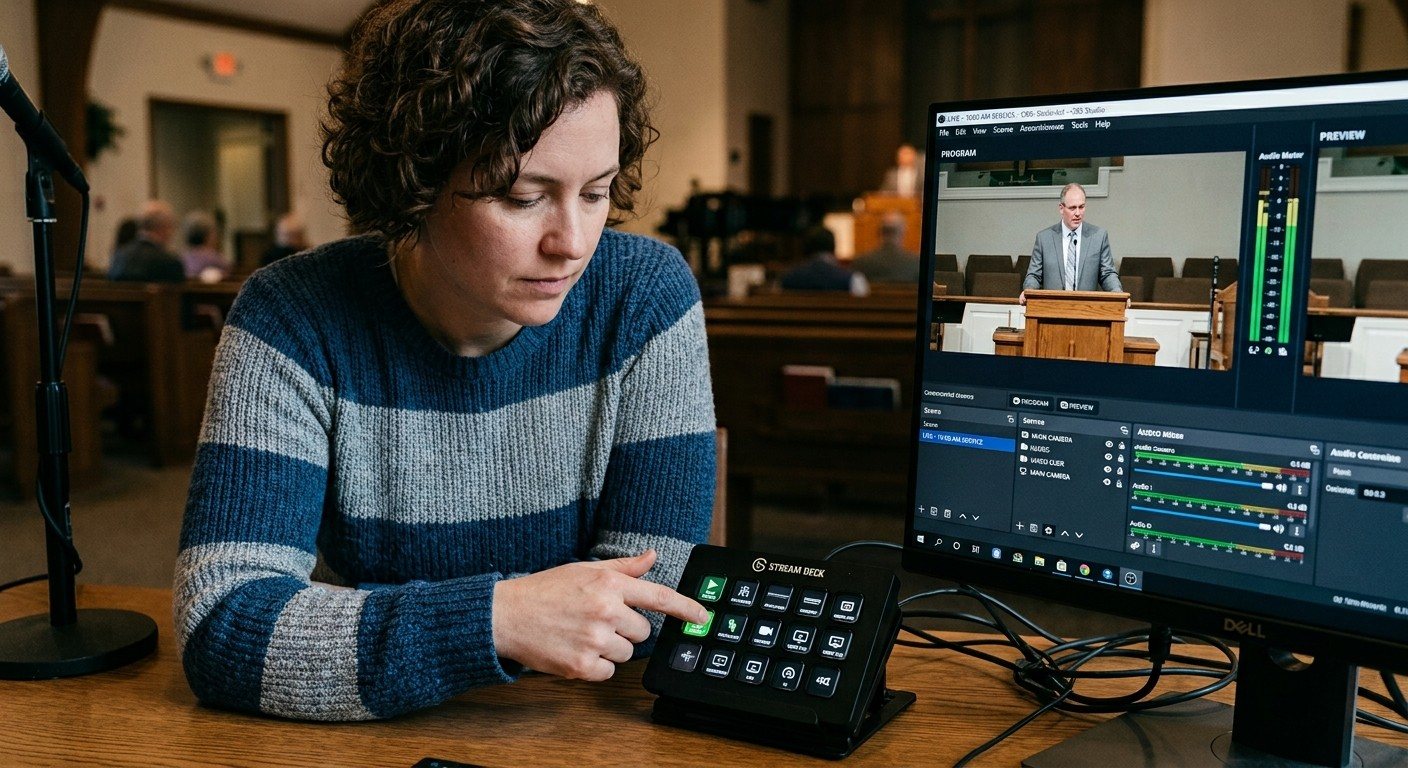
Many church AV systems aren't too old or too small. They're too complicated for a volunteer. A simple button panel built with Bitfocus Companion can hide that complexity behind plain-word buttons, and a church can often build it themselves. Here's when that works, when to call a professional, and how to start.
Your Church Livestream Team, Connected Even When They're Not at Church
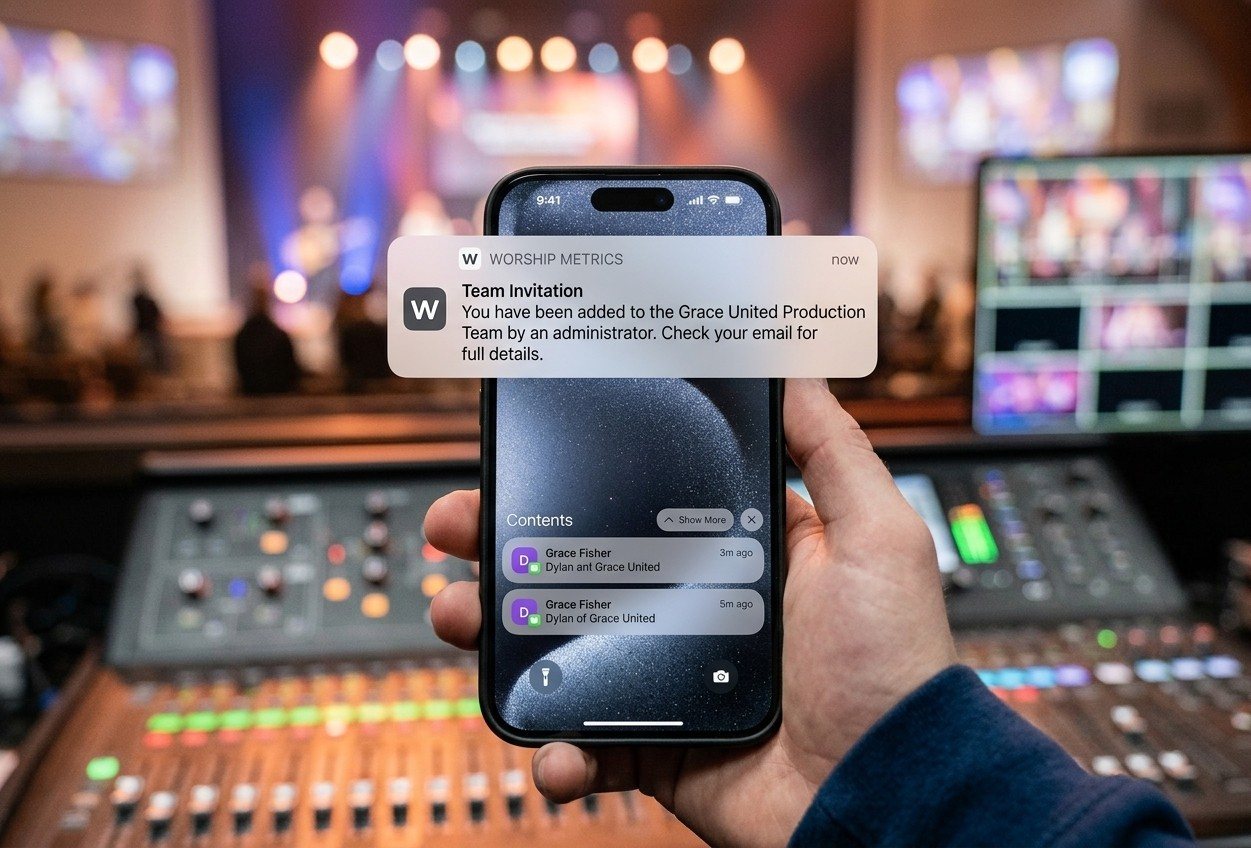
A three-person livestream team only works if everyone shares the same plan, the same wiring diagram, and the same news when something breaks. Here's how WorshipMetrics connects the director, slides, and camera volunteers through the week: chat, alerts, documentation, AI help, scheduling, and cloud control for OBS and vMix.
The Three-Person Church Livestream Team: Director, Slides, and Cameras
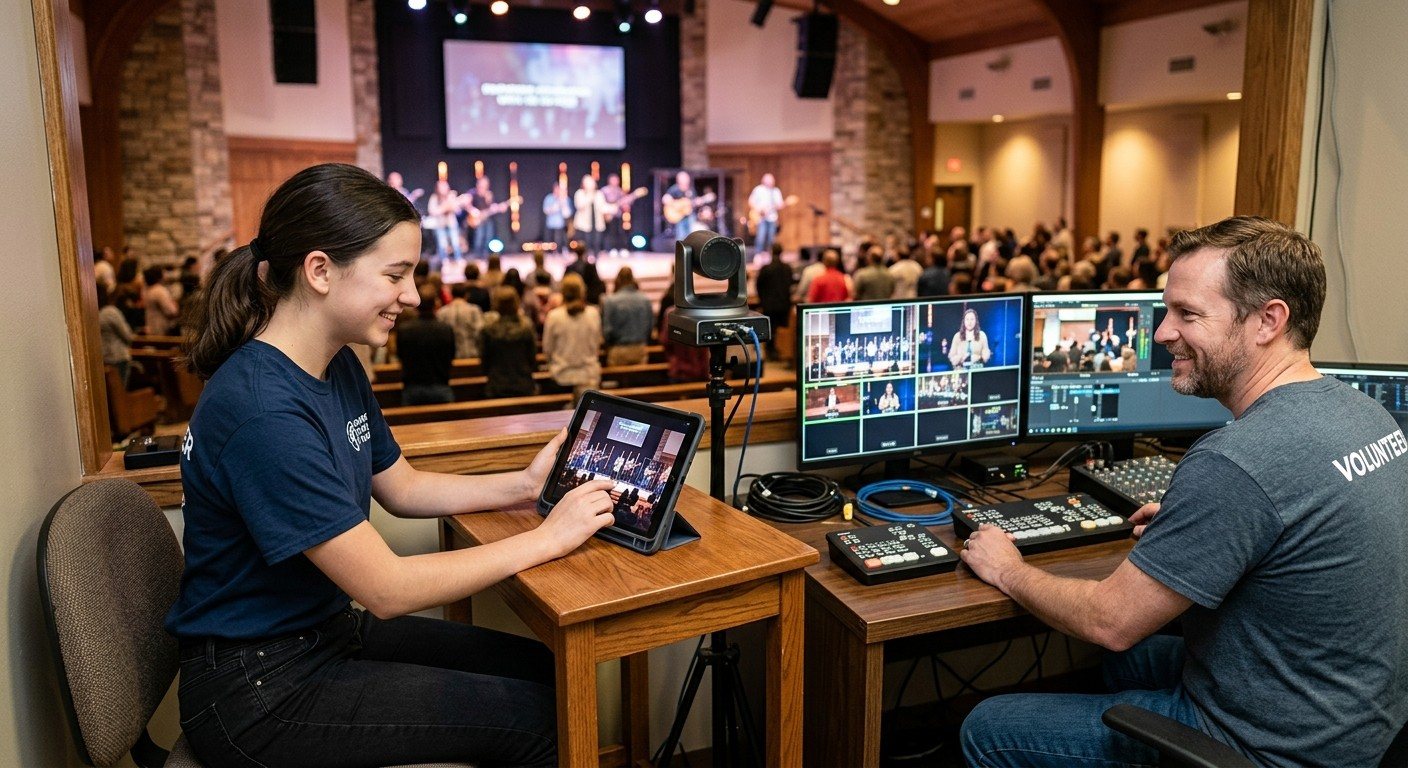
A church livestream runs best with three clear jobs: a director on OBS or vMix, a slides operator, and a camera operator. Here's what each role does before, during, and after the service, what skills it takes, and how the three talk to each other.