Direct streaming from the ATEM Mini Pro to YouTube and Facebook is the headline feature that sets it apart from the ATEM Mini. Instead of running a PC with OBS to encode and upload your stream, the ATEM Mini Pro does all of that internally. For churches running tight operations with limited technical staff, this is a major simplification.
This guide walks through getting your stream keys configured, understanding the reliability advantages of direct streaming, and troubleshooting if something goes wrong.
Getting Your YouTube Stream Key
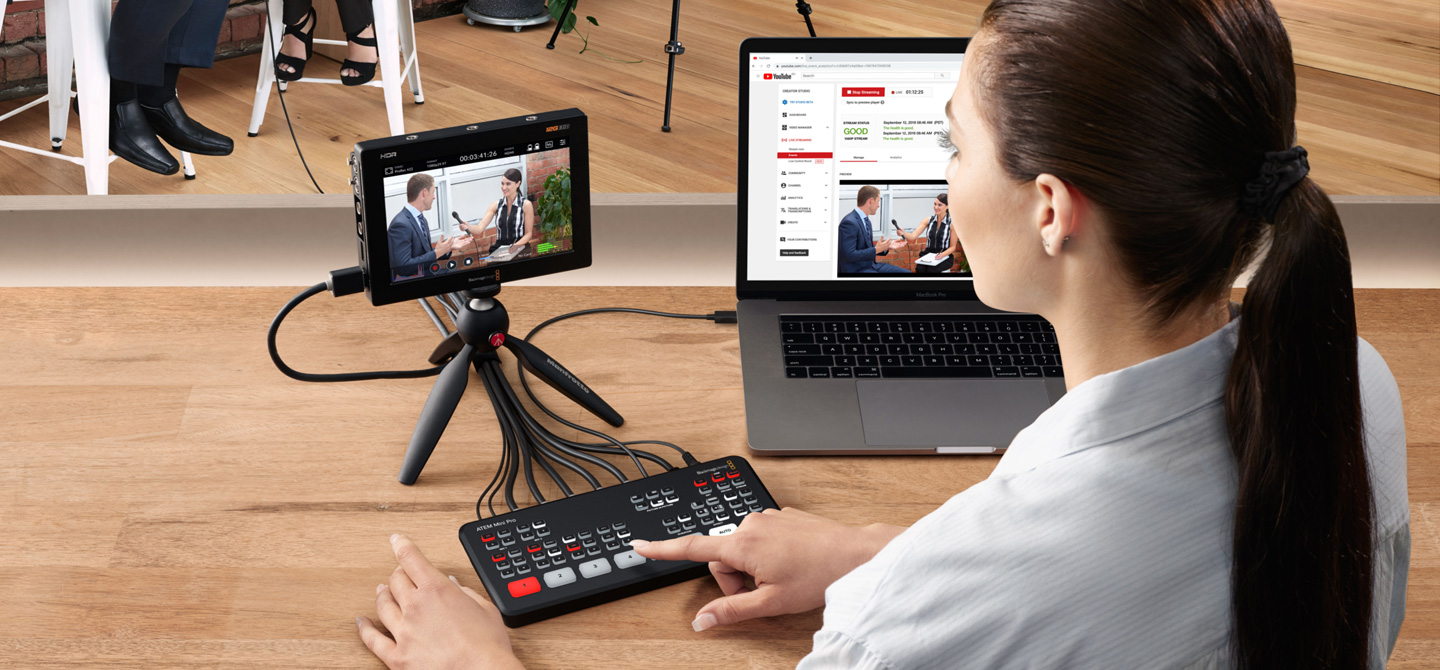
Start by logging into your church’s YouTube channel. Navigate to YouTube Studio, then look for Creator Studio or Streaming in the left menu. Click on Streaming (or Go Live), and you’ll see your Stream Key—a long alphanumeric string that identifies your channel.
Copy this key. You’ll paste it into the ATEM Mini Pro’s streaming configuration. YouTube provides this key to any channel owner, so if you don’t see it, verify that you’re logged into the correct Google account and that account has permission to stream on the church channel.
Never share your stream key with anyone. It’s similar to a password—anyone with the key can stream to your channel, potentially hijacking your broadcast. Store it securely, and if you ever accidentally share it or think someone has seen it, regenerate it in YouTube Studio immediately.
Configuring Streaming in ATEM Software Control
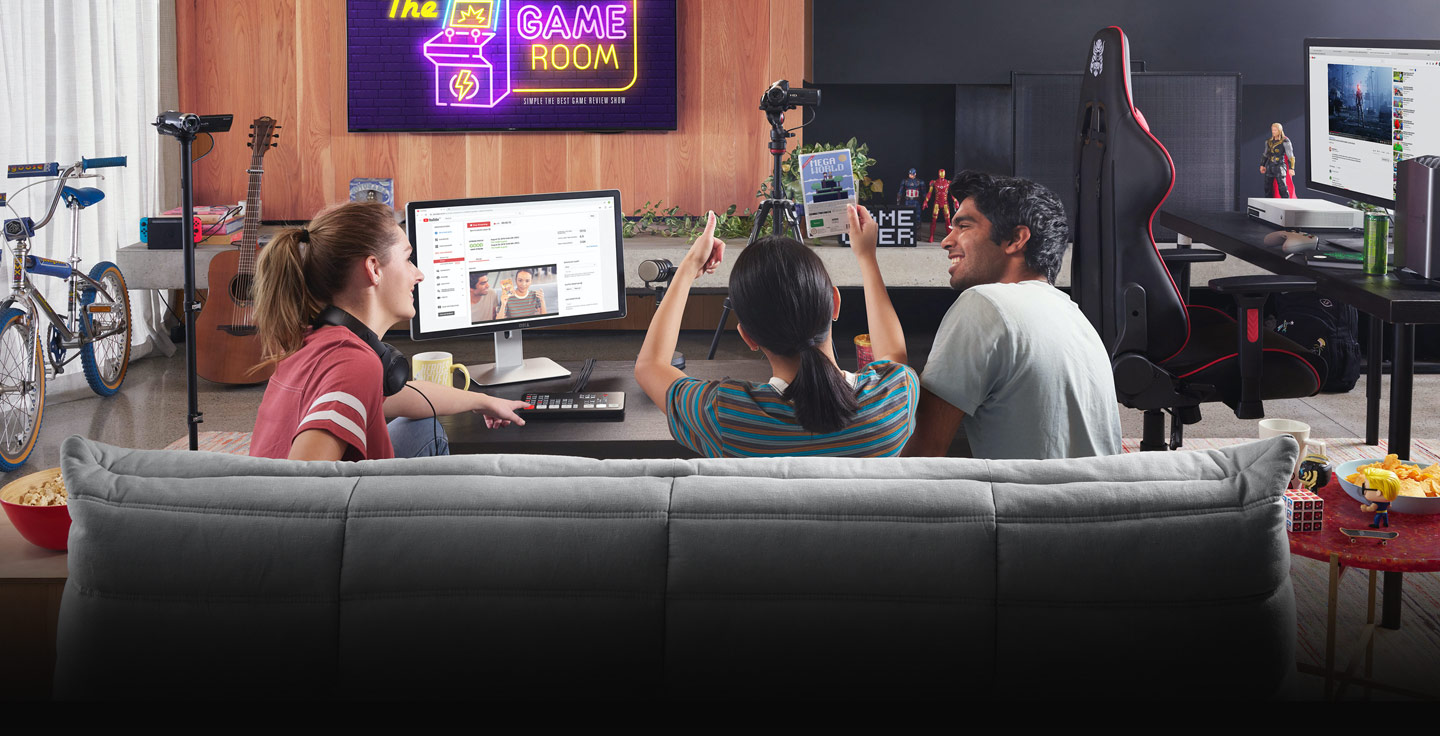
Connect to your ATEM Mini Pro via ATEM Software Control on a networked PC. Navigate to the Streaming section (exact menu name varies by ATEM Software Control version, but it’s usually under Settings or Control Panel).
You’ll see fields for Stream Name and Stream Key. Enter a descriptive stream name if you like—something like “Sunday Service”—and paste your YouTube Stream Key into the Key field. Save these settings.
The ATEM Mini Pro will verify the key by attempting to connect to YouTube. If you see a green “Connected” indicator, you’re good to go. If it shows red or “Not Connected,” double-check that your stream key is correct and that the ATEM Mini Pro has internet connectivity via Ethernet.
Simultaneous Streaming to YouTube and Facebook
If you want to stream to Facebook as well (or instead of YouTube), the ATEM Mini Pro supports a second destination. Some churches stream to YouTube as their primary archive but also go live to Facebook so people already scrolling Facebook see the broadcast.
Get your Facebook stream key from your Facebook Page settings. Similar to YouTube, navigate to your Page, look for Go Live or Streaming, and copy your RTMP Stream Key (this is what Facebook uses for custom streaming applications).
In ATEM Software Control, you’ll see a field for a second streaming destination. Paste your Facebook RTMP URL and stream key, and you’re ready to stream to both platforms simultaneously. The ATEM Mini Pro encodes once and sends to both destinations, so there’s no quality loss or added CPU overhead compared to streaming to a single platform.
Some churches encode at lower bitrate when streaming to two destinations to ensure stable upload to both. If you’re experiencing dropouts, try reducing bitrate by 500–1000 Kbps.
Resolution, Bitrate, and Internet Requirements
Before you start streaming, configure your resolution and bitrate. Open ATEM Software Control and look for your Output settings or Stream settings (again, exact location varies by version).
Choose between 1080p30, 720p60, or 720p30. For most churches, 1080p30 offers the best balance of quality and compatibility. YouTube and Facebook both support this natively, and it looks excellent on phones and large screens.
Your bitrate depends on your internet upload speed. The ATEM Mini Pro defaults to 5000 Kbps, which is good for 6+ Mbps upload. If your church has 3–5 Mbps upload available, drop to 4000 Kbps. Below 3 Mbps, aim for 2500–3000 Kbps and accept that video quality will be modest.
To find your current upload speed, visit speedtest.net and run a test. Note your upload speed (not download). That’s your ceiling for streaming bitrate.
Reliability and Redundancy
Direct streaming from the ATEM Mini Pro is often more reliable than streaming through OBS on a PC because there’s no operating system, no background processes, and no application crashes. The ATEM Mini Pro is a dedicated device with one job: switching and streaming.
If your internet connection drops for a few seconds, the ATEM Mini Pro will attempt to reconnect and resume streaming. YouTube and Facebook understand temporary disconnections and will pause the stream rather than ending it. This is better than a PC-based solution where a network hiccup might crash OBS entirely and require manual intervention.
That said, the ATEM Mini Pro can only stream if it has internet connectivity. If your primary internet line goes down completely, there’s no stream. For maximum reliability, some churches connect the ATEM Mini Pro via a cellular hotspot (a mobile broadband router) as a backup. The ATEM Mini Pro can be configured to use this secondary internet connection if the primary fails. This is more advanced but worth considering for churches that broadcast every week and can’t afford to miss a service.
Monitoring Your Stream During Service
While you’re streaming, you can see stream status directly on the ATEM Mini Pro’s small LCD screen. It will show “Streaming” and display your bitrate. If the bitrate drops significantly (below 70% of your target), you might be experiencing network congestion.
In ATEM Software Control, you can see more detailed statistics including dropped frames, connection status, and current bitrate. If you’re not seeing these statistics, make sure you’re connected to the ATEM Mini Pro over your network while streaming.
Many churches position a secondary monitor running ATEM Software Control at the streaming location, so whoever is responsible can monitor status in real time. If something looks wrong—bitrate dropping, status showing “Reconnecting”—they can intervene before viewers notice.
Audio and Video Sync
The ATEM Mini Pro handles audio and video synchronization internally, just like the ATEM Mini. Your mixer’s audio comes in via RCA, embeds into the video stream inside the ATEM Mini Pro, and arrives at YouTube perfectly synced.
The only time you might see audio/video sync issues is if your mixer is delaying audio significantly (unusual unless you’ve configured some kind of delay effect) or if network latency is extreme (very rare on local networks). For typical church setups, sync is transparent and automatic.
Stopping and Resuming the Stream
To stop streaming, open ATEM Software Control and click Stop Stream, or look for a stop button on the ATEM Mini Pro’s interface (exact location depends on your device version). The stream will end immediately, and your recording on YouTube/Facebook will be finalized within a few seconds.
If you need to pause and resume—maybe you’re taking a brief break in the middle of a service—you can stop the stream and start it again. YouTube will treat this as two separate videos if you wait more than a few seconds, so it’s best to keep the stream running even if there’s quiet time.
Troubleshooting: No Internet Connection
If the ATEM Mini Pro shows “Not Connected” for streaming, verify that the device has internet connectivity. Check the Ethernet cable is firmly connected. In ATEM Software Control, look for Network settings or Device Settings and verify that the device has an IP address. If it doesn’t, your DHCP server might not be working, or the Ethernet cable is the issue.
Restart the ATEM Mini Pro by power-cycling it (turn off, wait 10 seconds, turn back on). Often this resolves temporary network hiccups.
Troubleshooting: Stream Key Invalid
If you get an error that your stream key is invalid, first verify that you copied it correctly from YouTube or Facebook. Stream keys are long strings—it’s easy to accidentally miss a character or copy a line break.
Also verify that your stream key hasn’t changed. YouTube regenerates your key automatically if you share it or if you explicitly regenerate it in settings. If someone else has access to your YouTube channel and regenerated the key, your old key will no longer work.
If you can’t find your stream key, log into YouTube Studio, navigate to Stream Settings, and copy the current key. Paste it into ATEM Software Control and save.
Video Quality on Viewer Devices
Remember that the video quality your viewers see depends on their internet connection, not just your bitrate. Someone on slow mobile data might be watching a lower quality version of your 5000 Kbps stream. YouTube and Facebook automatically adapt quality based on viewer bandwidth.
Your bitrate of 5000 Kbps is a target, but the platform may send a lower quality to viewers if needed. This is fine—it ensures everyone can watch, even on slow connections.
Your Sunday Routine
On Sunday morning, power up the ATEM Mini Pro and verify Ethernet is connected. Open ATEM Software Control on your monitoring PC and confirm that the device is online. About five minutes before service starts, click the Start Stream button. The stream will appear on your YouTube/Facebook page within 10–15 seconds.
Switch cameras as normal during the service. Your stream output goes directly to YouTube without any intermediate PC. When the service ends, click Stop Stream and you’re done. YouTube saves your recording automatically, so your congregation can watch the replay anytime.
Direct streaming simplifies your setup, reduces the number of things that can go wrong, and gives your church a professional broadcast without the complexity of managing a streaming PC. Once you’ve tested it and feel confident, it becomes as routine as hitting the start button before service.
Running this with volunteers? Splitting ATEM Mini jobs for church volunteers, and ATEM + WorshipMetrics.